

In this article, we will cover mobile alerts in Xamarim.Forms. For any mobile app, it’s important to define with the user or the client or the product owner if we work in an Agile context (Scrum), for Android and for iOS. Even if we work in a single shared project, we need to know what every environment can offer in native apps.
ToastsIt’s a simple plugin: Toasts.Forms.Plugin that we can use inside Xamarin.forms project. I advise starting with it because it’s similar to native toast or notification API's especially for iOS developers.
Notifications are placed in the center line to be close to the native platform with some changes in design and it allows the developer to make sound and badges.
Notification in Native environmentiOS uses UNNotificationRequest object to manage notifications.
Android uses -
- Snackbar that display a simple message and disappears after a lapse of time. (https://developer.android.com/reference/android/support/design/widget/Snackbar.html)
- Builder if we use at least Lollipop version, where you can set the title and a small or large icon.(https://developer.android.com/reference/android/app/Notification.Builder.html)
- UWP/WinRT uses ToastNotification: it includes text or image.
(https://docs.microsoft.com/en-us/uwp/api/windows.ui.notifications.toastnotification)
We add this plugin from NuGet Package Manager Console in Visual Studio 2017 on each platform, even your portable library, because it uses the Dependency Service.
Install-Package Toasts.Forms.Plugin -Version 3.3.2
Or we just open the Search Toasts.Forms.Plugin in Nuget Package Manager and we click on Install,
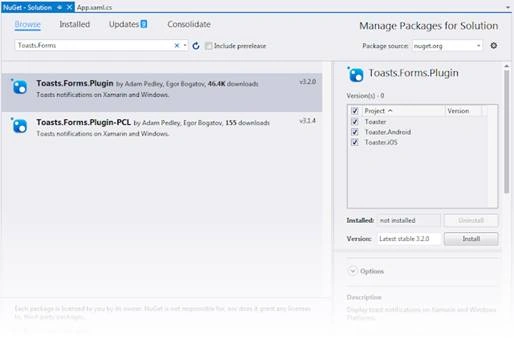
So, for every project, we will add these references in MainActivity.CS or MainPage.cs
- using Xamarin.Forms;
- using Plugin.Toasts;
For Android, this code will be added in the end of MainActivity.OnCreate, to register the dependency and initialize it,
- DependencyService.Register<ToastNotification>();
- ToastNotification.Init(this);
We do the same for the other platforms.
For iOS, we have to add a request permission to display the notifications.
- // Request Permissions
- if (UIDevice.CurrentDevice.CheckSystemVersion(10, 0))
- {
- // Request Permissions
- UNUserNotificationCenter.Current.RequestAuthorization(UNAuthorizationOptions.Alert | UNAuthorizationOptions.Badge | UNAuthorizationOptions.Sound, (granted, error) =>
- {
- // Deal with the problem
- });
- }
- else if (UIDevice.CurrentDevice.CheckSystemVersion(8, 0))
- {
- var notificationSettings = UIUserNotificationSettings.GetSettingsForTypes(
- UIUserNotificationType.Alert | UIUserNotificationType.Badge | UIUserNotificationType.Sound, null);
- app.RegisterUserNotificationSettings(notificationSettings);
- }
Now, we are able to call a notification anywhere in the app, for example, let’s go back to the main page in Portable Project to start a simple example.
We start by defining the notification options like the title and description. This is the interface INotificationOptions.
- public interface INotificationOptions
- {
- string Title { get; }
- string Description { get; }
- bool IsClickable { get; }
- // Platform Specific Options
- IWindowsOptions WindowsOptions { get; }
- IAndroidOptions AndroidOptions { get; }
- IiOSOptions iOSOptions { get; }
- }
Let’s start.
- var options = new NotificationOptions()
- {
- Title = "Display notifications",
- Description = "Some Description related to this title….",
- IsClickable = false // Set to true if you need the result Clicked to come back (if the user clicks it)
- };
- // Use dependency service in order to resolve IToastNotificator.
- var notification = DependencyService.Get<IToastNotificator>();
- var result = await notification.Notify(options);
The result will return a NotificationResult with an Action having one of these values:
- [Flags]
- public enum NotificationAction
- {
- Timeout = 1, // Hides by itself
- Clicked = 2, // User clicked on notification
- Dismissed = 4, // User manually dismissed notification
- ApplicationHidden = 8, // Application went to background
- Failed = 16 // When failed to display the toast
- }
Or we invoke the device in this way:
- void ToastMessage(String title, String description)
- {
- Device.BeginInvokeOnMainThread(async () =>
- {
- var notifier = DependencyService.Get<IToastNotificator>();
- var options = new NotificationOptions()
- {
- Title = title,
- Description = description
- };
- var result = await notifier.Notify(options);
- });
- }
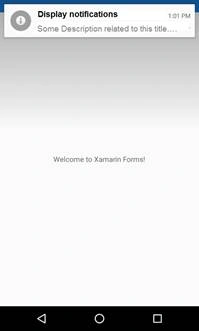
It’s a popup; it’s different from Notification because we have a button (Ok or Yes/No) in an Alert.
This is an example:
- DisplayAlert ("Alert!", "This is my first Alert", "OK");
- //Or
- var answer = await DisplayAlert ("First question", "Do you know notifications in Xamarin", "Yes", "No");
- Debug.WriteLine ("Answer: " + answer);
You can find a complete sample in this link.
UserDialogsI use this Plugin: Acr.UserDialogs by Allan Ritchie.
Link: https://github.com/aritchie/userdialogs
It’s a new way to use popup link with some different design from toast and Alert. As mentioned in GitHub documentation, it allows the developer “to call for standards user dialogs from shared/portable library, Actionsheets, alerts, confirmations, loading, login, progress, prompt, toast”.
In this video, I explain how we can integrate this plugin: Acr.UserDialogs
https://www.youtube.com/watch?v=_Vvpq9BaBAA
A simple way as native:In this article, the author explains how we can display a simple toast in an Android environment using this component in native mode,
- https://material.io/guidelines/components/snackbars-toasts.html
- https://medium.com/@frankiefoo/how-to-display-androids-toast-snackbar-in-xamarin-forms-pcl-project-7ec31b1639b7
And the GitHub is here.
Imed KilleniPosted May 18, 2018, 1:30 PM
Nice article! Thank you for sharing!
Ishrak El AndaloussiPosted May 18, 2018, 5:08 AM
I see no added value in your article you just copy what exists in the plugin github https://github.com/EgorBo/Toasts.Forms.Plugin
Kartik PawarPosted Apr 26, 2018, 12:34 AM
Nice article... Thanks for sharing...
Logesh PalaniPosted Apr 25, 2018, 11:39 AM
Nice Article :) Thank you. Change your title Xamarim to Xamarin