

Introduction
Azure Functions is a serverless compute service that enables you to run event-driven code without managing infrastructure. Over time, Microsoft has introduced different hosting models for Azure Functions, including the in-process model and the isolated process model. The in-process model runs your function code in the same process as the Azure Functions host, while the isolated process model runs your function code in a separate process, providing greater flexibility and compatibility with different .NET versions. Migrating Azure Functions from the in-process model to the isolated worker model is a crucial step to ensure compatibility with future .NET versions and to leverage enhanced flexibility and control over your application's lifecycle. Microsoft has announced that support for the in-process model will end on November 10, 2026, making it imperative for developers to transition to the isolated worker model.
In this article, we’ll explore the reasons for migrating from the in-process model to the isolated process model, the key differences between the two, and a step-by-step guide to performing the migration with a detailed example.
Prerequisites
- An existing Azure Function app using the in-process model.
- .NET 6 or later installed on your development machine.
- Azure Functions Core Tools installed.
Understanding the In-Process vs. Isolated Worker Model
In-Process Model
- Runs inside the Azure Functions runtime.
- It shares the same process, and AppDomain is the runtime.
- Limited to specific .NET versions supported by the Azure Functions runtime.
- Can lead to dependency conflicts.
Isolated Worker Model
- Runs in a separate process, independent of the Azure Functions runtime.
- Allows targeting any .NET version without being tied to the runtime.
- Provides better dependency management.
- Offers full control over startup configuration and middleware.
Why Migrate to the Isolated Process Model?
- .NET Version Flexibility: The in-process model is tightly coupled with the Azure Functions runtime, which limits the supported .NET versions. The isolated process model allows you to use newer versions of .NET (e.g., .NET 6, .NET 7, or later) independently of the Azure Functions runtime.
- Dependency Isolation: Running in an isolated process ensures that your function app’s dependencies do not conflict with the Azure Functions runtime.
- Improved Performance and Stability: Isolated process model provides better performance and stability by decoupling your function code from the runtime.
- Future-Proofing: Microsoft is investing more in the isolated process model, making it the recommended approach for new function apps.
Key Differences Between In-Process and Isolated Process Models
| Feature | In-Process Model | Isolated Process Model |
|---|---|---|
| Hosting | Runs in the same process as the runtime | Runs in a separate process |
| .NET Version Support | Limited to specific .NET versions | Supports newer .NET versions (e.g., .NET 6+) |
| Dependency Management | Shared with the runtime | Isolated from the runtime |
| Startup Configuration | Uses Startup.cs for dependency injection | Uses Program.cs for dependency injection |
| Function Execution | Directly integrated with the runtime | Communicates with the runtime via gRPC |
Step-by-Step Migration Guide
Let’s walk through the process of migrating an Azure Function from the in-process model to the isolated process model.
Step 1. Update the Project File.
The first step in migrating is updating the .csproj file to align with the isolated worker model requirements. Modify the .csproj file.
- Set Target Framework: Ensure <TargetFramework> is set to net8.0.
- Set Azure Functions Version: Set <AzureFunctionsVersion> to v4.
- Add Output Type: Include <OutputType>Exe</OutputType>.
- Replace Package References: Remove Microsoft.NET.Sdk.Functions.
- Your isolated worker model application should not reference any packages in the Microsoft.Azure.WebJobs.* namespaces or Microsoft.Azure.Functions.Extensions. If you have any remaining references to these, they should be removed and add the following references.
<ItemGroup> <FrameworkReference Include="Microsoft.AspNetCore.App" /> <PackageReference Include="Microsoft.Azure.Functions.Worker" Version="1.21.0" /> <PackageReference Include="Microsoft.Azure.Functions.Worker.Sdk" Version="1.17.2" /> <PackageReference Include="Microsoft.Azure.Functions.Worker.Extensions.Http.AspNetCore" Version="1.2.1" /> <PackageReference Include="Microsoft.ApplicationInsights.WorkerService" Version="2.22.0" /> <PackageReference Include="Microsoft.Azure.Functions.Worker.ApplicationInsights" Version="1.2.0" /> </ItemGroup> - Add Required Using Statement.
<ItemGroup> <Using Include="System.Threading.ExecutionContext" Alias="ExecutionContext"/> </ItemGroup> - Preserve Configuration Files: Ensure host.json and local.settings.json are copied correctly
After applying these changes, the updated .csproj file should look like this.
<Project Sdk="Microsoft.NET.Sdk">
  <PropertyGroup>
    <TargetFramework>net8.0</TargetFramework>
    <AzureFunctionsVersion>v4</AzureFunctionsVersion>
    <RootNamespace>My.Namespace</RootNamespace>
    <OutputType>Exe</OutputType>
    <ImplicitUsings>enable</ImplicitUsings>
    <Nullable>enable</Nullable>
  </PropertyGroup>
  <ItemGroup>
    <FrameworkReference Include="Microsoft.AspNetCore.App" />
    <PackageReference Include="Microsoft.Azure.Functions.Worker" Version="1.21.0" />
    <PackageReference Include="Microsoft.Azure.Functions.Worker.Sdk" Version="1.17.2" />
    <PackageReference Include="Microsoft.Azure.Functions.Worker.Extensions.Http.AspNetCore" Version="1.2.1" />
    <PackageReference Include="Microsoft.ApplicationInsights.WorkerService" Version="2.22.0" />
    <PackageReference Include="Microsoft.Azure.Functions.Worker.ApplicationInsights" Version="1.2.0" />
    <!-- Other packages may also be in this list -->
  </ItemGroup>
  <ItemGroup>
    <None Update="host.json">
      <CopyToOutputDirectory>PreserveNewest</CopyToOutputDirectory>
    </None>
    <None Update="local.settings.json">
      <CopyToOutputDirectory>PreserveNewest</CopyToOutputDirectory>
      <CopyToPublishDirectory>Never</CopyToPublishDirectory>
    </None>
  </ItemGroup>
  <ItemGroup>
    <Using Include="System.Threading.ExecutionContext" Alias="ExecutionContext"/>
  </ItemGroup>
</Project>
Step 2. Modify Function Code.
Now we will see all the code changes we need to do in the Azure Functions.
Replace [FunctionName] with [Function].
[Function("MyFunction")]
public async Task<IActionResult> Run(
    [HttpTrigger(AuthorizationLevel.Function, "get", "post")] HttpRequest req, ILogger log)
Step 3. Configure Program.cs.
Unlike the in-process model, the isolated worker model requires a Program.cs file to define the function host.
using Microsoft.Azure.Functions.Worker;
using Microsoft.Extensions.DependencyInjection;
using Microsoft.Extensions.Hosting;

var host = new HostBuilder()
    .ConfigureFunctionsWebApplication()
    .ConfigureServices(services => {
        services.AddApplicationInsightsTelemetryWorkerService();
        services.ConfigureFunctionsApplicationInsights();
    })
    .Build();

host.Run();
Step 4. Update Host Configuration.
Ensure your local.settings.json file is configured correctly for the isolated process model.
- Remove Startup.cs if present.
- Remove key "FUNCTION_INPROC_NET8_ENABLE": "1"
- Ensure FUNCTIONS_WORKER_RUNTIME is set to dotnet-isolated.
{
  "IsEncrypted": false,
  "Values": {
    "AzureWebJobsStorage": "UseDevelopmentStorage=true",
    "FUNCTIONS_WORKER_RUNTIME": "dotnet-isolated"
  }
}
Azure Configuration Changes
Now we will see all the Azure configuration changes we need to do after the complete code deployment.
Change two environment variables in the Azure function.
- "FUNCTIONS_WORKER_RUNTIME": "dotnet", -------------->"dotnet-isolated"
- "FUNCTIONS_INPROC_NET8_ENABLED": "1", --------------> delete this key
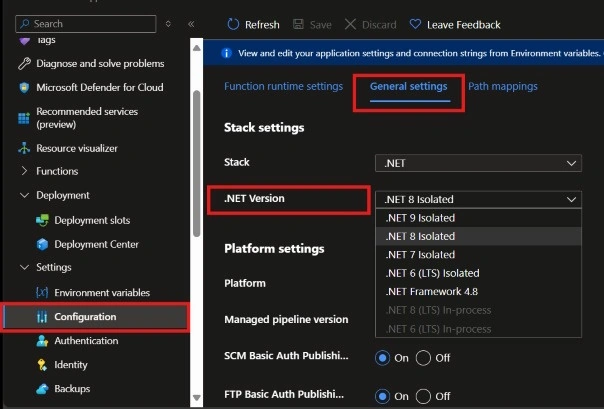
Modify the Configuration--> General Settings, select the .NET Version .NET 8 Isolated as given in the below image.
Other Package references
When migrating to the isolated worker model, you need to change the packages your application references. Depending on the triggers and bindings your app uses, your app might need to reference a different set of packages. The following table shows the replacements for some of the most used extensions.
| Scenario | In Proc Packages | Changes to package references |
|---|---|---|
| Timer trigger | Microsoft.Azure.Functions.Worker.Extensions.Timer | |
| Blob bindings | Microsoft.Azure.WebJobs.Extensions.Storage.Blobs | Microsoft.Azure.Functions.Worker.Extensions.Storage.Blobs |
| Service Bus bindings | Microsoft.Azure.WebJobs.Extensions.ServiceBus | Microsoft.Azure.Functions.Worker.Extensions.ServiceBus |
| Durable Functions | Microsoft.Azure.WebJobs.Extensions.DurableTask | Microsoft.Azure.Functions.Worker.Extensions.DurableTask |
These are some of the commonly used packages. There are lots of other packages that you may need to migrate based upon your project requirements. To know more please click here.
Conclusion
Migrating from the in-process model to the isolated process model for Azure Functions provides greater flexibility, improved performance, and better compatibility with newer .NET versions. By following the steps outlined in this article, you can successfully migrate your function app and take advantage of the benefits offered by the isolated process model. As Microsoft continues to invest in the isolated process model, it’s a good idea to migrate your existing function apps to ensure they remain supported and optimized for future updates. Happy coding!
Thank You, and Stay Tuned for More!
More Articles from my Account
Join the conversation! Your thoughts help the community grow.