

Description
This article will show you a step by step procedure to implement Microsoft Office 365 Login using React Native. I assume that you are already comfortable with React Native and you have basic knowledge of it. So let's begin implementing Microsoft Office 365 Login using React Native.
Prerequisite
To create a React Native app follow the following steps,
-
First step is to create a new React Native app. Following is the command for that,
npx react-native init microsoftOffice365LoginReactNative
cd microsoftOffice365LoginReactNative
-
Then, run the app. I am running a project on my real device using the following command,
react-native run-android
So now we are having default app run on our device.
-
Now, we will install a plugin to implement Microsoft office 365 login in React Native app. Following is the plugin installation command for that,
npm i react-native-app-auth
-
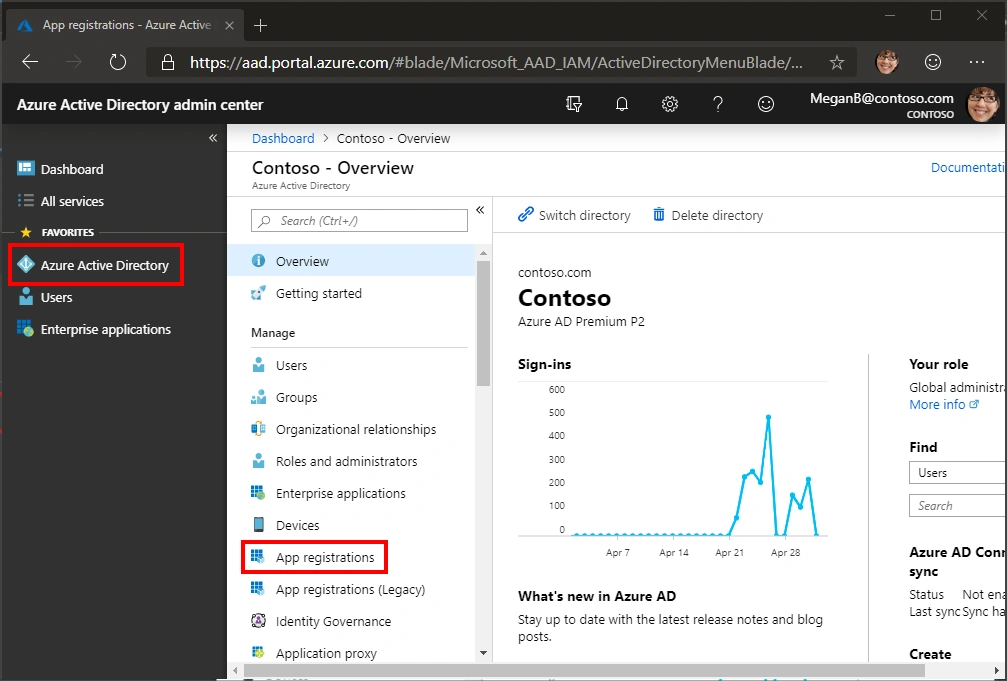
For step 5 we need to configure an app for Microsoft login which will provide us credentials that will be used in step 5 and 6 for Android and iOS setup. Below is the screenshot and link for that.
-
Now we will add some configuration for ANDROID.
Note
for RN >= 0.57, you will get a warning about compile being obsolete. To get rid of this warning, use patch-package to replace compile with implementation as in this PR - we're not deploying this right now, because it would break the build for RN < 57.
To setup the Android project, you need to add redirect scheme manifest placeholder,
To capture the authorization redirect, add the following property to the defaultConfig in android/app/build.gradle,
- android {
- defaultConfig {
- manifestPlaceholders = [
- appAuthRedirectScheme: 'graph-tutorial://react-native-auth’ // CREATED IN STEP 4
- ]
- }
- }
The scheme is the beginning of your OAuth Redirect URL, up to the scheme separator (:) character. E.g. if your redirect uri is com.myapp://oauth, then the url scheme is com.myapp
- You can also check iOS configuration from here for more detail.
- import React, { useState } from 'react';
- import {
- StyleSheet,
- View,
- Text,
- TouchableHighlight,
- } from 'react-native';
- import { authorize } from 'react-native-app-auth';
- const AuthConfig = {
- appId: "[APP ID CREATED IN STEP 4]",
- tenantId: "[ CREATED IN STEP 4 ]",
- appScopes: [
- 'openid',
- 'offline_access',
- 'profile',
- 'User.Read',
- ],
- };
- const config = {
- warmAndPrefetchChrome: true,
- clientId: AuthConfig.appId,
- redirectUrl: Platform.OS === 'ios' ? 'urn:ietf:wg:oauth:2.0:oob' : 'mlogin://react-native-auth',
- scopes: AuthConfig.appScopes,
- additionalParameters: { prompt: 'select_account' },
- serviceConfiguration: {
- authorizationEndpoint: 'https://login.microsoftonline.com/' + AuthConfig.tenantId + '/oauth2/v2.0/authorize',
- tokenEndpoint: 'https://login.microsoftonline.com/' + AuthConfig.tenantId + '/oauth2/v2.0/token',
- },
- };
- const App: () => React$Node = () => {
- const [result, setResult] = useState({});
- loginWithOffice365 = async () => {
- let tempResult = await authorize(config);
- console.log(tempResult);
- setResult(tempResult);
- };
- return (
- <>
- <View style={styles.container}>
- <TouchableHighlight
- style={[styles.buttonContainer, styles.loginButton]}
- onPress={() => loginWithOffice365()}>
- <Text style={styles.loginText}>Login with Office365</Text>
- </TouchableHighlight>
- <Text>{result.accessToken ? "Logged In" : "Error"}</Text>
- </View>
- </>
- );
- };
- const styles = StyleSheet.create({
- container: {
- flex: 1,
- justifyContent: 'center',
- alignItems: 'center',
- backgroundColor: '#DCDCDC',
- },
- buttonContainer: {
- height: 45,
- flexDirection: 'row',
- justifyContent: 'center',
- alignItems: 'center',
- marginBottom: 20,
- width: 250,
- borderRadius: 30,
- },
- loginButton: {
- backgroundColor: '#3659b8',
- },
- loginText: {
- color: 'white',
- },
- });
- export default App;
Conclusion
In this article we have learned how to integrate Microsoft Office365 Login using React Native.
Ganesh RamaPosted Jul 26, 2020, 7:24 AM
Hi Patel , thanks nice example, i want to integrate ms teams in react native, is it possible, if it is possible can you provide any sample documents