

Below is a Cheatsheet and Quick Guide for Microsoft Entra ID, designed as a complete solution for a 10th-grade student preparing for an exam like or mastering Entra ID from beginner to advanced levels. This guide condenses all the key concepts, features, and scenarios we’ve discussed into an easy-to-read, concise format. It includes definitions, examples, licensing details, and practical tips, making it a handy reference for study, practice, or real-world application. I’ve organized it into sections for quick navigation, with analogies and flows to simplify complex ideas.
Microsoft Entra ID Cheatsheet & Quick Guide
What is Entra ID?
- A cloud-based identity and access management service that controls who logs into apps (e.g., Microsoft 365, third-party apps) and what they can do.
- Analogy: Think of Entra ID as a digital school ID system—your ID (identity) gets you into class (authentication), and your grade level (role) decides what rooms you can enter (authorization).
Core Concepts
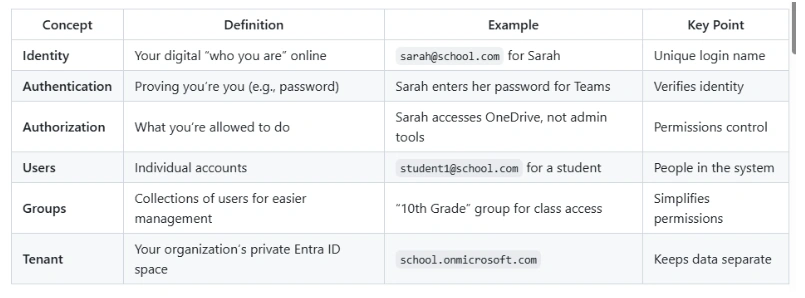
Licensing Tiers: Free vs. P1 vs. P2
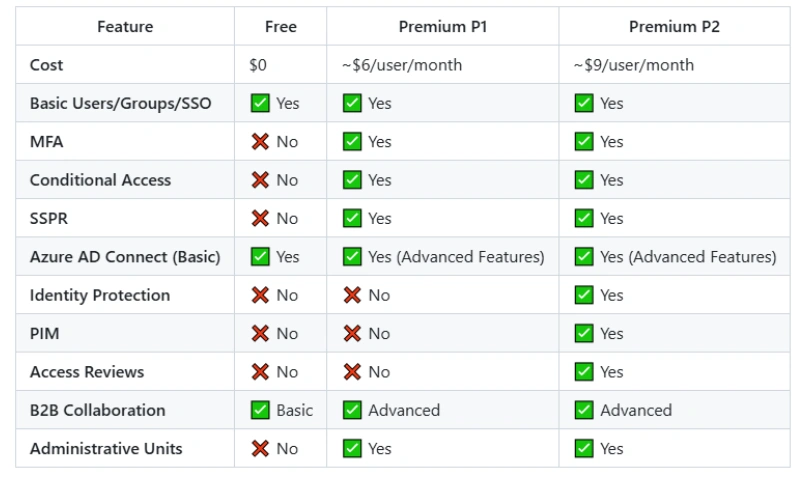
Quick Tip: Free is basic login; P1 adds security (MFA, rules); P2 adds enterprise smarts (risk detection, temporary roles).
Key Features with Examples
Beginner Features
- Single Sign-On (SSO) What: One login for multiple apps.
Example: Sarah logs into Entra ID once, uses Teams and OneDrive without re-logging in. License: Free/P1/P2. Flow: Add app (e.g., “SAML Toolkit”) → Assign users/groups → Test at myapps.microsoft.com.
- Users and Groups What: Manage accounts and organize them.
Example: “US Students” group gives all U.S. students Teams access. License: Free/P1/P2. Flow: Create user ([email protected]) → Create group (“US Students”) → Add user to group.
Intermediate Features
- Azure AD Connect What: Syncs on-premises AD to Entra ID.
Example: Sarah’s school computer login syncs to Teams. License: Free (basic), P1 (advanced like password writeback). Flow: Install on server → Configure sync (PHS) → Verify users in Entra ID.
- Hybrid Identity What: Combines on-site and cloud logins.
Example: Sarah’s password works on school PCs and online. License: Free/P1/P2. Flow: Set up Azure AD Connect → Enable PHS or PTA → Test dual login.
- Multi-Factor Authentication (MFA) What: Extra login step (e.g., phone code).
Example: Ms. Jones enters password + phone code for Teams. License: P1/P2. Flow: Go to “Security” → “MFA” → Enable for users → Test login.
- Conditional Access What: Rules for access (e.g., location, device).
Example: Block Sarah’s login from outside the U.S. License: P1/P2. Flow: Create policy → Set users (e.g., “Students”) → Add condition (location) → Block → Enable.
- Self-Service Password Reset (SSPR) What: Users reset passwords themselves.
Example: Sarah resets her forgotten password with a phone code. License: P1/P2. Flow: Enable SSPR → Set phone method → Test at aka.ms/myrecovery.
Advanced Features
- Roles and RBAC What: Permissions based on job roles.
Example: IT lead gets “User Administrator” to reset passwords. License: Free/P1/P2. Flow: Go to “Roles” → Assign “User Admin” to IT lead → Test password reset.
- Administrative Units (AUs) What: Split Entra ID for regional management.
Example: U.S. IT manages only U.S. students. License: P1/P2. Flow: Create AU (“US Schools”) → Add groups → Scope “User Admin” to AU.
- Identity Protection What: Detects and blocks risky logins.
Example: Blocks Sarah’s login if her password is leaked. License: P2. Flow: Set risk policy → “High risk” → Block → Check “Risky users” report.
- Privileged Identity Management (PIM) What: Temporary admin access with approval.
Example: Contractor gets 4-hour admin role after approval. License: P2. Flow: Assign “Eligible” role → Set time/approval → Test activation at pim.azure.com.
- Access Reviews What: Audits group/app access.
Example: Removes graduated students from “Science Club.” License: P2. Flow: Create review → Select group → Assign reviewers → Remove outdated access.
- B2B Collaboration What: Outsiders use their logins in your system.
Example: Consultant joins Teams with their own email. License: Free (basic), P1/P2 (advanced). Flow: Invite guest ([email protected]) → Add to group → Test Teams access.
Logs
- Sign-In Logs What: Tracks who logged in, when, where.
Example: Shows Sarah logged in from home at 3 PM. License: Free/P1/P2 (P1/P2 for longer retention). Flow: Go to “Monitoring” → “Sign-in logs” → Filter by user.
- Audit Logs What: Tracks changes in Entra ID.
Example: Shows IT added a new student account. License: Free/P1/P2. Flow: Go to “Monitoring” → “Audit logs” → Review actions.
Quick Guide: How to Use Entra ID?
Beginner Setup
- Goal: Get users online with basic access.
- Steps: Create users ([email protected]) and groups (“Students”) in Entra ID. Assign groups to apps (e.g., Microsoft 365) for SSO. Test login at myapps.microsoft.com.
- Analogy: Like handing out school IDs and class schedules.
Intermediate Security
- Goal: Secure logins and enable hybrid access.
- Steps: Install Azure AD Connect → Sync AD (school.local) → Test hybrid login. Enable MFA for staff (“Security” → “MFA”). Set Conditional Access (block non-school locations). Enable SSPR (“Password reset” → Enable).
- Analogy: Adding locks (MFA) and rules (Conditional Access) to the school gate.
Advanced Governance
- Goal: Manage roles and protect against threats.
- Steps: Assign roles (e.g., “User Admin”) with AUs for regions. Set up PIM for temporary access (e.g., 4-hour contractor role). Enable Identity Protection to block risky logins. Run Access Reviews for group cleanup.
- Analogy: Giving teachers temporary keys (PIM) and checking who’s still in clubs (Access Reviews).
Complex Enterprise
- Goal: Handle multi-tenant, compliance, and SaaS.
- Steps: Use B2B for external collaboration (invite guests). Set multi-tenant access (e.g., U.S.-UK tenants). Automate compliance (disable inactive accounts, export logs). Integrate SaaS app (e.g., SAML SSO for “MathHelp”).
- Analogy: Inviting guest speakers (B2B) and syncing with another school district.
Azure AD Connect vs. Cloud Sync

Key Difference: Connect = full control, complex; Cloud Sync = simple, cloud-managed.
Tips
- Licensing: Know P1 (MFA, Conditional Access) vs. P2 (Identity Protection, PIM).
- Scenarios: “Block risky logins” = Identity Protection (P2); “Sync AD” = Azure AD Connect.
- Flows: Memorize steps (e.g., SSPR: Enable → Register → Test).
- Sandbox: Practice in Microsoft Learn (Free/P1) or Azure trial (P2).
Quick Commands (PowerShell)
- Create user: New-AzureADUser -DisplayName "Sarah" -UserPrincipalName "[email protected]"
- Add to group: Add-AzureADGroupMember -ObjectId <group-id> -RefObjectId <user-id>
- Check roles: Get-AzureADDirectoryRole
Analogy Recap
- Entra ID: A digital school managing IDs (users), class lists (groups), locks (MFA), rules (Conditional Access), and security cameras (Identity Protection).
- Free: Basic ID card.
- P1: ID + fingerprint scanner.
- P2: ID + AI security guard.
How to Use This Cheatsheet?
- Study: Skim daily, focus on one section at a time (e.g., Beginner Features).
- Practice: Use a sandbox to test flows (e.g., set up MFA, PIM).
- Exam Prep: Highlight licensing and scenario answers for quick recall.
- Reference: Keep handy during labs or real-world tasks.
This cheatsheet is your all-in-one guide to Entra ID—compact yet complete!
Join the conversation! Your thoughts help the community grow.