

One of the key issues with data science domains is finding a complete resource and cost-effective solution to meet your data science needs. Since the processing of a data science problem requires a powerful machine, it is not very cheap to afford an individual machine to carry out the desired task. On top of it, the cost of licensing for data science products is not very cheap either. If your problem demands more power, then the added cost of installation and setup of required tools and technology on the required machine can be a headache. You also need to think about the scalability of your problem. Microsoft Azure is no doubt a complete solution as it offers many powerful solutions to meet data science domain needs. Microsoft Azure Data Science Windows 2016 virtual machine is one such example.
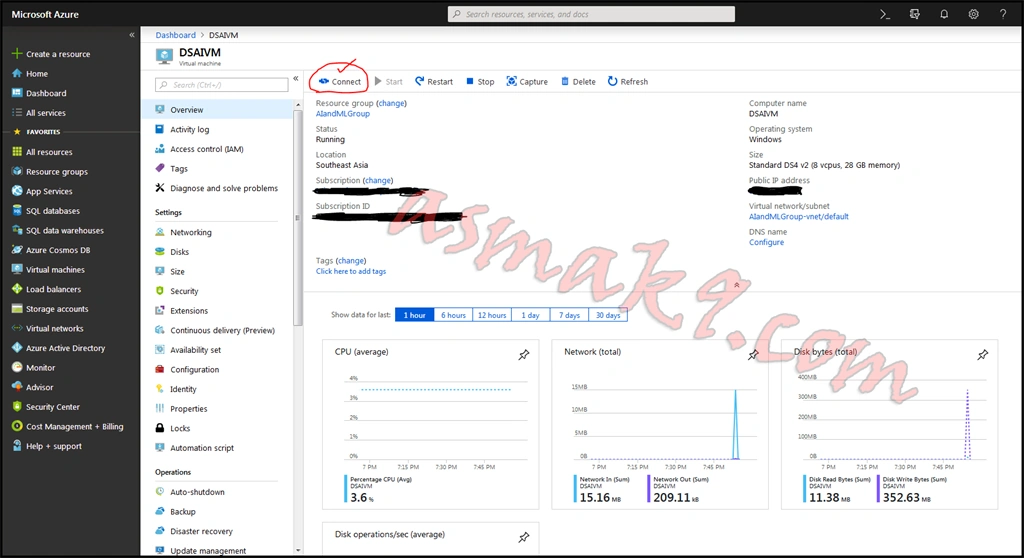
One might wonder why Azure Data Science Windows 2016 virtual machine is different than any other regular Azure VM. Well, the key difference between Azure Data Science Windows 2016 VM and a regular Azure virtual machine is that Azure Data Science Windows 2016 VM is pre-installed with a lot of data-science related tools along with the GPU setup of NVidia for deep learning solution development purposes.
In today's article, I shall demonstrate the set up of a Microsoft Azure Data Science Windows 2016 virtual machine into our Microsoft Azure paid subscription account.
Following are some prerequisites before you proceed any further in this tutorial.
- Microsoft Azure Account with Paid Subscription.
- You have already created your target Resource Groups on Azure Portal.
Let's begin the fun.
Step 1
Step 2
Step 3
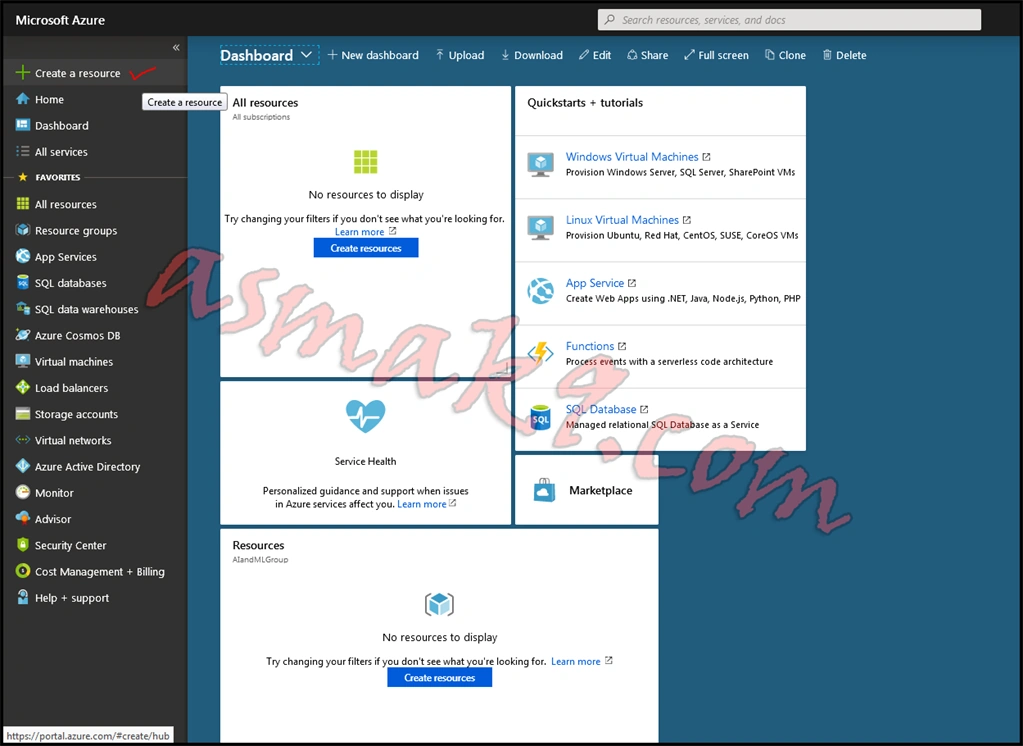
Step 4
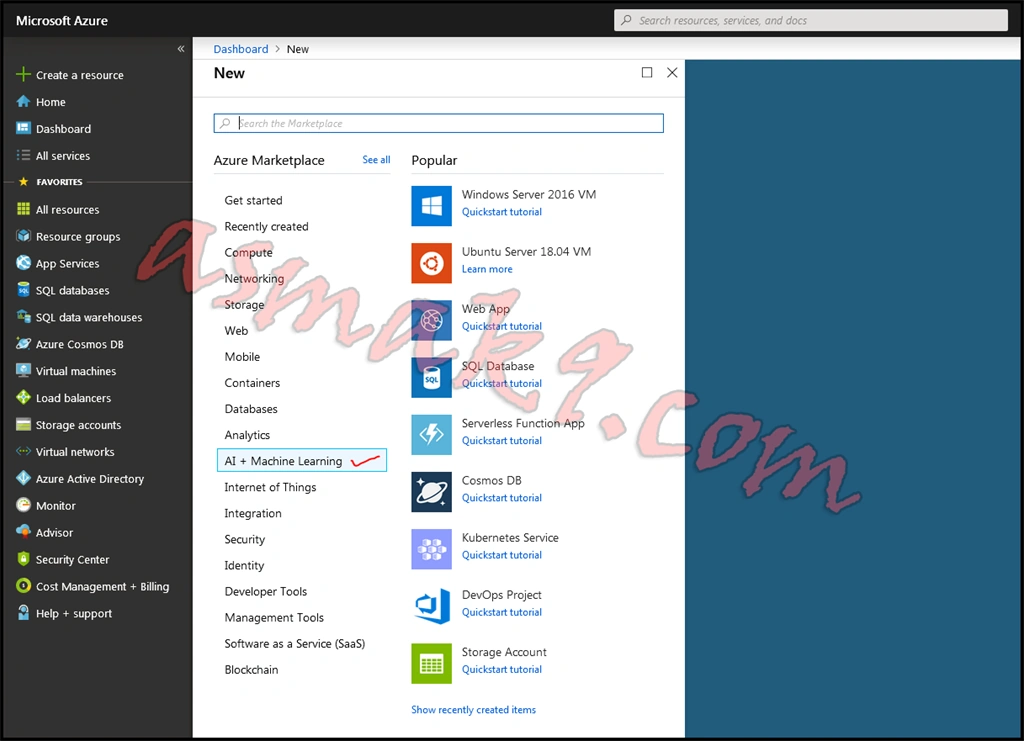
Step 5
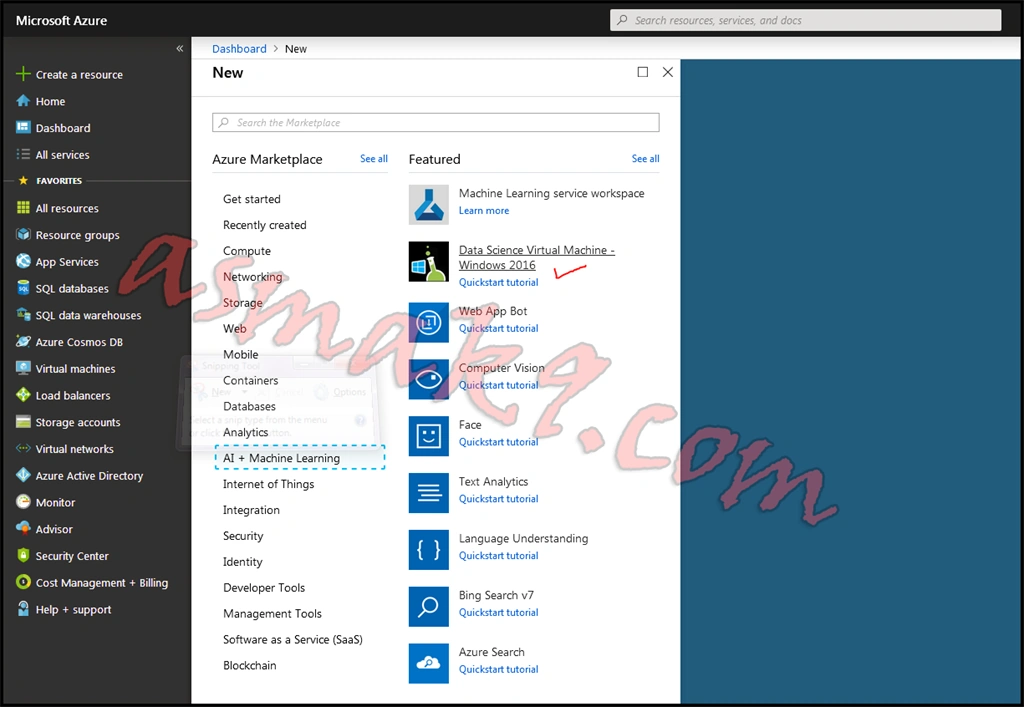
Step 6
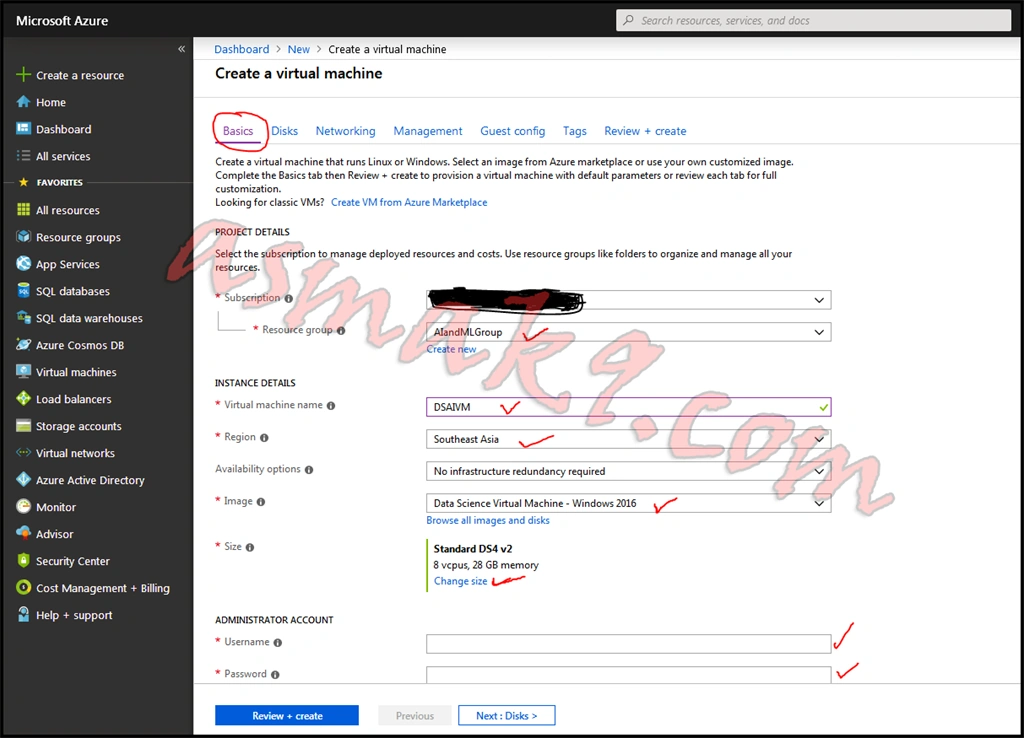
In the above step, you also need to choose your target virtual machine. The default selection is Data Science Windows 2016 VM and you can also change your RAM size and processors according to your need. The extended amount is chargeable, so choose what fits your costing requirement. My selection is shown below.
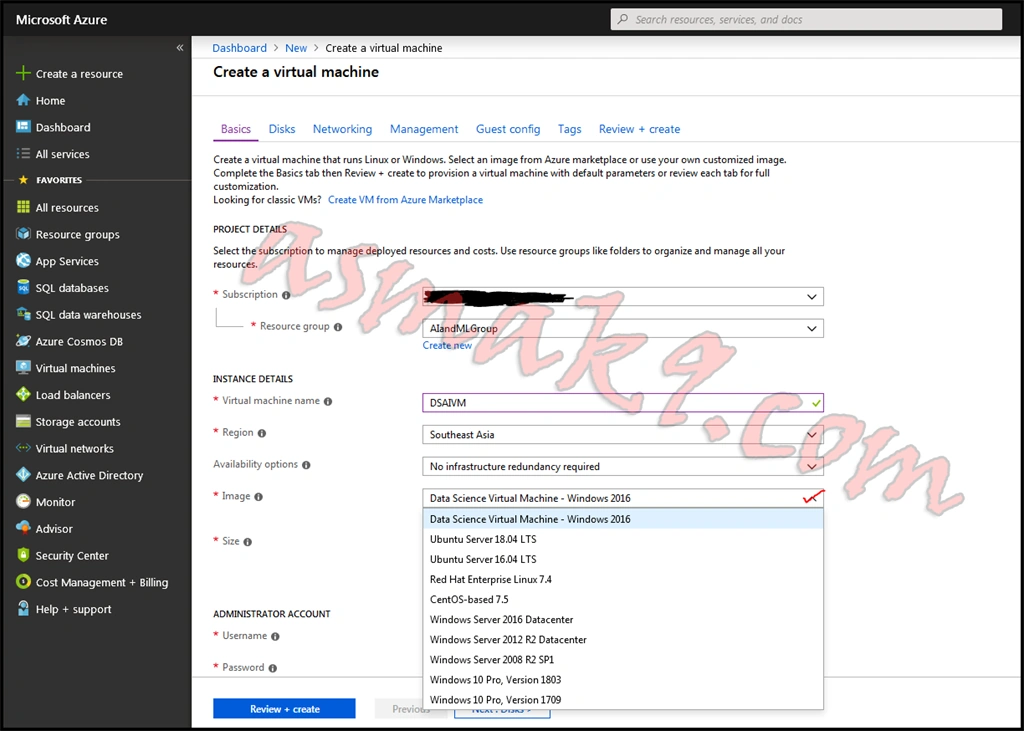
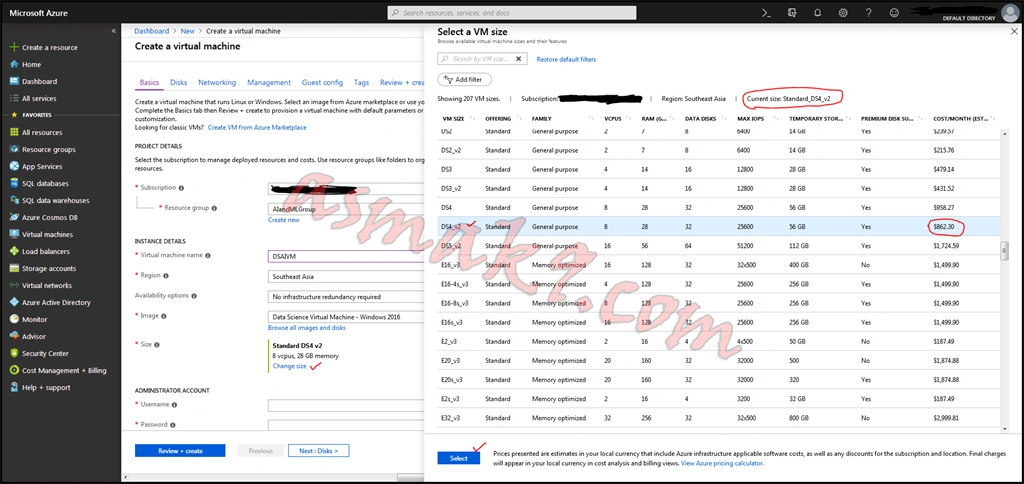
Step 7
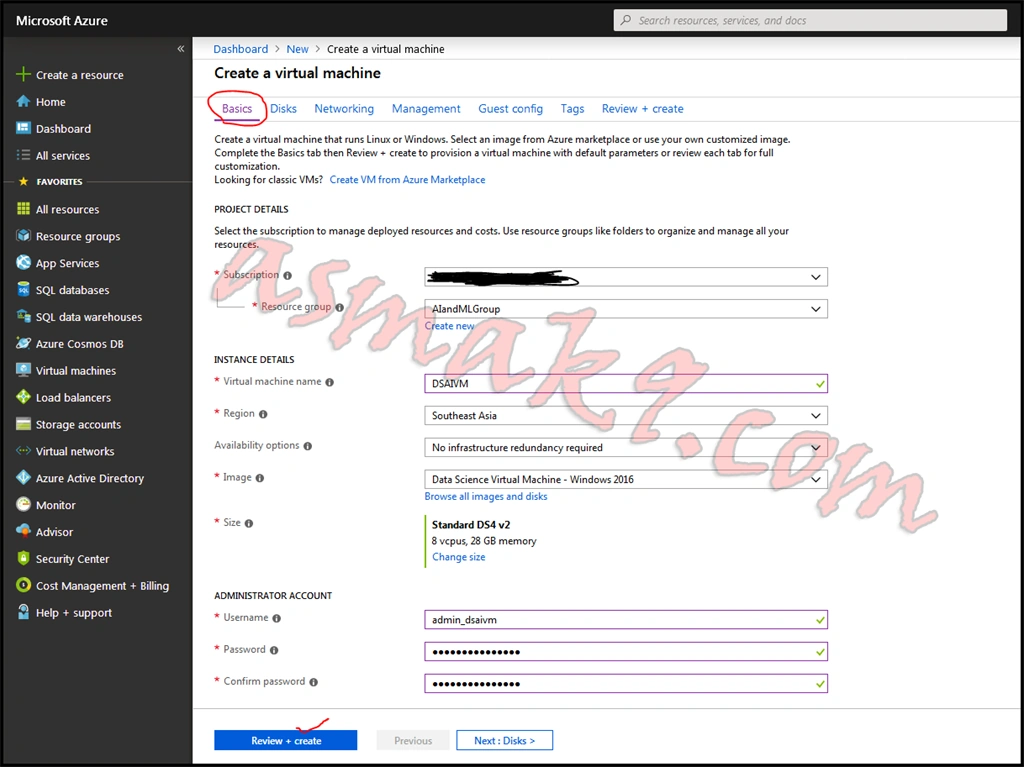
Step 8
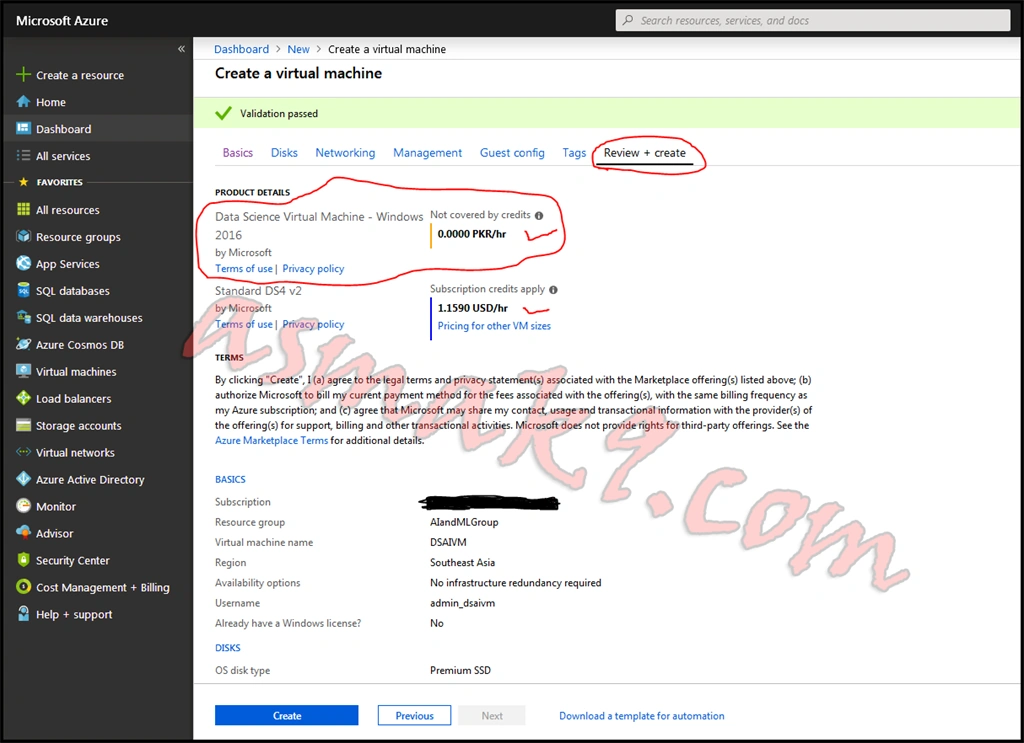
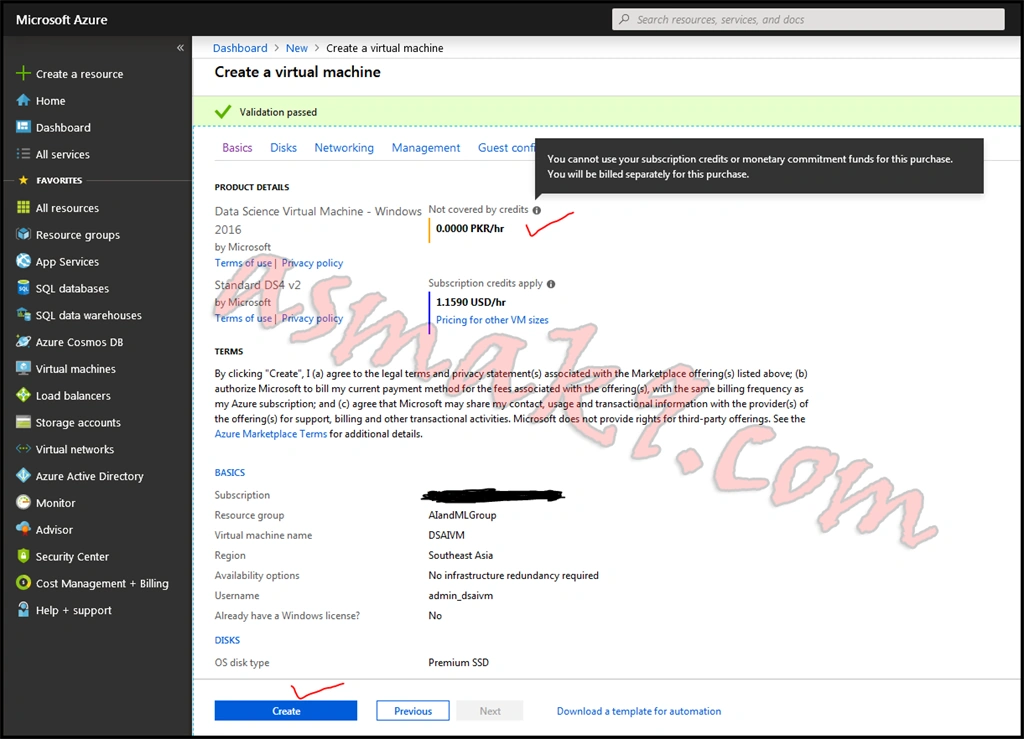
Step 9
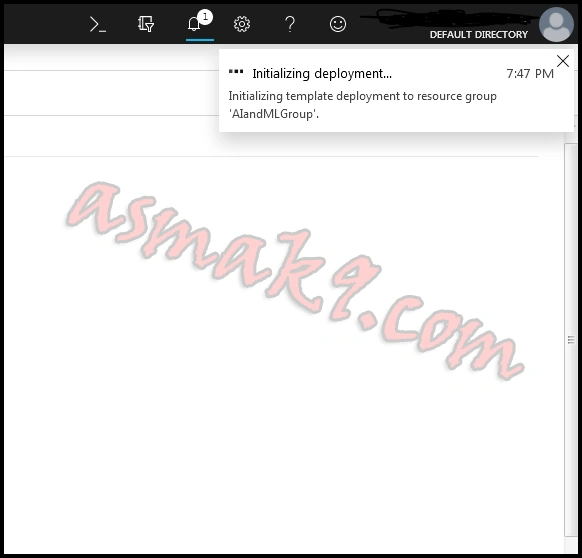
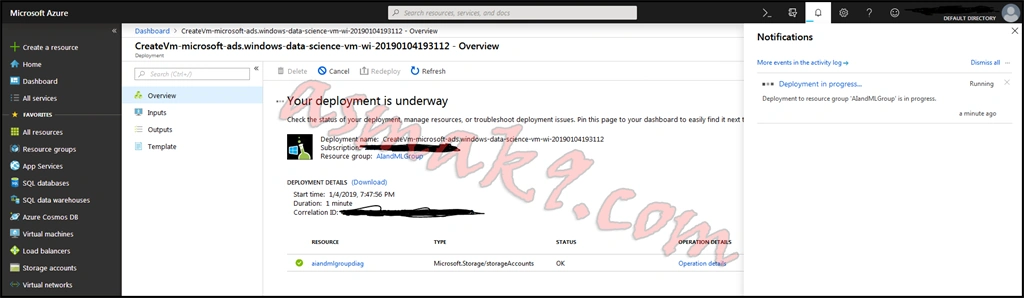
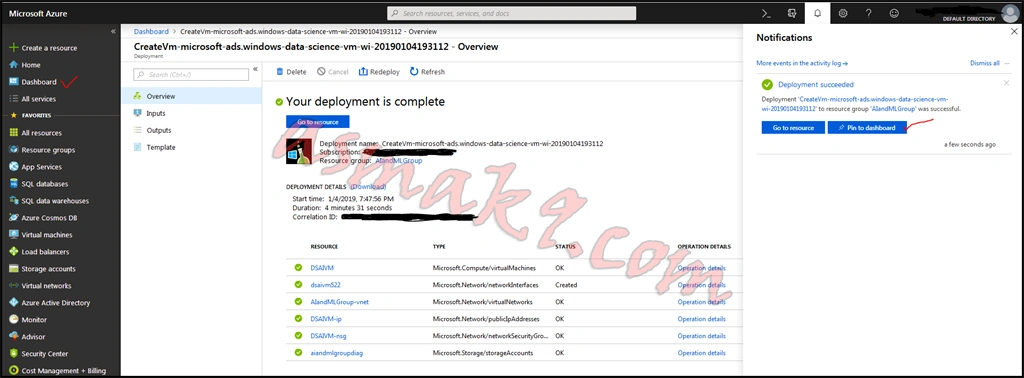
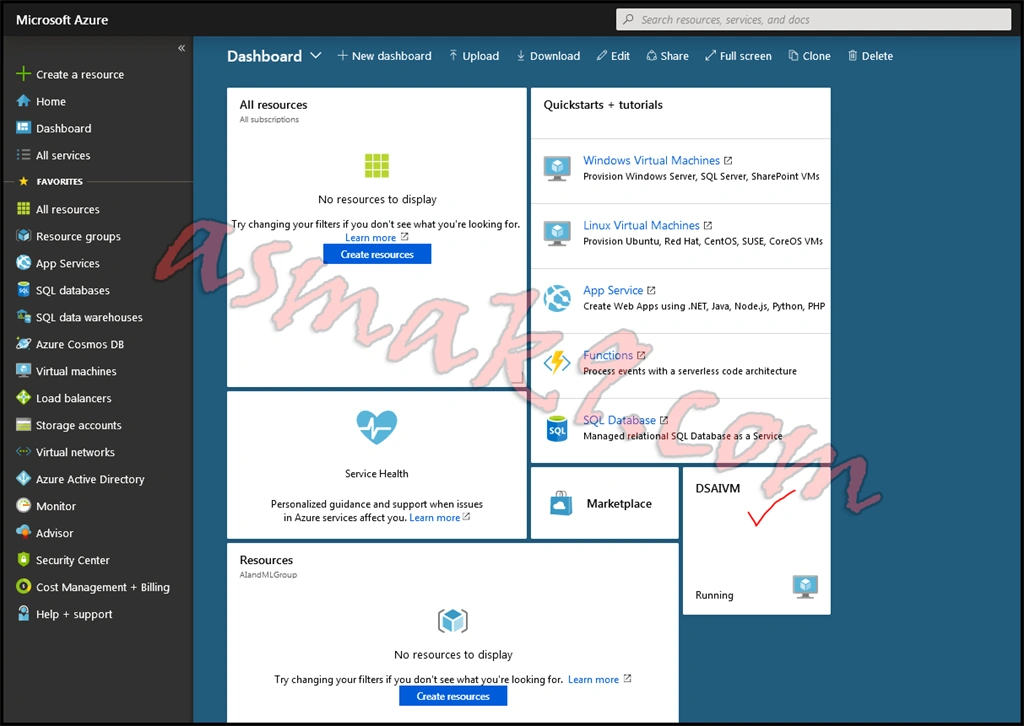
Step 10
In the above screen, you have the connection information to access your Azure Data Science Windows 2016 virtual machine.
In this article, we learned how to set up Azure Data Science Windows 2016 virtual machine and how to deploy it on your paid subscription by selecting suitable RAM size and processors.
kamii47Posted Jul 18, 2019, 6:33 AM
Nice Article Asma