

Introduction
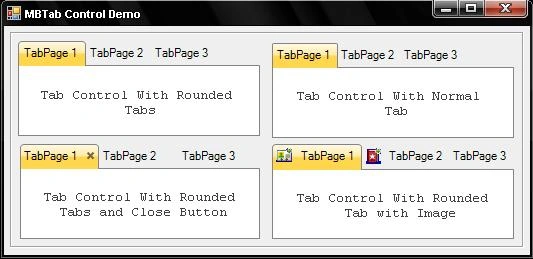
Why another Tab Control? The standard Tab Control is too limited in functionality and I couldn't find a custom control written that did all that I wanted. This is a User Control with many properties and versatility. It is simple to use, just drop it onto the form, adjust the design-time properties, and use it as the normal Tab Control.
Background
MBTabControl is a Control that inherits all the properties of simple TabControl control. I added some extra functionalities in MBTabControl like Glow, Tabs with Rounded Corners, Tabs with Images, and so on. The language used is VB.NET.
Control Properties
- SelectedTabBorderColor: This property sets the Border Color of the selected tab.
- TabCloseButton: This property is used to display the Close Button on the tab.
- TabTextColor: This property sets the Text Color of the tab.
- Radius: This property sets the corner radius of the tab.
- CloseButtonColor: This property sets the Close Button color of the tab.
Code
The concept for this MBTabControl came from "Microsoft Ribbons". I organized my control events and functions into layers as in the following.
The following method draws a tab page for MBTabControl:
- ''' <summary>
- ''' Draw TabPage for MBTabControl
- ''' </summary>
- Private Sub DrawTabPage(ByVal index As Integer, ByVal graphics As Graphics)
- graphics.SmoothingMode = SmoothingMode.HighSpeed
- Using tabPageBorderPath As GraphicsPath = Me.GetTabPageBorder(index)
- Using fillBrush As Brush = Me._StyleProvider.GetPageBackgroundBrush(index)
- graphics.FillPath(fillBrush, tabPageBorderPath)
- End Using
- If Me._Style <> MBTabStyle.None Then
- Me._StyleProvider.PaintTab(index, graphics)
- Me.DrawTabImage(index, graphics)
- Me.DrawTabText(index, graphics)
- End If
- Me.DrawTabBorder(tabPageBorderPath, index, graphics)
- End Using
- End Sub
The following method draws images on the tab for the MBTabControl:
- ''' <summary>
- ''' Draw TabImage for MBTabControl
- ''' </summary>
- Private Sub DrawTabImage(ByVal index As Integer, ByVal graphics As Graphics)
- Dim tabImage As Image = Nothing
- If Me.TabPages(index).ImageIndex > -1 AndAlso Me.ImageList IsNot Nothing AndAlso Me.ImageList.Images.Count > Me.TabPages(index).ImageIndex Then
- tabImage = Me.ImageList.Images(Me.TabPages(index).ImageIndex)
- ElseIf (Not String.IsNullOrEmpty(Me.TabPages(index).ImageKey) AndAlso Not Me.TabPages(index).ImageKey.Equals("(none)", StringComparison.OrdinalIgnoreCase)) AndAlso Me.ImageList IsNot Nothing AndAlso Me.ImageList.Images.ContainsKey(Me.TabPages(index).ImageKey) Then
- tabImage = Me.ImageList.Images(Me.TabPages(index).ImageKey)
- End If
- If tabImage IsNot Nothing Then
- If Me.RightToLeftLayout Then
- tabImage.RotateFlip(RotateFlipType.RotateNoneFlipX)
- End If
- Dim imageRect As Rectangle = Me.GetTabImageRect(index)
- If Me.TabPages(index).Enabled Then
- graphics.DrawImage(tabImage, imageRect)
- Else
- ControlPaint.DrawImageDisabled(graphics, tabImage, imageRect.X, imageRect.Y, Color.Transparent)
- End If
- End If
- End Sub
The following method draws a Close button on the tab for the MBTabControl:
- Protected Overridable Sub DrawTabCloseButton(ByVal index As Integer, ByVal graphics As Graphics)
- If Me._ShowTabCloser Then
- Dim closerRect As Rectangle = Me._TabControl.GetTabCloserRect(index)
- graphics.SmoothingMode = SmoothingMode.AntiAlias
- Using closerPath As GraphicsPath = MBTabStyleProvider.GetCloserPath(closerRect)
- If closerRect.Contains(Me._TabControl.MousePosition) Then
- Using closerPen As New Pen(Me._CloserColorActive)
- graphics.DrawPath(closerPen, closerPath)
- End Using
- Else
- Using closerPen As New Pen(Me._CloserColor)
- graphics.DrawPath(closerPen, closerPath)
- End Using
- End If
- End Using
- End If
- End Sub
Points of interest

It is very easy to use the MBTabControl in your application. Simply add the reference of the provided DLL to your application and just drag and drop.
History
- MBTabControl Version 1.0
Ahmed DcPosted Sep 14, 2018, 7:59 PM
HI I FOUND PROBLEM WHEN INCREASE HIEGHT OF TABCONTROL
Sibeesh VenuPosted Apr 15, 2015, 8:38 AM
Good one.