

Introduction
Today, I will show you my implementation of matrix multiplication C# and how to use it to apply basic transformations to images like rotation, stretching, flipping, and modifying color density.
Please note that this is not an image processing class. Rather, this article demonstrates in C# three of the core linear algebra concepts, matrix multiplication, dot product, and transformation matrices.
Source Code
Source code for this article is available on GitHub on the following repository.
This implementation is also included in the linear algebra problems component, Elsheimy.Components.Linears, available on,
Matrix Multiplication
The math behind matrix multiplication is very straightforward. Very easy explanations can be found here and here.
Let’s get directly to the code and start with our main function:
- public static double[,] Multiply(double[,] matrix1, double[,] matrix2) {
- // cahing matrix lengths for better performance
- var matrix1Rows = matrix1.GetLength(0);
- var matrix1Cols = matrix1.GetLength(1);
- var matrix2Rows = matrix2.GetLength(0);
- var matrix2Cols = matrix2.GetLength(1);
- // checking if product is defined
- if (matrix1Cols != matrix2Rows)
- throw new InvalidOperationException
- ("Product is undefined. n columns of first matrix must equal to n rows of second matrix");
- // creating the final product matrix
- double[,] product = new double[matrix1Rows, matrix2Cols];
- // looping through matrix 1 rows
- for (int matrix1_row = 0; matrix1_row < matrix1Rows; matrix1_row++) {
- // for each matrix 1 row, loop through matrix 2 columns
- for (int matrix2_col = 0; matrix2_col < matrix2Cols; matrix2_col++) {
- // loop through matrix 1 columns to calculate the dot product
- for (int matrix1_col = 0; matrix1_col < matrix1Cols; matrix1_col++) {
- product[matrix1_row, matrix2_col] +=
- matrix1[matrix1_row, matrix1_col] *
- matrix2[matrix1_col, matrix2_col];
- }
- }
- }
- return product;
- }
We started by fetching matrix row and column counts using Array.GetLength() and stored them inside variables to use them later. There’s a performance hit when calling Array.GetLength() that’s why we stored its results inside variables rather than calling the function multiple times. The performance part of this code is covered later in this article.
Next, we guaranteed that the product is defined by comparing the matrix1 number of columns to the matrix2 number of rows. An exception is thrown if the product is undefined.
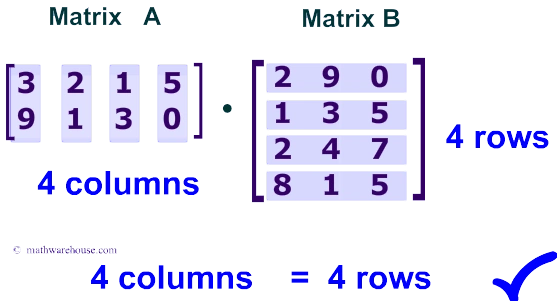
Photo Credit: MathwareHouse
Then we created the final product matrix using the row and column lengths of the original matrices.
After that, we used three loops to move through matrix vectors and to calculate the dot product.

Photo Credit: PurpleMath
Transformations
Now we can use our multiplication algorithm to create image transformation matrices that can be applied to any point (X, Y) or color (ARGB) to modify it. We will start by defining our abstract IImageTransformation interface that has two members: CreateTransformationMatrix() and IsColorTransformation. The first one returns the relevant transformation matrix, the second indicates if this transformation can be applied to colors (true) or points (false).
- public interface IImageTransformation {
- double[,] CreateTransformationMatrix();
- bool IsColorTransformation { get; }
- }
Rotation Transformation
The 2D rotation matrix is defined as:
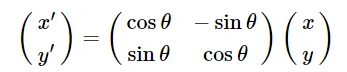
Photo Credit: Academo
Our code is very clear:
- public class RotationImageTransformation : IImageTransformation {
- public double AngleDegrees { get; set; }
- public double AngleRadians {
- get { return DegreesToRadians(AngleDegrees); }
- set { AngleDegrees = RadiansToDegrees(value); }
- }
- public bool IsColorTransformation { get { return false; } }
- public static double DegreesToRadians(double degree)
- { return degree * Math.PI / 180; }
- public static double RadiansToDegrees(double radians)
- { return radians / Math.PI * 180; }
- public double[,] CreateTransformationMatrix() {
- double[,] matrix = new double[2, 2];
- matrix[0, 0] = Math.Cos(AngleRadians);
- matrix[1, 0] = Math.Sin(AngleRadians);
- matrix[0, 1] = -1 * Math.Sin(AngleRadians);
- matrix[1, 1] = Math.Cos(AngleRadians);
- return matrix;
- }
- public RotationImageTransformation() { }
- public RotationImageTransformation(double angleDegree) {
- this.AngleDegrees = angleDegree;
- }
- }
As you can see in this code, Sin() and Cos() accept angels in radians, that’s why we have used two extra functions to convert between radians and degrees to keep things simple to the user.
A very nice explanation and example of 2D rotation matrices is available here.
Stretching/Scaling Transformation
The second transformation we have is the factor-scaling transformation. It works by scaling X/Y by the required factor. It is defined as:
- public class StretchImageTransformation : IImageTransformation {
- public double HorizontalStretch { get; set; }
- public double VerticalStretch { get; set; }
- public bool IsColorTransformation { get { return false; } }
- public double[,] CreateTransformationMatrix() {
- double[,] matrix = Matrices.CreateIdentityMatrix(2);
- matrix[0, 0] += HorizontalStretch;
- matrix[1, 1] += VerticalStretch;
- return matrix;
- }
- public StretchImageTransformation() { }
- public StretchImageTransformation(double horizStretch, double vertStretch) {
- this.HorizontalStretch = horizStretch;
- this.VerticalStretch = vertStretch;
- }
- }
Identity Matrix
The previous code requires the use of an identity matrix. Here’s the code that defines CreateIdentityMatrix(),
- public static double[,] CreateIdentityMatrix(int length) {
- double[,] matrix = new double[length, length];
- for (int i = 0, j = 0; i < length; i++, j++)
- matrix[i, j] = 1;
- return matrix;
- }
Flipping Transformation
The third transformation we have is the flipping transformation. It works by negating the X and Y members to flip the vector over the vertical and horizontal axis respectively.
- public class FlipImageTransformation : IImageTransformation {
- public bool FlipHorizontally { get; set; }
- public bool FlipVertically { get; set; }
- public bool IsColorTransformation { get { return false; } }
- public double[,] CreateTransformationMatrix() {
- // identity matrix
- double[,] matrix = Matrices.CreateIdentityMatrix(2);
- if (FlipHorizontally)
- matrix[0, 0] *= -1;
- if (FlipVertically)
- matrix[1, 1] *= -1;
- return matrix;
- }
- public FlipImageTransformation() { }
- public FlipImageTransformation(bool flipHoriz, bool flipVert) {
- this.FlipHorizontally = flipHoriz;
- this.FlipVertically = flipVert;
- }
- }
Color Density Transformation
The last transformation we have is the color density transformation. It works by defining different scaling factors to color components (Alpha, Red, Green, and Blue). For example, if you want to make the color 50% transparent we would scale Alpha by 0.5. If you want to remove the Red color completely you could scale it by 0. And so on.
- public class DensityImageTransformation : IImageTransformation {
- public double AlphaDensity { get; set; }
- public double RedDensity { get; set; }
- public double GreenDensity { get; set; }
- public double BlueDensity { get; set; }
- public bool IsColorTransformation { get { return true; } }
- public double[,] CreateTransformationMatrix() {
- // identity matrix
- double[,] matrix = new double[,]{
- { AlphaDensity, 0, 0, 0},
- { 0, RedDensity, 0, 0},
- { 0, 0, GreenDensity, 0},
- { 0, 0, 0, BlueDensity},
- };
- return matrix;
- }
- public DensityImageTransformation() { }
- public DensityImageTransformation(double alphaDensity,
- double redDensity,
- double greenDensity,
- double blueDensity) {
- this.AlphaDensity = alphaDensity;
- this.RedDensity = redDensity;
- this.GreenDensity = greenDensity;
- this.BlueDensity = blueDensity;
- }
- }
Connecting Things Together
Now it is time to define the processes and procedures that connect things together. Here’s the full code. An explanation follows:
- /// <summary>
- /// Applies image transformations to an image file
- /// </summary>
- public static Bitmap Apply(string file, IImageTransformation[] transformations) {
- using (Bitmap bmp = (Bitmap)Bitmap.FromFile(file)) {
- return Apply(bmp, transformations);
- }
- }
- /// <summary>
- /// Applies image transformations bitmap object
- /// </summary>
- public static Bitmap Apply(Bitmap bmp, IImageTransformation[] transformations) {
- // defining an array to store new image data
- PointColor[] points = new PointColor[bmp.Width * bmp.Height];
- // filtering transformations
- var pointTransformations =
- transformations.Where(s => s.IsColorTransformation == false).ToArray();
- var colorTransformations =
- transformations.Where(s => s.IsColorTransformation == true).ToArray();
- double[,] pointTransMatrix =
- CreateTransformationMatrix(pointTransformations, 2); // x, y
- double[,] colorTransMatrix =
- CreateTransformationMatrix(colorTransformations, 4); // a, r, g, b
- // saving some stats to adjust the image later
- int minX = 0, minY = 0;
- int maxX = 0, maxY = 0;
- // scanning points and applying transformations
- int idx = 0;
- for (int x = 0; x < bmp.Width; x++) { // row by row
- for (int y = 0; y < bmp.Height; y++) { // column by column
- // applying the point transformations
- var product =
- Matrices.Multiply(pointTransMatrix, new double[,] { { x }, { y } });
- var newX = (int)product[0, 0];
- var newY = (int)product[1, 0];
- // saving stats
- minX = Math.Min(minX, newX);
- minY = Math.Min(minY, newY);
- maxX = Math.Max(maxX, newX);
- maxY = Math.Max(maxY, newY);
- // applying color transformations
- Color clr = bmp.GetPixel(x, y); // current color
- var colorProduct = Matrices.Multiply(
- colorTransMatrix,
- new double[,] { { clr.A }, { clr.R }, { clr.G }, { clr.B } });
- clr = Color.FromArgb(
- GetValidColorComponent(colorProduct[0, 0]),
- GetValidColorComponent(colorProduct[1, 0]),
- GetValidColorComponent(colorProduct[2, 0]),
- GetValidColorComponent(colorProduct[3, 0])
- ); // new color
- // storing new data
- points[idx] = new PointColor() {
- X = newX,
- Y = newY,
- Color = clr
- };
- idx++;
- }
- }
- // new bitmap width and height
- var width = maxX - minX + 1;
- var height = maxY - minY + 1;
- // new image
- var img = new Bitmap(width, height);
- foreach (var pnt in points)
- img.SetPixel(
- pnt.X - minX,
- pnt.Y - minY,
- pnt.Color);
- return img;
- }
- /// <summary>
- /// Returns color component between 0 and 255
- /// </summary>
- private static byte GetValidColorComponent(double c) {
- c = Math.Max(byte.MinValue, c);
- c = Math.Min(byte.MaxValue, c);
- return (byte)c;
- }
- /// <summary>
- /// Combines transformations to create single transformation matrix
- /// </summary>
- private static double[,] CreateTransformationMatrix
- (IImageTransformation[] vectorTransformations, int dimensions) {
- double[,] vectorTransMatrix =
- Matrices.CreateIdentityMatrix(dimensions);
- // combining transformations works by multiplying them
- foreach (var trans in vectorTransformations)
- vectorTransMatrix =
- Matrices.Multiply(vectorTransMatrix, trans.CreateTransformationMatrix());
- return vectorTransMatrix;
- }
We started by defining two overloads of Apply() function. One that accepts image file name and transformation list and the other accepts a Bitmap object and the transformation list to apply to that image.
Inside the Apply() function, we filtered transformations into two groups, those that work on point locations (X and Y) and those that work on colors. We also used the CreateTransformationMatrix() function for each group to combine the transformations into a single transformation matrix.
After that, we started scanning the image and applying the transformations to points and colors respectively. Notice that we had to ensure that the transformed color components are byte-sized. After applying the transformations we saved data in an array for later usage.
During the scanning process, we recorded our minimum and maximum X and Y values. This will help to set the new image size and shift the points as needed. Some transformations like stretching might increase or decrease image size.
Finally, we created the new Bitmap object and set the point data after shifting them.
Creating the Client
Our client application is simple. Here’s a screenshot of our form,
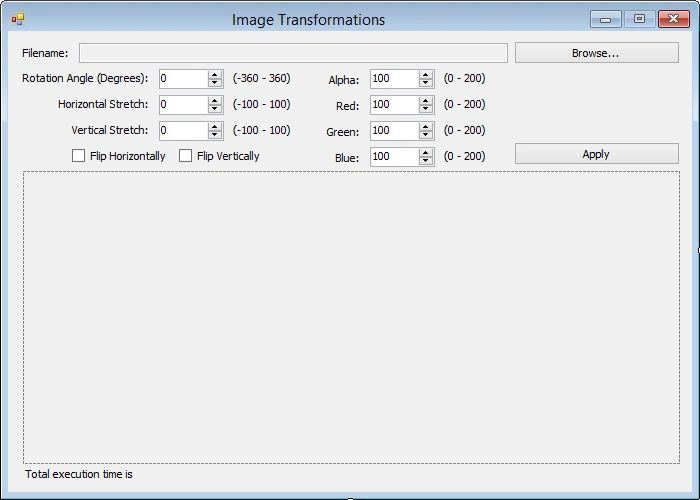
Let’s have a look at the code behind it:
- private string _file;
- private Stopwatch _stopwatch;
- public ImageTransformationsForm() {
- InitializeComponent();
- }
- private void BrowseButton_Click(object sender, EventArgs e) {
- string file = OpenFile();
- if (file != null) {
- this.FileTextBox.Text = file;
- _file = file;
- }
- }
- public static string OpenFile() {
- OpenFileDialog dlg = new OpenFileDialog();
- dlg.CheckFileExists = true;
- if (dlg.ShowDialog() == DialogResult.OK)
- return dlg.FileName;
- return null;
- }
- private void ApplyButton_Click(object sender, EventArgs e) {
- if (_file == null)
- return;
- DisposePreviousImage();
- RotationImageTransformation rotation =
- new RotationImageTransformation((double)this.AngleNumericUpDown.Value);
- StretchImageTransformation stretch =
- new StretchImageTransformation(
- (double)this.HorizStretchNumericUpDown.Value / 100,
- (double)this.VertStretchNumericUpDown.Value / 100);
- FlipImageTransformation flip =
- new FlipImageTransformation(this.FlipHorizontalCheckBox.Checked, this.FlipVerticalCheckBox.Checked);
- DensityImageTransformation density =
- new DensityImageTransformation(
- (double)this.AlphaNumericUpDown.Value / 100,
- (double)this.RedNumericUpDown.Value / 100,
- (double)this.GreenNumericUpDown.Value / 100,
- (double)this.BlueNumericUpDown.Value / 100
- );
- StartStopwatch();
- var bmp = ImageTransformer.Apply(_file,
- new IImageTransformation[] { rotation, stretch, flip, density });
- StopStopwatch();
- this.ImagePictureBox.Image = bmp;
- }
- private void StartStopwatch() {
- if (_stopwatch == null)
- _stopwatch = new Stopwatch();
- else
- _stopwatch.Reset();
- _stopwatch.Start();
- }
- private void StopStopwatch() {
- _stopwatch.Stop();
- this.ExecutionTimeLabel.Text = $"Total execution time is {_stopwatch.ElapsedMilliseconds} milliseconds";
- }
- private void DisposePreviousImage() {
- if (this.ImagePictureBox.Image != null) {
- var tmpImg = this.ImagePictureBox.Image;
- this.ImagePictureBox.Image = null;
- tmpImg.Dispose();
- }
- }
The code is straightforward. The only thing to mention is that it has always been a good practice to call Dispose() on disposable objects to ensure best performance.
Performance Notes
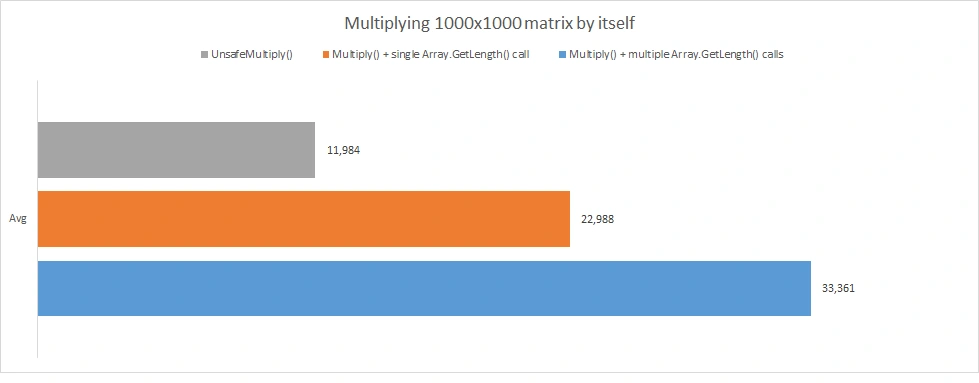
In our core Multiply() method, we mentioned that calling Array.GetLength() involves a huge performance impact. I tried to check the logic behind Array.GetLength() with no success. The method is natively implemented, and I could not view its code using common disassembly tools. However, by benchmarking the two scenarios (code with a bunch of calls to Array.GetLength() and another code with only a single call to the same function) I found that the single call code is 2x faster than the other.
Another way to improve the performance of our Multiply() method is to use unsafe code. By accessing array contents directly you achieve superior processing performance.
Here’s our new and updated unsafe code:
- public static double[,] MultiplyUnsafe(double[,] matrix1, double[,] matrix2) {
- // cahing matrix lengths for better performance
- var matrix1Rows = matrix1.GetLength(0);
- var matrix1Cols = matrix1.GetLength(1);
- var matrix2Rows = matrix2.GetLength(0);
- var matrix2Cols = matrix2.GetLength(1);
- // checking if product is defined
- if (matrix1Cols != matrix2Rows)
- throw new InvalidOperationException
- ("Product is undefined. n columns of first matrix must equal to n rows of second matrix");
- // creating the final product matrix
- double[,] product = new double[matrix1Rows, matrix2Cols];
- unsafe
- {
- // fixing pointers to matrices
- fixed (
- double* pProduct = product,
- pMatrix1 = matrix1,
- pMatrix2 = matrix2) {
- int i = 0;
- // looping through matrix 1 rows
- for (int matrix1_row = 0; matrix1_row < matrix1Rows; matrix1_row++) {
- // for each matrix 1 row, loop through matrix 2 columns
- for (int matrix2_col = 0; matrix2_col < matrix2Cols; matrix2_col++) {
- // loop through matrix 1 columns to calculate the dot product
- for (int matrix1_col = 0; matrix1_col < matrix1Cols; matrix1_col++) {
- var val1 = *(pMatrix1 + (matrix1Rows * matrix1_row) + matrix1_col);
- var val2 = *(pMatrix2 + (matrix2Cols * matrix1_col) + matrix2_col);
- *(pProduct + i) += val1 * val2;
- }
- i++;
- }
- }
- }
- }
- return product;
- }
Unsafe code will not compile unless you enable it from the Build tab in the Project Settings page.
The following figure shows the difference between the three Multiply() scenarios when multiplying the 1000x1000 matrix by itself. The tests ran on my dying Core [email protected] 6GB RAM 1GB Intel Graphics laptop.
I am not covering any performance improvements in the client or the Apply() method as it is not the core focus of the article.
Conclusion
This was my implementation of matrix multiplication. Feel free to send me your feedback and comments over the code and to update it as needed.
Join the conversation! Your thoughts help the community grow.