

Introduction
In this article you will learn about one of the most commonly used DAX functions in Power BI, the mathematical functions. These are very similar to the functions used in Excel sheets.
I have already explained some of the categories of DAX functions in a previous article.
Functions and Description
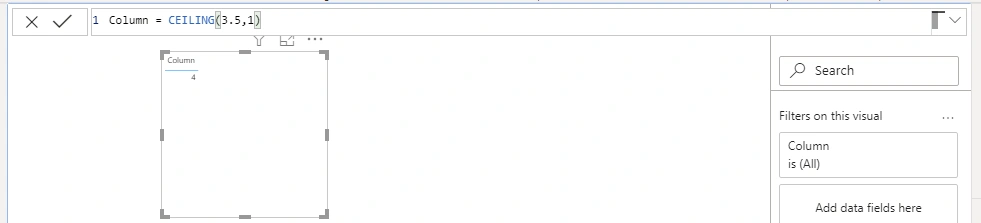
CEILING
Rounds a number up, to the nearest integer or to the nearest unit of the significance.
Syntax - CEILING (Number, Significance)
Number - A number you want to round or a column that contains a number.
Significance - The multiple of significance to which you want to round. For example, to round to the nearest integer, type 1.
Ex.
COMBIN
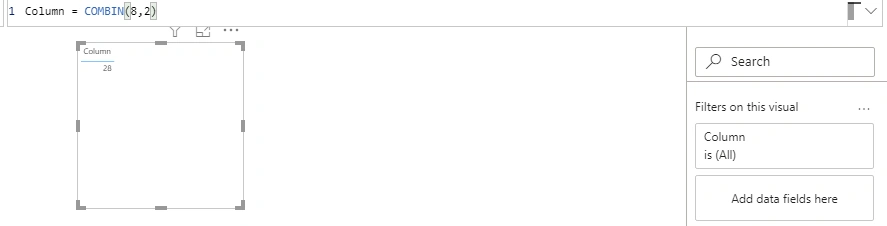
Returns the number of combinations for a given number of items. Use COMBIN to determine the total possible number of groups for a given number of items.
Syntax - COMBIN (Number, Number_chosen)
Number - A number of items
Number_chosen - The number of items in each combination.
Ex.
COMBINA
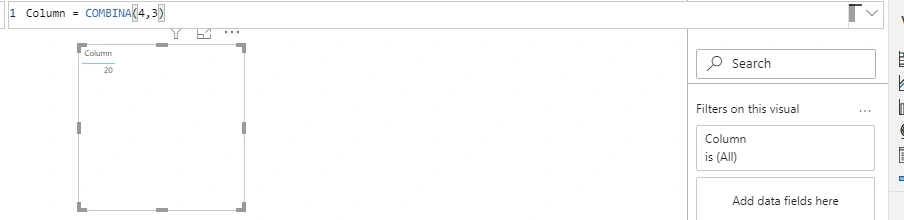
Returns the number of combinations (with repetition) for a given number of items.
Syntax - COMBINA(Number, Number_Chosen)
Number - Number must be greater than or equal to zero, and greater than or equal to Number_chosen. Non-integer values are truncated.
Number_Chosen - Must be greater than or equal to 0. Non-integer values are truncated.
Ex.
CONVERT
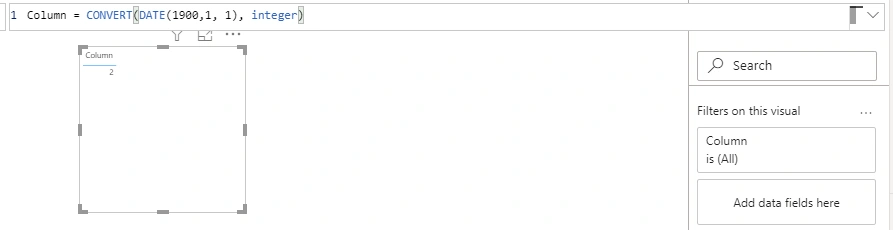
Converts an expression to the specified data type.
Syntax - CONVERT (Expression, DataType)
Expression - Any valid expression
DataType - It can be any data type like INTEGER, DOUBLE, STRING.
Ex.
CURRENCY
Returns the value as a currency data type.
Syntax- CURRENCY(Value)
Value- Any DAX expression that returns a single scalar value.
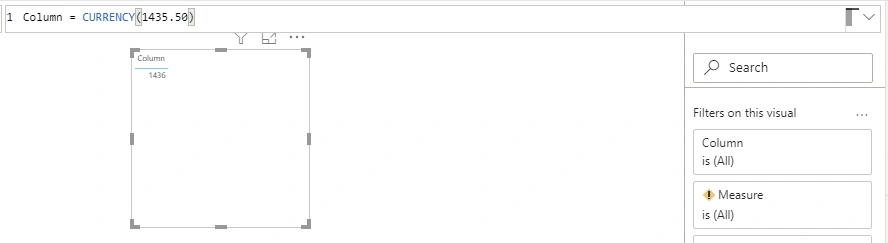
Ex.
DIVIDE
Safely divide a function with the ability to handle divide by zero case.
Syntax - DIVIDE(Numerator, Denominator, [AlternateResult])
Numerator - The dividend or number to divide.
Denominator - The divisor or number to divide by.
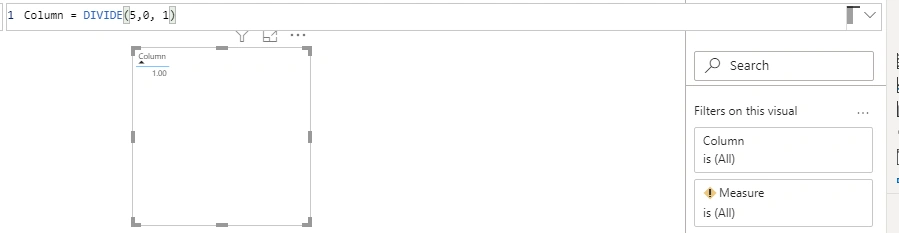
[AlternateResult] - It is optional. It is returned when division by zero results in an error. When no value is provided then default value is BLANK().
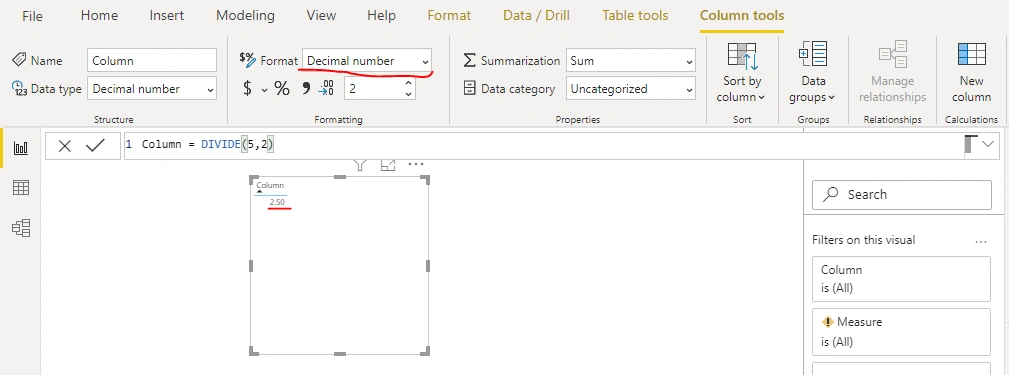
Ex.
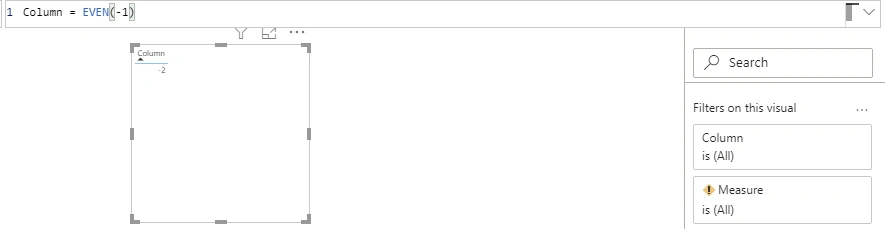
EVEN
Returns a number rounded up to the nearest even integer. You can use this function for processing items that come in twos. For example, a packing crate accepts rows of one or two items. The crate is full when the number of items, rounded up to the nearest two, matches the crate's capacity.
Syntax- EVEN(Number)
Number-The value to round.
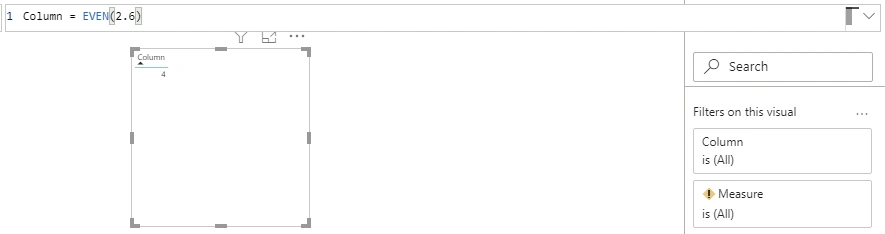
Ex.
EXP
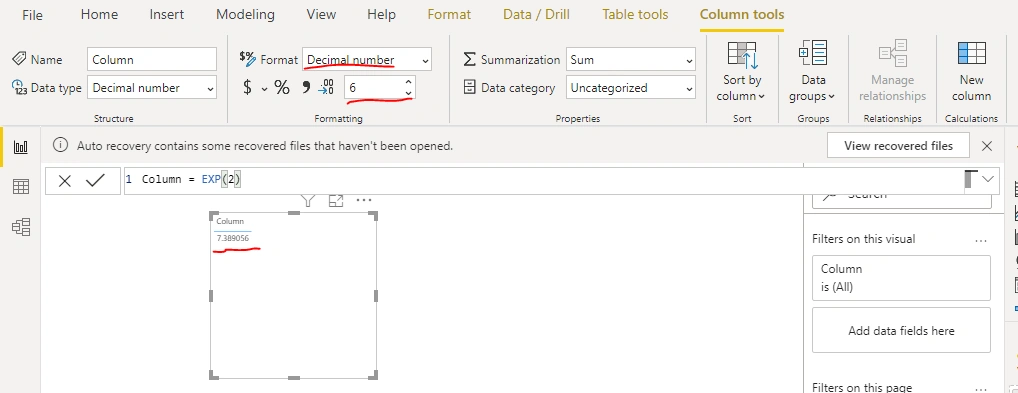
Returns e raised to the power of given number.
Syntax- EXP(Number)
Number- Number applied as exponent to the base e, where e is equals to 2.71828182845904.
Ex
FACT
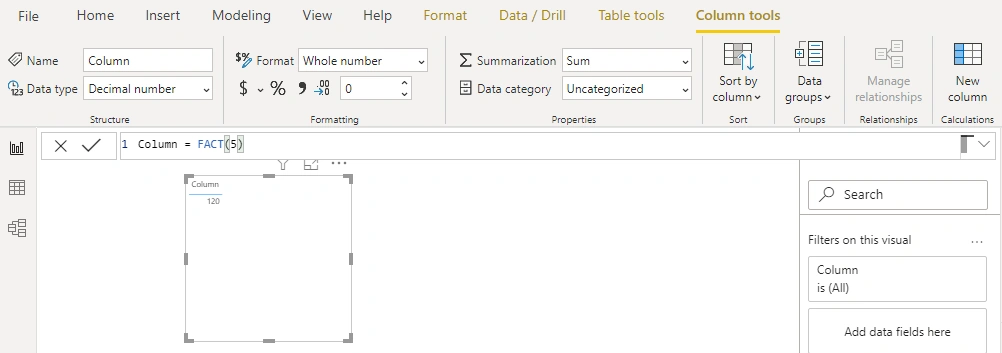
Returns the factorial of a number, equals to 1*2*3*4*….* Number.
Syntax- FACT(Number)
Number- Non negative number for which you want the factorial.
Ex.
FLOOR
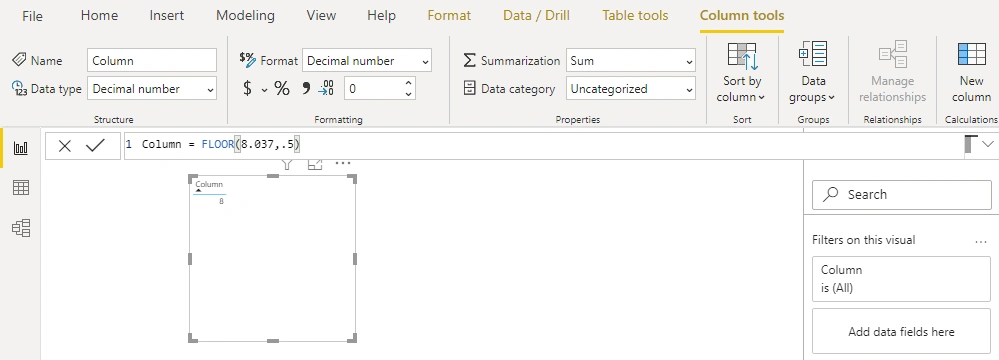
Rounds a number down, toward zero, to the nearest multiple of significance.
Syntax - FLOOR(Number, Significance)
Number - The numeric value you want to round.
Significance - The multiple which you want to round.
Note:The Number and Significance must both be positive or both be negative.
Ex.
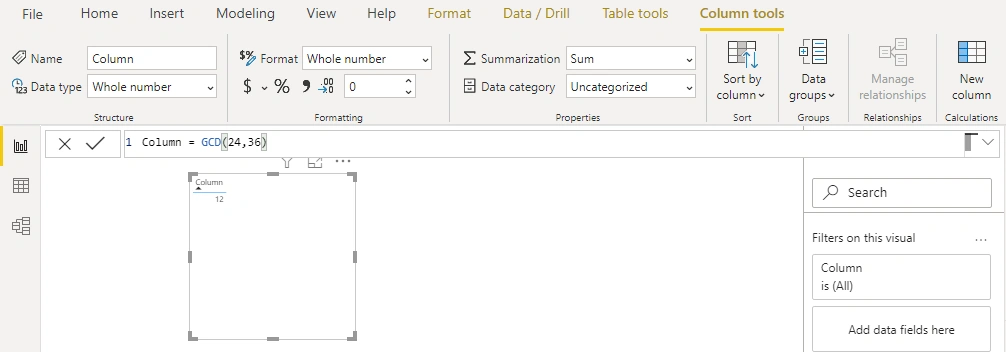
GCD
Returns the greatest common divisor of two integers. The greatest common divisor is the largest integer that divides both number1 and number2 without a remainder.
Syntax- GCD (Number1, Number2)
Number1- Number1 is required, others are optional. Value can be 1 to 255. If any value is not an integer, it is truncated.
Ex.
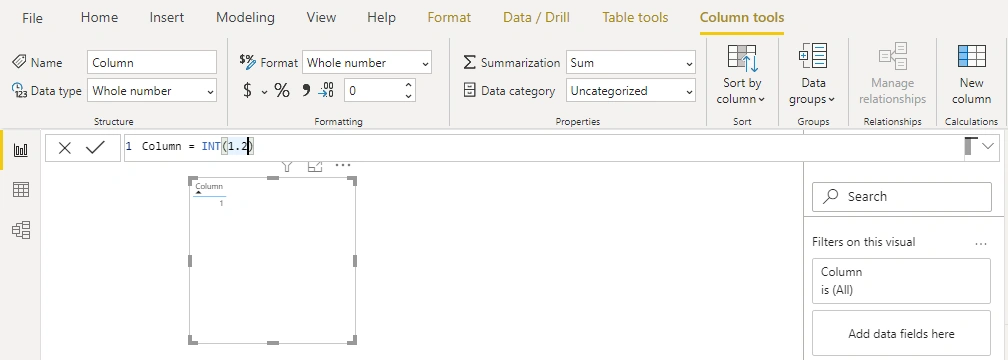
INT
Rounds a number down to the nearest integer.
Syntax- INT(Number)
Number - The number you want to round down to an integer
Ex.
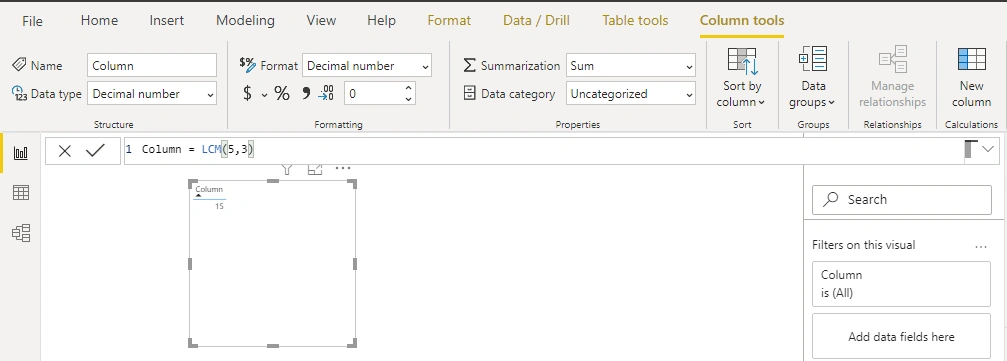
LCM
Returns the least common multiple of integers. The least common multiple is the smallest positive integer that is a multiple of both integer arguments of number1, number2. Use LCM to add fractions with different denominator.
Syntax- LCM (Number1, Number2)
Number1-Number1 is required, other numbers are optional. 1 to 255 values for which you want the least common multiple. If value is not an integer, it is truncated.
Ex.
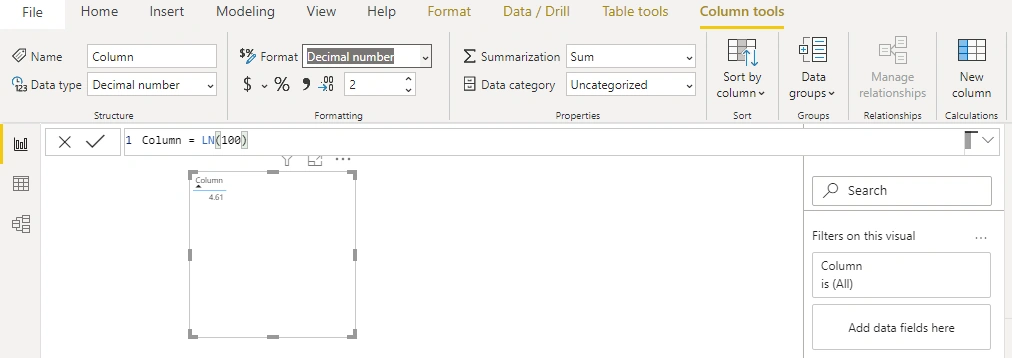
LN
Returns the natural logarithm of a number.
Syntax- LN(Number)
Number- It should be a positive number.
Ex.
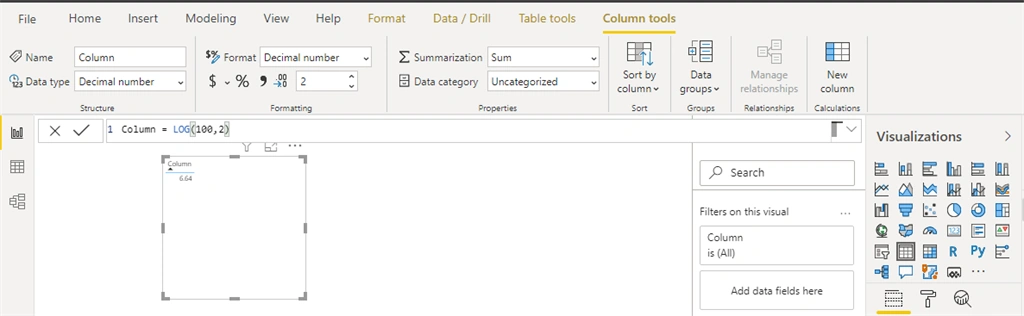
LOG
Returns the logarithm of a number to the base you specify.
Syntax- LOG (Number, [Base])
Number-Any positive number.
Base- The base of logarithm. If omitted, default it is 10.
Ex.
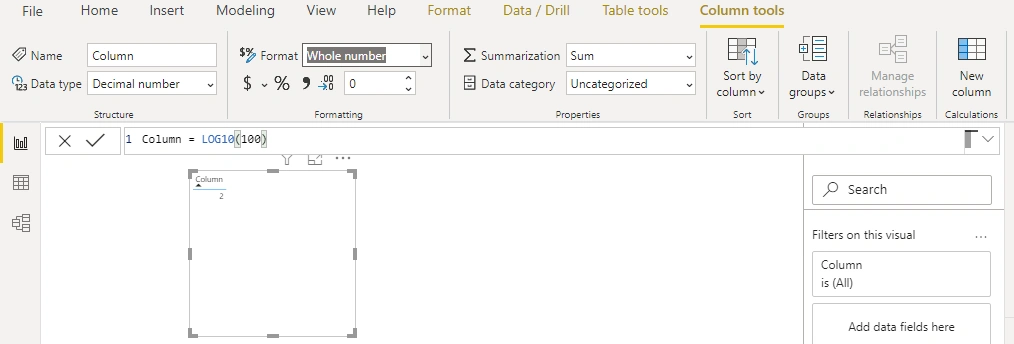
LOG10
Returns the base-10 logarithm of a number.
Syntax- Log10(Number)
Number-Any positive number.
Ex.
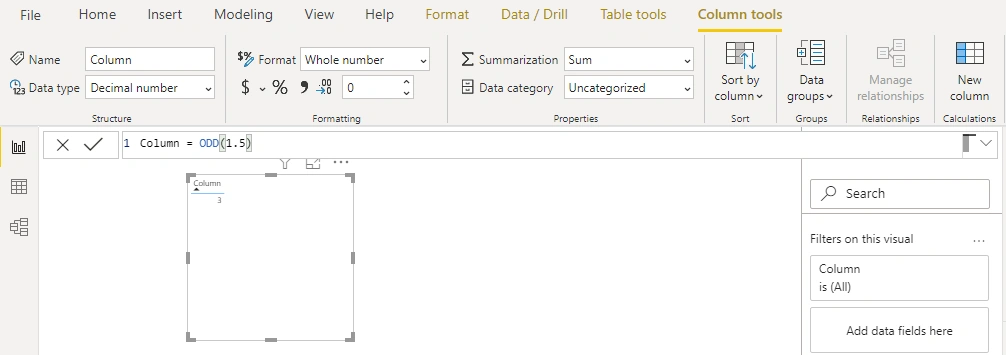
ODD
Returns number rounded up to the nearest odd integer.
Syntax- ODD(Number)
Number- Any number.
Ex.
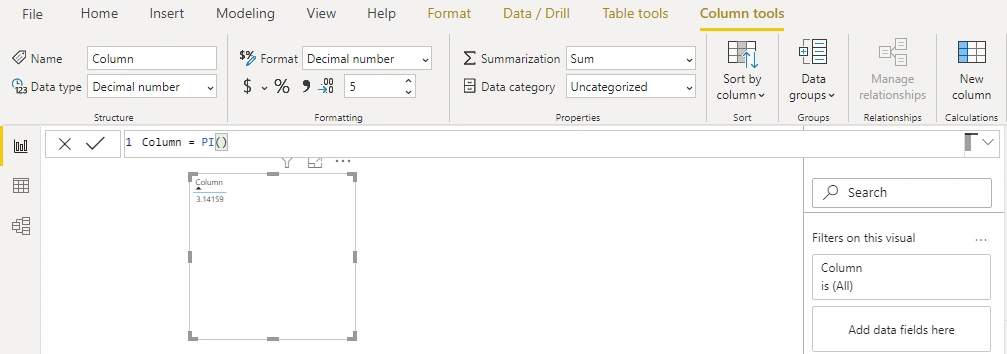
PI
Returns the value of PI. 3.14159265358979, accurate to 15 digits.
Syntax- PI()
Ex.
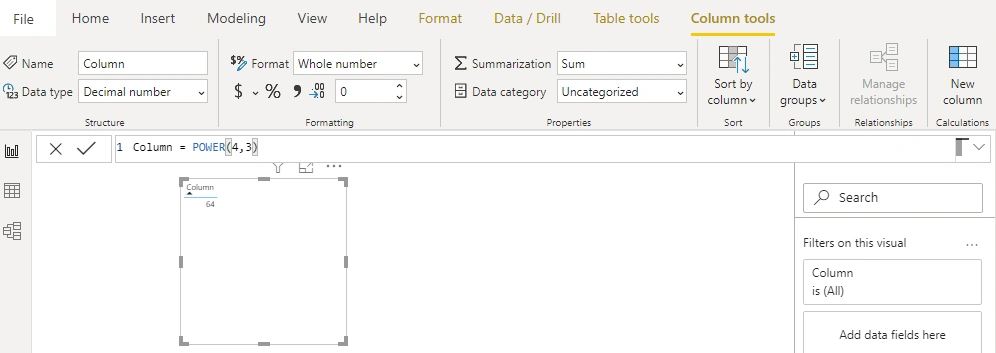
POWER
Returns the result of a number raised to a power.
Syntax- POWER (Number, Power)
Number - Any real number as base number.
Power - The exponent to which the base number is raised.
Ex.
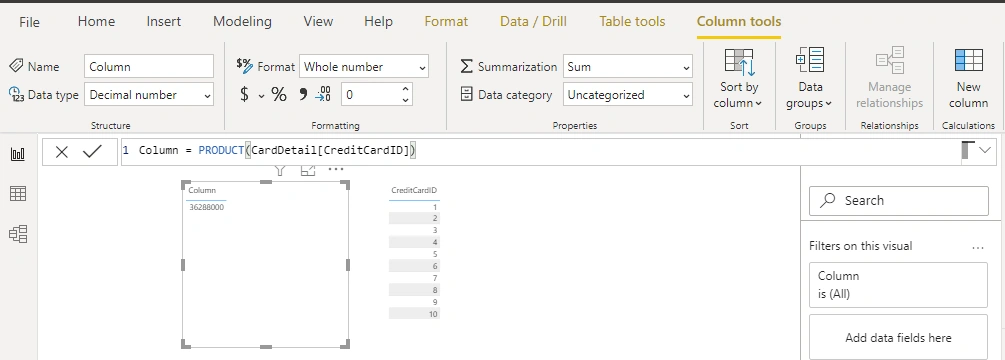
PRODUCT
Returns the product of a given column reference.
Syntax- PRODUCT(ColumnName)
ColumnName -The column that contains the numbers for which the product is to be computed.
Ex.
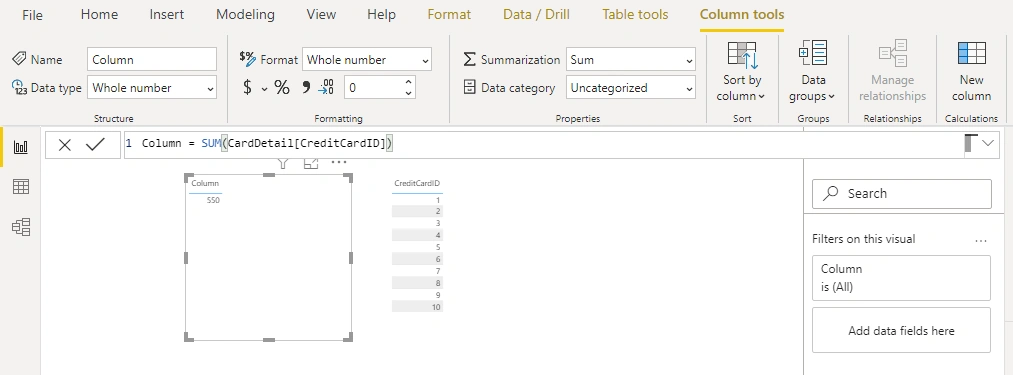
SUM
Adds all the numbers in a column.
Syntax- SUM(ColumnName)
ColumnName -The column that contains the numbers to add.
Ex.
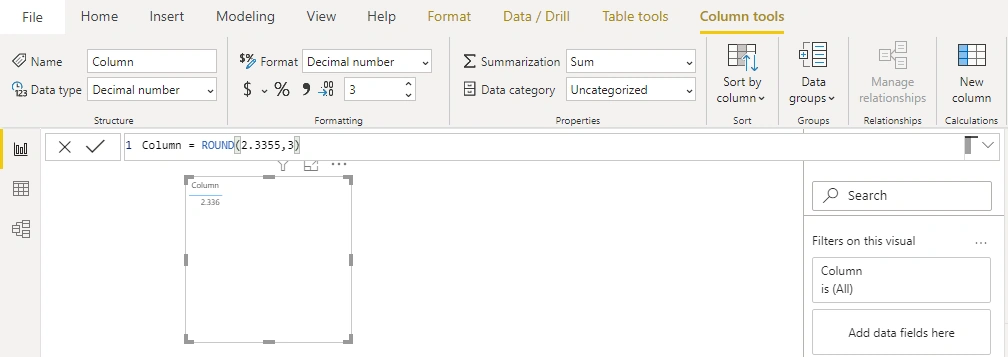
ROUND
Rounds a number to a specified number of digits.
Syntax- ROUND(Number, NumberOfDigit)
Number - Any number that you want to round.
NumberOfDigit-The number of digits to which you want to round.
Ex.
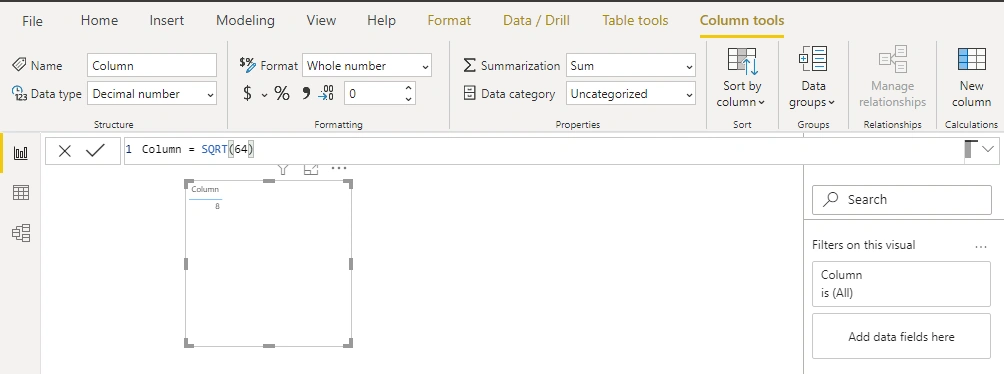
SQRT
Return the square root of a number.
Syntax- SQRT(Number)
Number-The number for which you want the square root.
Ex.
TRUNC
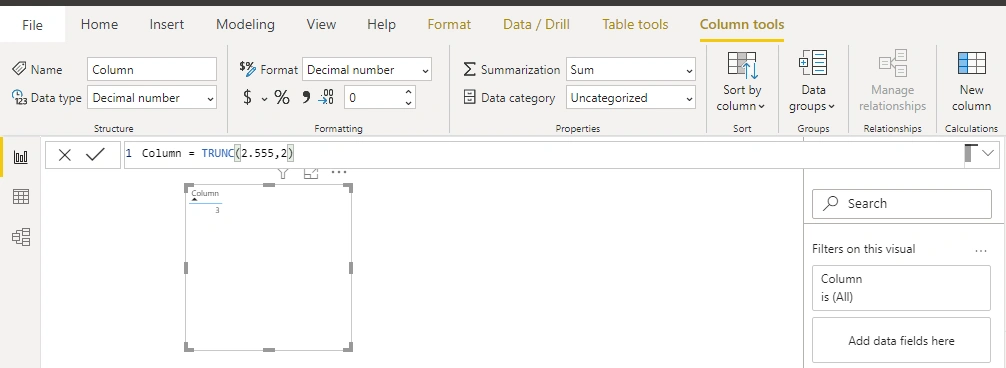
Truncates a number to an integer by removing the decimal, or fractional part of the number.
Syntax - TRUNC(Number, [NumberOfDigit])
Number - The number you want to truncate.
NumberOfDigit - A number specifying the precision of the truncation; if omitted, then default 0 (zero).
Ex.
Summary
These are some commonly used mathematical functions. Hope you understand them. Thanks for reading.
Join the conversation! Your thoughts help the community grow.