


Introduction
SharePoint is a powerful platform for collaboration and document management within organizations. One of its many features is the ability to enable ratings on items within lists and libraries. Ratings allow users to express their opinions about content, providing valuable feedback and insights. In this article, we'll delve into the details of rating settings in SharePoint, exploring their benefits, features, limitations, and step-by-step instructions for enabling them.
Benefits
- User Engagement: Ratings encourage users to interact with content by expressing their opinions, leading to increased engagement.
- Content Prioritization: Highly rated items can be easily identified and prioritized, ensuring that valuable content receives appropriate attention.
- Feedback Mechanism: Ratings provide a simple yet effective way for users to provide feedback on content quality, relevance, or usefulness.
- Data Insights: Aggregated rating data can offer valuable insights into user preferences and satisfaction levels, aiding in content optimization and decision-making.
Features
- Like Option: Users can express their approval or appreciation for content by simply clicking a "Like" button, providing a quick and intuitive feedback mechanism.
- Star Ratings: Users can assign a rating to content using a star-based system, allowing for more nuanced feedback based on quality or relevance.
Limitations
- Limited Customization: SharePoint's built-in rating system offers limited customization options compared to more advanced third-party solutions.
- Potential Bias: Ratings can be influenced by subjective factors and individual preferences, leading to potential biases in the feedback received.
- Administrative Overhead: Managing and analyzing rating data may require additional administrative effort and resources.
Enabling Rating Settings
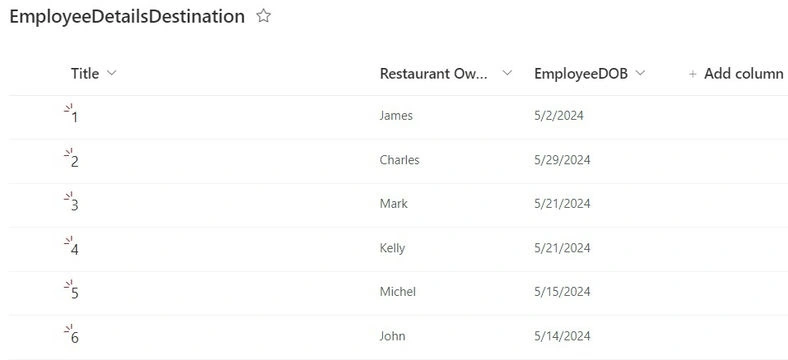
- Navigate to the List or Library: Access the list or library where you want to enable ratings.
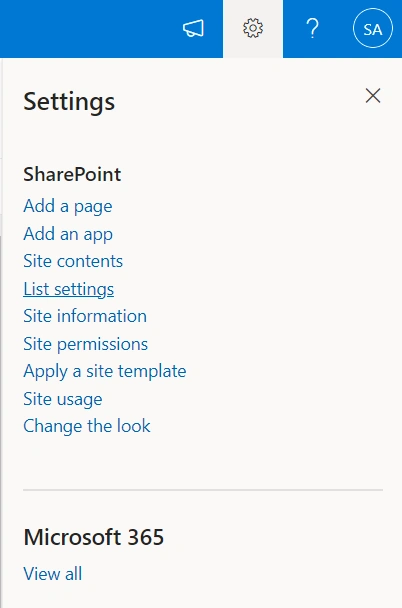
- Access Settings: Click on the gear icon and select "List settings" or "Library settings.
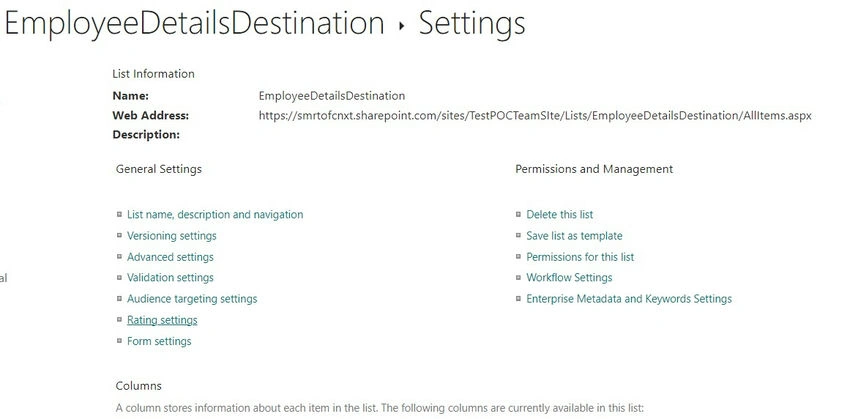
- Rating Settings: Under General Settings, click on "Rating settings.
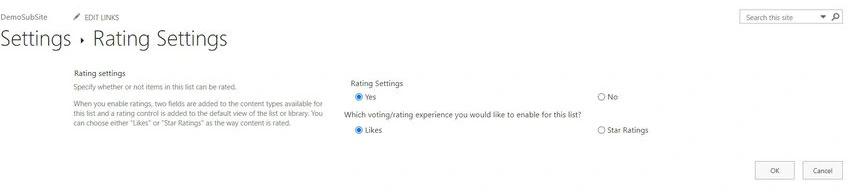
- Choose Rating Type: Enable Rating by selecting Yes and Select whether you want to allow likes or star ratings.
- Save Changes: Click "OK" to save your settings.
Result
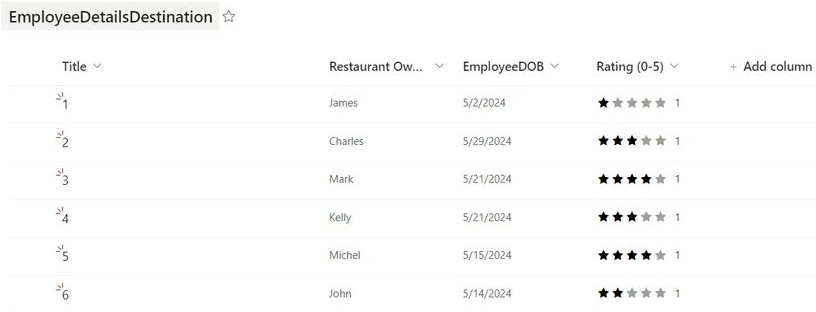
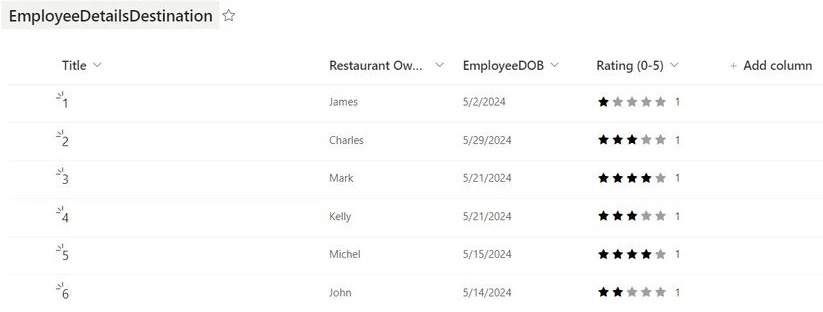
- Once rating settings are enabled, users will see options to rate items when viewing them in the list or library.
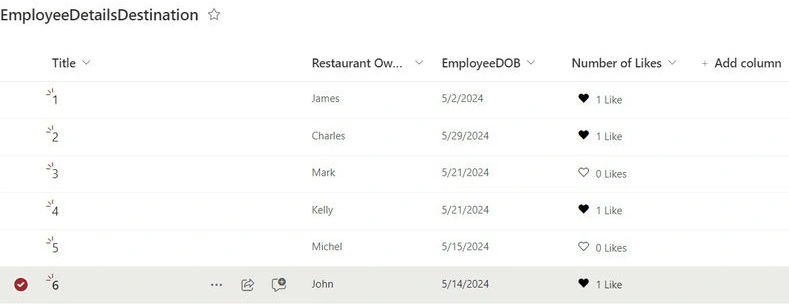
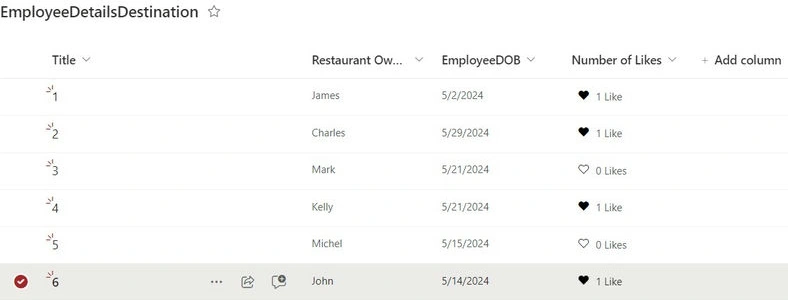
- Users can provide their rating by selecting the appropriate number of stars or clicking a "Like" button, depending on the chosen rating system.
- Aggregated rating data can be viewed and analyzed by administrators to gain insights into user preferences and content performance.
Conclusion
Rating settings in SharePoint offer a simple yet effective way to gather feedback, engage users, and prioritize content. By enabling ratings, organizations can leverage user insights to enhance content quality, improve user satisfaction, and drive collaboration. While rating settings have certain limitations, their benefits outweigh the drawbacks, making them a valuable feature for any SharePoint deployment.
By following the step-by-step guide provided in this article, organizations can easily enable rating settings in SharePoint and harness the power of user feedback to optimize their content management processes.
Join the conversation! Your thoughts help the community grow.