

Introduction
MasterDetailPage is the main page that is responsible for two related pages. It contains the master page that has items and the detail page that shows the details about the items present on a master page.
In this article, we will see how we can use MasterDetailPage and do navigations between pages having contents.
Implementation
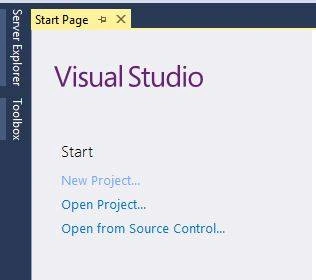
open Visual Studio and select New Project.
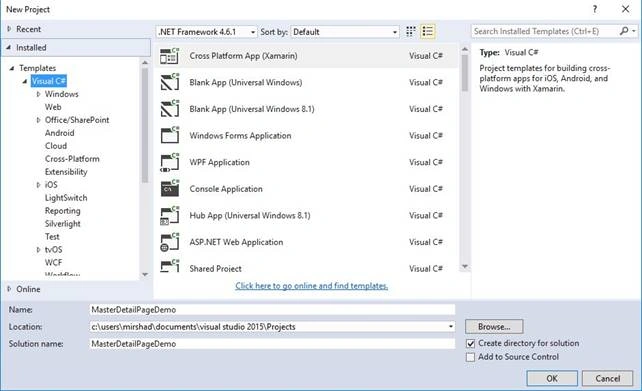
Select project type and give this project a name.
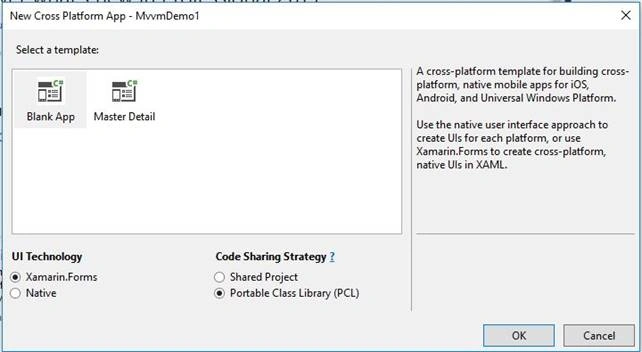
Select template – Blank App and code sharing as PCL.
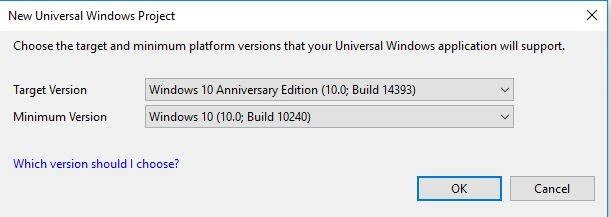
Set the target and minimum platform versions as below.
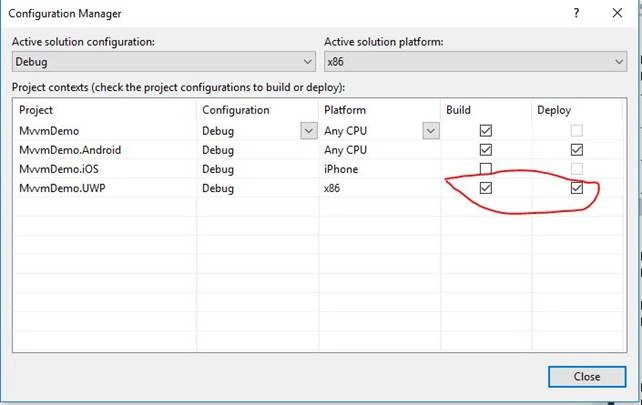
Set the below configuration.
Open MainPage.xaml and add the follwoing code.
- <?xml version="1.0" encoding="utf-8" ?>
- <MasterDetailPage xmlns="http://xamarin.com/schemas/2014/forms"
- xmlns:x="http://schemas.microsoft.com/winfx/2009/xaml"
- xmlns:local="clr-namespace:MasterDetailsPage"
- x:Class="MasterDetailsPage.MainPage" Title="I am master" MasterBehavior="Popover" BackgroundColor="Cyan">
- <MasterDetailPage.Master>
- <ContentPage Padding="10" BackgroundColor="Gray" Title="Master">
- <ContentPage.Content>
- <StackLayout Margin="5,30,5,5">
- <Label Text="Master page Menu"></Label>
- <Button Text="Add Employee" BackgroundColor="Yellow" Clicked="Button_Clicked"></Button>
- <Button Text="List Employee" BackgroundColor="Yellow" Clicked="Button_Clicked2"></Button>
- <Button Text="About Us" BackgroundColor="Yellow" Clicked="Button_Clicked3"></Button>
- <Button Text="Contact" BackgroundColor="Yellow" Clicked="Button_Clickded4"></Button>
- </StackLayout>
- </ContentPage.Content>
- </ContentPage>
- </MasterDetailPage.Master>
- <MasterDetailPage.Detail>
- <ContentPage Padding="10">
- <ContentPage.Content>
- <StackLayout Margin="5,30,5,5">
- <Label Text="Detail Page"></Label>
- </StackLayout>
- </ContentPage.Content>
- </ContentPage>
- </MasterDetailPage.Detail>
- </MasterDetailPage>
Open MainPage.xaml.cs and modify the content.
- using Xamarin.Forms;
- namespace MasterDetailsPage
- {
- public partial class MainPage : MasterDetailPage
- {
- public MainPage()
- {
- InitializeComponent();
- Detail = new NavigationPage(new HomePage());
- IsPresented = false;
- }
- private void Button_Clicked(object sender, EventArgs e)
- {
- Detail = new NavigationPage(new AddEmployee());
- IsPresented = false;
- }
- private void Button_Clicked2(object sender, EventArgs e)
- {
- Detail = new NavigationPage(new ListEmployee());
- IsPresented = false;
- }
- private void Button_Clicked3(object sender, EventArgs e)
- {
- Detail = new NavigationPage(new AboutUs());
- IsPresented = false;
- }
- private void Button_Clickded4(object sender, EventArgs e)
- {
- Detail = new NavigationPage(new ContactUs());
- IsPresented = false;
- }
- }
- }
Add a class file named Employee.cs.
- using System.Collections.Generic;
- namespace MasterDetailsPage
- {
- public class Employee
- {
- public string Name { get; set; }
- public string Address { get; set; }
- public string Designation { get; set; }
- public List<Employee> getEmployee()
- {
- List<Employee> listEmployee = new List<Employee>()
- {
- new Employee() {
- Name = "employee1",
- Address = "address 1",
- Designation = "designation 1"
- },
- new Employee() {
- Name = "employee2",
- Address = "address 2",
- Designation = "designation 2"},
- new Employee() {
- Name = "employee3",
- Address = "address 3",
- Designation = "designation 3"
- }
- };
- return listEmployee;
- }
- }
- }
Add a ViewModel class file as EmployeeViewModel.cs.
- namespace MasterDetailsPage
- {
- public class EmployeeViewModel
- {
- public List<Employee> Employees { get; set; }
- public EmployeeViewModel()
- {
- Employees = new Employee().getEmployee();
- }
- }
- }
Add the items files (Xamarin.Forms Content Pages) that will correspond to the given menu items.
- Add AboutUs.xaml
- <?xml version="1.0" encoding="utf-8" ?>
- <ContentPage xmlns="http://xamarin.com/schemas/2014/forms"
- xmlns:x="http://schemas.microsoft.com/winfx/2009/xaml"
- x:Class="MasterDetailsPage.AboutUs" BackgroundColor="Cyan">
- <ContentPage.Content>
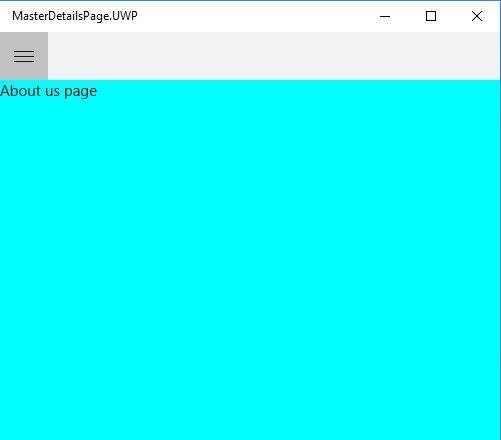
- <Label Text="About us page" />
- </ContentPage.Content>
- </ContentPage>
- Add ContactUs.xaml
- <?xml version="1.0" encoding="utf-8" ?>
- <ContentPage xmlns="http://xamarin.com/schemas/2014/forms"
- xmlns:x="http://schemas.microsoft.com/winfx/2009/xaml"
- x:Class="MasterDetailsPage.ContactUs" Title="Contact" BackgroundColor="Cyan">
- <ContentPage.Content>
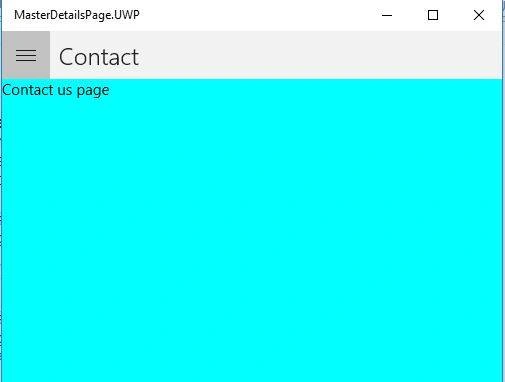
- <Label Text="Contact us page" />
- </ContentPage.Content>
- </ContentPage>
- Add HomePage.xaml
- <?xml version="1.0" encoding="utf-8" ?>
- <ContentPage xmlns="http://xamarin.com/schemas/2014/forms"
- xmlns:x="http://schemas.microsoft.com/winfx/2009/xaml"
- x:Class="MasterDetailsPage.HomePage" Title="Employee" BackgroundColor="Cyan">
- <ContentPage.Content>
- <StackLayout>
- <Label Text="Home page contenet !!!" />
- </StackLayout>
- </ContentPage.Content>
- </ContentPage>
- Add AddEmployee.xaml
- <?xml version="1.0" encoding="utf-8" ?>
- <ContentPage xmlns="http://xamarin.com/schemas/2014/forms"
- xmlns:x="http://schemas.microsoft.com/winfx/2009/xaml"
- x:Class="MasterDetailsPage.AddEmployee" Title="Add Employee" BackgroundColor="Cyan">
- <ContentPage.Content>
- <StackLayout Orientation="Vertical" Padding="40">
- <Label Text="Add new Employee"></Label>
- <Label Text="Enter Name : "></Label>
- <Entry x:Name="name" Placeholder="Name"></Entry>
- <Label Text="Enter Address : "></Label>
- <Entry x:Name="address" Placeholder="Address"></Entry>
- <Label Text="Enter Designation : "></Label>
- <Entry x:Name="designation" Placeholder="Designation"></Entry>
- <Button Text="Submit" Clicked="Button_Clicked"></Button>
- </StackLayout>
- </ContentPage.Content>
- </ContentPage>
- Add DetailsEmployee.xaml
- <?xml version="1.0" encoding="utf-8" ?>
- <ContentPage xmlns="http://xamarin.com/schemas/2014/forms"
- xmlns:x="http://schemas.microsoft.com/winfx/2009/xaml"
- x:Class="MasterDetailsPage.DetailsEmployee" Title="Details" BackgroundColor="Cyan">
- <ContentPage.Content>
- <StackLayout>
- <Label Text="Details of employee!!" />
- <Label x:Name="name"></Label>
- <Label x:Name="address"></Label>
- <Label x:Name="designation"></Label>
- <Button Text="Save" Clicked="Button_Clicked"></Button>
- <Button Text="Edit" Clicked="Button_Clicked_1"></Button>
- </StackLayout>
- </ContentPage.Content>
- </ContentPage>
- Add Saved.xaml
- <?xml version="1.0" encoding="utf-8" ?>
- <ContentPage xmlns="http://xamarin.com/schemas/2014/forms"
- xmlns:x="http://schemas.microsoft.com/winfx/2009/xaml"
- x:Class="MasterDetailsPage.Saved" Title="Saved" BackgroundColor="Cyan">
- <ContentPage.Content>
- <StackLayout>
- <Label Text="Employee Saved !!"/>
- </StackLayout>
- </ContentPage.Content>
- </ContentPage>
- Add ListEmployee.xaml
- <?xml version="1.0" encoding="utf-8" ?>
- <ContentPage xmlns="http://xamarin.com/schemas/2014/forms"
- xmlns:x="http://schemas.microsoft.com/winfx/2009/xaml"
- x:Class="MasterDetailsPage.ListEmployee" Title="List" BackgroundColor="Cyan">
- <ContentPage.Content>
- <StackLayout Spacing="10" Padding="10">
- <Label Text="List of Employee !!" FontSize="20"></Label>
- <ListView x:Name="listEmployee">
- <ListView.ItemTemplate>
- <DataTemplate>
- <TextCell Text="{Binding Name}" TextColor="Purple" Detail="{Binding Designation}" DetailColor="Maroon"></TextCell>
- </DataTemplate>
- </ListView.ItemTemplate>
- </ListView>
- </StackLayout>
- </ContentPage.Content>
- </ContentPage>
Run the application.
- You will get the following screen.
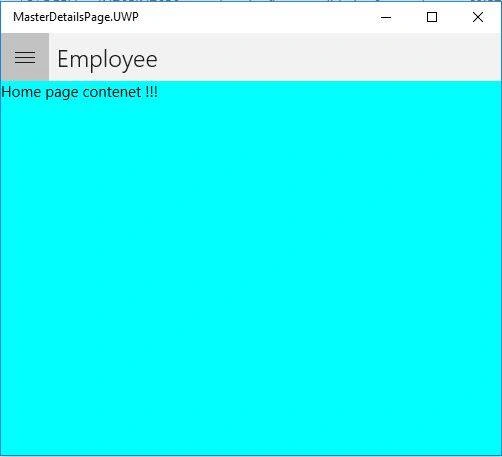
- Click the hamburger menu.
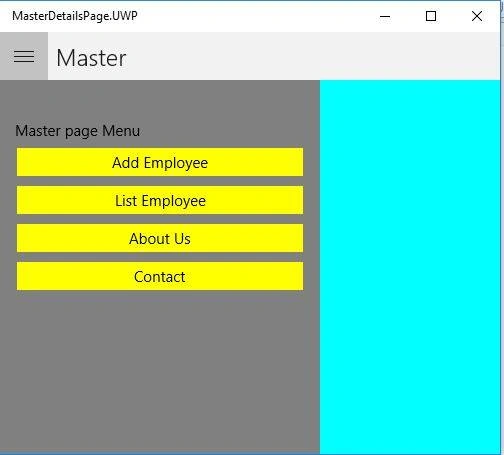
- Click "List Employee" menu.
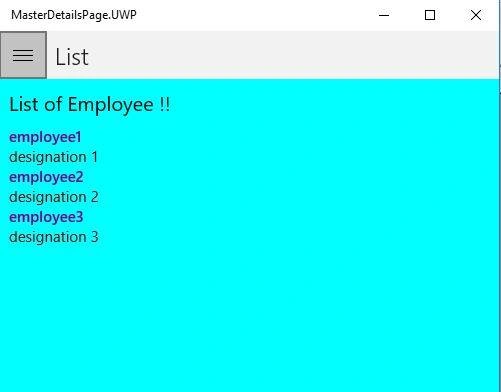
- Click on" Add Employee".
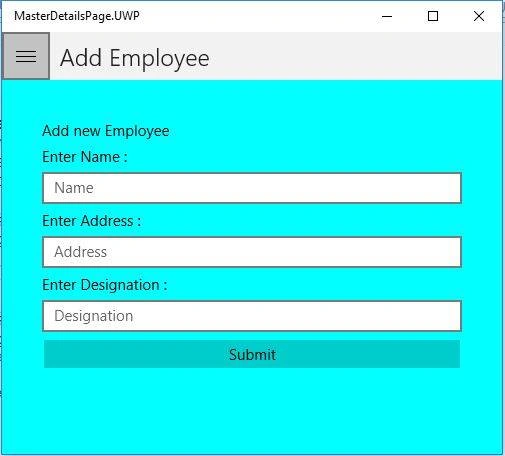
- Fill in the details.
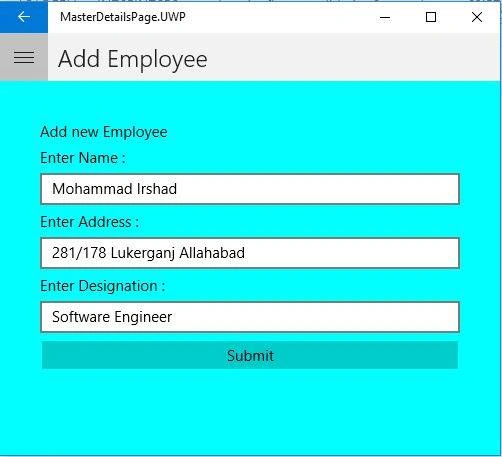
- Click on the "Submit" button.
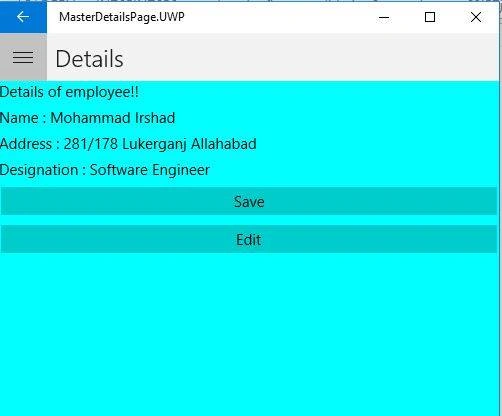
- Click on the "Save" button.
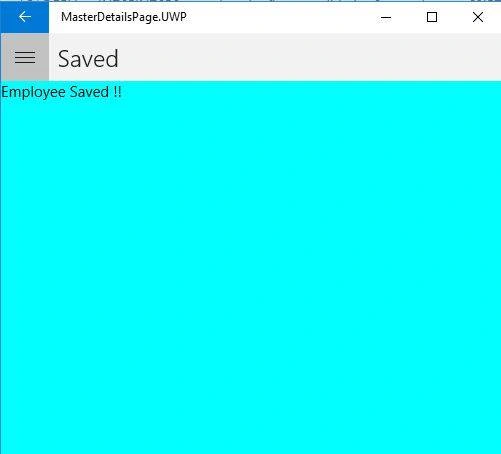
- Go to the "About" menu.
- Click on "Contact " menu.
Note
In MainPage.xaml.cs, we can see that the “IsPresented” property has been set to false every time. If we set this property to true, then the menu will be unnecessarily visible to the item content and for making it hidden, we have to click on the item page.
So, in general scenario, we want the menu to be hidden just after selecting the menu item.
You can check the same output on Android Emulator.
Arvind ChourasiyaPosted Nov 10, 2018, 6:41 AM
This is my third comment on this article in 2018 :). I notice that after pushing first page, you are not showing back arrow to go back on HomePage. How can I show back arrow after opening first page. Thank you.
Arvind ChourasiyaPosted Sep 5, 2018, 8:11 AM
Nice article bro. Can I use MasterDetailPage along with tabbed page like google play store using?
Ayappan AlagesanPosted Mar 15, 2018, 6:48 AM
Hi Sir, I want my master page to be stable (Disabled Geusture propety), But width of the master page I am not able to edit..How to fix master page width.
Arvind ChourasiyaPosted Jan 23, 2018, 9:02 AM
Nice post. I am beginners for Xamarin forms. after completing this tutorial i am getting 3 errors in 3 pages addEmployeee, detailEmployee, listEmployee. Error is initializecomponent does not exist in the current context. How can i solve this error. Thank you
Sagar Pandurang KapPosted Dec 22, 2017, 12:13 AM
Nice Explaination.Keep Posting..
Arvind SinghPosted Dec 21, 2017, 11:01 PM
Good explanation....