
Introduction
An image-map is an image with clickable areas. The <map> tag is supported in all major browsers. An image map is one image with multiple "clickable" areas. Attributes consist of a name and a value separated by an equals (=) sign, with the value surrounded by double-quotes. This attribute is associated with the <img>'s usemap attribute and creates a relationship between the image and the map.
Image
First of all, you need a suitable graphic. An image that cannot be divided into different sections is not your best choice, but an image that has clear cut-offs or lines would be better. Of course, this does not apply to navigational menus or similar, just to everyday pictures like animals, objects or people.
Co-ordinates
You'll need different co-ordinates depending on what sort of "hot spot" you'd like to use.
-RECT
-CIRCLE
-POLYGON
Attributes
HTML tags can contain one or more attributes. Attributes are added to a tag to provide the browser with more information about how the tag should appear or behave.
Attributes consist of a name and a value separated by an equals (=) sign, with the value surrounded by double-quotes.
There are 3 kinds of attributes that you can add to your HTML tags: Element-specific, global, and event handler content attributes.
Element-Specific Attributes
The following table shows the attributes that are specific to this tag/element.
Attributes Introduced by HTML5
| Attributes | Description |
| name | Assigns a name to the image map. |
Global Attributes
The following attributes are standard across all HTML 5 tags.
|
HTML5 Global Attributes
|
||
| accesskey | draggable | style |
| class | hidden | tabindex |
| dir | spellcheck | |
| contenteditable | id | title |
| contextmenu | lang | |
Event Handler Content Attributes
Here are the standard HTML 5 event handler content attributes.
| onabort | onerror* | onmousewheel |
| onblur* | onfocus* | onpause |
| oncanplay | onformchange | onplay |
| oncanplaythrough | onforminput | onplaying |
| onchange | oninput | onprogress |
| onclick | oninvalid | onratechange |
| oncontextmenu | onkeydown | onreadystatechange |
| ondblclick | onkeypress | onscroll |
| ondrag | onkeyup | onseeked |
| ondragend | onload* | onseeking |
| ondragenter | onloadeddata | onselect |
| ondragleave | onloadedmetadata | onshow |
| ondragover | onloadstart | onstalled |
| ondragstart | onmousedown | onsubmit |
| ondrop | onmousemove | onsuspend |
| ondurationchange | onmouseout | ontimeupdate |
| onemptied | onmouseover | onvolumechange |
| onended | onmouseup | onwaiting |
<area> Tag
The HTML <area> tag is used for defining an area in an image map. Image maps are images with clickable areas (sometimes referred to as "hotspots") that usually link to another page.
circle: center-x, center-y, radius
poly: x1, y1, x2, y2, ...
circle
poly
target - Specifies the target frame to load the page into.
For example
- <!DOCTYPE html>
- <html>
- <head>
- <title>Image Map</title>
- </head>
- <body>
- <img src ="image1.gif"
- width="225" height="151" border="0"
- alt="Mueller Hut, Mount Cook, and I"
- usemap ="#muellermap" />
- <map id ="muellermap"
- name="muellermap">
- <area shape ="rect" coords ="90,80,120,151"
- href ="http://c-sharpcorner.com;"
- alt="Me" />
- <area shape ="poly" coords ="55,55,120,80,90,80,90,100,70,100,20,80,55,55"
- href ="http://vbdotnetheaven.com" target="_blank"
- alt="Mount Cook" />
- <area shape ="poly" coords ="145,80,145,100,215,90,215,80,180,60,145,80"
- href ="http://dbtalks.com" target="_blank"
- alt="Mueller Hut" />
- </map>
- </body>
- </html>
Internet Explorer
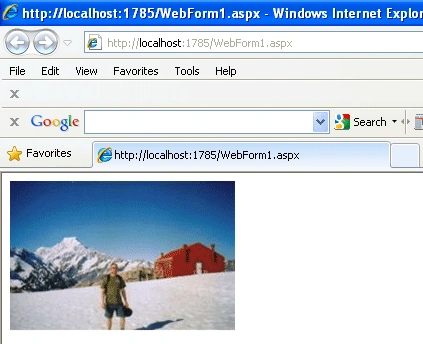
Figure1
Now move the mouse over the image and click on a different area of the image. Now click on the men area.
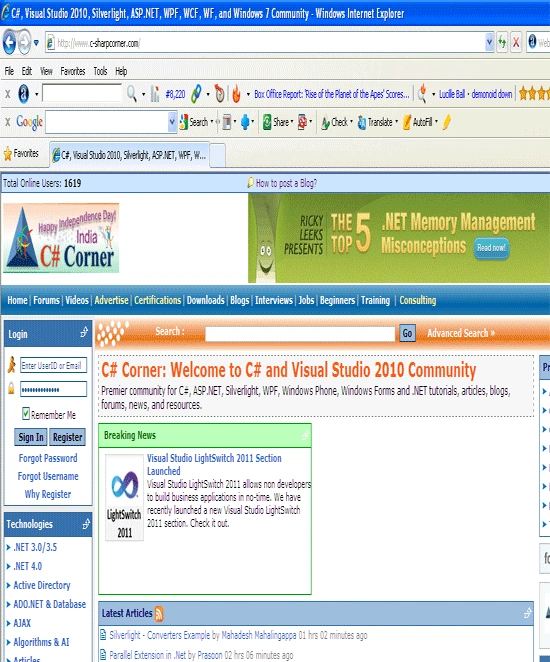
Figure2
FireFox
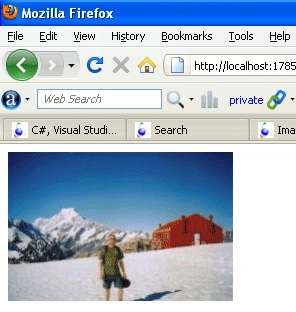
Figure3
Join the conversation! Your thoughts help the community grow.