

Updated 8/29/2018 - Formatted
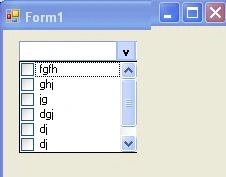
In my recent window application there is need to create a Checked listbox that has dropdown functionality, so I created a user control with the help of checkedlistbox, textbox, button controls and windows.form object that is so useful for me.
This user controls have these features:
- Control has drop down functionality
- Control show status of selected items like 'All selected', 'None selected' and 'N items selected '.
- We able to set the length of dropdown list.
- We can bind items on design time or runtime etc.
How to make
Add a user control in your application with the name 'DropDownCheckedListBox'.
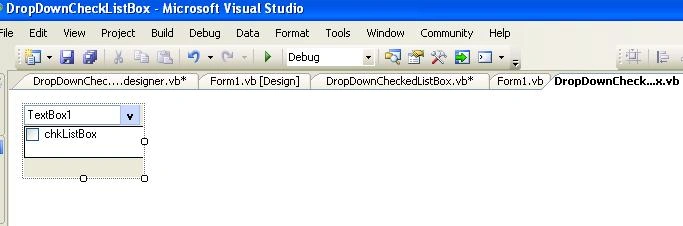
Add textbox, button, checkedlistbox controls in this user control set the position like below
Open code file and make some private variable and some public properties
- Private Const T_DisplayListSize As Integer = 6
- Private Const SelectNoneText As String = "(None Selected)"
- Private Const SelectAllText As String = "(All Selected)"
- Private Const SelectSomeText As String = "(Some Selected...)"
- Private Frm As Form
- Private LostFocus As Boolean
- Private CodeValue As String
- Private T_MustFill As Boolean
- Private Shared m_ChkItemsString As String
- Public Event DropDown()
- Public Shadows Event TextChanged()
- Public Event SetStatusPrompt(ByVal Sender As DropDownCheckedListBox)
- Public Event AllItemSelected(ByVal Sender As DropDownCheckedListBox)
- Public Event AllItemDeselected(ByVal Sender As DropDownCheckedListBox)
Public properties
Make some public properties for the itemslist and length of dropdown list etc.
- Private dataList() As String
- Public Property Items() As String()
- Get
- Return dataList
- End Get
- Set(ByVal value As String())
- dataList = value
- End Set
- End Property
- Private ListSize As Integer
- Public Property DisplayListSize() As Integer
- Get
- Return ListSize
- End Get
- Set(ByVal value As Integer)
- ListSize = value
- SetList()
- End Set
- End Property
- Private T_DroppedDown As Boolean
- Public ReadOnly Property DroppedDown() As Boolean
- Get
- Return T_DroppedDown
- End Get
- End Property
- Private T_ListText As String
- Public ReadOnly Property ListText() As String
- Get
- Return T_ListText
- End Get
- End Property
Add new function InitializeNew() in Sub new()
- Public Sub New()
- InitializeComponent()
- InitializeNew()
- End Sub
- Private Sub InitializeNew()
- Dim strTemp As String
- ListSize = T_DisplayListSize
- T_DroppedDown = False
- T_ListText = ""
- T_MustFill = False
- txt.Text = strTemp
- chkListBox.Hide()
- Frm = New Form
- With Frm
- .ShowInTaskbar = False
- .FormBorderStyle = FormBorderStyle.None
- .ControlBox = False
- .StartPosition = FormStartPosition.Manual
- .TopMost = True
- .Location = chkListBox.Location
- .Width = chkListBox.Width
- .Controls.Add(chkListBox)
- End With
- SetSize()
- End Sub
Create mousedown event of btnDropDown button and call function listButtonClick on here. This is responsible for showing checkedListBox
- Private Sub btnDropdown_MouseDown(ByVal sender As System.Object, ByVal e As System.Windows.Forms.MouseEventArgs) Handles btnDropdown.MouseDown
- ListButtonClick()
- End Sub
We have already make two custom event one is TextChanged and another is DropDown, on here both event have been raised. So we can handle events when control changes its status(user check or uncheck item(s)).
- Private Sub ListButtonClick()
- Dim strTemp As String
- strTemp = T_ListText
- If T_DroppedDown Then
- T_DroppedDown = False
- txt.Text = GetSelectedItems()
- chkListBox.Hide()
- Frm.Hide()
- txt.Focus()
- If Not strTemp = T_ListText Then
- RaiseEvent TextChanged()
- End If
- ElseIf Not LostFocus Then
- T_DroppedDown = True
- SetSize()
- Frm.Show()
- chkListBox.Show()
- chkListBox.Focus()
- RaiseEvent DropDown()
- End If
- LostFocus = False
- End Sub
- Private Sub SetList()
- Dim oFrm As Form
- Dim oRect As Rectangle
- Dim oPt As Point
- If Frm IsNot Nothing Then
- Frm.Height = (ListSize * chkListBox.ItemHeight) + 3
- chkListBox.Height = Frm.Height
- chkListBox.Top = 0
- oFrm = Me.FindForm
- If oFrm IsNot Nothing Then
- oPt = Me.ParentForm.PointToClient(Me.PointToScreen(Point.Empty))
- oPt.Y = oPt.Y + Me.txt.Height
- oRect = oFrm.RectangleToScreen(oFrm.ClientRectangle)
- oPt.X = oPt.X + oRect.Left
- oPt.Y = oPt.Y + oRect.Top
- Frm.Location = oPt
- End If
- Frm.Width = chkListBox.Width
- End If
- End Sub
SetSize() function works for set the size of all controls if you can resize usercontrol.
- Private Sub SetSize()
- LostFocus = False
- txt.Width = Me.Width
- btnDropdown.Left = txt.Width - btnDropdown.Width - 2
- chkListBox.Width = Me.Width
- Me.Height = txt.Height
- SetList()
- End Sub
Working with control
Build your application, the DropDownCheckedListBox should appear in your Visual Studio ToolBox and then you can drag and drop it on to your windows Form.
Add items on design time.
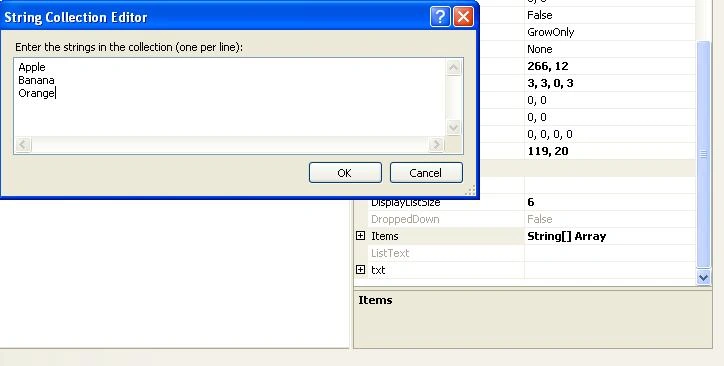
Click on items property, add strings and click ok
You can apply more functionalities according your need in this user control. You can download full source code sample.
Steven VanAkenPosted Feb 25, 2021, 4:09 PM
Looks good, but, how can I populate this control with data? (chkListBox.DataSource)
Jens KlugePosted Dec 14, 2020, 10:56 AM
The item initialization should be fixed. Go into DropDownCheckedListBox.vb. Then change the property set method to the following to pass the value to the underlying listobx: Public Property Items() As String() Get Return dataList End Get Set(ByVal value As String()) dataList = value chkListBox.Items.Clear() chkListBox.Items.AddRange(value) End Set End Property
Samir TPosted May 28, 2020, 11:19 AM
Guys, I have used the attached application and it is working fine. the thing is there are 2 forms in this project. "Form1.vb" and "DropDownCheckedListBox.vb". You need to add your list in the combo box of second form "DropDownCheckedListBox.vb". form1 is loading this second form where you will be able to see your list and multi select is possible. Kudos to the developer.
Reddy AcpPosted Mar 20, 2018, 2:35 AM
I need this controlin c#.net
tan wcPosted Jul 30, 2017, 4:44 AM
Hi Sir, I copied your code and it able to run without syntax error. But the content of dropdownlistbox is blank no matter how I add them. I tried add with code or by properties, all failed. Please help
JPPosted Sep 19, 2013, 10:36 AM
Hello Hirendra, I downloaded the source code and my source code is compiling fine but it is not giving as expected. When I run the application, it shows blank in list box's items. Please check once again and give your comment. Thanks!
Srinivas ReddyPosted Feb 22, 2013, 11:53 PM
Hi Thanks for the control. How to set initial value(s) to this control. Thanks in advance YSReddy