

Introduction and History
Today, I shall show you how to make a QR Code reader Android application in Xamarin. A QR Code consists of black squares arranged in a square grid on a white background, which can be read by imaging devices, such as a camera. The required data is extracted from the patterns that are present in both, horizontal and vertical components of the image.
Prerequisites
Step 3
Open Solution Explorer-> Project Name-> Resources-> Layout-> Main.axml. Open this main.axml file and add the following code.
- Google Play Services - Vision
- QR Code image
Step 1
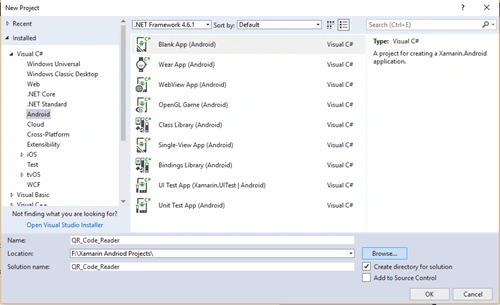
Open Visual Studio and go to New Project-> Templates-> Visual C#-> Android-> Blank app. Give your project a name like -QR_Code_Reader.
Open Visual Studio and go to New Project-> Templates-> Visual C#-> Android-> Blank app. Give your project a name like -QR_Code_Reader.
(ProjectName: QR_Code_Reader)
Step 2
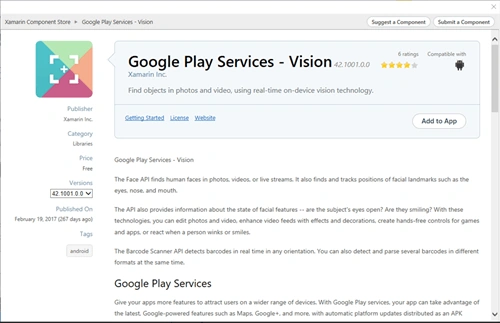
First of all, we need to add a component that is required for text recognition.
Step 2
First of all, we need to add a component that is required for text recognition.
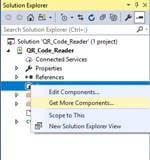
Open Solution Explorer-> Components -> Get More Components.
This way, you can move on to Xamarin Components Store and search for Vision. Click "Add to App".
Step 3
Open Solution Explorer-> Project Name-> Resources-> Layout-> Main.axml. Open this main.axml file and add the following code.
The layout will have an ImageView in order to display the preview of the QR code. I have added a TextView also to display the content of the reconized QR code info.
(FileName: Main.axml)
- <?xml version="1.0" encoding="utf-8"?>
- <LinearLayout xmlns:android="http://schemas.android.com/apk/res/android"
- android:orientation="vertical"
- android:layout_width="match_parent"
- android:layout_height="match_parent">
- <ImageView android:id="@+id/imageView"
- android:layout_width="300dp"
- android:layout_height="300dp"
- android:layout_gravity="center_horizontal"
- android:paddingTop="10dp" />
- <Button android:id="@+id/btnScan"
- android:layout_width="wrap_content"
- android:layout_height="wrap_content"
- android:layout_gravity="center_horizontal"
- android:text="Scan" />
- <TextView android:id="@+id/txtResult"
- android:layout_width="wrap_content"
- android:layout_height="wrap_content"
- android:layout_gravity="center_horizontal"
- android:textSize="20sp"
- android:textColor="@color/abc_tint_btn_checkable"
- android:paddingTop="15dp" />
- </LinearLayout>
Step 4
We need a permission from device. So, go to Solution Explorer-> Properties-> AndroidManifest and add this code inside application tags.
We need a permission from device. So, go to Solution Explorer-> Properties-> AndroidManifest and add this code inside application tags.
- <meta-data android:name="com.google.android.gms.vision.DEPENDENCIES" android:value="barcode"/>
Step 5
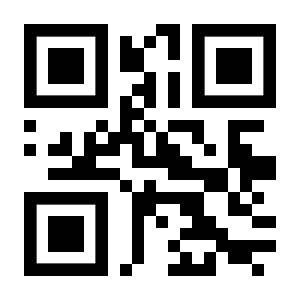
Open Solution Explorer-> Project Name-> Resources-> Drawable and add this image to the Drawable folder. I have created a QR code with the name C-Sharp Corner. If you want to create another one with your name, then you can create from https://www.qrcode-monkey.com.
Open Solution Explorer-> Project Name-> Resources-> Drawable and add this image to the Drawable folder. I have created a QR code with the name C-Sharp Corner. If you want to create another one with your name, then you can create from https://www.qrcode-monkey.com.
Step 6
Next, open Solution Explorer-> Project Name-> MainActivity file and add the following code with appropriate namespaces.
Main Activity Complete Code
Output
Next, open Solution Explorer-> Project Name-> MainActivity file and add the following code with appropriate namespaces.
Main Activity Complete Code
- using Android.App;
- using Android.Widget;
- using Android.OS;
- using Android.Support.V7.App;
- using Android.Graphics;
- using Android.Gms.Vision.Barcodes;
- using Android.Util;
- namespace QRCodeReader {
- [Activity(Label = "QRCodeReader", MainLauncher = true)]
- public class MainActivity: Activity {
- ImageView imageView;
- Button btnScan;
- TextView txtResult;
- protected override void OnCreate(Bundle savedInstanceState) {
- base.OnCreate(savedInstanceState);
- // Set our view from the "main" layout resource
- SetContentView(Resource.Layout.Main);
- imageView = FindViewById < ImageView > (Resource.Id.imageView);
- btnScan = FindViewById < Button > (Resource.Id.btnScan);
- txtResult = FindViewById < TextView > (Resource.Id.txtResult);
- Bitmap bitMap = BitmapFactory.DecodeResource(ApplicationContext.Resources, Resource.Drawable.qrcode);
- imageView.SetImageBitmap(bitMap);
- btnScan.Click += delegate {
- BarcodeDetector detector = new BarcodeDetector.Builder(ApplicationContext).SetBarcodeFormats(BarcodeFormat.QrCode).Build();
- Android.Gms.Vision.Frame fram = new Android.Gms.Vision.Frame.Builder().SetBitmap(bitMap).Build();
- SparseArray barsCode = detector.Detect(fram);
- Barcode result = (Barcode) barsCode.ValueAt(0);
- txtResult.Text = result.RawValue;
- };
- }
- }
- }
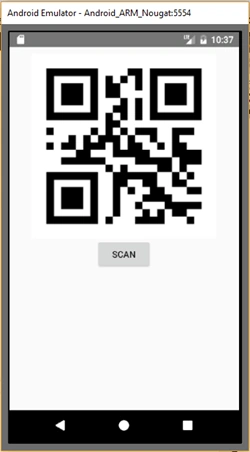
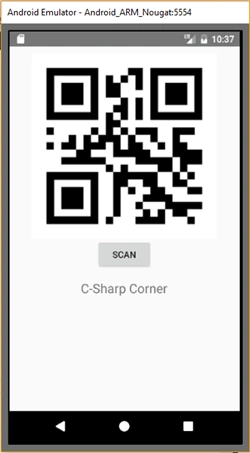
Running this project, and scanning a QR code, you will have the result like below.
weijen liaoPosted Jan 29, 2019, 2:51 AM
Dear Sir, I got some error on "Java.Lang.ArrayIndexOutOfBoundsException: length=0; index=0" in Code "Barcode result = (Barcode) barsCode.ValueAt(0);" And i'm pretty sure the image show on the view, could you tell me how to fix it? thanks a lot
SHRUTI SHARMAPosted Aug 22, 2018, 7:17 PM
Resource.Mipmap.qrcode:worked for me:)
SHRUTI SHARMAPosted Aug 21, 2018, 3:09 PM
Sure, let me check once again
SHRUTI SHARMAPosted Aug 21, 2018, 1:16 PM
Yes, I named it as qr_code,cleaned and rebuilt ,but didnt work.can you please provide other option
SHRUTI SHARMAPosted Aug 20, 2018, 9:59 AM
I added the qr code image,still getting the issue that resource.drawable doesnot contain definition of qr_code
Maksims RaklinskisPosted May 1, 2018, 4:44 AM
I have Visual Studio 2017. When I will compile the your project (QRCodeReader.zip), I see this error: 'Resource.Drawable' does not contain a definition for 'QRCode'