

Macros programming in Excel has made Excel very easy to use; it provides a Visual Basic programming interface which is easy to use. Here are step-by-step instructions of how to do it.
- Start Excel Sheet 2010
- Click on the View tab
- Now click on the dropdown Macros and select Record Macros in the dropdown menu:

- Name your Macro; in the sample I named it "MyMacro". You can also set a shortcut key for it e.g. I have used "Ctrl+W". Now press "OK" in the new window:
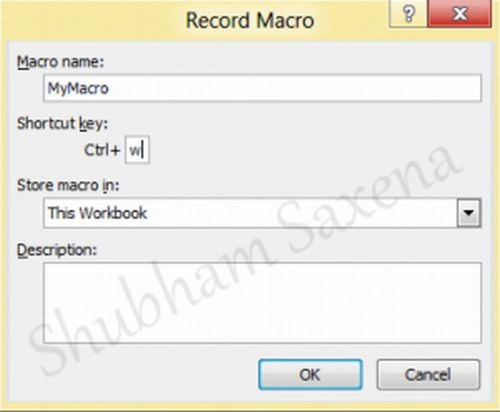
- Now again pull down the dropdown menu of Macros and click on Stop Recording.
- Now select View Macros in the dropdown menu of Macros.
- You will get a window showing all the macros like this:
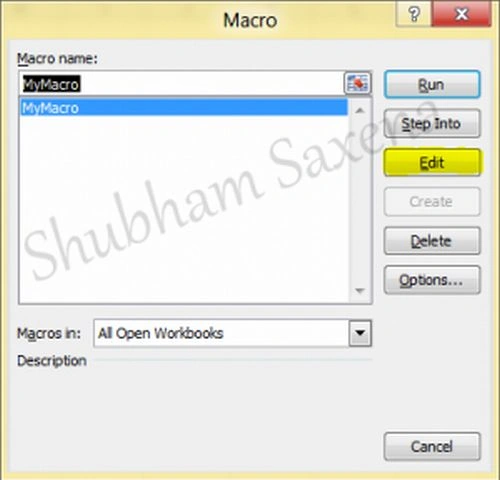
- Select your Macro; in our case it's My Macro and now click on edit.
- You will get a new window as shown in the following figure; this window is the Visual Basic programming interface. The interface shows various components such as the Project Explorer, the Property Window and the Code Window.
You will see:
Sub MyMacro
End Sub
Place your code between those two lines: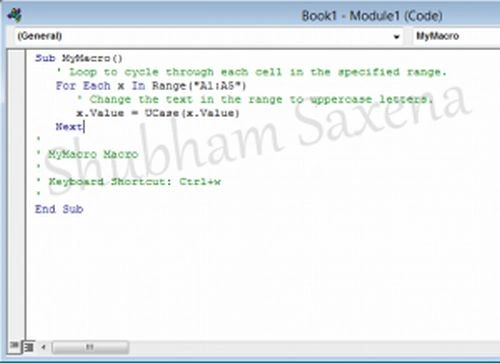
- Press Alt+F11 to go back to the Excel sheet (you can always switch between the programming interface and an Excel sheet with Alt+F11).
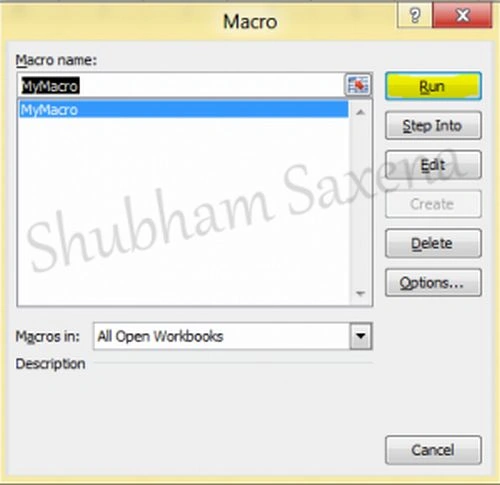
- Now again select View Macros from the Macros drop down menu and just click on run, after selecting your macro from the View Macro window to see the effect of your work. In this sample we have written the code to change the text to UPPERCASE; you can code it according to your requirement.
Enjoy programming Macros for Excel.
Shubham SaxenaPosted Jul 18, 2012, 3:59 AM
@sam - my pleasure.. @mahesh - sir its very easy.. i showed the way hw we can introduced new macros... we can also use sgortcut keys and they are very easy... just code what evr you want... i often use them
Mahesh ChandPosted Jul 18, 2012, 12:41 AM
Tell me about it. I worked with VBA for like 3 months. O man .. what a pain.
Sam HobbsPosted Jul 18, 2012, 12:13 AM
Thank you for this. You know, it used to be that use of macros in Excel was not so easy, yet macros in Excel were not as powerful.