

In this article, we will look into Task List window and how it is helpful in navigating through code. This window shows code comments that use tokens such as TODO or HACK, or custom tokens, and to manage shortcuts that will take you to a specific location in the code.
Let’s open Visual Studio 2015 and create a sample Console application named as “TaskListDemo”
We can open Task List by going to View -> Task List (or) shortcut: Ctrl + \, T.
For example, in below comment:
// UNDONE: Remove this comment from Task List
// - comment marker
UNDONE: Task list built-in token
The rest of the text is a comment.
Let’s add some comments that include HACK, TODO, UNDONE in it. These tokens are predefined, recognized by Task List and will be displayed in Task List as shown below:
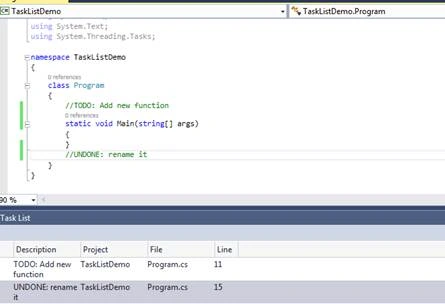
Double-click on specific task to take you to that line of code.
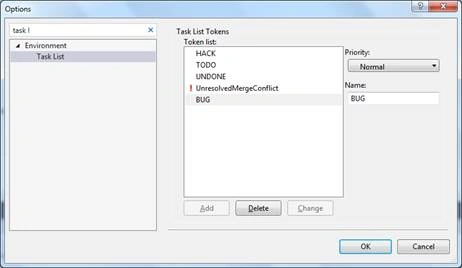
We can add our own tokens as well by going to Tools -> Options -> Environment -> Task List as shown below. Enter a Name, priority and click on Add.
We can add a bookmark\shortcut as well in the code, which is different from regular bookmark and will be shown in Task List as shown below:
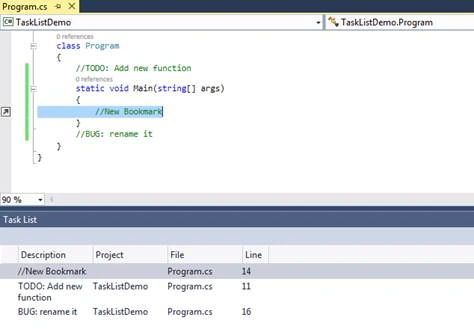
Click on Edit -> Bookmarks -> Add Task List shortcut, [Ctrl+K, Ctrl+H]. Double-click on shortcut in Task List to go to that location in the code.
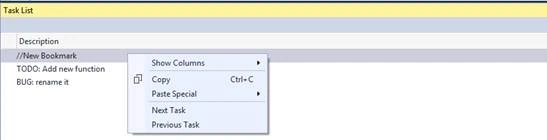
We can navigate through the shortcuts in the code by choosing a shortcut in the list, and then choose Next Task or Previous Task from the shortcut menu.
The user task feature, that is present in prior versions like VS 2013 has been removed and won’t be displayed in Task List in VS 2015.
I am ending things here, I hope this article will be helpful for all.
We can open Task List by going to View -> Task List (or) shortcut: Ctrl + \, T.
For example, in below comment:
// UNDONE: Remove this comment from Task List
// - comment marker
UNDONE: Task list built-in token
The rest of the text is a comment.
Let’s add some comments that include HACK, TODO, UNDONE in it. These tokens are predefined, recognized by Task List and will be displayed in Task List as shown below:
Double-click on specific task to take you to that line of code.
We can add our own tokens as well by going to Tools -> Options -> Environment -> Task List as shown below. Enter a Name, priority and click on Add.
We can add a bookmark\shortcut as well in the code, which is different from regular bookmark and will be shown in Task List as shown below:
Click on Edit -> Bookmarks -> Add Task List shortcut, [Ctrl+K, Ctrl+H]. Double-click on shortcut in Task List to go to that location in the code.
We can navigate through the shortcuts in the code by choosing a shortcut in the list, and then choose Next Task or Previous Task from the shortcut menu.
The user task feature, that is present in prior versions like VS 2013 has been removed and won’t be displayed in Task List in VS 2015.
I am ending things here, I hope this article will be helpful for all.
Read more articles on Visual Studio 2015:
Karthik ElumalaiPosted Apr 29, 2016, 5:09 AM
It was usefull,thanks for sharing...:
Humayun Kabir MamunPosted Apr 28, 2016, 1:53 PM
Nice...
Thiruppathi RPosted Apr 28, 2016, 9:11 AM
Great info
Sonu ChaudharyPosted Apr 27, 2016, 4:11 PM
Good one...
Rahul Kumar SaxenaPosted Apr 27, 2016, 1:27 PM
Good Show
Debasis SahaPosted Apr 27, 2016, 10:14 AM
Good One..
Sonu ChaudharyPosted Apr 27, 2016, 8:04 AM
nice share
Bhuvanesh MohankumarPosted Apr 27, 2016, 2:59 AM
Nice
Gowtham RajamanickamPosted Apr 27, 2016, 2:22 AM
good one..
Vivek KumarPosted Apr 27, 2016, 12:58 AM
Nice sharing
Hari ShankerPosted Apr 26, 2016, 11:42 PM
nice thanks for sharing
Bhavik PatelPosted Apr 26, 2016, 10:05 PM
useful
Kumaresh RajalingamPosted Apr 26, 2016, 9:54 PM
Good one
Kuppurasu NagarajPosted Apr 26, 2016, 2:42 PM
Nice Sharing..