

Let us look at the actual form:
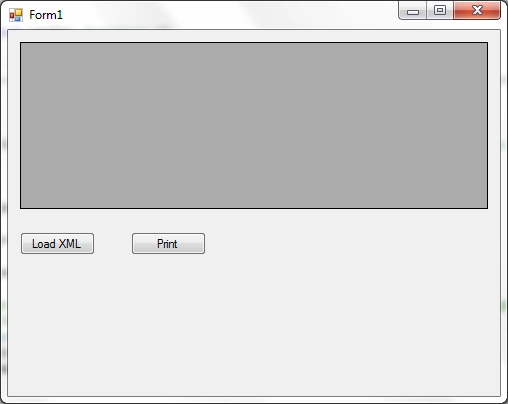
Now let us see how to load data into the DataGridView from the XML file.
Use the following namespace for using XML:
- using System.Xml;
- using System.Data;
- DataSet myDataSet = new DataSet();
When the user clicks on the Load XML button then it will Read the data from the XML file & then store that data into the DataSet.
Now we have to give that DataSet data to the DataGridView using the DataSource.
- myDataSet.ReadXml(@"C:\Users\Indus_User\Desktop\books.xml");
- myDataGridView.DataSource = myDataSet.Tables[0].DefaultView;
- private void btnLoad_Click(object sender, EventArgs e)
- {
- myDataSet.ReadXml(@"C:\Users\Indus_User\Desktop\books.xml");
- myDataGridView.DataSource = myDataSet.Tables[0].DefaultView;
- }
See the following Image:
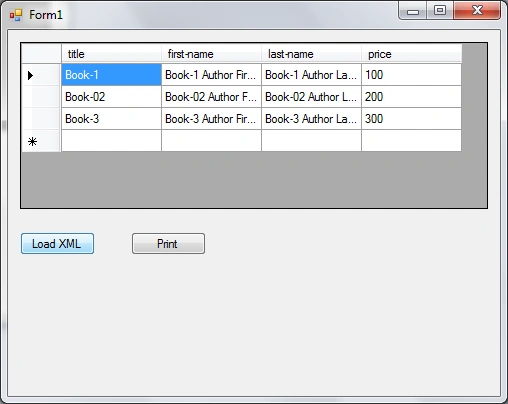
OK. After this very small & easy code it will load the data from the XML file into the DataGridView.
Now come to print that loaded data into the DataGridView.
Use the following namespace to use the bitmap class.
Now create the object of the PrintDocument.
- using System.Drawing;
- System.Drawing.Printing.PrintDocument myPrintDocument = new System.Drawing.Printing.PrintDocument();
Create the Event of the PrintPage Of the PrintDocument.
Now print the data.
- myPrintDocument.PrintPage += new System.Drawing.Printing.PrintPageEventHandler(myPrintDocument_PrintPage);
- myPrintDocument.Print();
The original Print Button Code:
- private void btnPrint_Click(object sender, EventArgs e)
- {
- myPrintDocument.PrintPage += new System.Drawing.Printing.PrintPageEventHandler(myPrintDocument_PrintPage);
- myPrintDocument.Print();
- }
Let us see how to print the DataGridView.
First of all we have to calculate the Width & Height of the records of the DataGridView.
Find the width :
- int myWidth = 0;
- for (int i = 0; i < myDataGridView.Columns.Count; i++)
- {
- myWidth += myDataGridView.Columns[i].Width;
- }
From the above code it will calculate the width of each column & then we will get the whole width.
Find the Height :
- int myHeight = 0;
- myHeight=Convert.ToInt32(myDataGridView.Rows[0].Height * (myDataGridView.Rows.Count));
Now create the object of the Bitmap of calculated Width & Height.
Now use the DrawToBitmap function to convert the DataGridView into a bitmap image using the calculated Width & Height.
- Bitmap myBitmap = new Bitmap(myWidth, myHeight);
- myDataGridView.DrawToBitmap(myBitmap, new Rectangle(0, 0, myWidth, myHeight));
- e.Graphics.DrawImage(myBitmap, 0, 0);
- private void myPrintDocument_PrintPage(System.Object sender, System.Drawing.Printing.PrintPageEventArgs e)
- {
- int myWidth = 0;
- int myHeight = 0;
- myHeight=Convert.ToInt32(myDataGridView.Rows[0].Height * (myDataGridView.Rows.Count));
- for (int i = 0; i < myDataGridView.Columns.Count; i++)
- {
- myWidth += myDataGridView.Columns[i].Width;
- }
- Bitmap myBitmap = new Bitmap(myWidth, myHeight);
- myDataGridView.DrawToBitmap(myBitmap, new Rectangle(0, 0, myWidth, myHeight));
- e.Graphics.DrawImage(myBitmap, 0, 0);
- }
See the following image which is the print of the DataGridView:
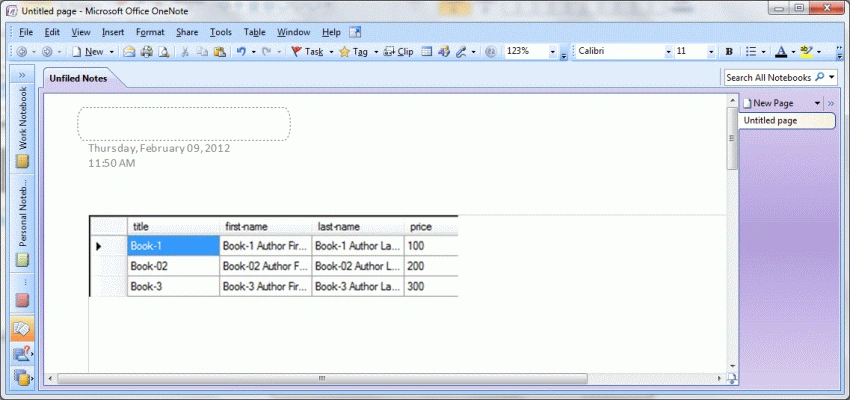
Hope this is easy to understand for you.
Dintwe AfricaPosted Oct 8, 2012, 8:24 AM
thank you sir, but my problem is to save
Damir MutapPosted Jun 11, 2012, 4:44 AM
I reworked print, so now i can print multipages :)
Ghanashyam NayakPosted Jun 10, 2012, 11:28 PM
Thank you Damir...
Damir MutapPosted Jun 5, 2012, 3:16 PM
Ok u just saved my life :), and i just learned new way to print my data's without using database. U are Awesome!!!
Abhi KumarPosted Feb 9, 2012, 11:13 PM
Very useful article. Thanks for sharing.
Sumita JainPosted Feb 9, 2012, 11:12 PM
very nice article.....
Jessica StephenPosted Feb 9, 2012, 11:08 PM
seems useful for me. Thank you!!
Monika AroraPosted Feb 9, 2012, 11:03 PM
Its a very nice and useful article. I will surely try to implement this.
Nitin SinghPosted Feb 9, 2012, 10:53 PM
Thanks, It is very valuable