

Introduction
According to MSDN, SSIS Services is a Microsoft Integration Service and a platform for building enterprise-level data integration and data transformations solutions. Use Integration Services to solve complex business problems by copying or downloading files, loading data warehouses, cleaning and mining data, and managing SQL Server objects and data.
Integration Services can extract and transform data from a wide variety of sources, such as XML data files, flat files, and relational data sources. They can then load the data into one or more destinations.
Prerequisites
- Visual Studio
- SharePoint Online account.
- Basic knowledge of SharePoint.
To achieve our functionality, we have to follow these steps:
- Create a list and add items to the list.
- Create a database, table, and procedures in SQL Server
- Create an SSIS Project in Visual Studio
- Build and Deploy the solution
- Schedule the SSIS packages.
Let begin.
Create a list and add an item in the list
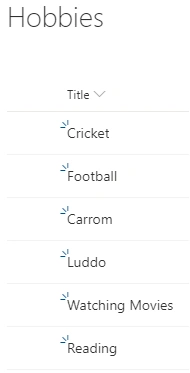
For demonstration purposes, I have created two lists i.e Hobbies and Employee in SharePoint Online.
Hobbies - This list is a Master List
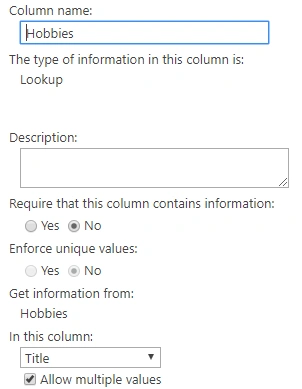
Employee - This list consists of the lookup column (Hobbies) from the Hobbies master list.
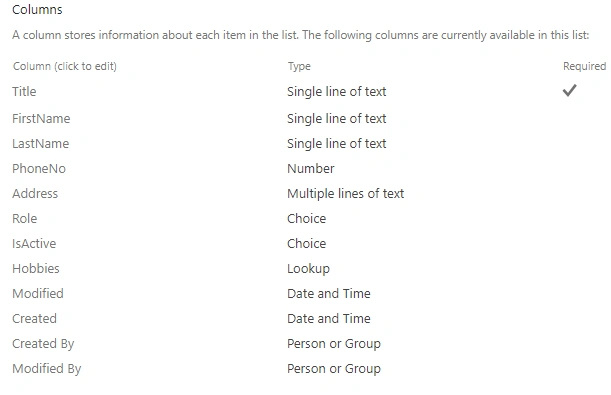
This list consists of the following items.

Now, we have the records in the list, let's create the database and table to load these records.
Create database, table, and procedures in SQL Server
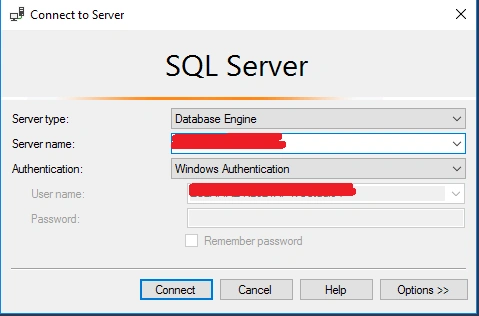
To create a database, log into the SQL server with the proper credentials.
Step 1
Select New Query from the menu and add this script (To execute script press F5)
create database SP_POC
Step 2
Once the database is created successfully, create two new tables for each list to holds employee and hobby records.
Employee List
Employee_Stage
This table will truncate weekly to holds all records for EmployeeFullPackage.dtsx as well as daily after every 15 min to holds new records for
EmployeeIncrementalPackage.dtsx
Employee
This table will truncate on weekly basis to holds all records for EmployeeFullPackage and updates daily after every 15 mins for EmployeeIncrementalPackage.dtsx
- CREATE TABLE Employee_Stage (
- ItemId int,
- FullName nvarchar(max),
- FirstName nvarchar(max),
- LastName nvarchar(max),
- PhoneNum int,
- Address nvarchar(max),
- Role nvarchar(max),
- IsActive nvarchar(max),
- Hobbies nvarchar(max),
- Created datetime,
- Modified datetime,
- CreatedById int,
- ModifiedById int,
- CreatedBy nvarchar(max),
- ModifiedBy nvarchar(max)
- );
- CREATE TABLE Employee (
- ItemId int,
- FullName nvarchar(max),
- FirstName nvarchar(max),
- LastName nvarchar(max),
- PhoneNum int,
- Address nvarchar(max),
- Role nvarchar(max),
- IsActive nvarchar(max),
- Hobbies nvarchar(max),
- Created datetime,
- Modified datetime,
- CreatedById int,
- ModifiedById int,
- CreatedBy nvarchar(max),
- ModifiedBy nvarchar(max)
- );
Hobbies List
Hobbies_Stage
This table will truncate weekly to holds all records for EmployeeFullPackage.dtsx as well as daily after every 15 min to holds new records for
EmployeeIncrementalPackage.dtsx
Hobbies
This table will truncate on weekly basis to hold all records for EmployeeFullPackage and updates daily after every 15 mins for EmployeeIncrementalPackage.dtsx
- CREATE TABLE Hobbies_Stage (
- ItemId int,
- Title nvarchar(max),
- Created datetime,
- Modified datetime,
- CreatedById int,
- ModifiedById int,
- CreatedBy nvarchar(max),
- ModifiedBy nvarchar(max)
- );
- CREATE TABLE Hobbies (
- ItemId int,
- Title nvarchar(max),
- Created datetime,
- Modified datetime,
- CreatedById int,
- ModifiedById int,
- CreatedBy nvarchar(max),
- ModifiedBy nvarchar(max)
- );
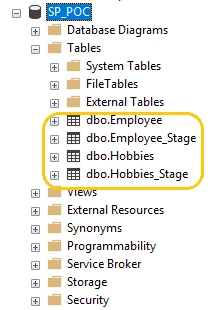
Step 3
We required multiple stored procedures to insert or update records from stage to main table one for employee (i.e. From dbo.Employee_Stage to Employee) and another for hobbies.
EmployeeFullPackage - It will insert the records into the Employee table.
EmployeeIncrementalPackage - If the item is present in the Employee table, then it will update the records else will create the records.
Stored Procedures
A stored procedure is a group of one or more Transact-SQL statements into logical units, so that the statement can be reused over and over again.
Instead of writing an SQL query again and again, save it as a stored procedure, then just call it to execute it.
Write a new store procedure by right click on Stored Procedures -> New -> Store Procedure and paste the below scripts.
Stored Procedure for Employee - usp_MergeEmployee (Execute it by pressing F5).
- USE [SP_POC]
- GO
- -- ================================================
- -- Template generated from Template Explorer using:
- -- Create Procedure (New Menu).SQL
- --
- -- Use the Specify Values for Template Parameters
- -- command (Ctrl-Shift-M) to fill in the parameter
- -- values below.
- --
- -- This block of comments will not be included in
- -- the definition of the procedure.
- -- ================================================
- SET ANSI_NULLS ON
- GO
- SET QUOTED_IDENTIFIER ON
- GO
- -- =============================================
- -- Author: <Author,,Name>
- -- Create date: <Create Date,,>
- -- Description: <Description,,>
- -- =============================================
- CREATE PROCEDURE [dbo].[usp_MergeEmployee]
- AS
- BEGIN
- -- SET NOCOUNT ON added to prevent extra result sets from
- -- interfering with SELECT statements.
- SET NOCOUNT ON;
- -- Insert statements for procedure here
- BEGIN TRAN
- MERGE dbo.[Employee] AS dest
- USING dbo.[Employee_Stage] AS sour
- ON (dest.ItemID = sour.ItemID)
- WHEN MATCHED
- THEN UPDATE SET
- dest.[FullName] = sour.[FullName],
- dest.[FirstName] = sour.[FirstName],
- dest.[LastName] = sour.[LastName],
- dest.[PhoneNum] = sour.[PhoneNum],
- dest.[Address] = sour.[Address],
- dest.[Role] = sour.[Role],
- dest.[IsActive] = sour.[IsActive],
- dest.[Hobbies] = sour.[Hobbies],
- dest.[Created] = sour.[Created],
- dest.[CreatedById] = sour.[CreatedById],
- dest.[Modified] = sour.[Modified],
- dest.[ModifiedById] = sour.[ModifiedById],
- dest.[CreatedBy] = sour.[CreatedBy],
- dest.[ModifiedBy] = sour.[ModifiedBy]
- WHEN NOT MATCHED THEN
- INSERT (
- [ItemId]
- ,[FullName]
- ,[FirstName]
- ,[LastName]
- ,[PhoneNum]
- ,[Address]
- ,[Role]
- ,[IsActive]
- ,[Hobbies]
- ,[Created]
- ,[CreatedById]
- ,[Modified]
- ,[ModifiedById]
- ,[CreatedBy]
- ,[ModifiedBy]
- )
- VALUES ( sour.[ItemId]
- ,sour.[FullName]
- ,sour.[FirstName]
- ,sour.[LastName]
- ,sour.[PhoneNum]
- ,sour.[Address]
- ,sour.[Role]
- ,sour.[IsActive]
- ,sour.[Hobbies]
- ,sour.[Created]
- ,sour.[CreatedById]
- ,sour.[Modified]
- ,sour.[ModifiedById]
- ,sour.[CreatedBy]
- ,sour.[ModifiedBy]
- )
- OUTPUT $action, Inserted.*, Deleted.*;
- COMMIT TRAN
- END
Stored Procedure for Hobbies - usp_MergeHobbies (Execute it by pressing F5).
- USE [SP_POC]
- GO
- -- ================================================
- -- Template generated from Template Explorer using:
- -- Create Procedure (New Menu).SQL
- --
- -- Use the Specify Values for Template Parameters
- -- command (Ctrl-Shift-M) to fill in the parameter
- -- values below.
- --
- -- This block of comments will not be included in
- -- the definition of the procedure.
- -- ================================================
- SET ANSI_NULLS ON
- GO
- SET QUOTED_IDENTIFIER ON
- GO
- -- =============================================
- -- Author: <Author,,Name>
- -- Create date: <Create Date,,>
- -- Description: <Description,,>
- -- =============================================
- CREATE PROCEDURE [dbo].[usp_MergeHobbies]
- AS
- BEGIN
- -- SET NOCOUNT ON added to prevent extra result sets from
- -- interfering with SELECT statements.
- SET NOCOUNT ON;
- -- Insert statements for procedure here
- BEGIN TRAN
- MERGE dbo.[Hobbies] AS dest
- USING dbo.[Hobbies_Stage] AS sour
- ON (dest.ItemID = sour.ItemID)
- WHEN MATCHED
- THEN UPDATE SET
- dest.[Title] = sour.[Title],
- dest.[Created] = sour.[Created],
- dest.[CreatedById] = sour.[CreatedById],
- dest.[Modified] = sour.[Modified],
- dest.[ModifiedById] = sour.[ModifiedById],
- dest.[CreatedBy] = sour.[CreatedBy],
- dest.[ModifiedBy] = sour.[ModifiedBy]
- WHEN NOT MATCHED THEN
- INSERT (
- [ItemId]
- ,[Title]
- ,[Created]
- ,[CreatedById]
- ,[Modified]
- ,[ModifiedById]
- ,[CreatedBy]
- ,[ModifiedBy]
- )
- VALUES ( sour.[ItemId]
- ,sour.[Title]
- ,sour.[Created]
- ,sour.[CreatedById]
- ,sour.[Modified]
- ,sour.[ModifiedById]
- ,sour.[CreatedBy]
- ,sour.[ModifiedBy]
- )
- OUTPUT $action, Inserted.*, Deleted.*;
- COMMIT TRAN
- END
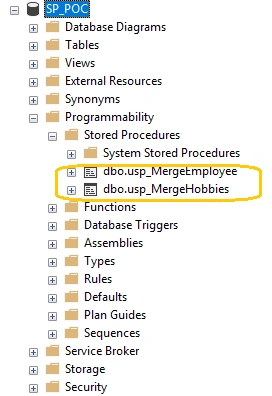
In this article, we have completed the first two major steps.
Check the next part of this articles.
Rohit DesaiPosted Aug 16, 2022, 10:23 PM
HI Arvind: I need to get (or just query) data from a sharepoint site into my SSIS and setting up test. Got stuck at script task as could not find those 4 references to be added in script task. Do I need to add additional software?! If yes, what it is and where can I get it from?! Thanks in advance for your help!
Sagar PardeshiPosted May 8, 2020, 1:52 AM
Hey Arvind...good explore but how you push data in SQL to SharePoint list and how you connect SQL server to SharePoint online list ?