

In this article, you will see how to list joined Teams using Graph API in SharePoint Framework by performing the following tasks,
- Prerequisites
- Create SPFx solution
- Implement SPFx solution
- Deploy the solution
- Approve Graph API Permissions
- Test the webpart
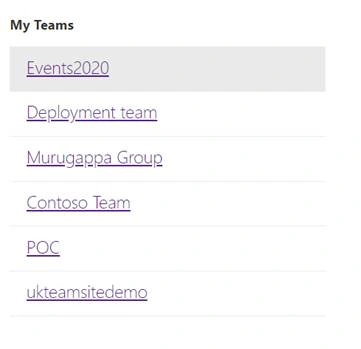
List joined Teams
Get the teams in Microsoft Teamsof which the user is a direct member.
Note
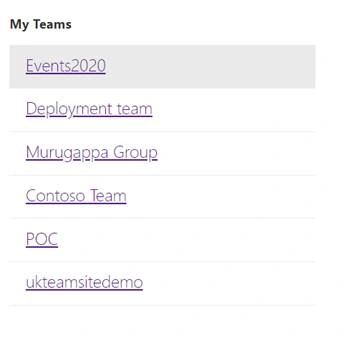
Each team redirects to the respective team.
Prerequisites
Create SPFx solution
Open Node.js command prompt.
Create a new folder.
>md spfx-list-joinedteams
Navigate to the folder.
>cd spfx-list-joinedteams
Execute the following command to create SPFx webpart.
>yo @microsoft/sharepoint
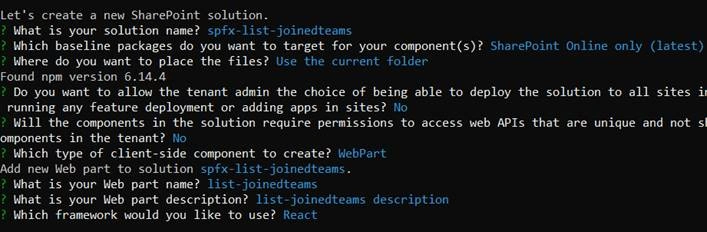
Enter all the required details to create a new solution as shown below.
Yeoman generator will perform the scaffolding process and once it is completed, lock down the version of project dependencies by executing the following command.
>npm shrinkwrap
Execute the following command to open the solution in the code editor.
>code .
Implement SPFx solution
Execute the following command to install Microsoft Graph Typings.
> npm install @microsoft/microsoft-graph-types
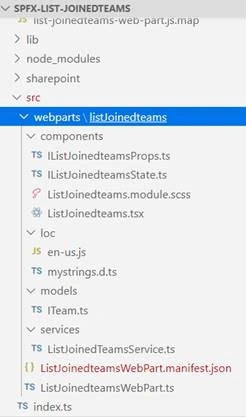
Folder Structure
Open package-solution.json “config\package-solution.json” file and update the code as shown below.
- {
- "$schema": "https://developer.microsoft.com/json-schemas/spfx-build/package-solution.schema.json",
- "solution": {
- "name": "spfx-list-joinedteams-client-side-solution",
- "id": "2a4704fa-f387-4680-9b54-fe2003b78844",
- "version": "1.0.0.0",
- "includeClientSideAssets": true,
- "isDomainIsolated": false,
- "webApiPermissionRequests": [
- {
- "resource": "Microsoft Graph",
- "scope": "User.Read.All"
- },
- {
- "resource": "Microsoft Graph",
- "scope": "User.ReadWrite.All"
- }
- ]
- },
- "paths": {
- "zippedPackage": "solution/spfx-list-joinedteams.sppkg"
- }
- }
Create a new folder named as “models” inside src\webparts\listJoinedteams folder. Create a new file named as ITeam.ts. Open “src\webparts\listJoinedteams\models\ITeam.ts” file and update the code as shown below.
- import { Guid } from '@microsoft/sp-core-library';
- export interface ITeam {
- teamId: Guid;
- displayName: string;
- webUrl?: string;
- }
- export interface ITeamCollection {
- value: ITeam[];
- }
Create a new file named as IListJoinedteamsState.ts under components folder. Open “src\webparts\listJoinedteams\components\IListJoinedteamsState.ts” file and update the code as shown below.
- import { ITeam } from '../models/ITeam';
- export interface IListJoinedteamsState {
- joinedTeams?: ITeam[];
- }
Create a new folder named as “services” inside src\webparts\listJoinedteams folder. Create a new file named as ListJoinedTeamsService.ts. Open “src\webparts\listJoinedteams\services\ListJoinedTeamsService.ts” file and update the code as shown below.
- import { MSGraphClient } from "@microsoft/sp-http";
- import { WebPartContext } from "@microsoft/sp-webpart-base";
- import { ITeam, ITeamCollection } from '../models/ITeam';
- export class ListJoinedTeamsService {
- public context: WebPartContext;
- public setUp(context: WebPartContext): void {
- this.context = context;
- }
- public getJoinedTeams(): Promise<ITeam[]> {
- return new Promise<ITeam[]>((resolve, reject) => {
- try {
- // Prepare the output array
- var teams: Array<ITeam> = new Array<ITeam>();
- this.context.msGraphClientFactory
- .getClient()
- .then((client: MSGraphClient) => {
- client
- .api("/me/joinedTeams")
- .select('id,displayName')
- .get((error: any, teamColl: ITeamCollection, rawResponse: any) => {
- // Map the response to the output array
- teamColl.value.map((item: any) => {
- teams.push({
- teamId: item.id,
- displayName: item.displayName
- });
- });
- resolve(teams);
- });
- });
- } catch (error) {
- console.error(error);
- }
- });
- }
- public getTeamWebUrl(teams: ITeam): Promise<any> {
- return new Promise<any>((resolve, reject) => {
- try {
- this.context.msGraphClientFactory
- .getClient()
- .then((client: MSGraphClient) => {
- client
- .api(`/teams/${teams.teamId}`)
- .select('webUrl')
- .get((error: any, team: any, rawResponse: any) => {
- resolve(team);
- });
- });
- } catch (error) {
- console.error(error);
- }
- });
- }
- }
- const listJoinedTeamsService = new ListJoinedTeamsService();
- export default listJoinedTeamsService;
Open “src\webparts\listJoinedteams\ListJoinedteamsWebPart.ts” file and update the following.
- Import modules
- Update the OnInit method
Import modules,
- import listJoinedTeamsService, {ListJoinedTeamsService} from './services/ListJoinedTeamsService';
Update the OnInit method,
- protected onInit():Promise<void>{
- return super.onInit().then(() => {
- listJoinedTeamsService.setUp(this.context);
- });
- }
Update the React component (src\webparts\listJoinedteams\components\ListJoinedteams.tsx),
- import * as React from 'react';
- import styles from './ListJoinedteams.module.scss';
- import { IListJoinedteamsProps } from './IListJoinedteamsProps';
- import { IListJoinedteamsState } from './IListJoinedteamsState';
- import { escape } from '@microsoft/sp-lodash-subset';
- import { ITeam, ITeamCollection } from '../models/ITeam';
- import listJoinedTeamsService, { ListJoinedTeamsService } from '../services/ListJoinedTeamsService';
- import { List } from 'office-ui-fabric-react/lib/List';
- import { FocusZone, FocusZoneDirection } from 'office-ui-fabric-react/lib/FocusZone';
- import { TextField } from 'office-ui-fabric-react/lib/TextField';
- import { ITheme, mergeStyleSets, getTheme, getFocusStyle } from 'office-ui-fabric-react/lib/Styling';
- interface IGroupListClassObject {
- itemCell: string;
- itemImage: string;
- itemContent: string;
- itemName: string;
- itemIndex: string;
- chevron: string;
- }
- const theme: ITheme = getTheme();
- const { palette, semanticColors, fonts } = theme;
- const classNames: IGroupListClassObject = mergeStyleSets({
- itemCell: [
- getFocusStyle(theme, { inset: -1 }),
- {
- minHeight: 54,
- padding: 10,
- boxSizing: 'border-box',
- borderBottom: `1px solid ${semanticColors.bodyDivider}`,
- display: 'flex',
- selectors: {
- '&:hover': { background: palette.neutralLight }
- }
- }
- ],
- itemImage: {
- flexShrink: 0
- },
- itemContent: {
- marginLeft: 10,
- overflow: 'hidden',
- flexGrow: 1
- },
- itemName: [
- fonts.xLarge,
- {
- whiteSpace: 'nowrap',
- overflow: 'hidden',
- textOverflow: 'ellipsis'
- }
- ],
- itemIndex: {
- fontSize: fonts.small.fontSize,
- color: palette.neutralTertiary,
- marginBottom: 10
- },
- chevron: {
- alignSelf: 'center',
- marginLeft: 10,
- color: palette.neutralTertiary,
- fontSize: fonts.large.fontSize,
- flexShrink: 0
- }
- });
- export default class ListJoinedteams extends React.Component<IListJoinedteamsProps, IListJoinedteamsState> {
- private _originalItems: ITeam[] = [];
- constructor(props: IListJoinedteamsProps) {
- super(props);
- this.state = {
- joinedTeams: []
- };
- }
- public componentDidMount(): void {
- this._getJoinedTeams();
- }
- public render(): React.ReactElement<IListJoinedteamsProps> {
- const { joinedTeams = [] } = this.state;
- return (
- <FocusZone direction={FocusZoneDirection.vertical}>
- <h1>My Teams</h1>
- <List items={joinedTeams} onRenderCell={this._onRenderCell} />
- </FocusZone>
- );
- }
- public _getJoinedTeams = (): void => {
- listJoinedTeamsService.getJoinedTeams().then(result => {
- this.setState({
- joinedTeams: result
- });
- this._getTeamWebUrl(result);
- });
- }
- public _getTeamWebUrl = (teams: any): void => {
- teams.map(teamItem => (
- listJoinedTeamsService.getTeamWebUrl(teamItem).then(teamUrl => {
- if (teamUrl !== null) {
- this.setState(prevState => ({
- joinedTeams: prevState.joinedTeams.map(team => team.teamId === teamItem.teamId ? { ...team, webUrl: teamUrl.webUrl } : team)
- }));
- }
- })
- ));
- }
- private _onRenderCell(team: ITeam, index: number | undefined): JSX.Element {
- return (
- <div className={classNames.itemCell} data-is-focusable={true}>
- <div className={classNames.itemContent}>
- <div className={classNames.itemName}>
- <a href={team.webUrl} target="_blank">{team.displayName}</a>
- </div>
- </div>
- </div>
- );
- }
- }
Deploy the solution
Execute the following commands to bundle and package the solution.
>gulp bundle --ship
>gulp package-solution --ship
Navigate to tenant app catalog – Example: https://c986.sharepoint.com/sites/appcatalog/SitePages/Home.aspx
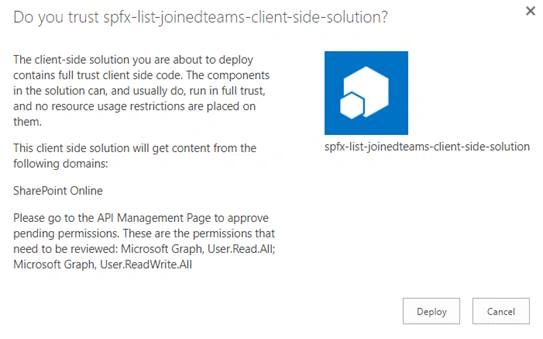
Upload the package file (sharepoint\solution\spfx-list-joinedteams.sppkg). Click Deploy.
Approve Graph API permission
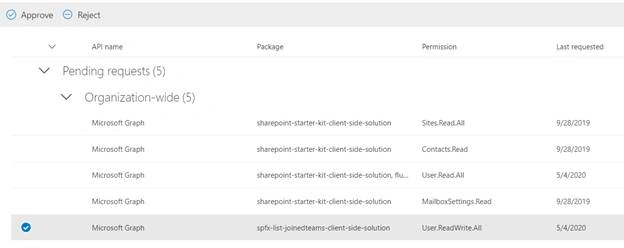
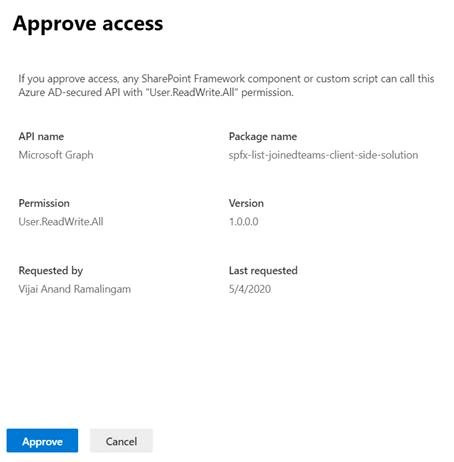
Navigate to SharePoint Admin center, click API access in the left navigation. Select the permission requested and click Approve.
Test the webpart
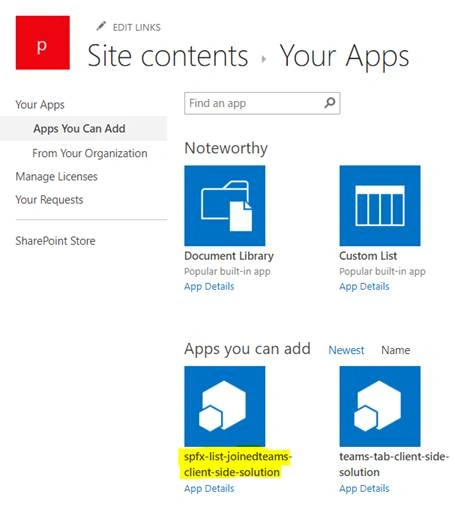
Navigate to the SharePoint site and add the app.
Navigate to the page and add the webpart.
Summary
Thus, in this article, you saw how to list joined Teams using Graph API in SharePoint Framework.
Join the conversation! Your thoughts help the community grow.