

Introduction
In my previous article, we discussed the project on Github and the project board. Also, we got the steps to create a project and project Board in GitHub and steps to link GitHub repository with Project.
In this article, I will describe the below-mentioned points in detail,
- Know about teams in GitHub
- Steps to create teams in GitHub
- Group organization members into teams with permissions and mentions
- Create independent or nested teams to manage repository permissions and mentions
Note
Before going through this session, please visit my below-mentioned sessions related to Git and GitHub,
- Introduction To Git
- Steps For Configuring Git With Details
- Let's Know About Git Add, Git Commit, Git Status, And Git Push-In Details
- Let's Understand How Git Maintains History Of Version Or Commit Ids With Details
- Steps To Initialize A Git Repository And Push The Changes To GitHub In Details
- Let's Know About Git Branches And How To Implement It
- Let's Understand About Git Branches And Its Real-Time Uses
- Let's Learn About Merging The Git Branches And Create Pull Request In Details
- Steps To Ignore Files Using Gitignore In Details
- Let's Learn About Git Default Branch In Detail
- Steps To Create And Configure Organizations In GitHub In Details
- Let's Learn About GitHub Projects In Detail
Know About Teams In GitHub
We require to provide access to developers and other team members on projects and repositories to complete our work. We can provide access to each and every user or we can control the access by grouping users in a team. In case you are managing a large enterprise environment then it is the best approach to create teams and provide them access to users.
Steps To Create Teams In GitHub
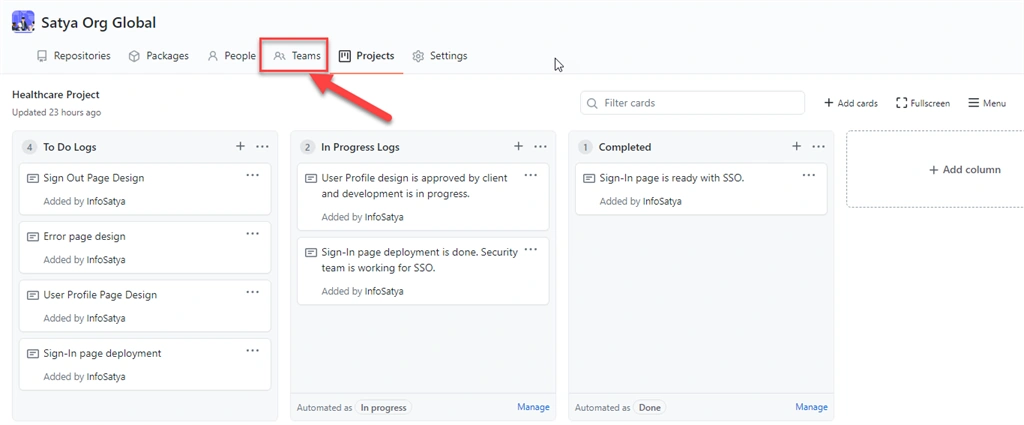
Click on the Teams option as per the below image,
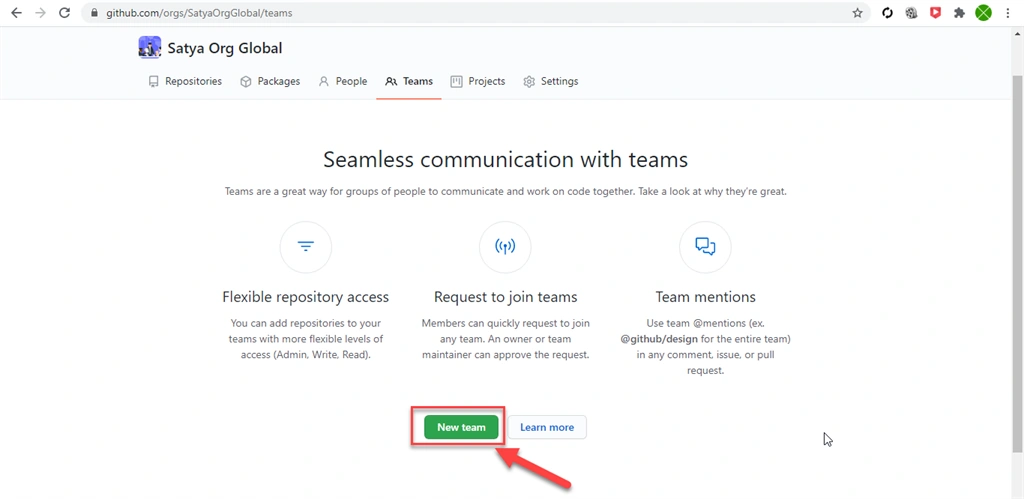
Then click on New team as per the below image,
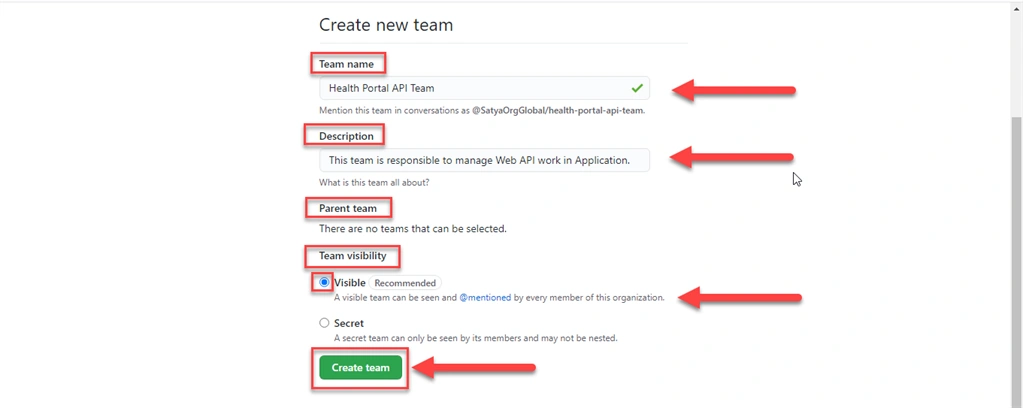
Next, We put few details about the team as per the below image,
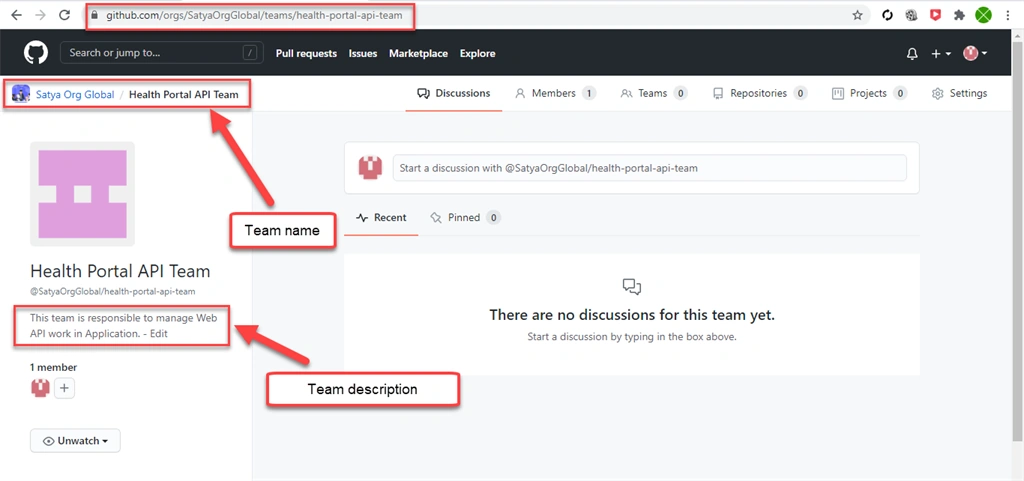
After the successful creation of the team, the interface will be shown below,
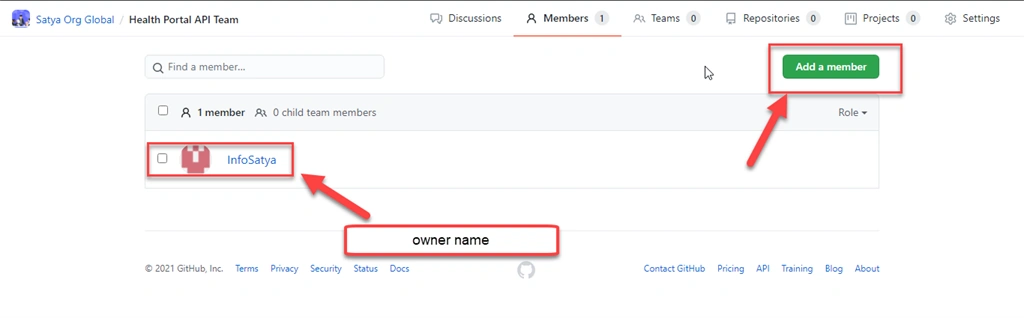
Let's add members by click on the Members option in this team called Health Portal API Team. As of now the only member of this team is the owner of this project/Team called InfoSatya. Here click on Add a member as shown below,
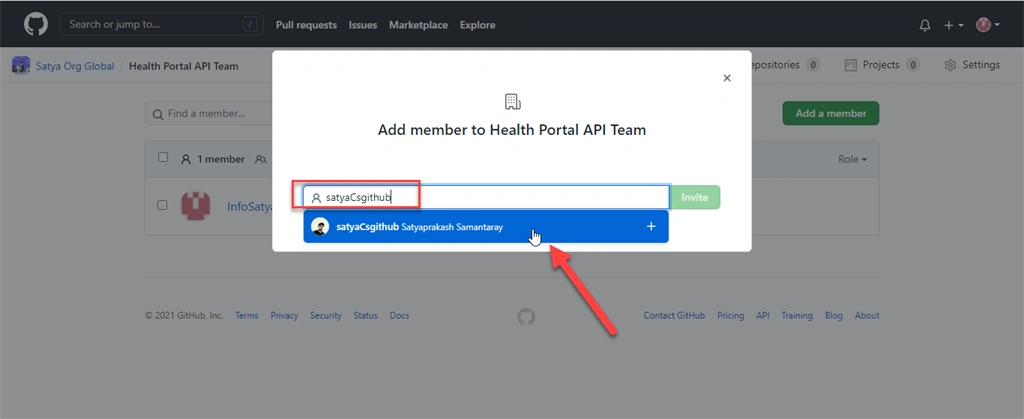
I have created another account on GitHub called satyaCsgithub in our production environment. So, here the owner of this team will send an invitation to another GitHub members that is satyaCsgithub. Here I recommend mentioning the user name of this GitHub member to invite as shown below. This member should be a part of the GitHub organization. I already added this member to our GitHub organization as described in the previous session. If not then the popup with the blue screen as per the below image will show that Not a member of this GitHub organization.
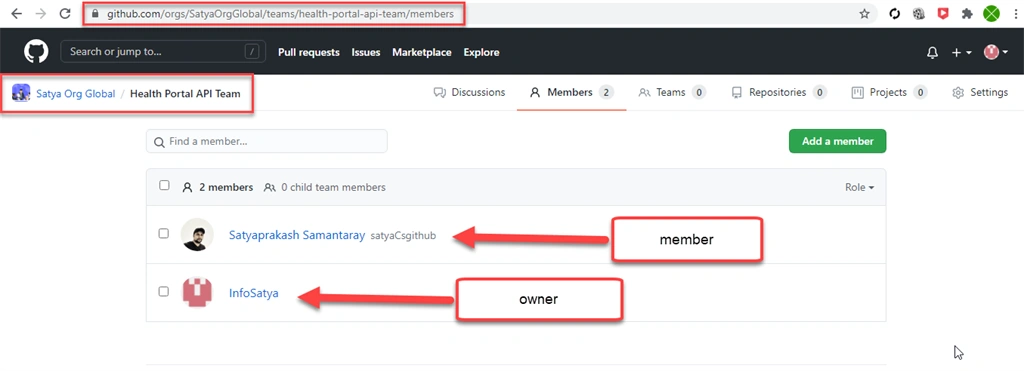
Earlier I added this member to the GitHub organization and sent notification. This user accepts the invitation and join our GitHub organization. So, here no need to send another invitation to this user again. If not then after invite this user we can see one option like 1 pending member. But as of now, there is no pending as shown below. Now the new is a member is added to the team successfully.
Assign Project Permission To The Team
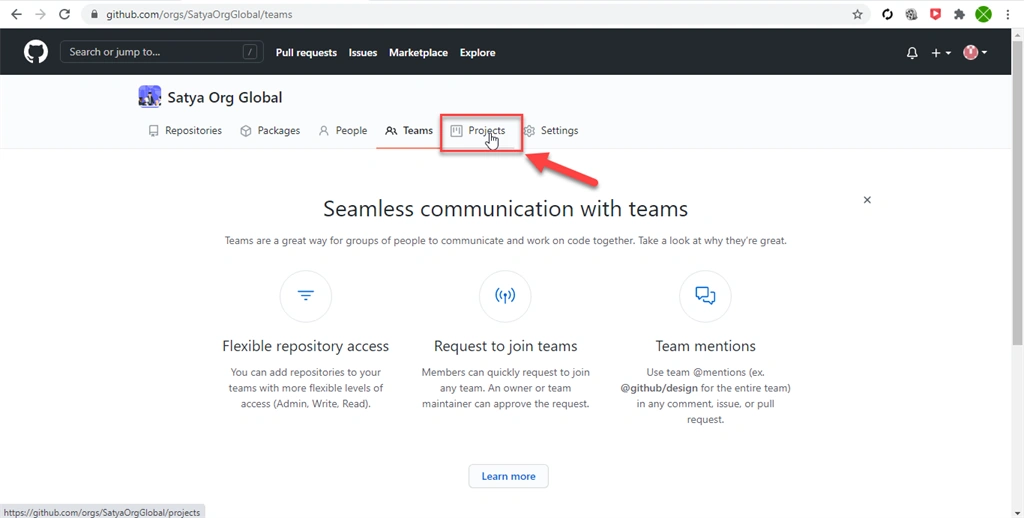
First, click on the Projects option as shown below.
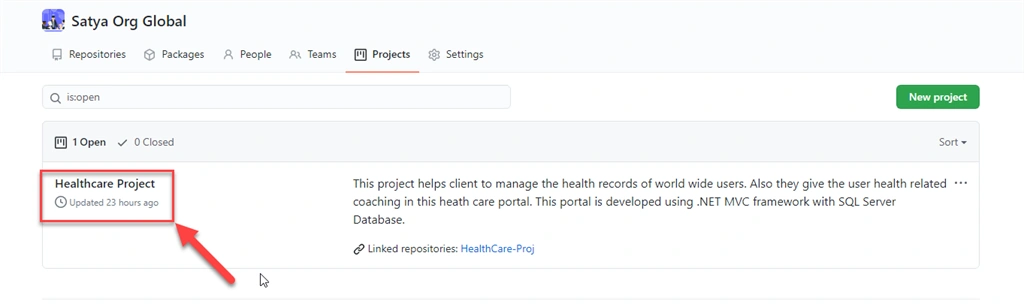
Next click on the Project name as shown below,
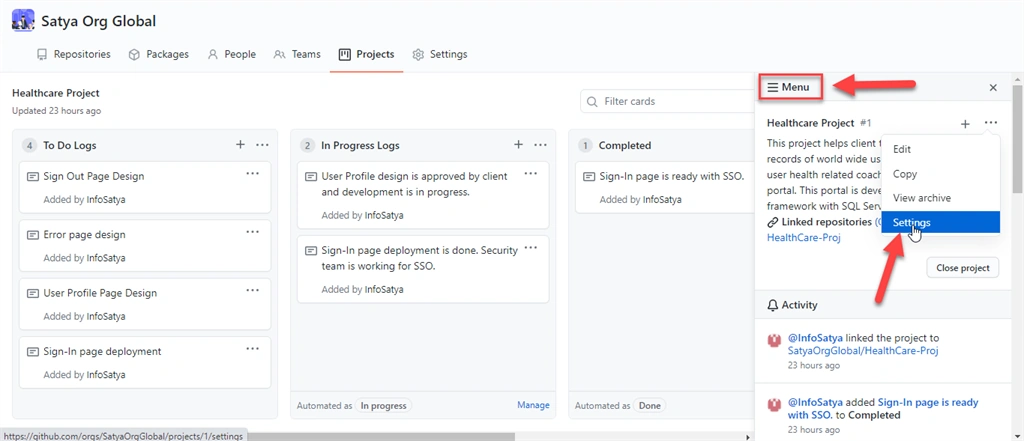
Next, Click on Menu and then Settings as shown below,
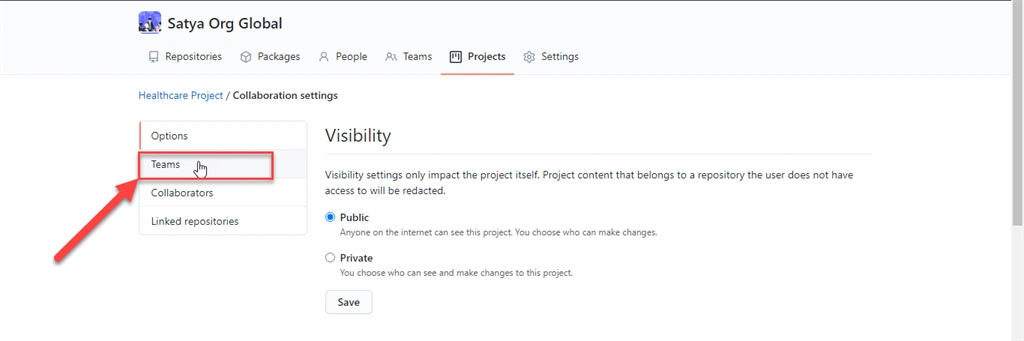
Next, Click on Teams as shown below,
Next, select the team name that I created earlier as shown below,
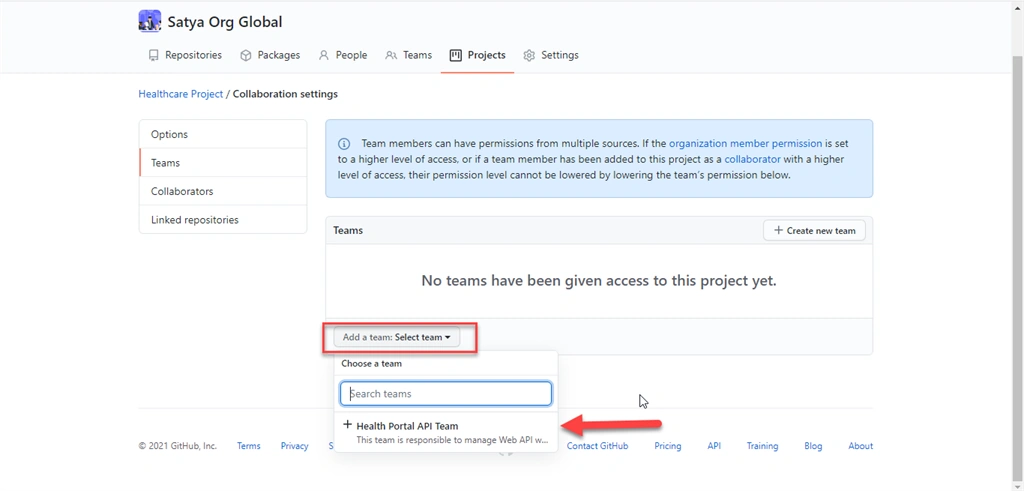
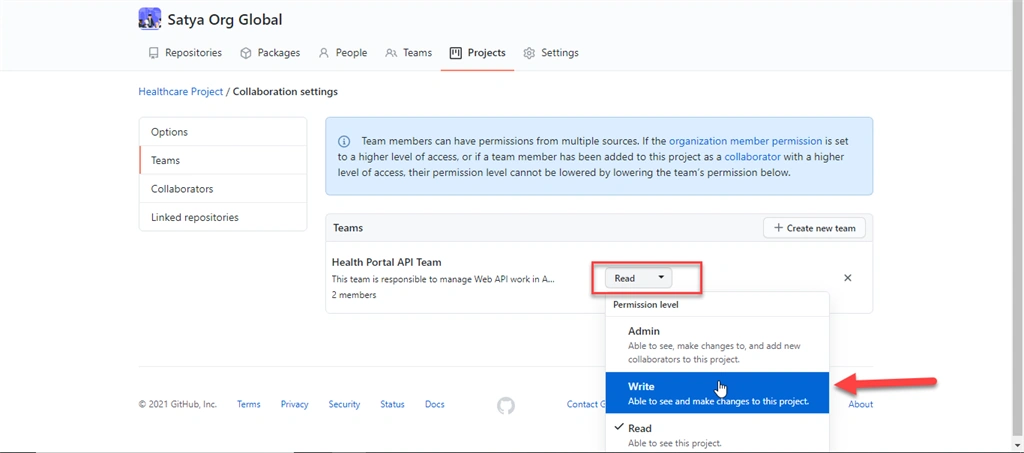
Next, Under the Permission level, I have given Write permission. So, that the user can see and able to make changes to this project as shown below,
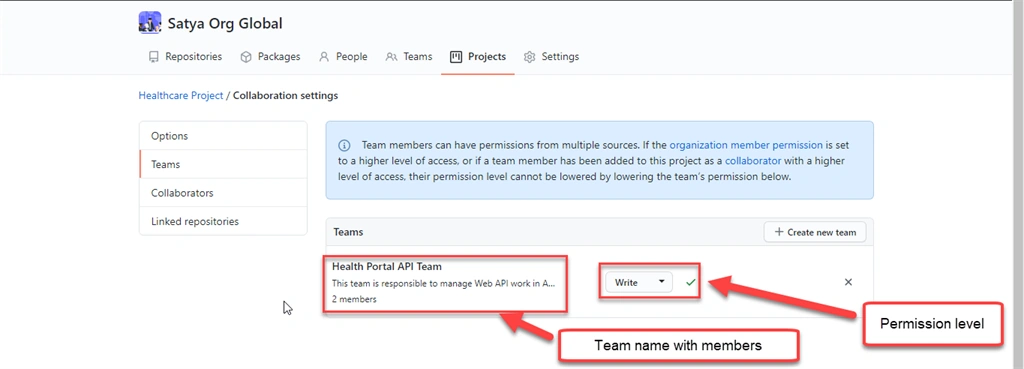
After successfully added, We can see the team name with members and given permission level as shown below,
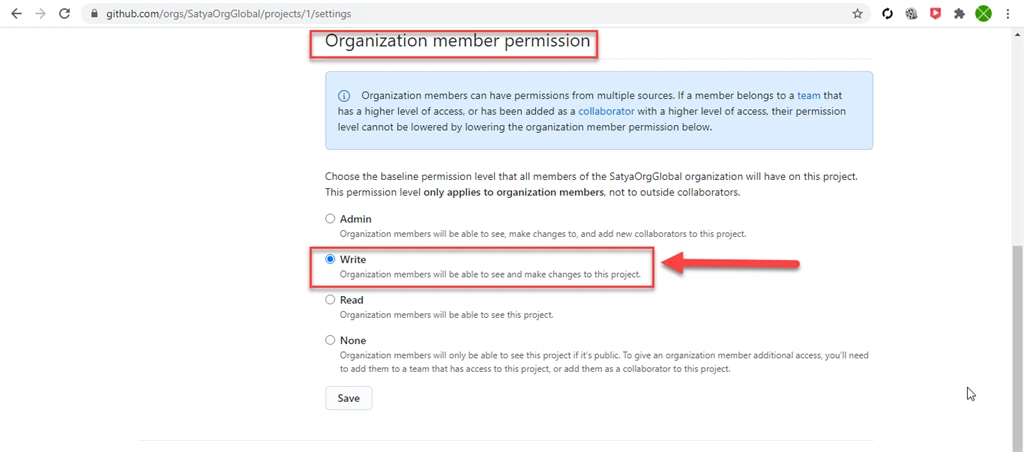
Here we need to verify the organization level permission override the team level permission. So, the permission level for both should be the same. For this go to Options and check the permission as shown below,
Verify The Permission Level In New Member Account
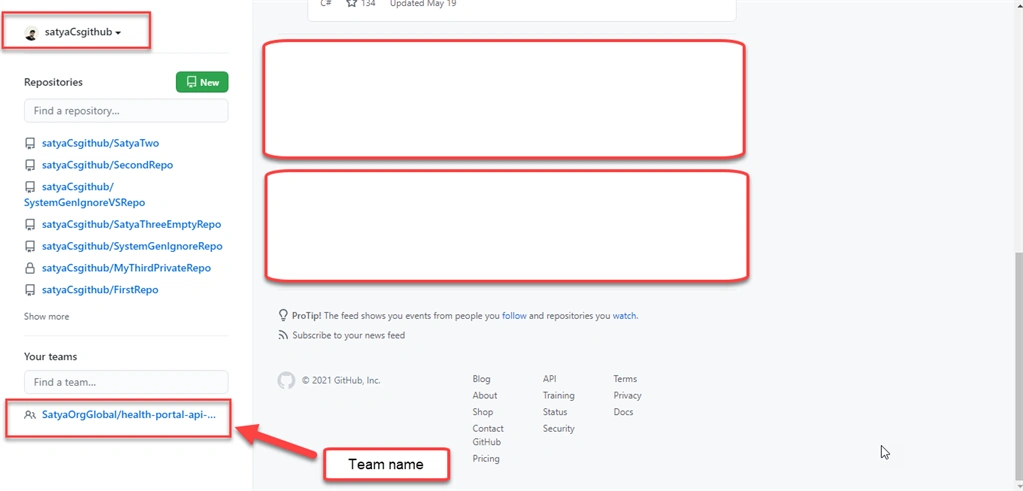
Go to GitHub home page of the new members after Sign-In. We can see the team name as shown below,
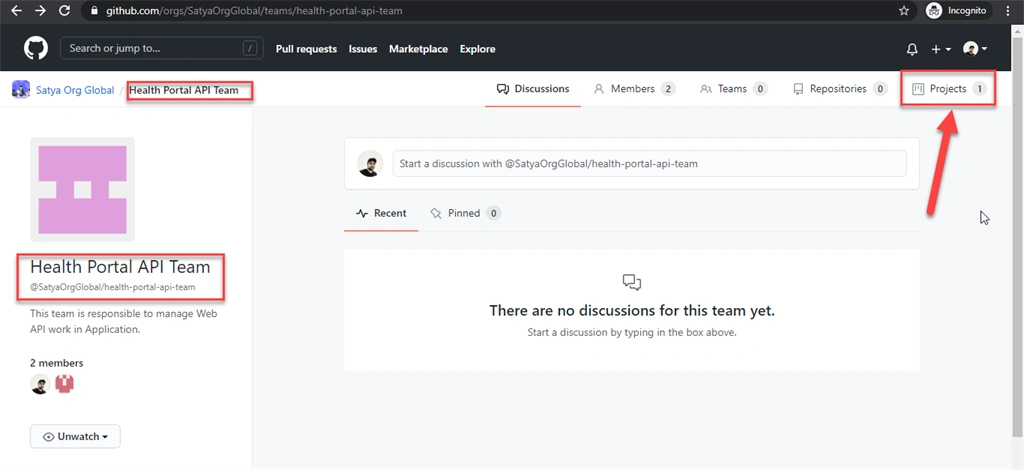
After click on this Team link then click on the Projects option as shown below,
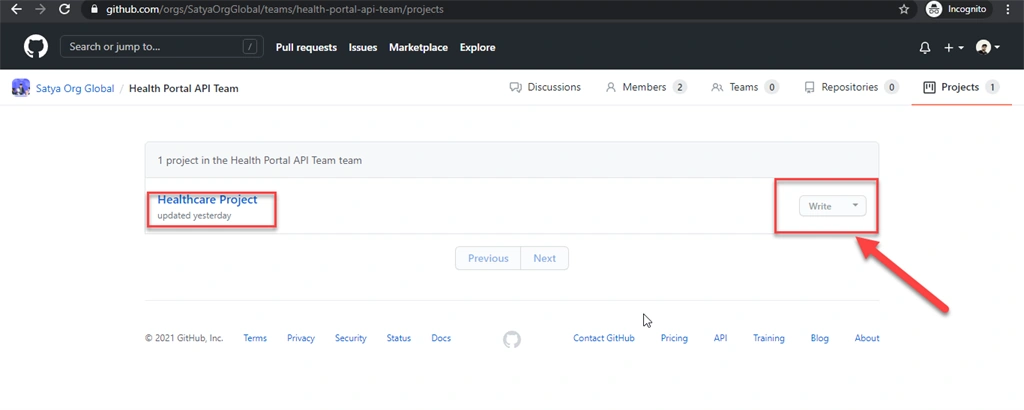
Here we can see the permission has given to this new member by the owner as shown below. That is Write access permission.
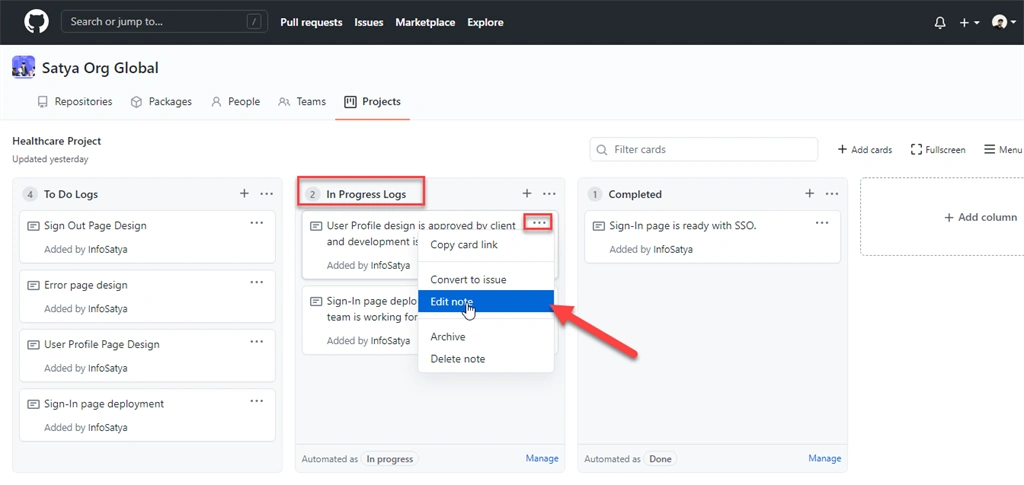
Now we modify a project board under this new user account as shown below. Let's edit the note,
Then update the note content as shown below,
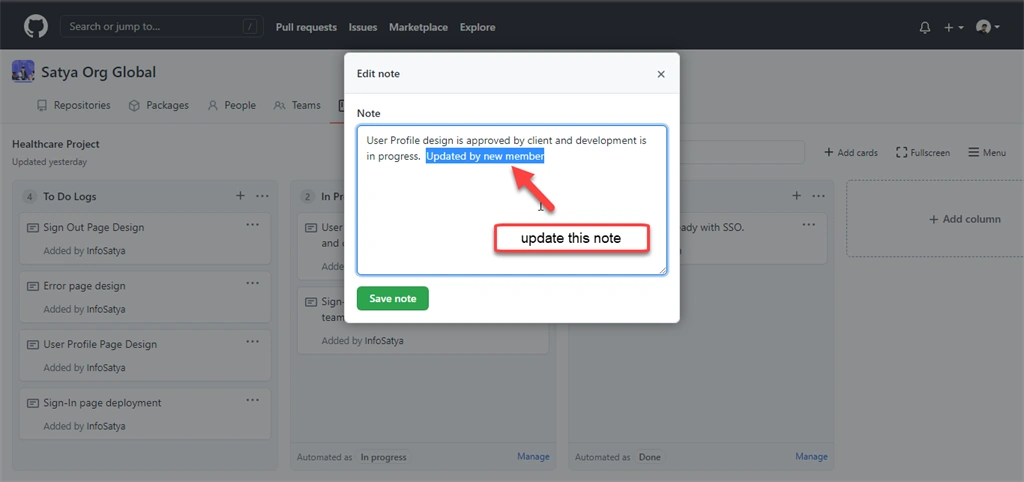
Now the new member can access write permission and modify the notes as shown below,
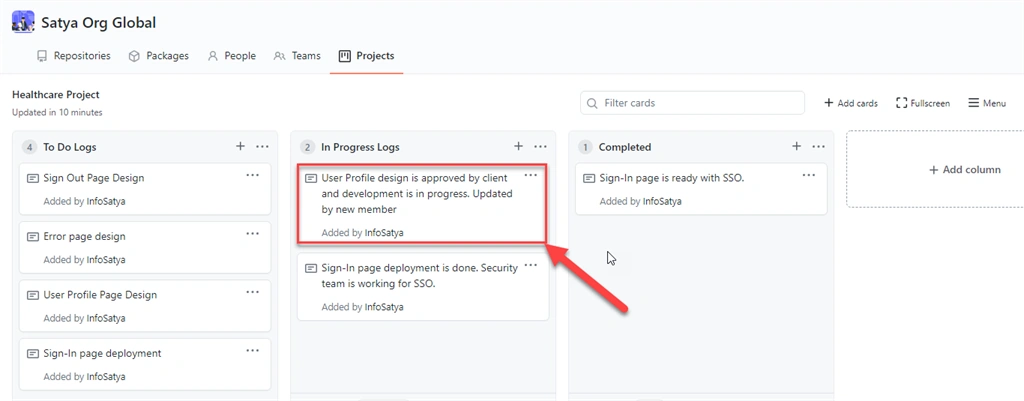
Assign The GitHub Repo To This Team By Owner
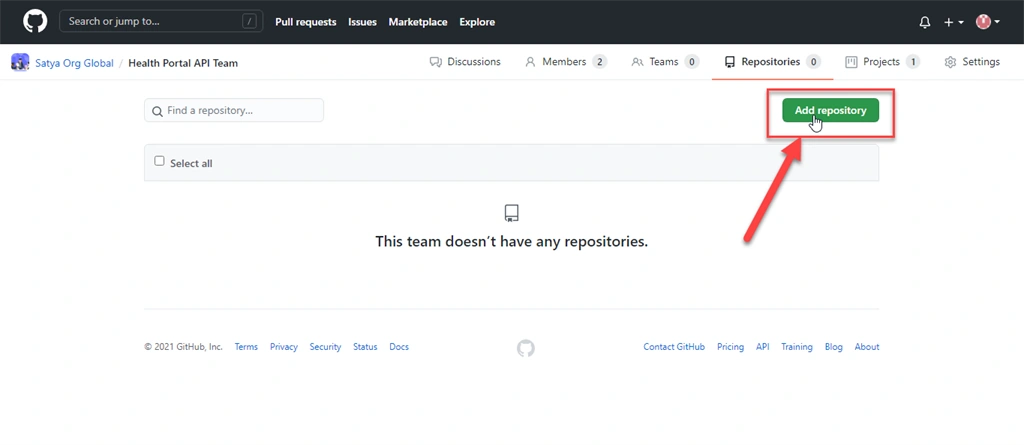
Here we need to add a GitHub repo to this team under the owner of the GitHub organization. Click on Add repository as shown below,
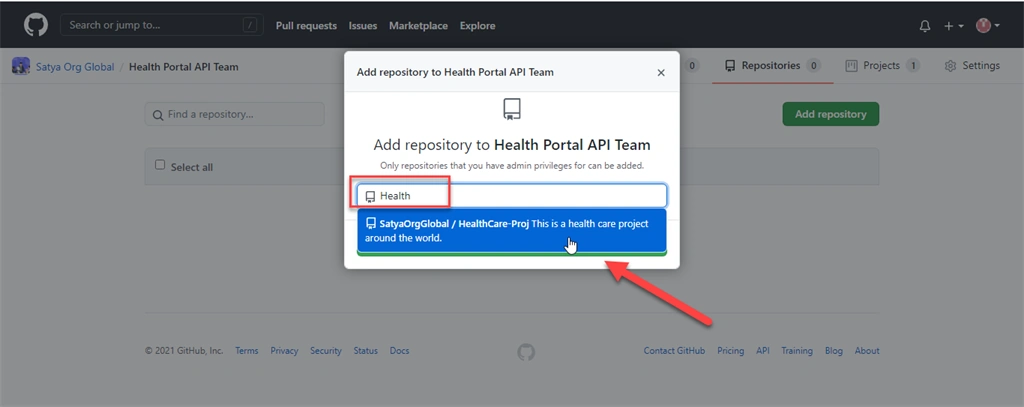
Then type the repo name as created earlier as shown below. The repo name is HealthCare-Proj.
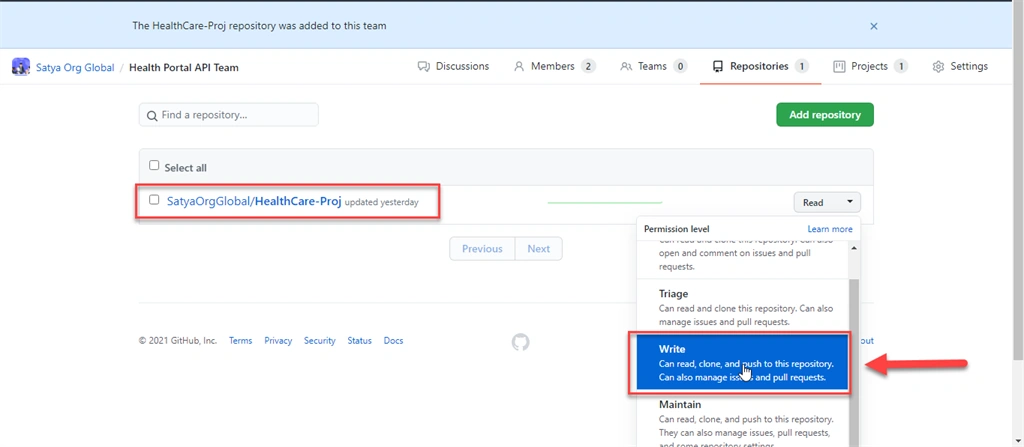
After successfully added the repo to this team, The interface will be shown as below. Here I update the permission level from reading to Write.
Let's add files to this repo under the new user account as shown below. Here we need to modify the README.md file and check the Write permission as given earlier.
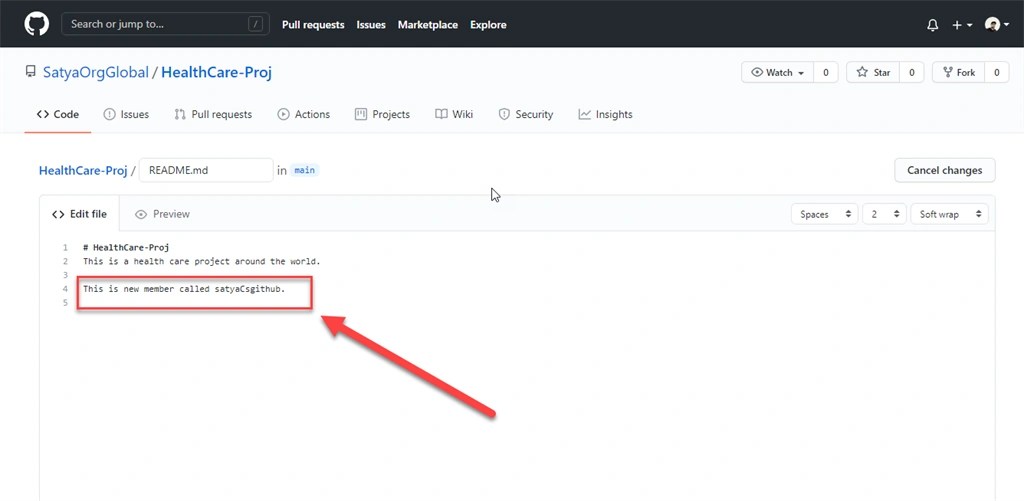
Now the README.md file is updated with new content added by a new user. That means Write permission works for new users.
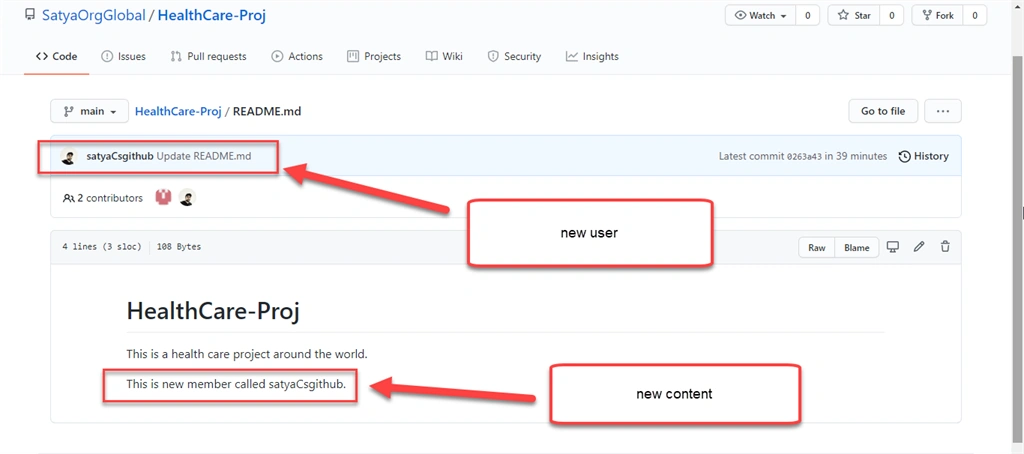
If Read permission has given to this repo then this new user can't modify the content of the README.md file. So, by using the above methods we can create multiple Teams and we can assign the required permission level that is Read or Write on the project as well as a repository on GitHub.
Summary
In this write-up, we have learned the below details,
- Know about teams in GitHub
- Steps to create teams in GitHub
- Group organization members into teams with permissions and mentions
- Create independent or nested teams to manage repository permissions and mentions
Thank You & Stay Tuned For More
Join the conversation! Your thoughts help the community grow.