

Previous lesson: 🧱 Lesson 4 - Adding SQL Server Support (Multi-Database Setup)
🚀 Introduction
PostgreSQL is a powerful open-source database widely used in enterprise and cloud systems.
In multi-tenant or SaaS environments, it’s common to support multiple database providers (e.g., MySQL, SQL Server, PostgreSQL) based on customer or deployment needs.
Our goal today:
🐳 Pull and run PostgreSQL via Docker
⚙️ Add PostgreSQL support in EF Core
🏗️ Create PostgresDbContext and design-time factory
🧱 Run migrations and verify setup
🐳 Step 1. Pull PostgreSQL Docker Image and Run Container
Let’s start by running PostgreSQL locally inside Docker.
docker pull postgres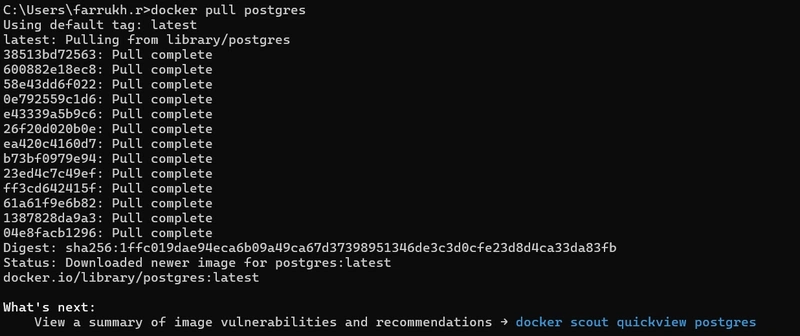
Run container
docker run -d --name postgres -e POSTGRES_USER=postgres -e POSTGRES_PASSWORD=Admin123! -p 5432:5432 postgres:latest
⚙️ Step 2. Update appsettings.json
Add a new connection string for PostgreSQL in your ECommerce.API project.
"PostgreSQL":"Host=localhost;Port=5432;Database=ECommerceDb;Username=postgres;Password=Admin123!",Now your application can dynamically choose the provider by changing:
"DatabaseProvider": "PostgreSQL"
🧱 Step 3. Create PostgreSQL DbContext
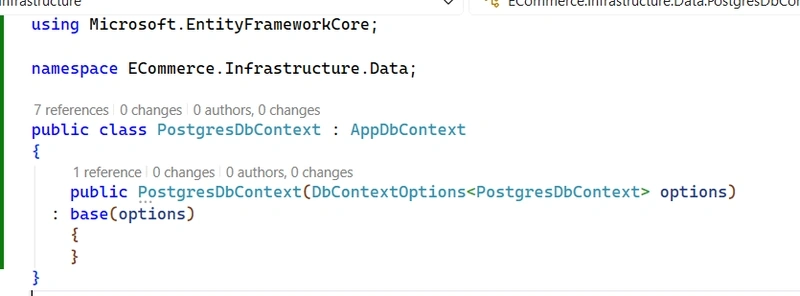
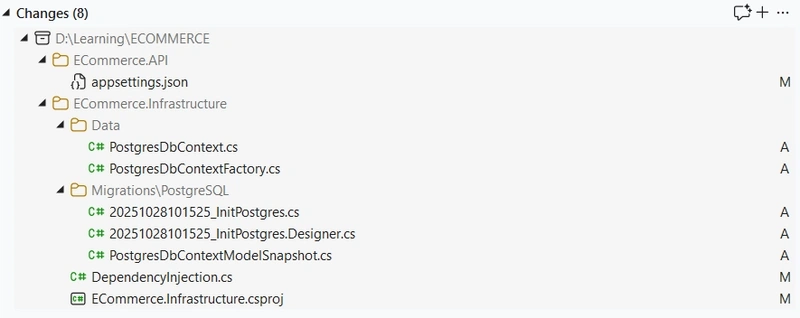
Path : ECommerce.Infrastructure/Data/PostgresDbContext.cs
using Microsoft.EntityFrameworkCore;

namespace ECommerce.Infrastructure.Data;

public class PostgresDbContext : AppDbContext
{
    public PostgresDbContext(DbContextOptions<PostgresDbContext> options)
  : base(options)
    {
    }
}
Install Package
dotnet add ECommerce.Infrastructure package Npgsql.EntityFrameworkCore.PostgreSQL --version 8.0.11🧩 Step 5. Add Design-Time Factory
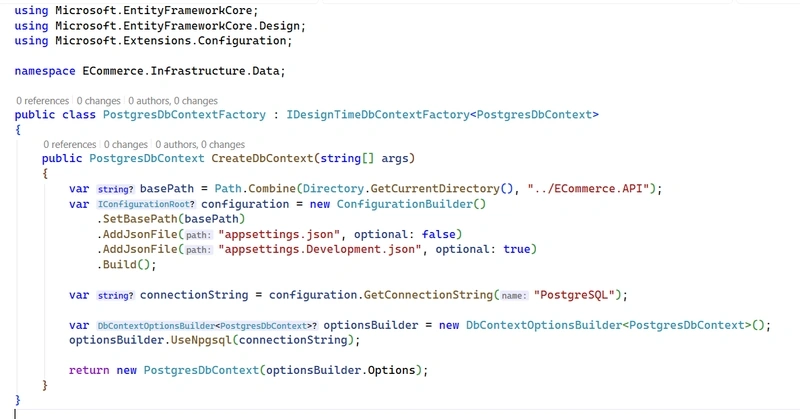
EF Core CLI needs this factory for dotnet ef migrations when it can’t build the host automatically.
Create PostgresDbContextFactory
Path : ECommerce.Infrastructure/Data/PostgresDbContextFactory.cs
using Microsoft.EntityFrameworkCore;
using Microsoft.EntityFrameworkCore.Design;
using Microsoft.Extensions.Configuration;

namespace ECommerce.Infrastructure.Data;

public class PostgresDbContextFactory : IDesignTimeDbContextFactory<PostgresDbContext>
{
    public PostgresDbContext CreateDbContext(string[] args)
    {
        var basePath = Path.Combine(Directory.GetCurrentDirectory(), "../ECommerce.API");
        var configuration = new ConfigurationBuilder()
            .SetBasePath(basePath)
            .AddJsonFile("appsettings.json", optional: false)
            .AddJsonFile("appsettings.Development.json", optional: true)
            .Build();

        var connectionString = configuration.GetConnectionString("PostgreSQL");

        var optionsBuilder = new DbContextOptionsBuilder<PostgresDbContext>();
        optionsBuilder.UseNpgsql(connectionString);

        return new PostgresDbContext(optionsBuilder.Options);
    }
}
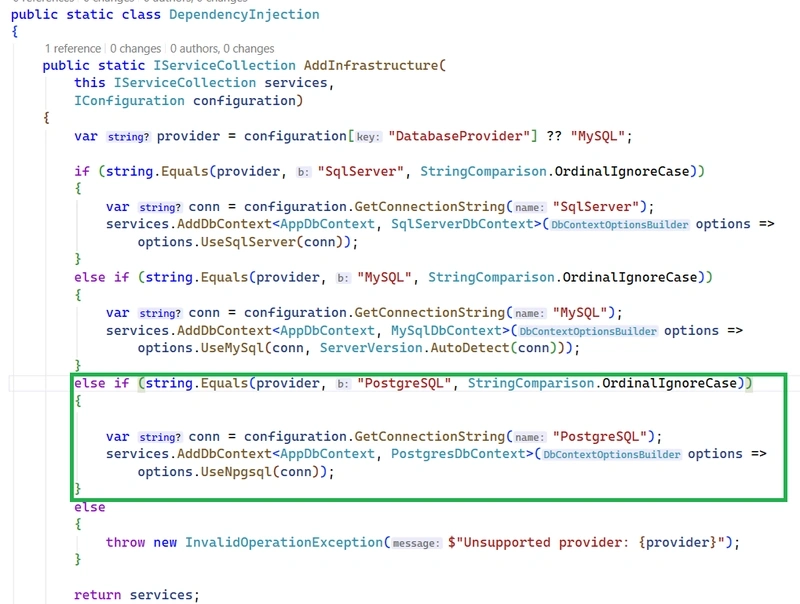
Update Dependency Injection
Path : ECommerce.Infrastructure/DependencyInjection.cs
using ECommerce.Infrastructure.Data;
using Microsoft.EntityFrameworkCore;
using Microsoft.Extensions.Configuration;
using Microsoft.Extensions.DependencyInjection;

namespace ECommerce.Infrastructure;

public static class DependencyInjection
{
    public static IServiceCollection AddInfrastructure(
        this IServiceCollection services,
        IConfiguration configuration)
    {
        var provider = configuration["DatabaseProvider"] ?? "MySQL";

        if (string.Equals(provider, "SqlServer", StringComparison.OrdinalIgnoreCase))
        {
            var conn = configuration.GetConnectionString("SqlServer");
            services.AddDbContext<AppDbContext, SqlServerDbContext>(options =>
                options.UseSqlServer(conn));
        }
        else if (string.Equals(provider, "MySQL", StringComparison.OrdinalIgnoreCase))
        {
            var conn = configuration.GetConnectionString("MySQL");
            services.AddDbContext<AppDbContext, MySqlDbContext>(options =>
                options.UseMySql(conn, ServerVersion.AutoDetect(conn)));
        }
        else if (string.Equals(provider, "PostgreSQL", StringComparison.OrdinalIgnoreCase))
        {

            var conn = configuration.GetConnectionString("PostgreSQL");
            services.AddDbContext<AppDbContext, PostgresDbContext>(options =>
                options.UseNpgsql(conn));
        }
        else
        {
            throw new InvalidOperationException($"Unsupported provider: {provider}");
        }

        return services;
    }
}
🧱 Step 6. Create Migrations
Now you can generate a separate migration folder for PostgreSQL.
dotnet ef migrations add InitPostgres -p ECommerce.Infrastructure -s ECommerce.API --context PostgresDbContext --output-dir "Migrations/PostgreSQL"
dotnet ef database update -p ECommerce.Infrastructure -s ECommerce.API --context PostgresDbContext 

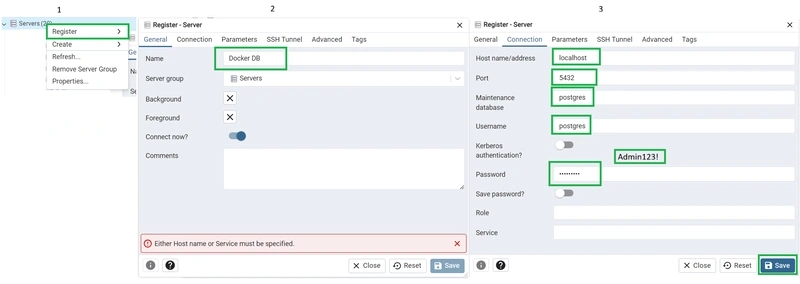
Let's Connect using PGAdmin
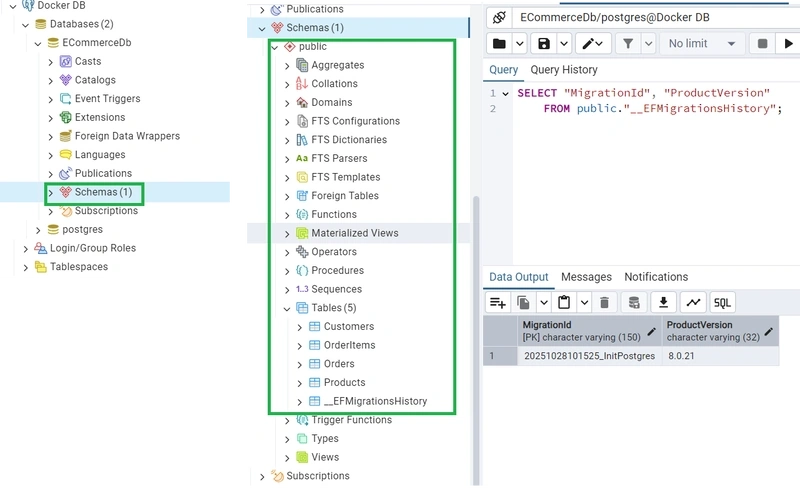
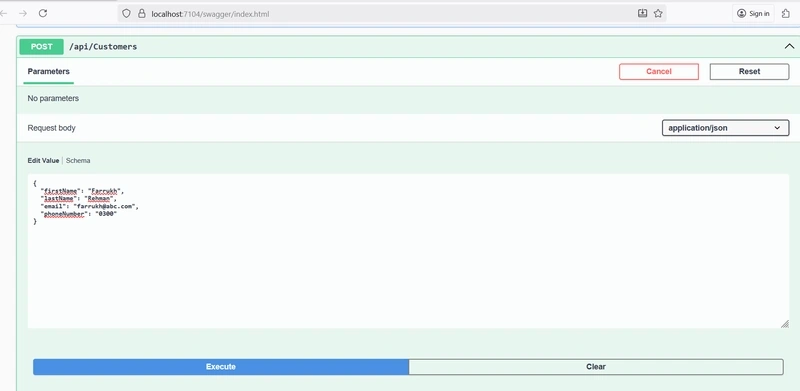
Final Test and Verify
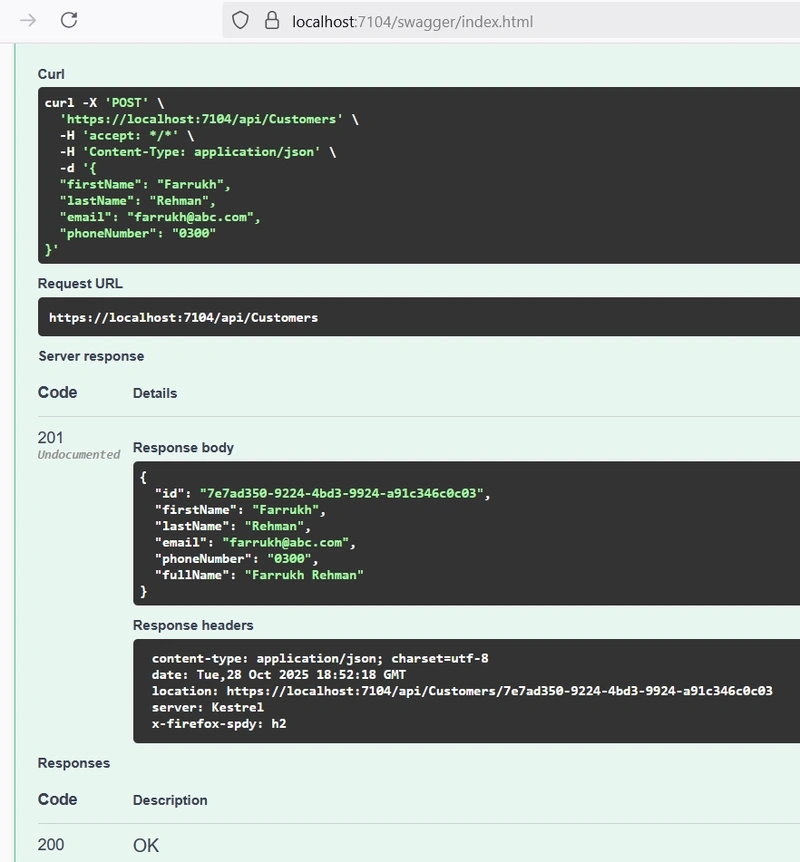
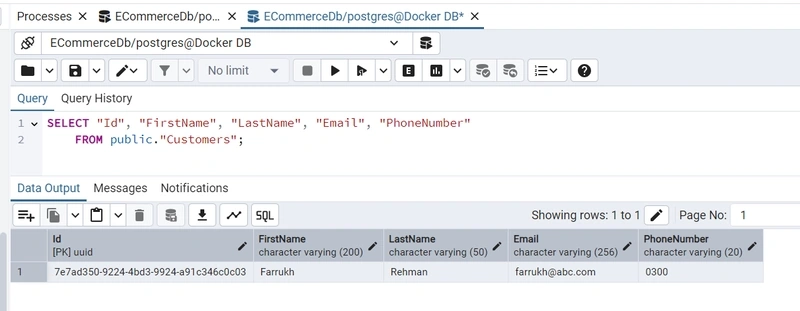
Source Code Backend: https://github.com/farrukh1212cs/ECommerce-Backend.git
Source Code Frontend: https://github.com/farrukh1212cs/ECommerce-Frontend.git
Next Lecture Preview
Lecture 6 : Redis Caching for Performance Optimization
Installing and configuring Redis; caching responses, queries, and improving API performance.
Join the conversation! Your thoughts help the community grow.