

Before reading this article, I highly recommend reading the previous parts of the series.
- Learn Universal Windows Programming Via Modern C++
- Learn Universal Windows Programming Via Modern C++ (Button Control)
- Learn Universal Windows Programming Via Modern C++ (Stackpanel)
- Learn Universal Windows Programming Via Modern C++ (CheckBox)
- Learn Universal Windows Programming Via Modern C++ (RadioButton)
- Learn Universal Windows Programming Via Modern C++ (Combobox)
- Learn Universal Windows Programming Via Modern C++ (Border)
- Learn Universal Windows Programming Via Modern C++ (CommandBar)
- Learn Universal Windows Programming Via Modern C++ (SplitView Control)
- Learn Universal Windows Programming Via Modern C++ (AutoSuggestBox)
- Learn Universal Windows Programming Via Modern C++ (ContentDialog)
Grid Control
Grid control is used to arrange the controls in multirow and multicolumn layouts (stackpanel is used to arrange controls in horizontal or vertical).
Let see how to implement Grid control and important properties.
RowDefinition & ColumnDefinition
These properties are used to create a row and column.
- RowDefinition App::CreateRow()
- {
- auto grdLength1 = CreateGrdLength();
- RowDefinition row_definition;
- row_definition.Height(grdLength1);
- return row_definition;
- }
- ColumnDefinition App::CreateColumn()
- {
- auto grdLength1 = CreateGrdLength();
- ColumnDefinition col_definition;
- col_definition.Width(grdLength1);
- return col_definition;
- }
GridLength
This class is used to set the height and width of the row and column, to prepare the GridLength. First, we should specify the GridUnitType. GridUnitType contains the three properties -
GridUnitType
Auto- Auto sizing sets the space evenly, based on the size of the content that’s it placed in the column or row.
Star- GridLength values use the star sizing which divides the available space specified in the grid row or column.
Pixel- Based on the width or height, it's specified in the column or row it takes and assigns.
Value- this is used to measure the GridLength of the row or column.
- GridLength App::CreateGrdLength()
- {
- GridLength grdLength;
- grdLength.Value = 45;
- grdLength.GridUnitType = GridUnitType::Auto;
- return grdLength;
- }
RowDefinitions and ColumnDefinitions
RowDefinitions and ColumnDefinitions display the GUI based on the row and column order.
- auto row1 = CreateRow();
- auto row2 = CreateRow();
- auto row3 = CreateRow();
- auto Col1 = CreateColumn();
- auto Col2 = CreateColumn();
- Grid grdView;
- grdView.RowDefinitions().Append(row1);
- grdView.RowDefinitions().Append(row2);
- grdView.RowDefinitions().Append(row3);
- grdView.ColumnDefinitions().Append(Col1);
- grdView.ColumnDefinitions().Append(Col2);
Children
All the itemcontrols have to be added into the children properties. Children is a UIElementCollection container. By default, all the controls are added into the zero-index order. Append property is used to add the controls into the container.
- grdView.Children().Append(panel1);
- grdView.Children().Append(panel2);
SetRow and SetColumn
Both the functions take as FrameWorkElement ( UI control ) as agruments and second argument row or column index
- grdView.SetRow(panel1, 0);
- grdView.SetRow(panel2, 1);
- grdView.SetColumn(panel1, 0);
- grdView.SetColumn(panel2, 1);
Create two stackpanels. Add the stackpanel into the Grid. The first stackpanel is placed in the first row and first column while the second stackpanel is placed in the second row second column.
- #include "pch.h"
- using namespace winrt;
- using namespace Windows::ApplicationModel;
- using namespace Windows::ApplicationModel::Activation;
- using namespace Windows::Foundation;
- using namespace Windows::UI;
- using namespace Windows::UI::Xaml;
- using namespace Windows::UI::Xaml::Controls;
- using namespace Windows::UI::Xaml::Controls::Primitives;
- using namespace Windows::UI::Xaml::Interop;
- using namespace Windows::UI::Xaml::Navigation;
- using namespace Windows::UI::Xaml::Media;
- using namespace Windows::Media;
- using namespace Windows::Storage;
- struct App :ApplicationT<App>
- {
- public:
- virtual ~App() = default;
- static TextBlock CreateTextBlock(hstring);
- static GridLength CreateGrdLength();
- static RowDefinition CreateRow();
- static ColumnDefinition CreateColumn();
- static StackPanel CreateStackPanel(hstring, Orientation);
- static void OnLaunched(LaunchActivatedEventArgs const&);
- static Thickness CreateThickness(int bottom, int left, int right, int top);
- };
- Thickness App::CreateThickness(int bottom, int left, int right, int top)
- {
- Thickness think;
- think.Bottom = bottom;
- think.Left = left;
- think.Right = right;
- think.Top = top;
- return think;
- }
- TextBlock App::CreateTextBlock(hstring textCaption)
- {
- TextBlock text;
- text.Text(textCaption);
- text.TextAlignment(TextAlignment::Center);
- text.Margin(CreateThickness(10, 10, 0, 10));
- return text;
- }
- GridLength App::CreateGrdLength()
- {
- GridLength grdLength;
- grdLength.Value = 45;
- grdLength.GridUnitType = GridUnitType::Auto;
- return grdLength;
- }
- RowDefinition App::CreateRow()
- {
- auto grdLength1 = CreateGrdLength();
- RowDefinition row_definition;
- row_definition.Height(grdLength1);
- return row_definition;
- }
- ColumnDefinition App::CreateColumn()
- {
- auto grdLength1 = CreateGrdLength();
- ColumnDefinition col_definition;
- col_definition.Width(grdLength1);
- return col_definition;
- }
- StackPanel App::CreateStackPanel(hstring panelName, Orientation oriPosition)
- {
- StackPanel stPanel;
- stPanel.Children().Append(CreateTextBlock(panelName));
- stPanel.Children().Append(CreateTextBlock(L"Panel 1"));
- stPanel.Children().Append(CreateTextBlock(L"Panel 2"));
- stPanel.Children().Append(CreateTextBlock(L"Panel 3"));
- stPanel.Children().Append(CreateTextBlock(L"Panel 4"));
- stPanel.Children().InsertAt(4, CreateTextBlock(L"Panel 5"));
- stPanel.Children().InsertAt(5, CreateTextBlock(L"Panel 6"));
- stPanel.Orientation(oriPosition);
- if (oriPosition == Orientation::Horizontal)
- stPanel.Background(Media::SolidColorBrush(Colors::Red()));
- else
- stPanel.Background(SolidColorBrush(Colors::Blue()));
- return stPanel;
- }
- void App::OnLaunched(LaunchActivatedEventArgs const&)
- {
- auto panel1 = CreateStackPanel(L"StackPanel 1", Orientation::Horizontal);
- auto panel2 = CreateStackPanel(L"StackPanel 2", Orientation::Vertical);
- auto row1 = CreateRow();
- auto row2 = CreateRow();
- auto row3 = CreateRow();
- auto Col1 = CreateColumn();
- auto Col2 = CreateColumn();
- Grid grdView;
- grdView.RowDefinitions().Append(row1);
- grdView.RowDefinitions().Append(row2);
- grdView.RowDefinitions().Append(row3);
- grdView.ColumnDefinitions().Append(Col1);
- grdView.ColumnDefinitions().Append(Col2);
- grdView.Children().Append(panel1);
- grdView.Children().Append(panel2);
- grdView.SetRow(panel1, 0);
- grdView.SetColumn(panel1, 0);
- grdView.SetRow(panel2, 1);
- grdView.SetColumn(panel2, 1);
- Window window = Window::Current();
- window.Content(grdView);
- window.Activate();
- }
- int __stdcall wWinMain(HINSTANCE, HINSTANCE, PWSTR, int)
- {
- Application::Start([](auto &&) {make<App>(); });
- return 0;
- }
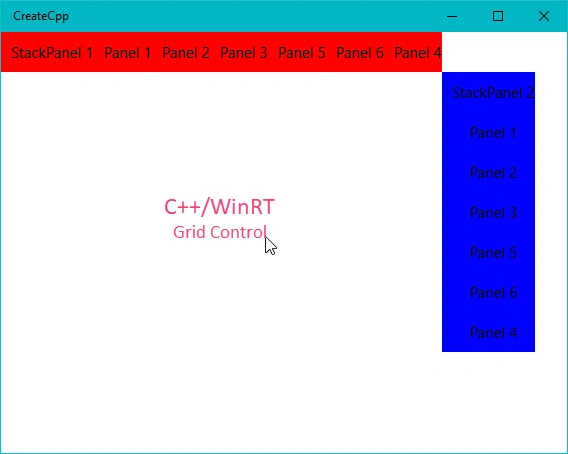
I hope you understood how to use the Grid controls.
Join the conversation! Your thoughts help the community grow.