

Before reading this article, please go through the following articles:
- Object Oriented Programming Using C#: Part 1
- Object Oriented Programming Using C#: Part 2
- Object Oriented Programming Using C#: Part 3
- Object Oriented Programming Using C#: Part 4
- Object Oriented Programming Using C#: Part 5
- Object Oriented Programming Using C#: Part 6
- Object Oriented Programming Using C#: Part 7
- Object Oriented Programming Using C#: Part 8
-
Object Oriented Programming Using C#: Part 9
-
Object Oriented Programming Using C#: Part 10
-
Learn OOP Interface Using C#
Virtual Methods
Dear reader today we will discuss another important component of OOP, virtual methods. I will explain this using a simple example. Fig (1.0) shows Class A having one virtual method AA and its implementation is a shirt with a yellow flower. Class B inherits Class A and overrides the method AA; its implementation is different since it wears a different shirt style with cap. 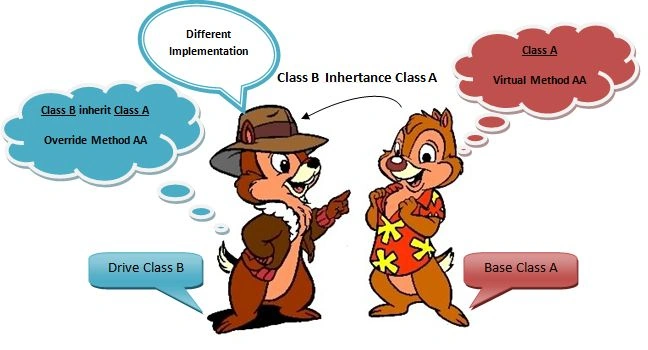
Fig (1.0)(Simple Virtual Example)
In simple words:
A virtual method is a method that can be redefined in derived classes. A virtual method has an implementation in a base class as well as in a derived class. It is used when a method's basic functionality is the same but sometimes more functionality is needed in the derived class.
Simple Example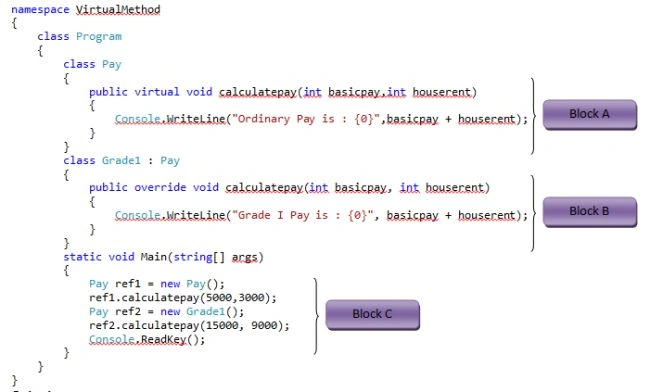
Output:
Block A:
- In this sessoion we have defines the class Pay.
- In that Pay class we have one virtual method calculatepay.
- Now we have the implementation of that calculatepay method that will calculate and print the pay.
Block B:
- In this session we have defined the class Grade1 that inherts the class pay.
- After that we have overriden the class calculatepay having the same signature.
- Now we have the implementation of that calculatepay method that will calculate and print the pay.
Block C:
- First we have defined the object of the class pay, then we call the methods of the class pay with two arguments that will calculate the ordinary pay.
- Then we will again create the object of the Grade1 class and using that object we call overrode the method calculatepay.
Real Example:
In this example we will create the small application that will calculate the tax of the gross pay. In our application we allow the tax exemption for employees whose age is greater than 50 years.
Step 1:
Create the new project with the name of LearnVirtualMethod.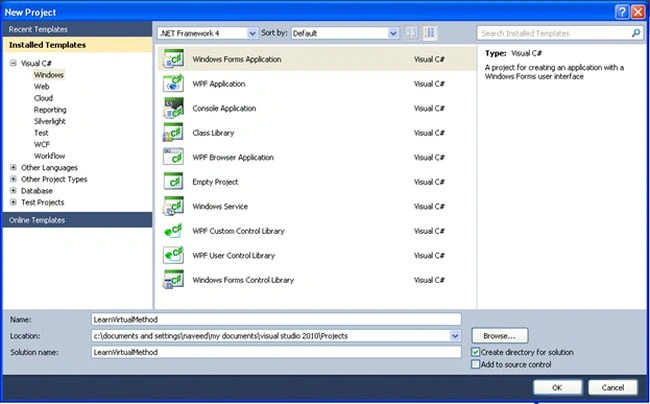
Step 2:
Design the form1 as shown in the picture.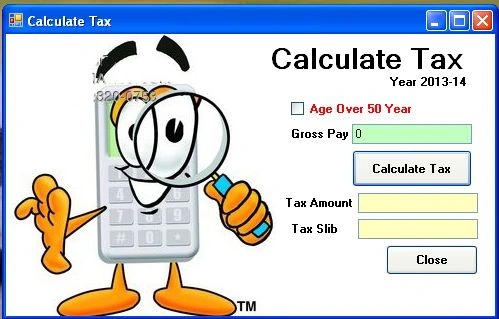
Step 3:
Create a new class with name of tax as in the following. Having one virtual method calculateTax.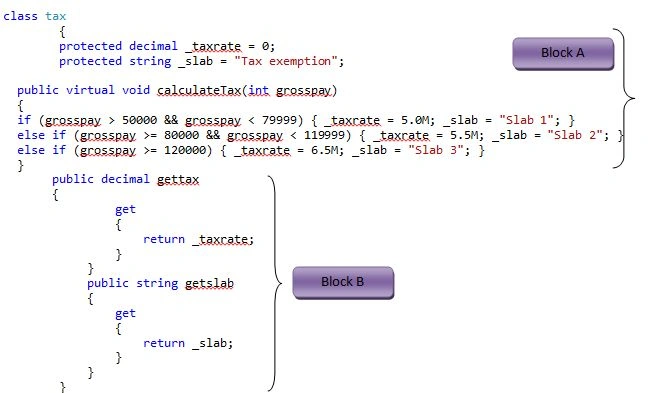
Block A:
- In this session we have defined the class tax.
- In that tax class we have two protected variables.
- Now we have created one virtual method, calculateTax.
- Then we have implemented the method calculateTax using an if statement that will assign the values to the variables.
Block B:
- In this session we have defined the two gettax and getslab properties that will help to get the result.
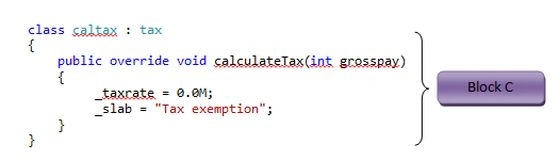
Block C:
- In this session we have defined the class caltax that inherts the class tax.
- After that we have overriden the class calculateTax having the same signature.
- Now we need to implement the calculateTax method to calculate the tax for the employee whose ages is greater the 50 years.
Step 4:
Enter the following code in the (Calculate Tax) button.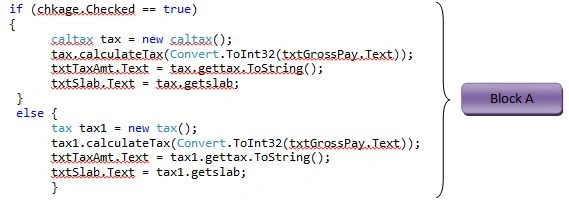
Block A:
- In this session we have used an if statement that will determeine whether to create the object of the virtual method or overriden method.
- Then it will calculate the tax and return the result in text boxes.
Step 5:
To execute the program press F5 and enter the gross pay 70000 and click on the button.
The calculated tax will be shown as in the following result.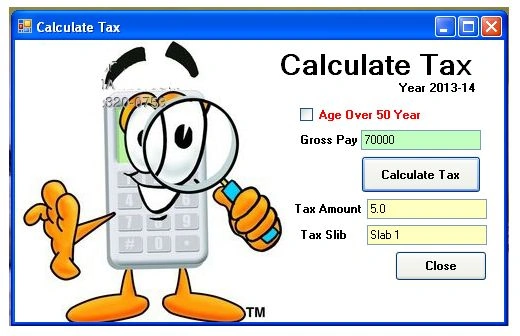
Step 6:
Now click the check box button and again click the click button Calculate tax.
You will get the following result.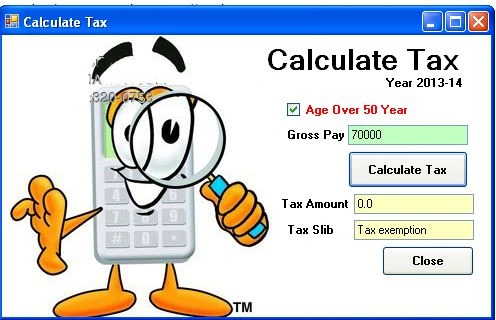
Join the conversation! Your thoughts help the community grow.