

Introduction
This article demonstrates how to use Angular PDF File Viewer in Visual Studio 2017.
Angular PDF File Viewer
Angular Portable Document Format (PDF) File Viewer that is built with HTML 5 and supported by Mozilla Labs. It is a web standard based platform for parsing and rendering PDFs.
Features
The delegate service injects this Controller, so you can fetch an instance using its delegate handle and call methods.
The following methods are available to the delegate.
- Prev
- Next
- Zoom In
- Zoom Out
- Zoom To
- Rotate
- Page Count
- Goto Page
- Load
Following the below steps you can use Angular File Upload in Angular JS in MVC.
- Create MVC Project.
- Configure Angular PDF File Viewer.
- Work in Angular PDF File Viewer.
Create MVC Project
Open Visual Studio 2017.

Go to New >> New project. Now it will open "New Project" window.
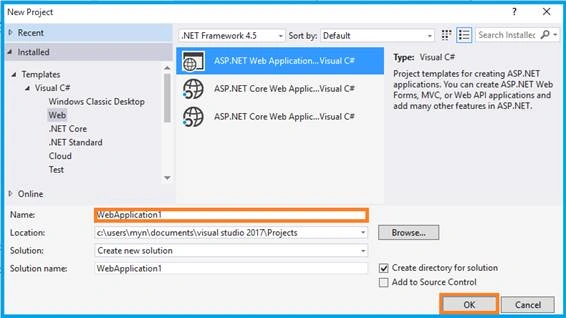
You can select ASP.NET Web Application on Framework 4.5. Enter the name of the project in “Solution name” textbox and click OK button.
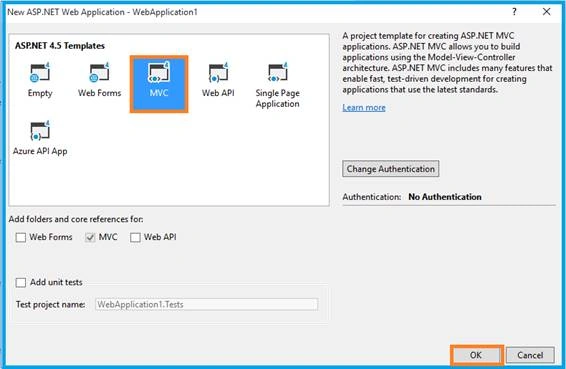
One more window should be appearing. Select MVC Template in this popup and click OK button. Now, start cropping the image.
Configure Angular PDF File Viewer
You can download the plug-in from.
Open the _Layout.cshtml and must refer the .js file from downloaded folder to this view page.
- <link href="~/Content/Site.css" rel="stylesheet" type="text/css" />
- <link href="~/PlugIn/AngularPdf/basscss.min.css" rel="stylesheet" />
- <link href="~/Content/bootstrap.min.css" rel="stylesheet" type="text/css" />
- <script src="~/PlugIn/AngularPdf/pdf.combined.js"></script>
- <script src="~/Scripts/jquery-1.10.2.min.js"></script>
- <script src="~/Scripts/bootstrap.min.js"></script>
- <script src="~/PlugIn/angular/angular.min.js"></script>
- <script src="~/PlugIn/AngularPdf/angular-pdf-viewer.min.js"></script>
- <script src="~/PlugIn/angular-ui-router/release/angular-ui-router.js"></script>
Link your Angular configurable file.
- <script src="~/App/App.module.js"></script>
- <script src="~/App/App.config.js"></script>
- <script src="~/App/PDFController.js"></script>
Angular Module
You need to include the module as a dependency on your application.
- var PDf = angular
- .module('PDf', ['ui.router', 'pdf']);
If you have any doubt in configuration, visit the following of my articles -
- Learn Basics Of MVC Using AngularJS
- Learn MVC Using Angular UI-Route
- Learn MVC Using Angular Role Based Login
- Learn MVC Using Angular Datatable
- Learn MVC Using Angular Crystal Report
- Learn MVC Using Angular Pie Chart
- Learn MVC Using Angular Flot Chart
- Learn MVC Using Angular xEditable
- Learn MVC Using Angular Idle
- Learn MVC Using Angular Wizard
- Learn MVC Using Angular - Maps
- Learn MVC Using Angular Bootstrap Nav Tree
- Learn MVC Using Angular Image Crop
- Learn MVC Using Angular UI Select
- Learn MVC Using Angular File Upload
- Learn MVC Using Angular UI Calender
Work in Angular PDF File Viewer
“PDF” is my Angular module's name, so I have added the “ng-app”.
- <div class="container body-content" ng-app="PDf">
- @RenderBody()
- </div>
Html Code
- <div class="jumbotron text-center">
- <h1>Angular PDF Viewer</h1>
- </div>
- <div class="row" ng-controller="PdfController">
- <div class="col-md-2">
- </div>
- <div class="col-md-8">
- <pdf-viewer delegate-handle="relativity-special-general-theory"
- url="pdfUrl"
- scale="1"
- show-toolbar="true"></pdf-viewer>
- </div>
- <div class="col-md-2">
- </div>
- </div>
The directive <pdf-viewer> can manage the URL, scale Request Header, and delegate-handler can be set using the attributes. The pdfDelegate delegate service allows you to access and control individual of a directive. This allows us to have multiple instances of the same directive in the same Controller.
Angular Controller
Initiate the File to object. This object will be loaded from local or URL. Create one folder in Solution Explorer then keep it all the PDF or you can use Angular service for URL, getting from Database.

- PDf.controller('PdfController', function ($scope, pdfDelegate, $log, $location) {
- $scope.pdfUrl = $location.$$protocol + '://'+$location.$$host+':'+$location.$$port+'/pdf/example.pdf';
- });
Click F5 button to run the application. Now, it will appear in browser and see the result.
Output 1
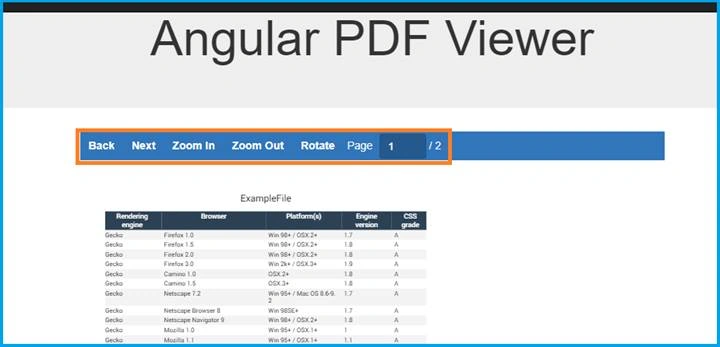
PDF is loaded in the same HTML page with tool bar.
Output 2
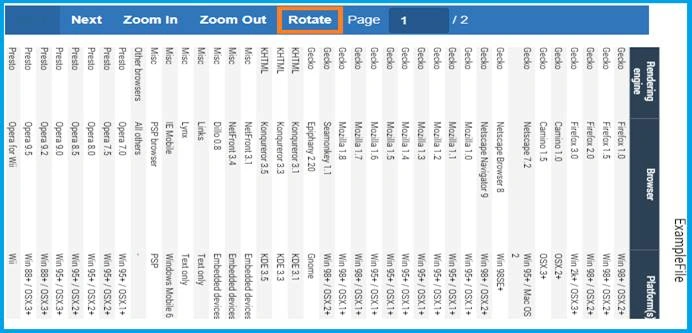
The default toolbar can be shown or hidden using the show-toolbar attribute. If needed, you can place the toolbar on a separate $scope.
If you have any queries, please tell me through the comments section.
Happy Coding!...
Praveen PatilPosted Jul 25, 2020, 1:13 AM
Where can I find the below JS files - <script src="~/App/App.module.js"></script> <script src="~/App/App.config.js"></script> <script src="~/App/PDFController.js"></script>
Nithish ReddyPosted Jun 29, 2018, 7:06 AM
$injector:modulerr error ?
Nithish ReddyPosted Jun 7, 2018, 5:45 AM
Can we disable right click on PDF VIEWER ?
Mohanraj KaliappanPosted Jul 25, 2017, 6:00 AM
Very Nice to see this pdf viewer
Vignesh ManiPosted Jul 24, 2017, 8:30 AM
Nice one thanks for sharing..