
Introduction
Step 1
Create the project like this:
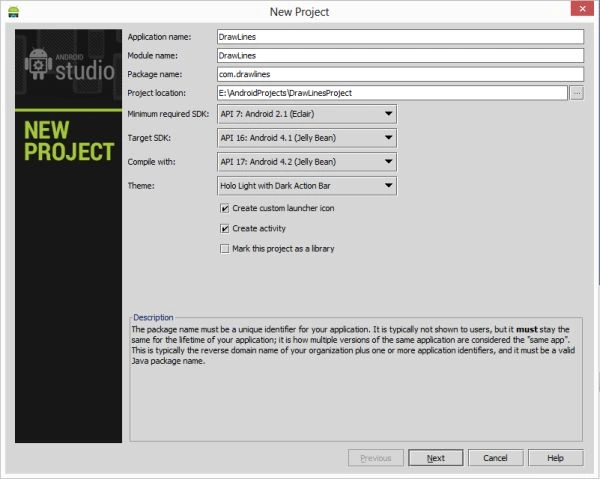 Step 2
XML file:
- <RelativeLayout xmlns:android="http://schemas.android.com/apk/res/android"
- xmlns:tools="http://schemas.android.com/tools"
- android:layout_width="match_parent"
- android:layout_height="match_parent"
- android:paddingLeft="@dimen/activity_horizontal_margin"
- android:paddingRight="@dimen/activity_horizontal_margin"
- android:paddingTop="@dimen/activity_vertical_margin"
- android:paddingBottom="@dimen/activity_vertical_margin"
- tools:context=".MainActivity">
- <TextView
- android:layout_width="wrap_content"
- android:layout_height="wrap_content"
- android:text="Draw Lines"
- android:layout_centerHorizontal="true"
- android:textSize="20dp"
- android:textStyle="bold"/>
- </RelativeLayout>
Step 3
Create a Java class file and write this:
- package com.logacat;
- import android.os.Bundle;
- import android.app.Activity;
- import android.util.Log;
- import android.view.Menu;
- import android.app.Activity;
- import android.graphics.Color;
- import android.os.Bundle;
- public class MainActivity extends Activity {
- DrawLine drawLine;
- @Override
- public void onCreate(Bundle savedInstanceState) {
- super.onCreate(savedInstanceState);
- drawLine = new DrawLine(this);
- drawLine.setBackgroundColor(Color.CYAN);
- setContentView(drawLine);
- }
- }
Step 4
Create another Java class file and write this:
- package com.logacat;
- import android.content.Context;
- import android.graphics.Canvas;
- import android.graphics.Color;
- import android.graphics.Paint;
- import android.view.View;
- class DrawLine extends View {
- Paint paint = new Paint();
- public DrawLine(Context context) {
- super(context);
- paint.setColor(Color.BLACK);
- }
- @Override
- public void onDraw(Canvas canvas) {
- canvas.drawLine(50, 100, 600, 600, paint);
- canvas.drawLine(50, 550, 770, 0, paint);
- }
- }
Step 5
Android manifest.xml file
- <?xml version="1.0" encoding="utf-8"?>
- <manifest xmlns:android="http://schemas.android.com/apk/res/android"
- package="com.logacat"
- android:versionCode="1"
- android:versionName="1.0" >
- <uses-sdk
- android:minSdkVersion="7"
- android:targetSdkVersion="16" />
- <application
- android:allowBackup="true"
- android:icon="@drawable/ic_launcher"
- android:label="@string/app_name"
- android:theme="@style/AppTheme" >
- <activity
- android:name="com.logacat.MainActivity"
- android:label="@string/app_name" >
- <intent-filter>
- <action android:name="android.intent.action.MAIN" />
- <category android:name="android.intent.category.LAUNCHER" />
- </intent-filter>
- </activity>
- </application>
- </manifest>
Step 6
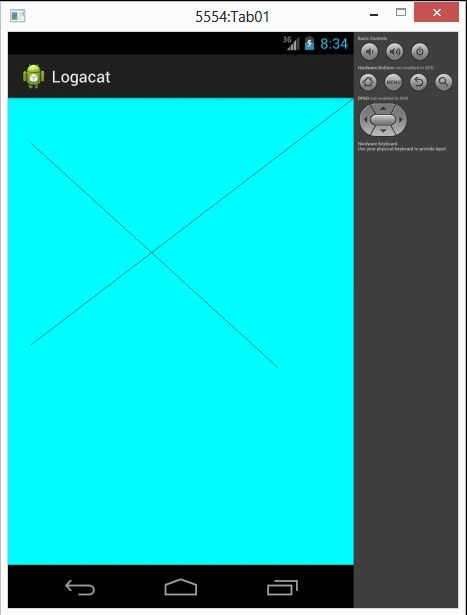
Join the conversation! Your thoughts help the community grow.