
Introduction
- <RelativeLayout xmlns:android="http://schemas.android.com/apk/res/android" xmlns:tools="http://schemas.android.com/tools"
- android:layout_width="match_parent"
- android:layout_height="match_parent"
- android:paddingBottom="@dimen/activity_vertical_margin"
- android:paddingLeft="@dimen/activity_horizontal_margin"
- android:paddingRight="@dimen/activity_horizontal_margin"
- android:paddingTop="@dimen/activity_vertical_margin"
- android:background="#cf99ff"
- tools:context=".MainActivity" >
- <TextView
- android:id="@+id/txtView1"
- android:layout_width="wrap_content"
- android:layout_height="wrap_content"
- android:layout_alignParentTop="true"
- android:layout_centerInParent="true"
- android:textSize="30dp"
- android:text="Message"
- android:textStyle="bold"/>
- <Button
- android:id="@+id/btn_get"
- android:layout_width="150dp"
- android:layout_height="80dp"
- android:layout_below="@+id/txtView1"
- android:layout_marginLeft="65dp"
- android:layout_marginTop="42dp"
- android:text="GetMessage" />
- </RelativeLayout>
Step 2
Create another XML file with the following: This is my second XML file that consists of an edittext, a textview, and a button.
- <RelativeLayout xmlns:android="http://schemas.android.com/apk/res/android"
- xmlns:tools="http://schemas.android.com/tools"
- android:layout_width="match_parent"
- android:layout_height="match_parent"
- android:paddingBottom="@dimen/activity_vertical_margin"
- android:paddingLeft="@dimen/activity_horizontal_margin"
- android:paddingRight="@dimen/activity_horizontal_margin"
- android:paddingTop="@dimen/activity_vertical_margin"
- android:background="#cf99ff"
- tools:context=".SecondActivity" >
- <EditText
- android:id="@+id/editText1"
- android:textStyle="bold"
- android:layout_width="wrap_content"
- android:layout_height="wrap_content"
- android:layout_marginTop="40dp"
- android:layout_alignParentTop="true"
- android:ems="10" />
- <TextView
- android:textStyle="bold"
- android:id="@+id/textView1"
- android:layout_width="wrap_content"
- android:layout_height="wrap_content"
- android:layout_alignParentLeft="true"
- android:text="Enter Message:" />
- <Button
- android:id="@+id/btn"
- android:textStyle="bold"
- android:layout_width="150dp"
- android:layout_height="70dp"
- android:layout_below="@+id/editText1"
- android:layout_marginTop="34dp"
- android:text="Submit" />
- </RelativeLayout>
Step 3
Create a Java class file with the following:
- package com.startactivityforresult;
- import android.os.Bundle;
- import android.app.Activity;
- import android.content.Intent;
- import android.view.Menu;
- import android.view.View;
- import android.view.View.OnClickListener;
- import android.widget.Button;
- import android.widget.TextView;
- //This class extends the Activity class that provides some methods for the activity. In this i have set the button onItsClickListener, so on click another activity will be start and startActivityForResult() will the intent with request code.
- public class MainActivity extends Activity
- {
- TextView txtview1;
- Button btn_get;
- @Override
- protected void onCreate(Bundle savedInstanceState)
- {
- super.onCreate(savedInstanceState);
- setContentView(R.layout.activity_main);
- txtview1 = (TextView) findViewById(R.id.txtView1);
- btn_get = (Button) findViewById(R.id.btn_get);
- //button set on its click listener
- btn_get.setOnClickListener(new OnClickListener()
- {
- // when you click on the button onClick() will be invoke and startActivityForResult() will be invoke
- @Override
- public void onClick(View arg0)
- {
- //create the object of intent
- Intent i = new Intent(MainActivity.this, Second.class);
- startActivityForResult(i, 2); // Activity is started with requestCode 2
- }
- });
- }
- // This method is called when from the second Activity setResult() will be called by ing requestcode and an intent.
- @Override
- protected void onActivityResult(int requestCode, int resultCode, Intent data)
- {
- super.onActivityResult(requestCode, resultCode, data);
- // check if the request code is same as what is ed here it is 2
- if (requestCode == 2)
- {
- String message = data.getStringExtra("MESSAGE");
- txtview1.setText(message);
- }
- }
- @Override
- public boolean onCreateOptionsMenu(Menu menu)
- {
- // Inflate the menu; this adds items to the action bar if it is present.
- getMenuInflater().inflate(R.menu.main, menu);
- return true;
- }
- }
Step 4
- package com.startactivityforresult;
- import android.os.Bundle;
- import android.app.Activity;
- import android.content.Intent;
- import android.view.Menu;
- import android.view.View;
- import android.view.View.OnClickListener;
- import android.widget.Button;
- import android.widget.EditText;
- import android.widget.TextView;
- public class Second extends Activity
- {
- EditText edtText1;
- Button btn;
- @Override
- protected void onCreate(Bundle savedInstanceState)
- {
- super.onCreate(savedInstanceState);
- setContentView(R.layout.second);
- edtText1 = (EditText) findViewById(R.id.editText1);
- btn = (Button) findViewById(R.id.btn);
- btn.setOnClickListener(new OnClickListener()
- {
- @Override
- public void onClick(View arg0)
- {
- String message = edtText1.getText().toString();
- Intent i = new Intent();
- i.putExtra("MESSAGE", message);
- setResult(2, i);
- finish(); //finishing activity
- }
- });
- }
- @Override
- public boolean onCreateOptionsMenu(Menu menu)
- {
- // Inflate the menu; this adds items to the action bar if it is present.
- getMenuInflater().inflate(R.menu.main, menu);
- return true;
- }
- }
Step 5
The following is the Android Manifest.XML file. In the Android Manifest.xml file, you will declare the second activity.
- <?xml version="1.0" encoding="utf-8"?>
- <manifest xmlns:android="http://schemas.android.com/apk/res/android"
- package="com.startactivityforresult"
- android:versionCode="1"
- android:versionName="1.0" >
- <uses-sdk
- android:minSdkVersion="8"
- android:targetSdkVersion="18" />
- <application
- android:allowBackup="true"
- android:icon="@drawable/ic_launcher"
- android:label="@string/app_name"
- android:theme="@style/AppTheme" >
- <activity
- android:name="com.startactivityforresult.MainActivity"
- android:label="@string/app_name" >
- <intent-filter>
- <action android:name="android.intent.action.MAIN" />
- <category android:name="android.intent.category.LAUNCHER" />
- </intent-filter>
- </activity>
- <activity
- android:name=".Second"></activity>
- </application>
- </manifest>
Step 6
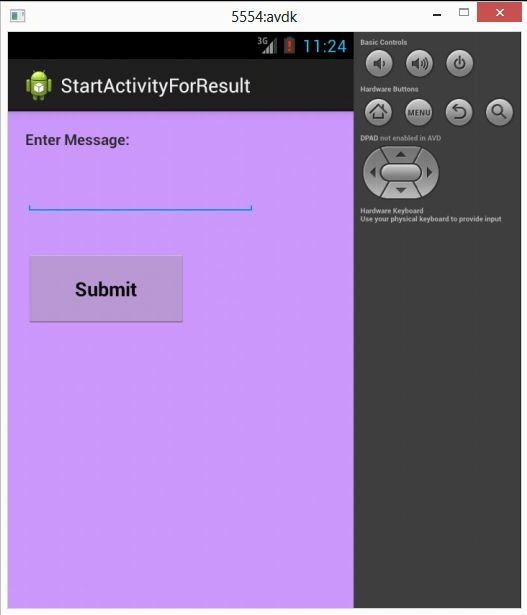
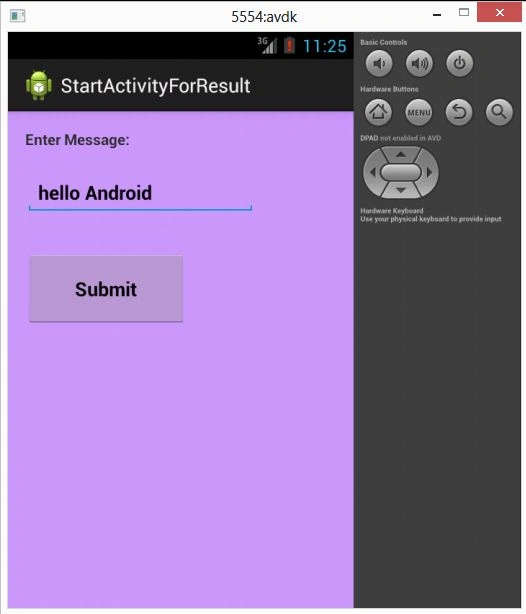
Enter the message
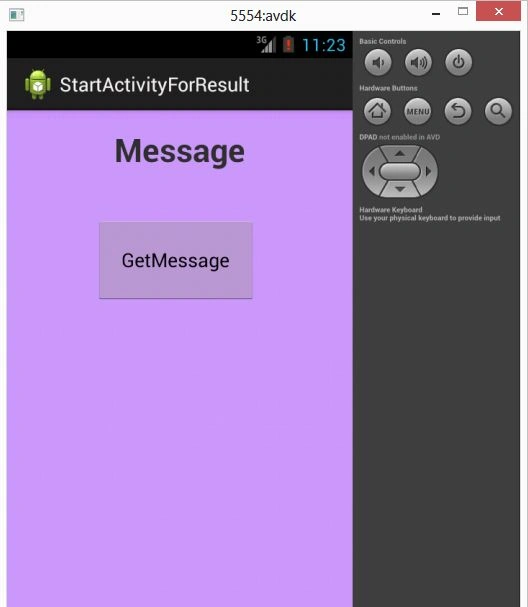
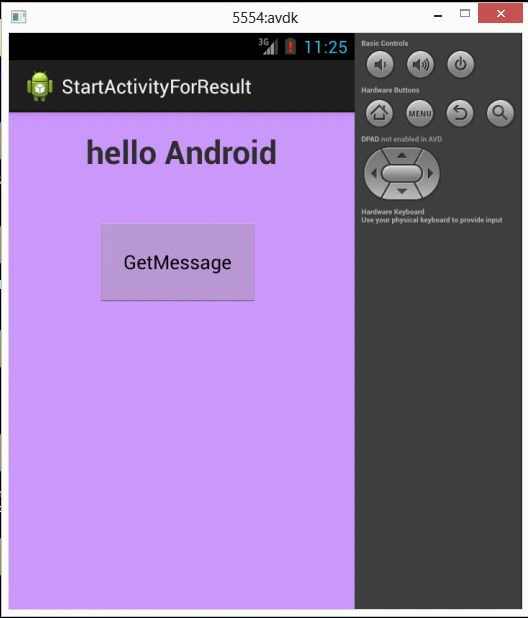
 Your first Activity
Join the conversation! Your thoughts help the community grow.