

Introduction
The AGM map hides Google places and labels using custom styles in Angular. Please follow the below steps.
Step 1
First, we have to install the following npm commands in our project.
npm install @agm/core –save
The above command adds external dependencies.
Step 2
import AgmCoreModule to your AppModule.
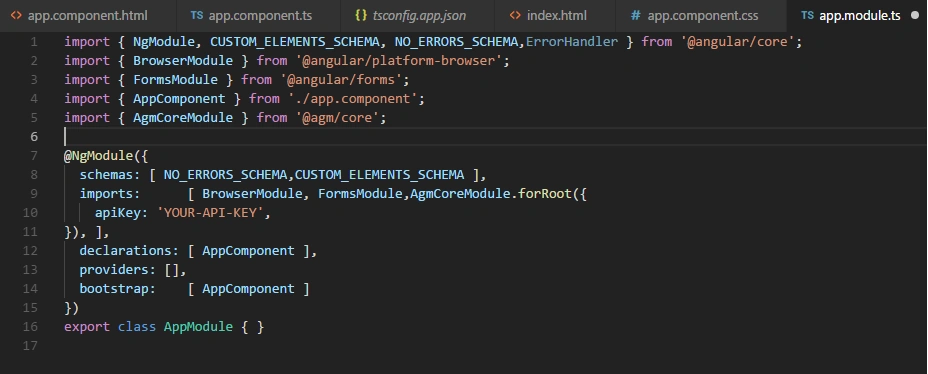
- import { NgModule, CUSTOM_ELEMENTS_SCHEMA, NO_ERRORS_SCHEMA,ErrorHandler } from '@angular/core';
- import { BrowserModule } from '@angular/platform-browser';
- import { FormsModule } from '@angular/forms';
- import { AppComponent } from './app.component';
- import {APP_BASE_HREF} from '@angular/common';
- import { AgmCoreModule } from '@agm/core';
Add app.module.ts page with the below code to import the references for Agm Maps.
- @NgModule({
- schemas: [NO_ERRORS_SCHEMA, CUSTOM_ELEMENTS_SCHEMA],
- imports: [BrowserModule, FormsModule,
- AgmCoreModule.forRoot({
- apiKey: 'YOUR-API-KEY'
- })
- ],
- declarations: [AppComponent],
- providers: [],
- bootstrap: [AppComponent]
- })
- export class AppModule {}
Step 3
The app.component.ts sets latitude,longitude value and marker values as marlatitude,marongitude.
- import {
- Component
- } from '@angular/core';
- @Component({
- selector: 'my-app',
- templateUrl: './app.component.html',
- styleUrls: ['./app.component.css']
- })
- export class AppComponent {
- public latitude: number = 13.0628;
- public longitude: number = 80.2517;
- public marlatitude: number = 13.0628;
- public marongitude: number = 80.2517;
- constructor() {}
- }
Step 4
In app.component.html, add the agm-map & agm-marker tag and set the height and width for map using the following code:
- <style>
- agm-map {
- height: 600px;
- width: 1200px;
- }
- </style>
- <agm-map [latitude]="latitude" [longitude]="longitude" [zoom]="15" >
- <agm-marker [latitude]="marlatitude" [longitude]="marongitude" ></agm-marker>
- </agm-map>
Step 5
I'm not sure if you can show only specific types of places, however, you can hide all places of interest by hiding them in your map options.
Please refer to the below link to a "hide places" list.
https://developers.google.com/maps/documentation/javascript/style-reference.
Step 6
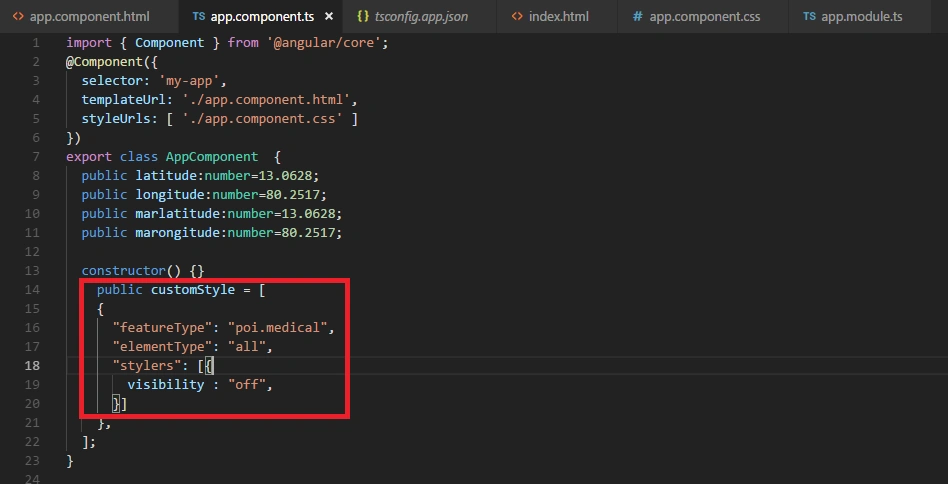
Here I have hidden the hospital list. ‘poi‘ selects all points of interest.
poi.medical selects emergency services including hospitals, pharmacies, police, doctors, and others.
Step 7 - Feature Type
Feature type is optional. This style allows modification of agm maps with the below characteristics on the map list.
-
Roads
-
Parks
-
Bodiesof water,
-
Others
If you don’t need any specific style features, all features are selected and shown/hidden from the AGM map.
elementType - Element type is also optional. The property is used to select labels and geometry in the AGM map list.
stylers - Visibility (on, off, or simplified) indicates whether and how the element appears on the map.
A simplified visibility removes some style features from the modified visibility features.
- import {
- Component
- } from '@angular/core';
- @Component({
- selector: 'my-app',
- templateUrl: './app.component.html',
- styleUrls: ['./app.component.css']
- })
- export class AppComponent {
- public latitude: number = 13.0628;
- public longitude: number = 80.2517;
- public marlatitude: number = 13.0628;
- public marongitude: number = 80.2517;
- constructor() {}
- public customStyle = [{
- "featureType": "poi.medical",
- "elementType": "all",
- "stylers": [{
- visibility: "off",
- }]
- }, ];
- }
Step 8
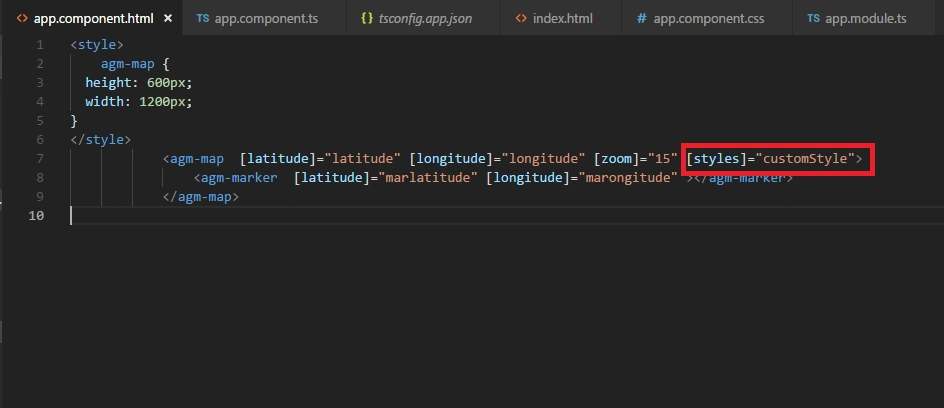
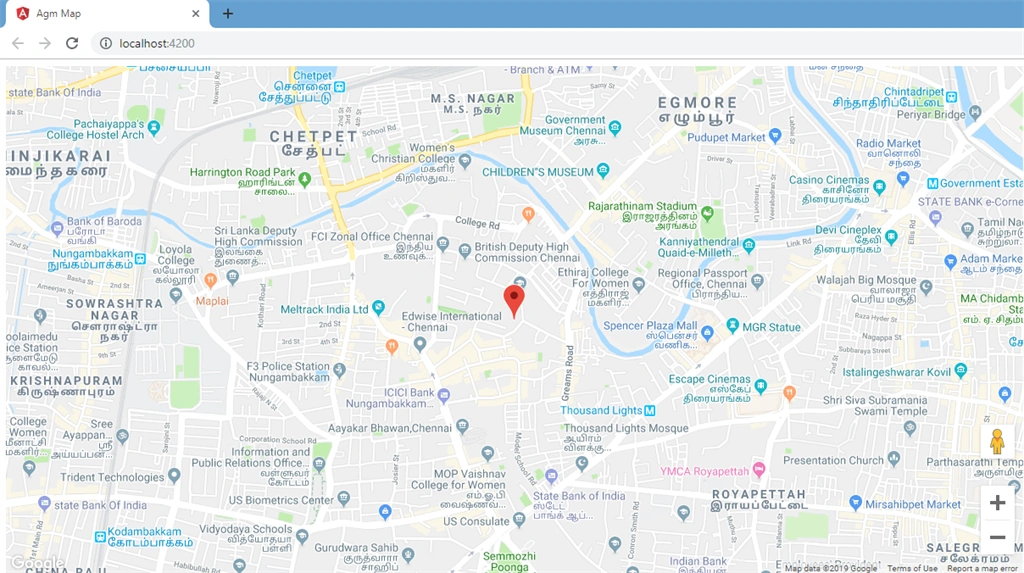
The agm initial shows all areas like hospital, temple, petrol bunk, apartment, hotels etc. Now I'm going to restrict specific features like medical section using the following code.
- <style>
- agm-map {
- height: 600px;
- width: 1200px;
- }
- </style>
- <agm-map [latitude]="latitude" [longitude]="longitude" [zoom]="15" [styles]="customStyle">
- <agm-marker [latitude]="marlatitude" [longitude]="marongitude" ></agm-marker>
- </agm-map>
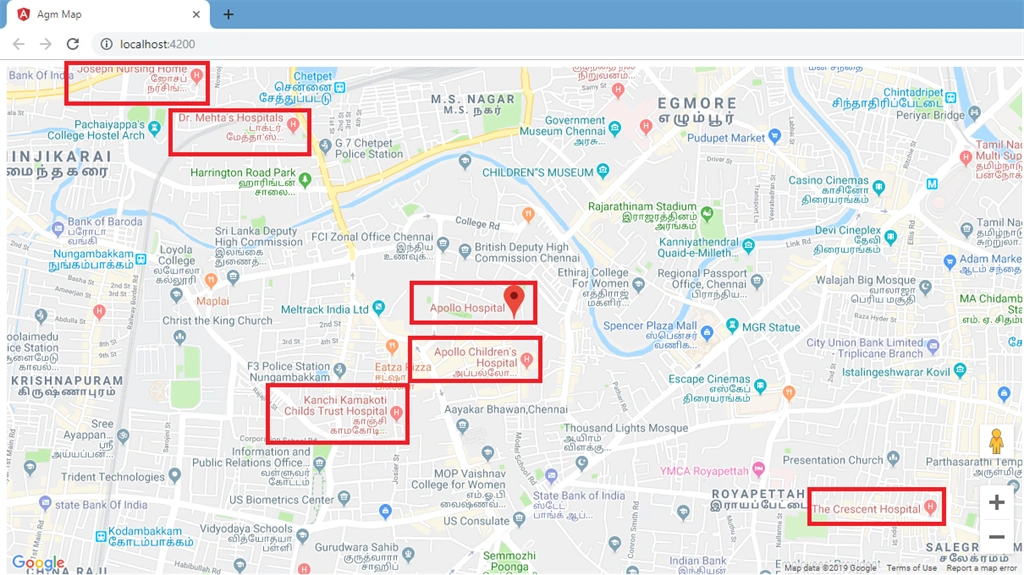
The above image displays all hospital places. After adding custom style I an restricting poi.medical section styler’s visibility of all the poi elements. After executing the styles, all hospitals are now hidden as in the screenshot below.
Hope this article was helpful. Thank you.
Gugan RajPosted May 27, 2021, 9:21 AM
Hi bro how to refresh agm map
Maragatha ManiPosted Jan 23, 2020, 6:45 PM
Nice One...
Haridhass ManiPosted Jan 21, 2020, 11:06 AM
I have lot of learn agm map for your article
Vidyadharran GPosted Jan 17, 2020, 9:36 PM
A lot is to be learn from you bro :) thanks for sharing bro