

Introduction
In this article, I will explain the LeanTouch_Vuforia_AR with some examples.
Prerequisites
Unity Environment version 2018.4.19f1
Create objects in Unity
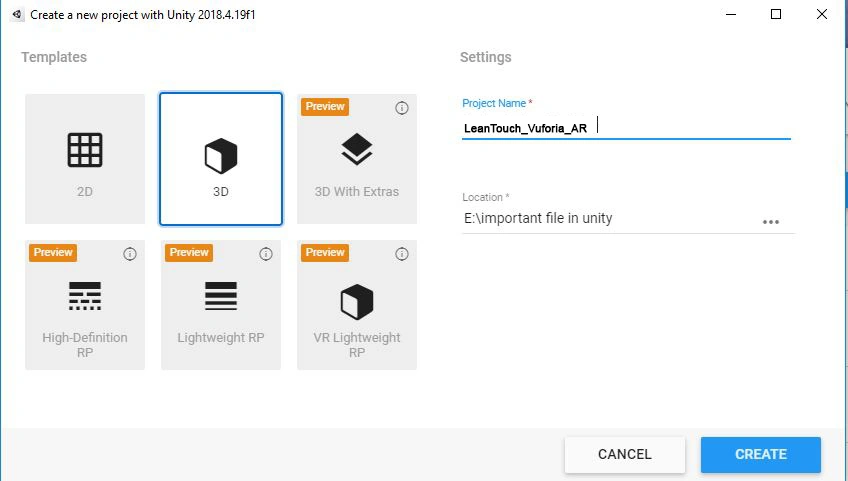
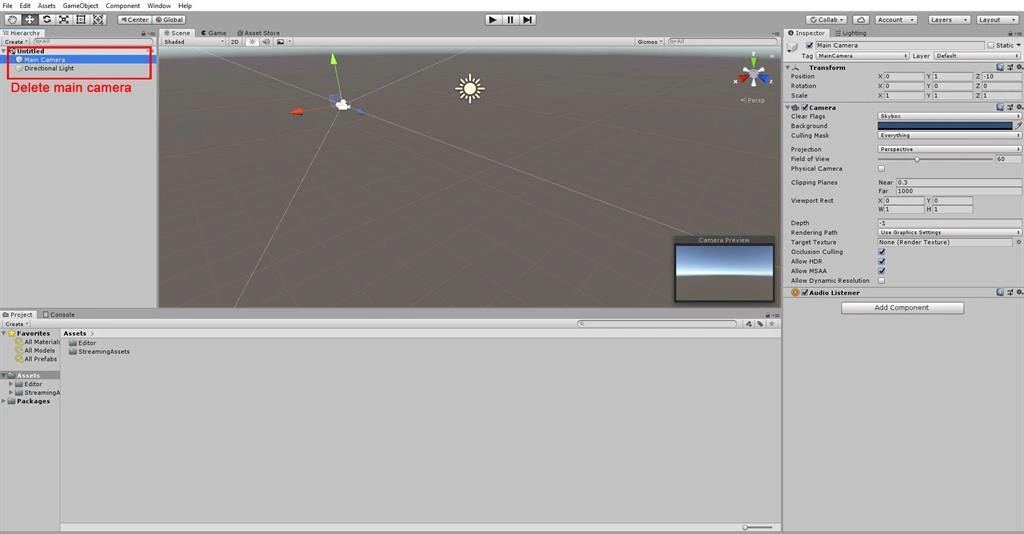
First, you have to open the Unity project. Delete the Main Camera from AR scene.
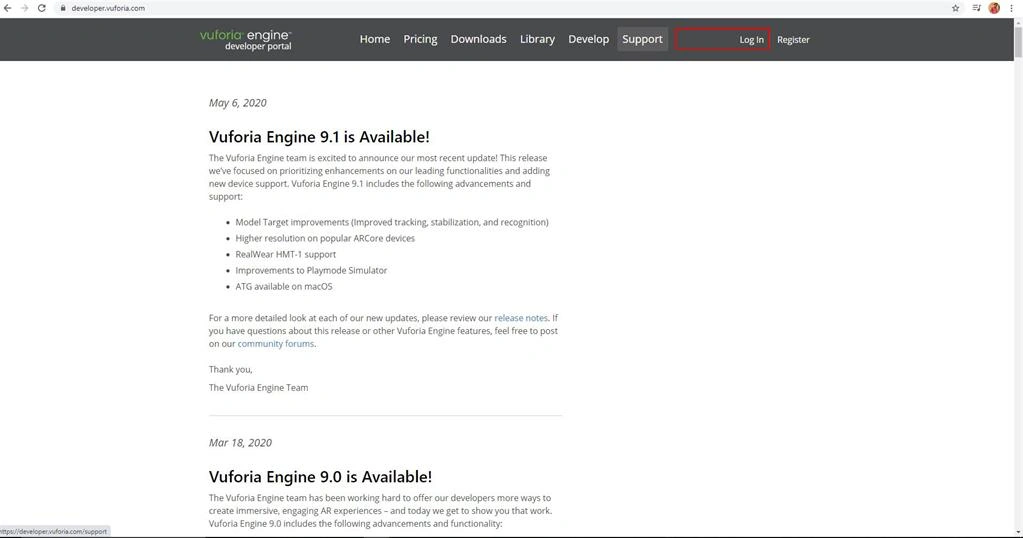
Searching on the " Vuforia Developer Portal " in Google Chrome.
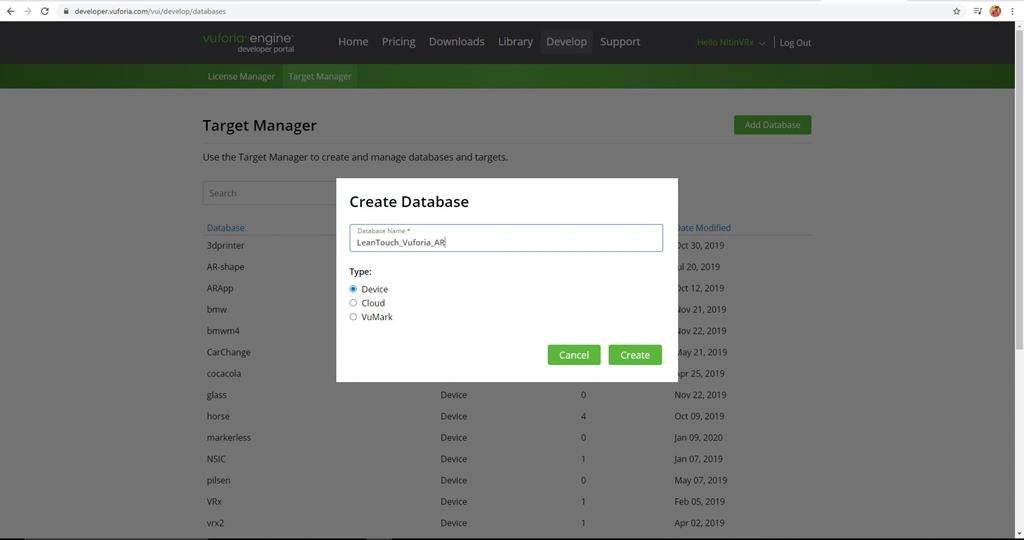
Create a Database.
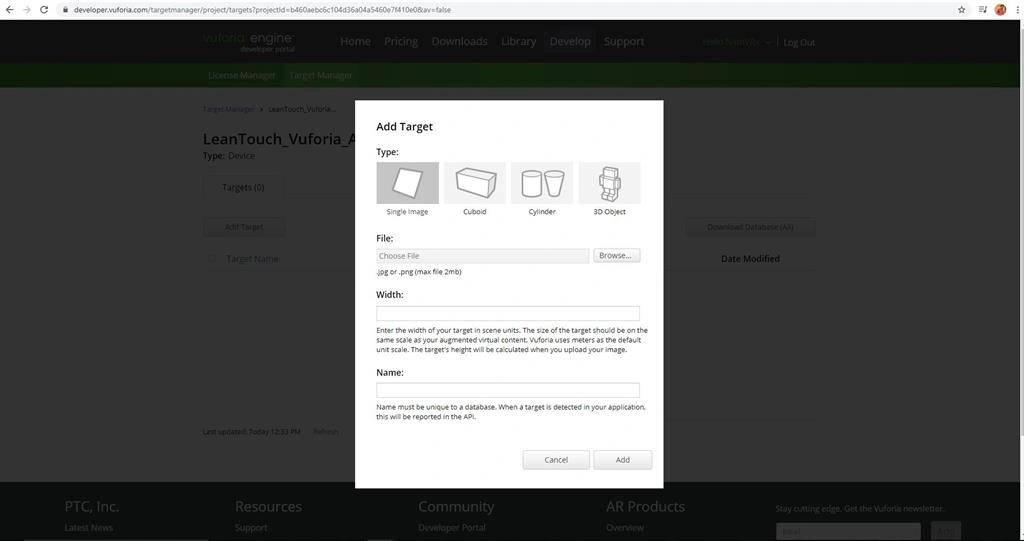
Add the target trigger image.
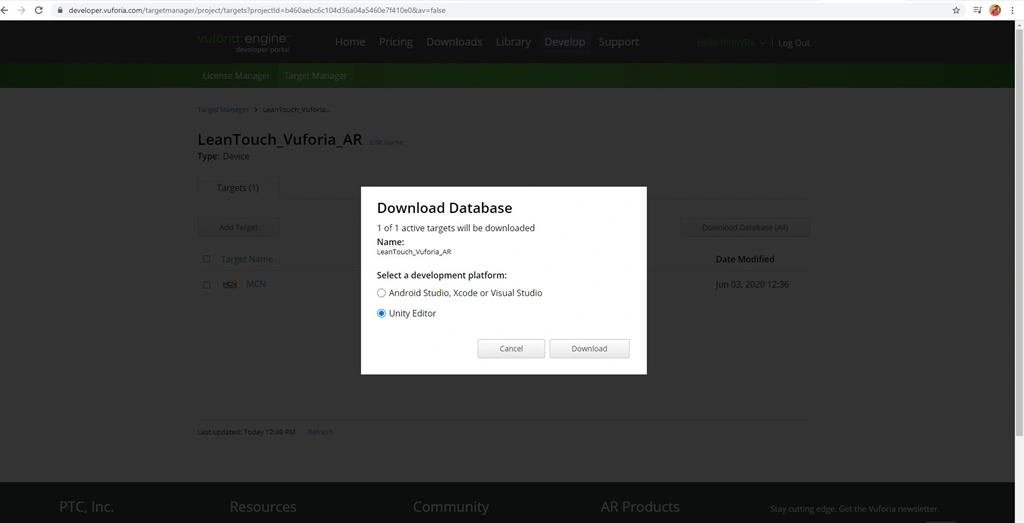
Download the database.
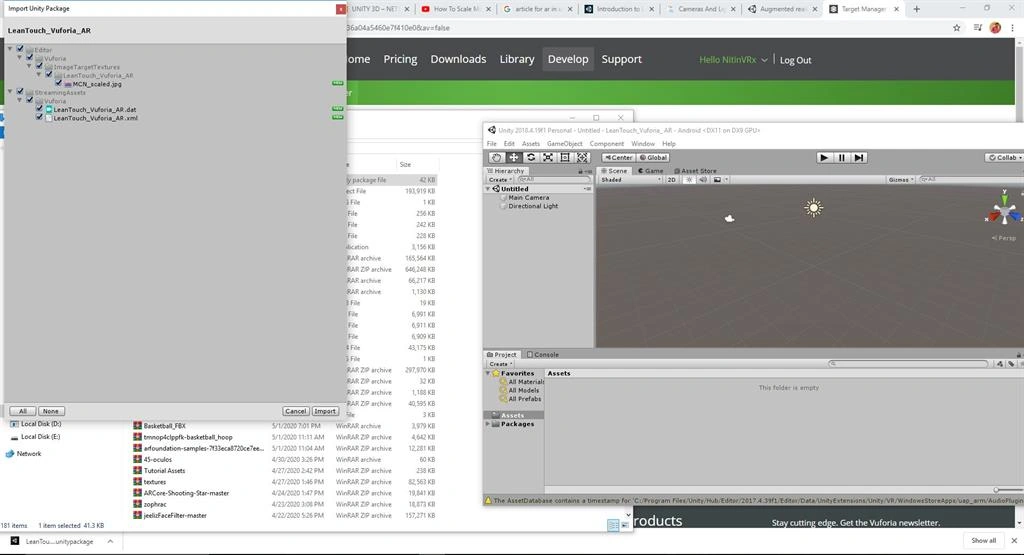
Drag and drop the database. The database will be added to the AR scene View.
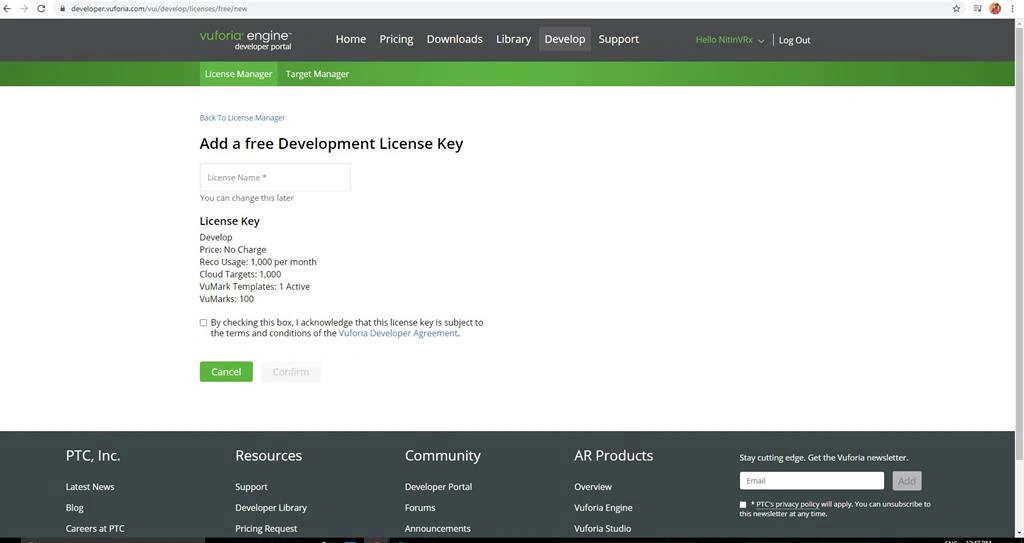
Create the License key.
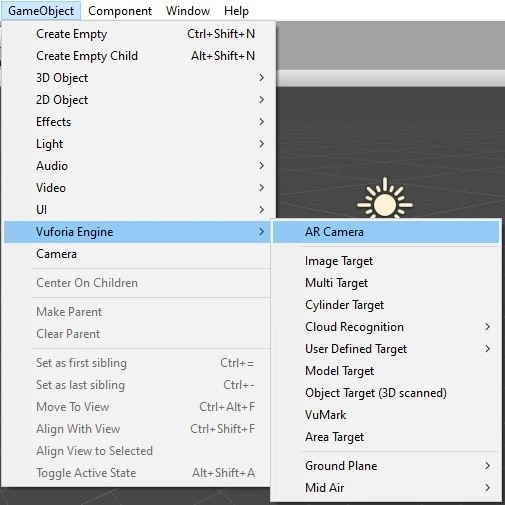
Click on the "GameObject" menu in the menu bar. Select Vuforia Engine and pick the "AR Camera" option. The AR Camera will be added to the AR scene View.
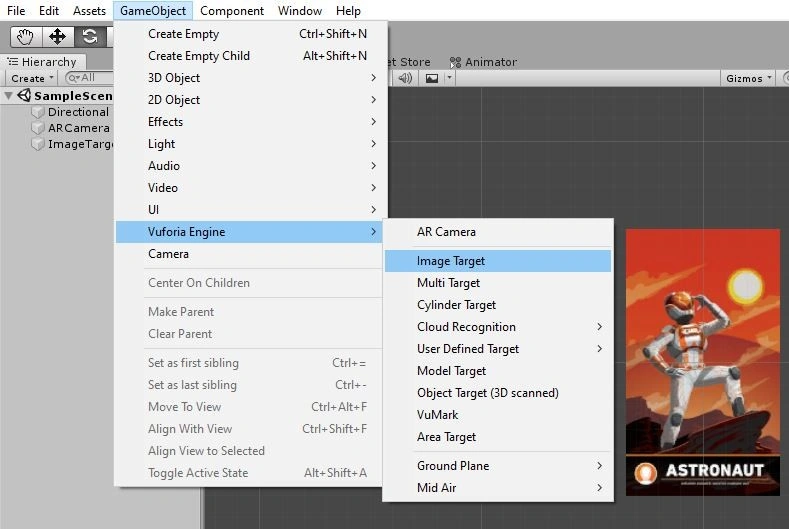
Click on the "GameObject" menu in the menu bar. Select Vuforia Engine and pick the "Image Target" option. The Image Target will be added to the AR scene View.
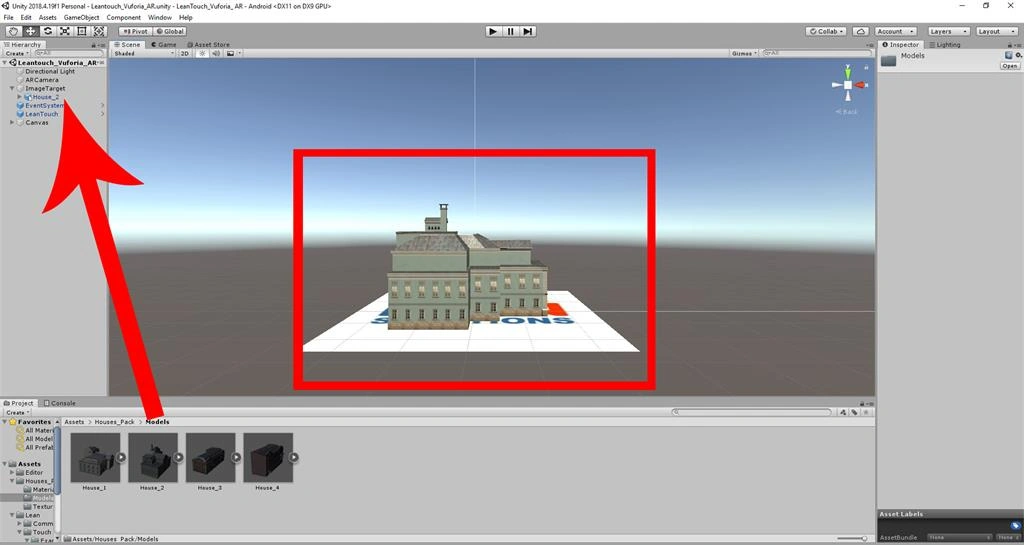
Import 3D model in Unity. Drag and drop the 3D model to Image target in the AR scene view.
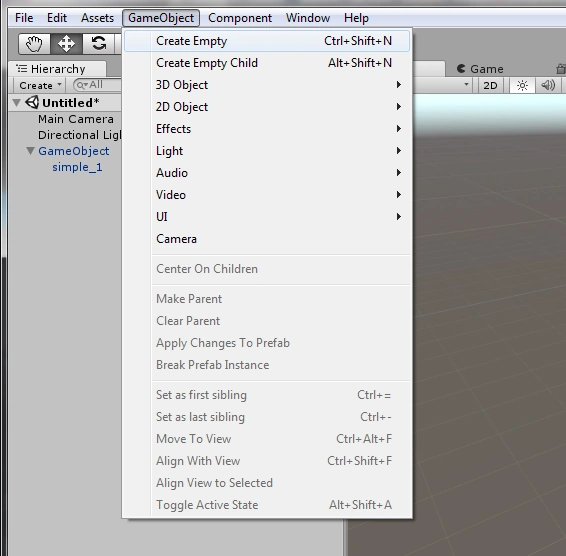
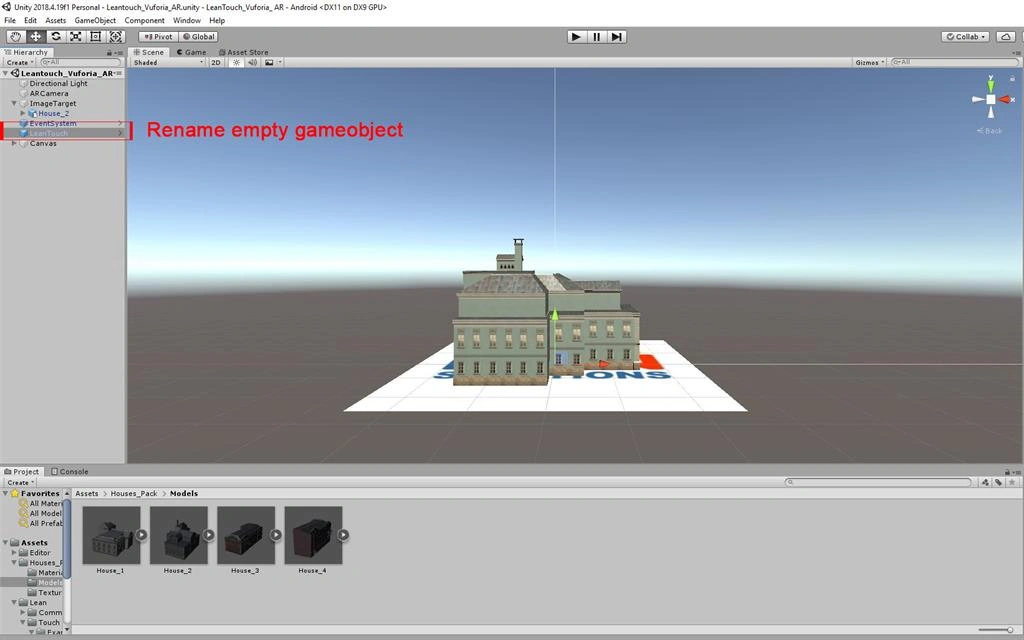
Click on the "GameObject" menu in the menu bar. Select Create Empty (Game Object). The Create Empty will be added to the scene View.
Rename the Empty Game object as Leantouch.
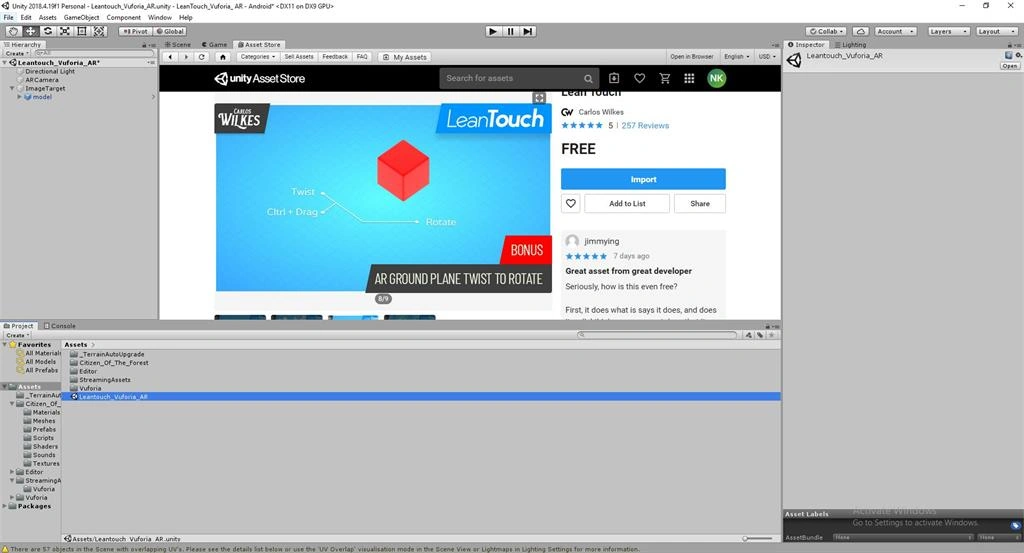
Click on the Asset Store. Download the Leantouch and import in AR scene View.
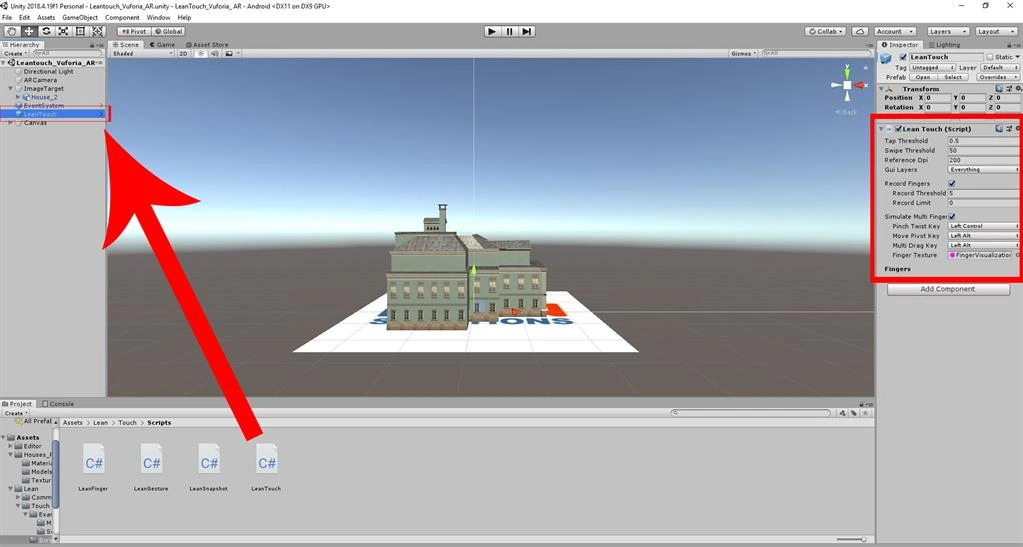
Drag and drop the Lean touch scripts to leantouch in the AR scene view.
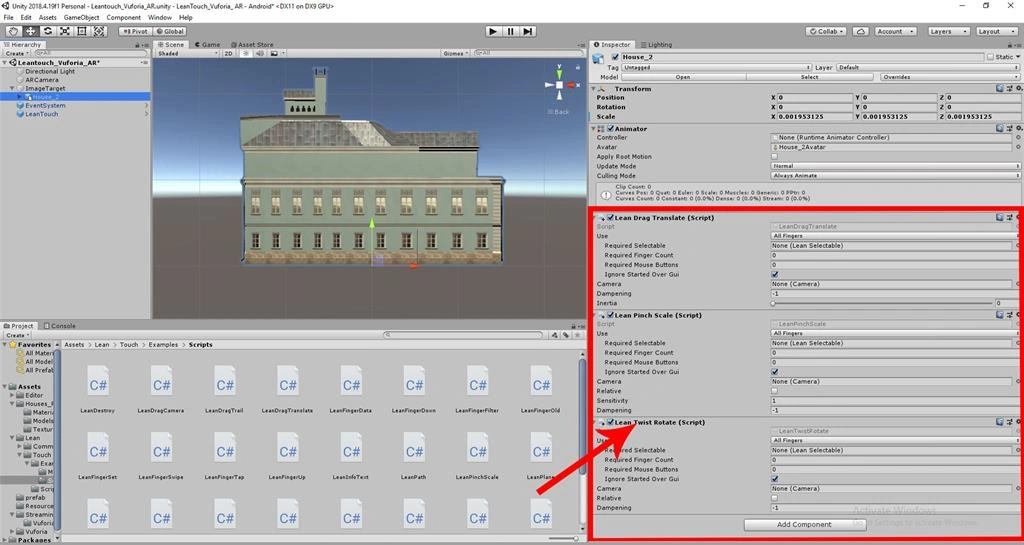
Drag and drop the Darg transform, scale and rotate scripts to 3D model in the AR scene view.
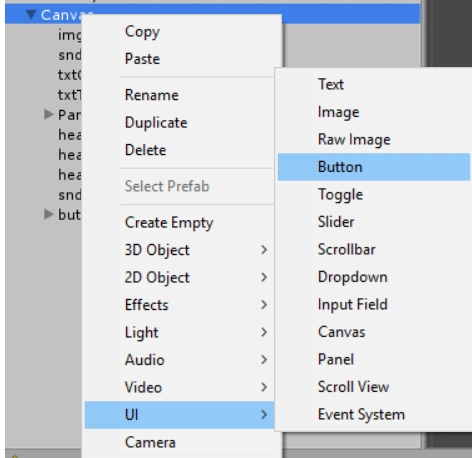
Click on the "GameObject" menu in the menu bar. Select UI and pick the "Button" option. The Exit button will be added to the AR scene View.
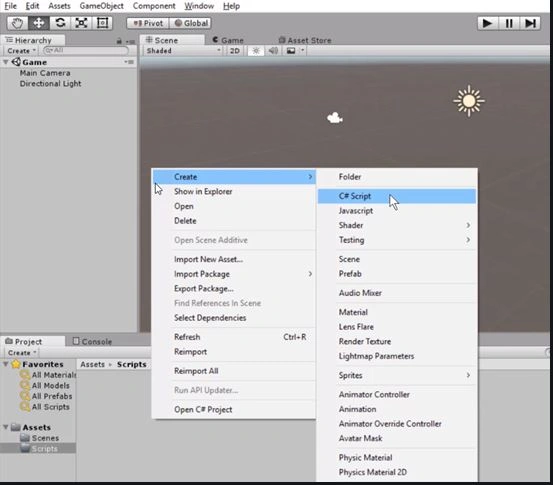
Create a C# Script
Right-click on Assets. Select Create >> C# script.
Rename the script as Exit. Drag and drop the Exit scripts to the Exit button in the AR scene view.
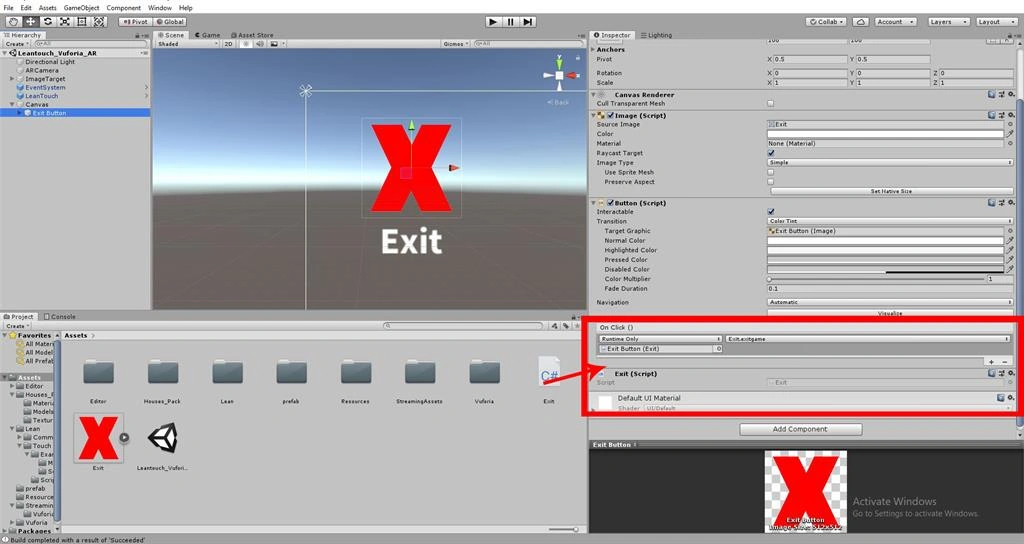
Write the code like the following.
Double click on the Exit script. The MonoDevelop-Unity editor will open up.
- using System.Collections;
- using System.Collections.Generic;
- using UnityEngine;
- public class Exit: MonoBehaviour {
- public void exitgame() {
- Debug.Log("exitgame");
- Application.Quit();
- }
- }
Save the program.
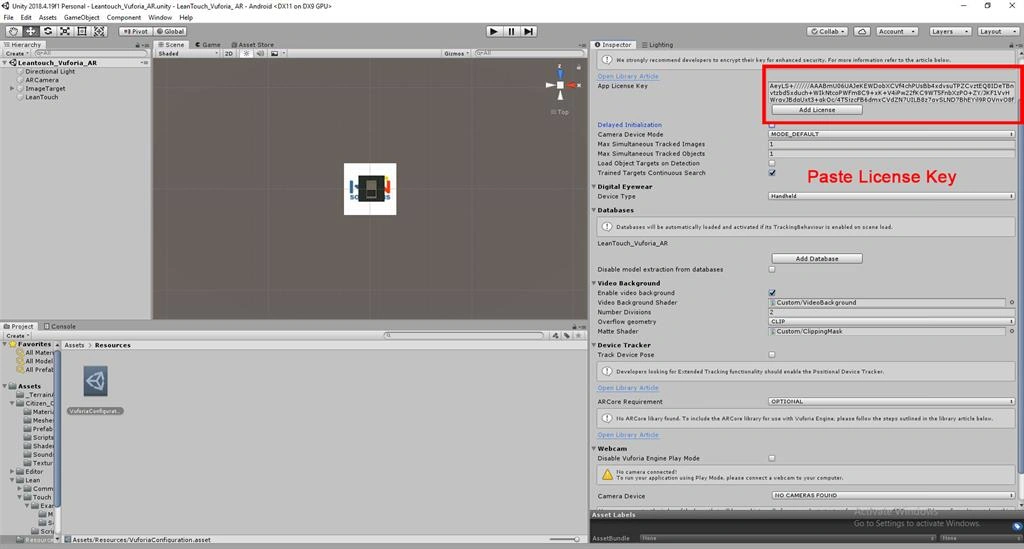
Copy the license key.
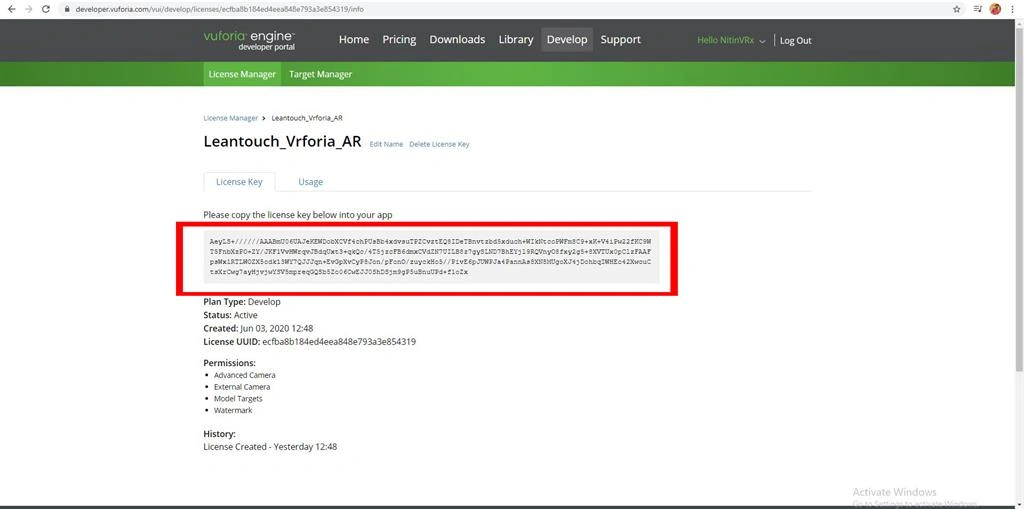
Click on Resources. Select >>VuforiaConfiguration paste on the App license key.
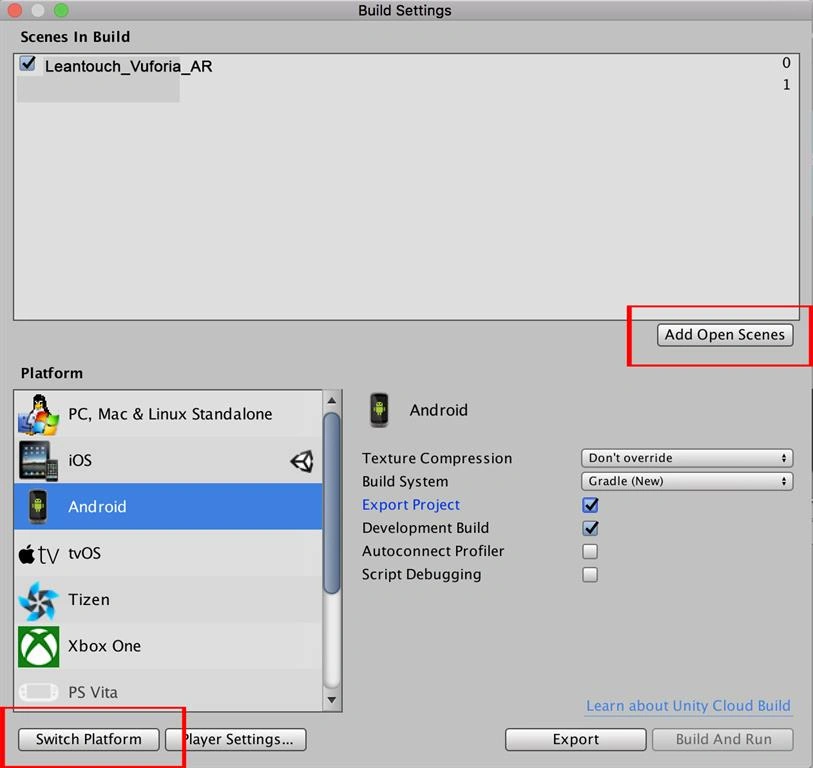
Click on the "File" menu in the menu bar. Select the build settings, switch the platform, and add Open scene select.
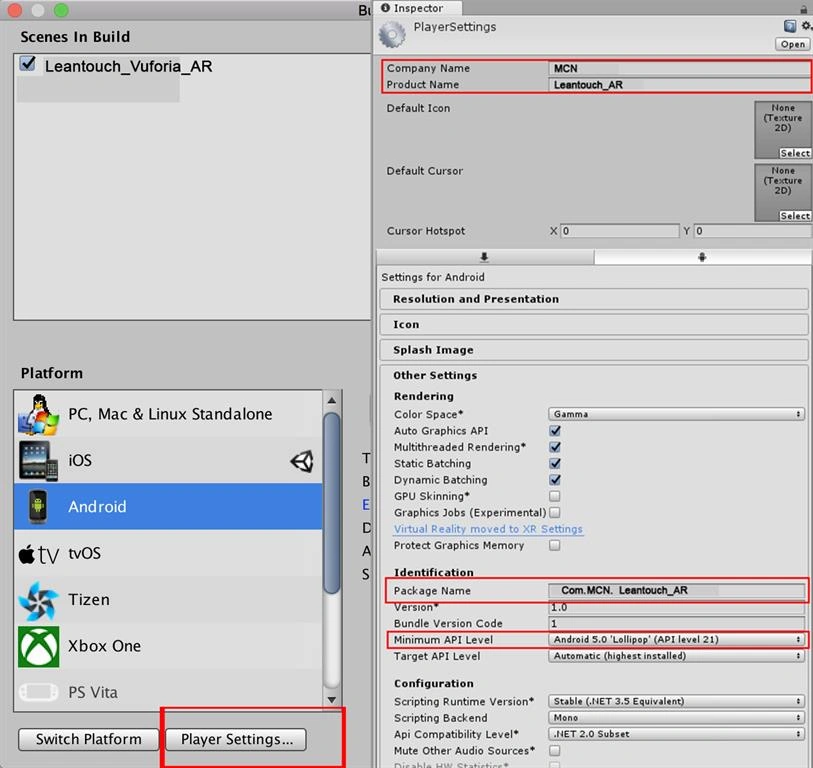
In Android Player settings, set the Player settings specific to the Android platform. For a description of the general Player settings, see the Player settings.
After you specify your build settings, click the Build button to create your build. To build the app, click Build And Run to create and run your build on the platform you have specified. Complete the build.
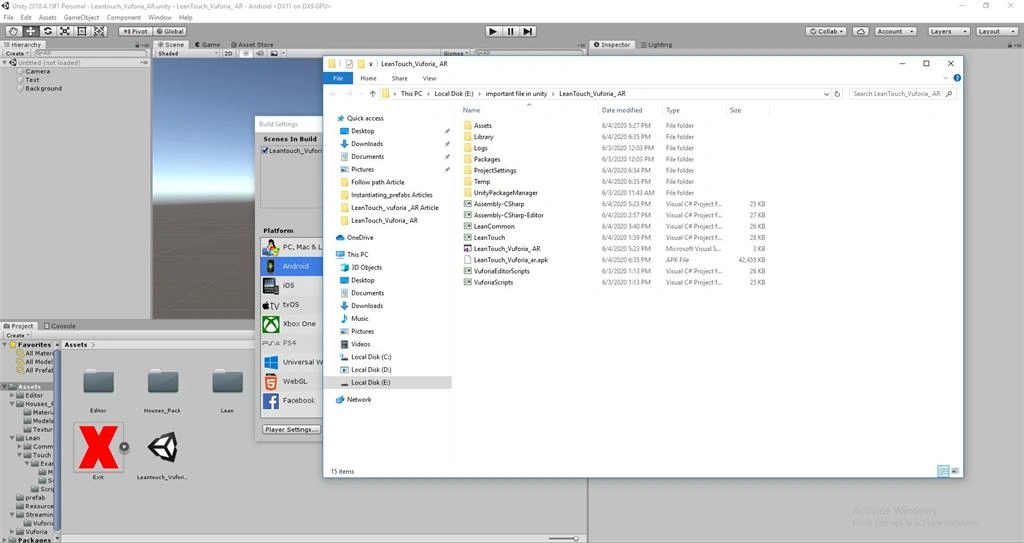
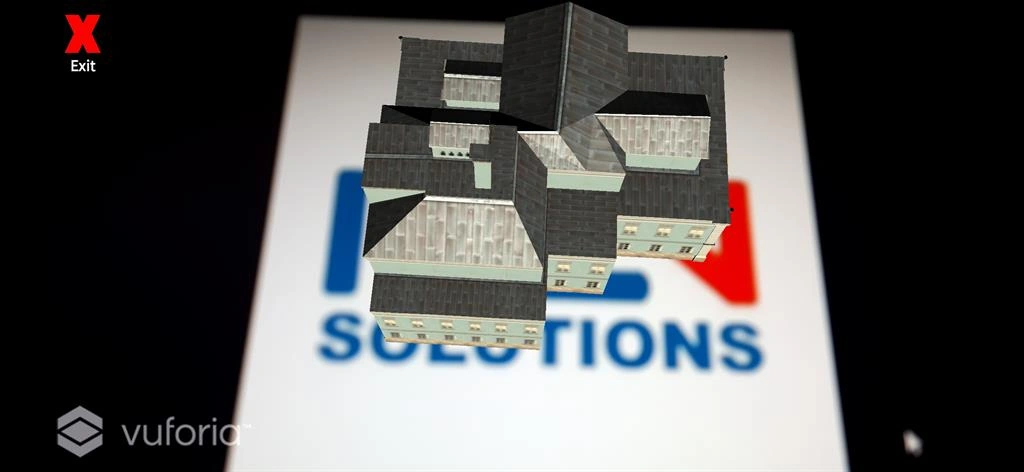
Build and run the app, and you will able to see a floating leantouch_Vuforia_AR.
Summary
I hope you understood LeanTouch_Vuforia_AR in Unity.
Join the conversation! Your thoughts help the community grow.