

In this article, we will learn about the very powerful Kendo Grid by Telerik that provides rich inbuilt features with less coding. We integrate the kendo grid using jQuery. Kendo can be used with any modern technology, such as - ASP.ET WebForm, ASP.NET MVC, .NET Core MVC, Node.js, PHP etc.
- Visual Studio Code or any Text Editor
- Web Service or Web API
For this demo, I have used the web service created and hosted by Telerik. Source code for this web service is open source that you can review on GitHub as well.
Note
Kendo Grid is a licensed version.
Description
As we know, each and every application requires any tabular format to display small or large data with basic functionality, like Grid with Sorting, Filtering, Paging etc.
Here, the Kendo Grid provides the above functionality along with other advanced and powerful inbuilt features as mentioned below.
Note
Kendo Grid is a licensed version.
Description
As we know, each and every application requires any tabular format to display small or large data with basic functionality, like Grid with Sorting, Filtering, Paging etc.
Here, the Kendo Grid provides the above functionality along with other advanced and powerful inbuilt features as mentioned below.
- Column Reordering
- Column Resizing
- Excel-Like filter menu which contains(Start With, End With, Contains, Not Contains. Equal to, Not equal to etc filter action)
- Hide or show column
- Keyboard navigation
- Row grouping
- Paging with Server and client-side
- Row or cell selection and Copy selected rows or cells in the clipboard with (Ctrl + C)
- Change detection in Cell Edit mode or batch edit mode
- Persistent selection of rows while sorting and filtering
- Export data to excel, pdf etc
- Inbuilt CRUD Operation with different edit mode like inline, popup, in cell etc
- Inbuilt themes or skin
- Support multiple form control e.g. DateTime, Textbox, Numeric, Checkbox, Dropdown etc
- Built-in validation as well.
- Frozen or lock column
CRUD operation and other advanced features will be explained in the next article. I have tried my best to cover as many as possible features in this article.
Step 1
Add Kendo UI CSS and JS along with jQuery UI as below.
Step 1
Add Kendo UI CSS and JS along with jQuery UI as below.
- <!-- Add Kendo Grid CSS Reference-->
- <link rel="stylesheet" href="https://kendo.cdn.telerik.com/2018.2.620/styles/kendo.common-material.min.css" />
- <link rel="stylesheet" href="https://kendo.cdn.telerik.com/2018.2.620/styles/kendo.material.min.css" />
- <link rel="stylesheet" href="https://kendo.cdn.telerik.com/2018.2.620/styles/kendo.material.mobile.min.css" />
- <link rel="stylesheet" href="style.css" />
- <!-- Add Kendo Grid Js Reference -->
- <script src="https://kendo.cdn.telerik.com/2018.2.620/js/jquery.min.js"></script> <!-- jszip required for export to excel-->
- <script src="https://kendo.cdn.telerik.com/2018.2.620/js/jszip.min.js"></script>
- <script src="https://kendo.cdn.telerik.com/2018.2.620/js/kendo.all.min.js"></script>
Step 2
Add selector in HTML page so we can bind the grid to that element.
Add selector in HTML page so we can bind the grid to that element.
- <div id="data-container">
- <div id="grid"></div>
- </div>
Step 3
Prepare, configure, and initialize Kendo grid feature to DOM element (#grid). Take a look,
Prepare, configure, and initialize Kendo grid feature to DOM element (#grid). Take a look,
- $(document).ready(function() {
- console.log("** Dom is ready **");
- // Dom is now ready, Need to initialize kendo grid
- // Define which columns should be visible in kendo grid
- var columnOptions = [{
- field: "CustomerID",
- editable: false
- }, {
- field: "ContactName",
- title: "Contact Name",
- //locked: true, // Ensure when locked is true it must be require to set width explicitly to each colummns
- width: 240
- }, {
- field: "ContactTitle",
- title: "Contact Title",
- //width: 240 // Ensure when locked is true it must be require to set width explicitly to each colummns
- }, {
- field: "CompanyName",
- title: "Company Name",
- //width: 240// Ensure when locked is true it must be require to set width explicitly to each colummns
- }, {
- field: "Address",
- filterable: false, //Also possible to restrict filter option for specific column
- }, {
- field: "City"
- }, {
- field: "PostalCode"
- }, {
- field: "Country",
- //width: 150// Ensure when locked is true it must be require to set width explicitly to each colummns
- }];
- // Prepare Datasource object using Web Service/Web API
- var dataSourceOptions = {
- type: "odata",
- transport: {
- read: "https://demos.telerik.com/kendo-ui/service/Northwind.svc/Customers"
- },
- pageSize: 20,
- schema: {
- model: {
- id: "CustomerID"
- }
- }
- };
- //// Prepare Datasource object with static data
- //Configure or activate necessary feature in grid
- var kendoGridOption = {
- dataSource: dataSourceOptions,
- columns: columnOptions,
- toolbar: [{
- name: "cancel"
- }, {
- name: "excel"
- }, {
- name: "pdf"
- }],
- // toolbar: [{ name: "cancel" }, { name: "create" }, { name: "save" }, { name: "excel" }, { name: "pdf" }],
- excel: {
- allPages: true,
- fileName: "Customer Details.xlsx",
- filterable: true //Enables or disables column filtering in the Excel file
- },
- height: 630, //Set height so grid is displayed on visible window and scroll appears for more records
- editable: true, // editable: "popup",
- // groupable: true, // Customize empty message in groupable option
- groupable: {
- messages: {
- empty: "Drop columns here"
- }
- },
- sortable: true,
- filterable: true,
- resizable: true,
- reorderable: true,
- columnMenu: true, //This enable excel like filter menu
- //noRecords: true, // Configure grid for no record and also possible to define custom template as well.
- noRecords: {
- template: "No data available on current page. Current page is: #=this.dataSource.page()#"
- },
- //selectable: "multiple cell",// persistSelection not working with cell selection
- selectable: "multiple row", // persistSelection only works with row selection
- persistSelection: true,
- navigatable: true, // e.g. Keyboard Navigation. For info visit https://demos.telerik.com/kendo-ui/grid/keyboard-navigation
- allowCopy: {
- delimeter: ",",
- },
- pageable: {
- refresh: true,
- pageSizes: true,
- buttonCount: 5,
- pageSize: 20
- }
- };
- // Initialize kendo grid using ID Selector
- $("#grid").kendoGrid(kendoGridOption);
- });
The above script needs to be wrapped in script tag.
As per the above JavaScript code, you can easily configure most of the features with less code by just setting a specific property to it. I have tried to add possible or required comments to the above code snippet to make it more understandable.
As per the above JavaScript code, you can easily configure most of the features with less code by just setting a specific property to it. I have tried to add possible or required comments to the above code snippet to make it more understandable.
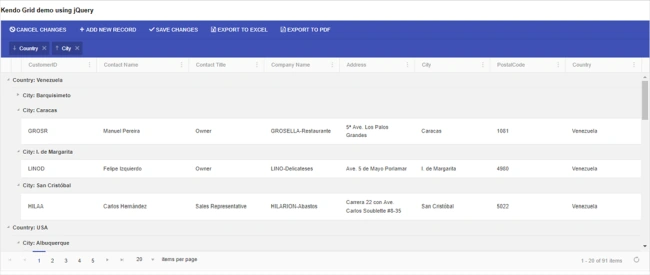
Once you add the above code, it will show an output like the below screenshot which contains toolbar options, Row grouping on Country and City Column with Sorting, interactive Paging and Excel-like filter (three dots in column header).
Reference links
- https://demos.telerik.com/kendo-ui/grid/index
- https://demos.telerik.com/kendo-ui/grid/column-reordering
In this article, we have learned how to integrate Kendo Grid using jQuery UI with an in-built feature with easy configuration.
I hope you like this article.
pankaja pankajaPosted Dec 18, 2018, 1:09 AM
Hi We need to implement client side people picker kind of control [custom control] in grid with bulk edit. Could you please help us if you have any idea.
Hadshana KamalanathanPosted Jul 19, 2018, 5:13 AM
Thanks for sharing
Viknaraj ManogararajahPosted Jul 14, 2018, 10:57 PM
Nice Article, Thank you for sharing.........
Karthik ChintalaPosted Jul 12, 2018, 1:40 AM
It is better to make a method for configuration options for kendoGrid so that It can be reused everywhere. I know this is just for the purpose of the article. I'm just saying :). Thanks for sharing