

Today, I am going to explain how to get the JSON data with ASP.NET MVC to make AJAX call using jQuery. As we know, JSON is very light-weight as compared to XML or other datasets, so, in this article, I will create a blog system for a demo where first, you will bind the DropDownList with blog categories and on selection of individual category, respective blog details will be populated. For this demonstration, I have used Code First approach.
DOWNLOAD CODE
To create new ASP.NET MVC application.
Open Visual Studio 2015/2013.
Go to File menu and select New >> New Project.
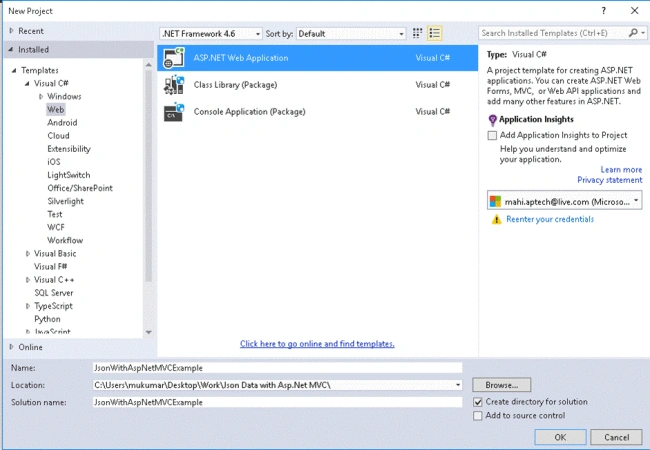
It will display the following new project window where you can choose different types of project. So, from the right panel, you need to choose Templates >> Visual C# >> Web.
After that, from the left panel, you need to choose ASP.NET Web application. Give suitable name to the project as “JSONWithAspNetMVCExample” and click OK.
It will open another window where we can choose different templates for ASP.NET applications. So, here we need to go with MVC template and click OK.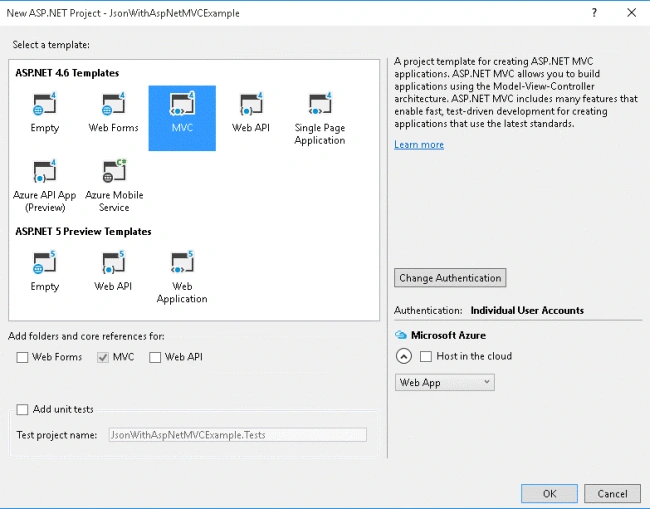
Create Entity and DataContext Class
As in this article, we are using two entities to make blog system, so I am using two entities - category and blog. Basically, the entire categories will display inside the DropDownList and based on the DropDownList value selection, blog details will be binded with html table using jQuery. So, there are two entity classes required.
Blog.cs
Following is the blog class where properties are defined. I have used Table attribute with class name because for this, it will take same name and a table will be created inside the database when you run the application first. Since we are using Code First approach, model or entity is created first and on the basis of that, database and tables are generated.
- using System;
- using System.ComponentModel.DataAnnotations.Schema;
- using System.ComponentModel.DataAnnotations;
- namespace JsonWithAspNetMVCExample.Models {
- [Table("NextPosts")]
- public class Blog {
- [Key]
- public int PostId {
- get;
- set;
- }
- [MaxLength(500)]
- [Column(TypeName = "varchar")]
- public string PostTitle {
- get;
- set;
- }
- [MaxLength(1000)]
- [Column(TypeName = "text")]
- public string ShortPostContent {
- get;
- set;
- }
- [Column(TypeName = "text")]
- public string FullPostContent {
- get;
- set;
- }
- [MaxLength(255)]
- public string MetaKeywords {
- get;
- set;
- }
- [MaxLength(500)]
- public string MetaDescription {
- get;
- set;
- }
- public DateTime PostAddedDate {
- get;
- set;
- }
- public int CategoryId {
- get;
- set;
- }
- //public virtual int CategoryId { get; set; }
- //[ForeignKey("CategoryId")]
- //public virtual Category Categories { get; set; }
- }
- }
Following is the category model, where all the properties have defined for blog's category.
- using System.ComponentModel.DataAnnotations;
- using System.ComponentModel.DataAnnotations.Schema;
- namespace JsonWithAspNetMVCExample.Models {
- [Table("NextCategories")]
- public class Category {
- [Key]
- [Required(ErrorMessage = "Category is required")]
- public int CategoryId {
- get;
- set;
- }
- [MaxLength(25)]
- public string CategoryName {
- get;
- set;
- }
- }
- }
- using System.Data.Entity;
- namespace JsonWithAspNetMVCExample.Models {
- public class BlogContext: DbContext {
- public BlogContext(): base("testConnection") {}
- public DbSet < Blog > Blogs {
- get;
- set;
- }
- public DbSet < Category > Categories {
- get;
- set;
- }
- }
- }
Now, first I am going to create connection string for database access, which is basically inside the web.config. I have used these names only for testing purposes; you can change it as per your convenience. Be sure before running the application that you have made changes in username and password as per your SQL Server.
- <connectionStrings>
- <add name="testConnection" connectionString="Data Source=DEL9043B\SQLEXPRESS2012;database = demo; uid=sa; password=yourpassword" providerName="System.Data.SqlClient" />
- </connectionStrings>
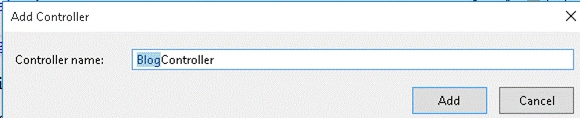
When user requests for the particular page in ASP.NET MVC, it first goes to Controller and as per routing configuration, Controller decides which action needs to be executed. So this time, I am going to create a new Controller as "BlogController".
To create the Controller, right click on Controllers folder from solution and choose Add >> Controller. It will open a popup window where you can provide the name for the Controller and click on Add.
Make changes in BlogController class as following, to get the categories data as well as blogs data based on the category value selection from the database. As you can see with following code, I have used JsonResult GetBlogDetailByCategoryID(int categoryId) which is returning JSON Result.
- using JsonWithAspNetMVCExample.Models;
- using System;
- using System.Collections.Generic;
- using System.Linq;
- using System.Web.Mvc;
- namespace JsonWithAspNetMVCExample.Controllers {
- public class BlogController: Controller {
- BlogContext db = null;
- // GET: Blog
- public BlogController() {
- db = new BlogContext();
- }
- public ActionResult Index() {
- List < SelectListItem > blogCategories = new List < SelectListItem > ();
- blogCategories.Add(new SelectListItem {
- Text = "Select Category", Value = "0", Selected = true
- });
- var categories = db.Categories.ToList();
- foreach(var c in categories) {
- blogCategories.Add(new SelectListItem {
- Text = c.CategoryName, Value = Convert.ToString(c.CategoryId)
- });
- }
- ViewBag.CategoryList = blogCategories;
- return View();
- }
- public JsonResult GetBlogDetailByCategoryID(int categoryId) {
- List < Blog > blogs = new List < Blog > ();
- blogs = db.Blogs.Where(x => x.CategoryId == categoryId).Take(5).ToList();
- return Json(blogs, JsonRequestBehavior.AllowGet);
- }
- }
- }
To display blog details which belong to selected category in DropDownList, I am making an AJAX call which will directly hit to GetBlogDetailByCategoryID action method on BlogController and get appropriate data to bind it with html table.
- <script type="text/javascript">
- $(document).ready(function() {
- $("#CategoryList").change(function() {
- $.ajax({
- type: 'GET',
- url: '@Url.Action("GetBlogDetailByCategoryID")',
- datatype: JSON,
- data: {
- 'categoryId': $("#CategoryList").val()
- },
- success: function(data) {
- $('#blogTable tbody').empty();
- $.each(data, function(i, item) {
- var rows = "<tr>" + "<td>" + item.PostId + "</td>" + "<td>" + item.PostTitle + "</td>" + "<td>" + item.ShortPostContent + "</td>" + "<td>" + item.MetaDescription + "</td>" + "</tr>";
- $('#blogTable tbody').append(rows);
- });
- },
- error: function(data) {}
- });
- });
- });
- </script>
- @{
- ViewBag.Title = "Index";
- Layout = "~/Views/Shared/_Layout.cshtml";
- }
- <script src="https://code.jquery.com/jquery-2.2.4.min.js" integrity="sha256-BbhdlvQf/xTY9gja0Dq3HiwQF8LaCRTXxZKRutelT44=" crossorigin="anonymous"></script>
- <script type="text/javascript">
- $(document).ready(function () {
- $("#CategoryList").change(function () {
- $.ajax({
- type: 'GET',
- url: '@Url.Action("GetBlogDetailByCategoryID")',
- datatype: JSON,
- data: { 'categoryId': $("#CategoryList").val() },
- success: function (data) {
- $('#blogTable tbody').empty();
- $.each(data, function (i, item) {
- var rows = "
- <tr>"
- + "
- <td>" + item.PostId + "</td>"
- + "
- <td>" + item.PostTitle + "</td>"
- + "
- <td>" + item.ShortPostContent + "</td>"
- + "
- <td>" + item.MetaDescription + "</td>"
- + "
- </tr>";
- $('#blogTable tbody').append(rows);
- });
- },
- error: function (data) { }
- });
- });
- });
- </script>
- <style type="text/css">
- .zui-table {
- border: solid 1px #DDEEEE;
- border-collapse: collapse;
- border-spacing: 0;
- width:100%;
- font: normal 13px Arial, sans-serif;
- }
- .zui-table thead th {
- background-color: #DDEFEF;
- border: solid 1px #DDEEEE;
- color: #336B6B;
- padding: 10px;
- text-align: left;
- }
- .zui-table tbody td {
- border: solid 1px #DDEEEE;
- color: #333;
- padding: 10px;
- }
- .zui-table-rounded {
- border: none;
- }
- .zui-table-rounded thead th {
- background-color: #CFAD70;
- border: none;
- color: #333;
- }
- .zui-table-rounded thead th:first-child {
- border-radius: 10px 0 0 0;
- }
- .zui-table-rounded thead th:last-child {
- border-radius: 0 10px 0 0;
- }
- .zui-table-rounded tbody td {
- border: none;
- border-top: solid 1px #957030;
- background-color: #EED592;
- }
- .zui-table-rounded tbody tr:last-child td:first-child {
- border-radius: 0 0 0 10px;
- }
- .zui-table-rounded tbody tr:last-child td:last-child {
- border-radius: 0 0 10px 0;
- }
- </style>
- <table>
- <tr>
- <td>
- <h2> Get JSON Data with Asp.Net MVC</h2>
- <br />
- </td>
- </tr>
- <tr>
- <td>
- Select Category : @Html.DropDownList("CategoryList")
- </td>
- </tr>
- </table>
- <br />
- <table id="blogTable" class="zui-table zui-table-rounded">
- <thead>
- <tr>
- <th>PostId</th>
- <th>Title</th>
- <th>Full Content</th>
- <th>Meta Description</th>
- </tr>
- </thead>
- <tbody></tbody>
- </table>
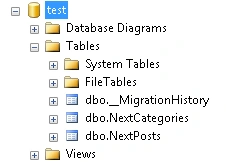
These tables are empty. So, you can run the following scripts to insert the dummy data in both the tables.
- Use Test
- Go
- -- Insert Records for categories
- INSERT INTO NextCategories VALUES ('CSharp')
- INSERT INTO NextCategories VALUES ('MVC')
- INSERT INTO NextCategories VALUES ('Asp.Net')
- INSERT INTO NextCategories VALUES ('HTML')
- INSERT INTO NextCategories VALUES ('AngularJS')
- -- Insert Records for blogs
- INSERT INTO NextPosts VALUES ('CSharp Title 1', 'CSharp Short Description 1','CSharp Long Description 1', 'CSharp Keyword 1', 'CSharp Description 1', GETDATE(), 1 )
- INSERT INTO NextPosts VALUES ('MVC Title 1', 'MVC Short Description 1','MVC Long Description 1', 'MVC Keyword 1', 'MVC Description 1', GETDATE(), 2 )
- INSERT INTO NextPosts VALUES ('MVC Title 2', 'MVC Short Description 2','MVC Long Description 2', 'MVC Keyword 2', 'MVC Description 2', GETDATE(), 2 )
- INSERT INTO NextPosts VALUES ('AngularJS Title 1', 'AngularJS Short Description 1','AngularJS Long Description 1', 'AngularJS Keyword 1', 'AngularJS Description 1', GETDATE(), 5 )
- INSERT INTO NextPosts VALUES ('HTML Title 1', 'HTML Short Description 1','HTML Long Description 1', 'HTML Keyword 1', 'HTML Description 1', GETDATE(), 4 )
- INSERT INTO NextPosts VALUES ('CSharp Title 2', 'CSharp Short Description 2','CSharp Long Description 2', 'CSharp Keyword 2', 'CSharp Description 2', GETDATE(), 1 )
- INSERT INTO NextPosts VALUES ('HTML Title 2', 'HTML Short Description 2','HTML Long Description 2', 'HTML Keyword 2', 'HTML Description 2', GETDATE(), 4 )
- INSERT INTO NextPosts VALUES ('Asp.Net Title 1', 'Asp.Net Short Description 1','Asp.Net Long Description 1', 'Asp.Net Keyword 1', 'Asp.Net Description 1', GETDATE(), 3)
- INSERT INTO NextPosts VALUES ('HTML Title 3', 'HTML Short Description 3','HTML Long Description 3', 'HTML Keyword 3', 'HTML Description 3', GETDATE(), 4 )
- INSERT INTO NextPosts VALUES ('AngularJS Title 2', 'AngularJS Short Description 2','AngularJS Long Description 2', 'AngularJS Keyword 2', 'AngularJS Description 2', GETDATE(), 5 )
- INSERT INTO NextPosts VALUES ('AngularJS Title 3', 'AngularJS Short Description 3','AngularJS Long Description 3', 'AngularJS Keyword 3', 'AngularJS Description 3', GETDATE(), 5 )
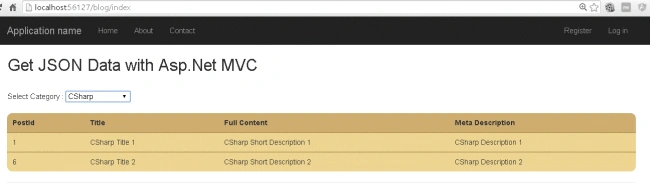
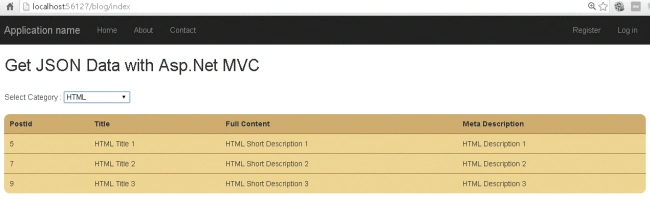
If you select any other blog category, it will show corresponding blog details, as per the following image.
Conclusion
So, today, we learned how to create an ASP.NET MVC application and bind the DropDownList and get JSON result from database tobind it to the html table, using jQuery and Code First approach.
I hope this post will help you. If you have any doubts, please ask your doubts or queries in the comment section. If you like this post, please share it with your friends.
Maria PrincePosted Feb 28, 2020, 7:46 AM
Thank you....
ahmidi mohamedPosted Sep 20, 2019, 7:44 AM
Null project databse Mauvais struct
Durgaprasad BoddapatiPosted Oct 29, 2018, 9:21 AM
This article is ok thanks c# corner group
bishoe nbPosted Dec 12, 2017, 12:18 PM
Thanks.............
Prasanna MuraliPosted Sep 5, 2016, 11:06 AM
Nice post......
RakeshPosted Sep 2, 2016, 1:54 AM
Good