

Introduction
In this article I will tell you how to use the jQuery UI Tooltip with the Web API. Tooltip is a small pop-up window with a text message. It works when the cursor moves to an element such as a TextBox, Button and so on. In this article you will see that when you move the cursor to the text box it display a Tooltip. A Tooltip is also used in Graphical User Interfaces to help explain controls.
The following is the procedure for creating the application.
- Create a Web API application.
- Start Visual Studio 2012.
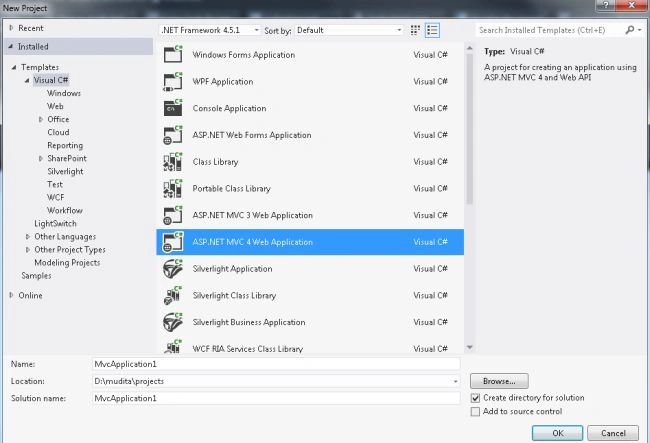
- From the start window select "New Project".
- From the new project window select "Installed" -> "Visual C#" -> "Web".
- Select "ASP.NET MVC4 Web Application" and click the "OK" button.
- From the "MVC4 Project" window select "Web API".
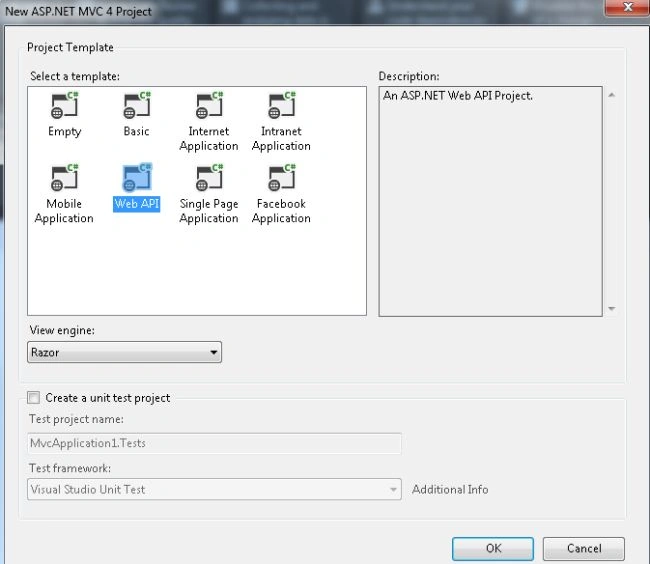
- Click the "OK" button.
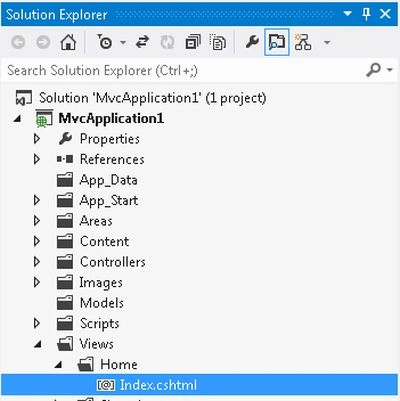
- Open the "index.cshtml" file for writing the code of the Tooltip. This file exists:
- In the "Solution Explorer".
- Expand the "views" folder.
- Select "Home" -> "Index.cshtml"
Add the following code:
The following code displays the Tooltip:- @{
- ViewBag.Title = "Index";
- }
- <link rel="stylesheet" href="http://code.jquery.com/ui/1.9.2/themes/base/jquery-ui.css" />
- <script src="http://code.jquery.com/jquery-1.8.2.js"></script>
- <script src="http://code.jquery.com/ui/1.9.2/jquery-ui.js"></script>
- <script>
- $(document).ready(function () {
- $("#name").tooltip({ track: true });
- $("#address").tooltip({ track: true });
- });
- </script>
- <h4>jQuery UI Tooltip With Web APIr</h4>
- Name :@Html.TextBox("Name","", new { @title = "Enter Your name.", @id = "name" })<br /><br />
- Address :@Html.TextBox("Adress","", new { @title = " Enter your address.", @id = "address" })
- $(document).ready(function () {
- $("#name").tooltip({ track: true });
- $("#address").tooltip({ track: true });
- });
-
Execute the application by pressing "F5". The output looks like this:
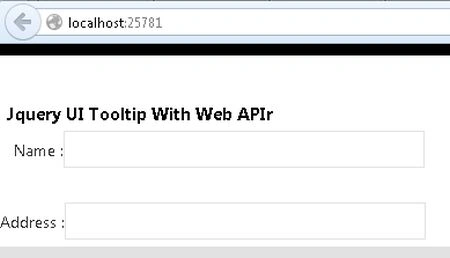
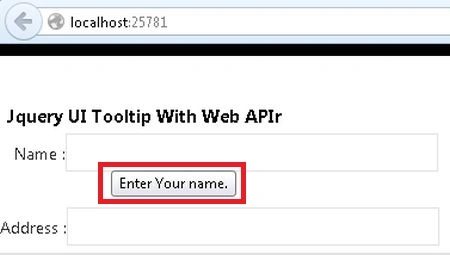
Move the cursor to the nametextbox. It display a Tooltip with the text message.
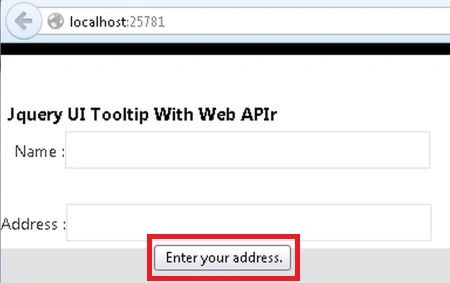
Now after entering the name move the TextBox to the Address TextBox then it displays a Tooltip.
Join the conversation! Your thoughts help the community grow.