

Get started
This article is part of the Kotlin Learning Series for programmers. If you read the articles in order, you'll benefit greatly from this series. You might be able to skip some parts based on your level of familiarity. It will be an advantage if you have prior practical experience with an object-oriented language. Still, you can get started even if this is your first programming language to learn since we will be starting from scratch in each section. Trust me when I say this will be an enjoyable adventure journey while exploring some fascinating topics toward learning Kotlin. To assist you in learning more about Kotlin than what is covered in this tutorial, we will cover each topic with a question or exercise. So inhale deeply, and let's get started.

Introduction
In this article, you will discover what Kotlin is, why it is such a well-liked programming language, how it compares to Java, and how to install the IDE to get started with your first program. Your code can be made a lot more legible and concise, which can astound you.
What you'll learn
- About Kotlin
- why kotlin is popular
- Kotlin vs. Java
- How to work with the Kotlin REPL (Read-Eval-Print Loop) interactive shell
- The basic syntax of Kotlin code
What you'll do
- Install the Java Development Kit (JDK) and the IntelliJ IDEA, and become familiar with some Kotlin features.

1. What is Kotlin?
Kotlin is a general-purpose, statically typed, cross-platform high-level programming language built with type inference. Kotlin was first introduced in 2011 by JetBrains and sponsored by Google, announced as one of the official Android development languages in 2017. It is an object-oriented language and a preferable language to Java. Kotlin mainly targets the JVM but compiles to JavaScript or native code via LLVM(low-level virtual machine). Kotlin has vast built-in support for the Best IDEs like IntelliJ IDEA, Android Studio, Eclipse, etc.
Kotlin is a modern and mature programming language aimed to simplify developers' lives. It's concise, interoperable, safe with Java and other languages, and provides many ways to reuse code between multiple platforms for productive programming. Understanding how much Kotlin has advanced and extended across platforms since July 2011 is fair.
Let's see Kotlin's timeline in detail.
- JetBrains unveiled Project Kotlin (named after kotlin island) in July 2011
- First release (Kotlin 1.0) - February 15, 2016
- Included in the android studio - Since the release of Android Studio 3.0 in October 2017,
- The first support of language by Google - Google I/O 2017
- Kotlin 1.2 was released on November 28, 2017 (Sharing code between JVM and JavaScript platforms feature was newly added to this release )
- A full-stack demo has been made with the new Kotlin/JS Gradle Plugin.
- Kotlin 1.3 was released on October 29, 2018, bringing coroutines for asynchronous programming.
- officially announced as the preferred lang for the Android app - May 7, 2019
- Kotlin 1.4 was released in August 2020, with, e.g. some slight changes to the support for Apple's platforms, i.e., to the Objective-C/Swift interoperability.
- Kotlin 1.5 was released in May 2021.
- Kotlin 1.6 was released in November 2021.
- Kotlin 1.7 was released in June 2022, including the alpha version of the new Kotlin K2 compiler.
- Kotlin 1.8 was released in December 2022, and 1.8.0 on January 11, 2023.

Why is Kotlin so popular?
Don't you find it intriguing that Kotlin is now widely used and supports multiple platforms, but why has it progressed so much and gone so far if not for its features? Whatever feature or competitive advantage a language has over others makes it renowned, and Kotlin has a lot of those. We will discuss some of the important features here.
- Statically typed- a type of every variable and expression is known at compile time.
- Compatibility- Also known as Interoperable with Java. Kotlin is fully compatible with Java.
- Concise- Kotlin, with its feature like lambda & other high-order functions, makes it more concise.
- Easy- The language is easy to learn, and if you already know Java, you already have an edge in learning.
- Safe- With its null and type-safe features, the code is safe to use and avoids unwanted crashes.
- Time-saving- Kotlin is very fast in compilation with its higher performance.
- Community Support and Tool Friendly- Kotlin has vast community support with its robust tools.
- Code reusability- Kotlin is multiplatform, so your code can run on any machine.
- Build-in support- It supports using Java libraries and frameworks with its Kotlin features without any changes in your project.
- Recommended by Google- Almost every Engineer in Google enjoy using Kotlin, and most of the app (more than 70) developed by Google are built using Kotlin
- Codebase size & Crashes- Kotlin reduces the codebase size by 33% and reduces crashes by 30%.

Kotlin vs. Java
Kotlin was first released as a language for developing Android applications, but it has continuously expanded. Kotlin is superior with the numerous enhancements we went through in the previous section of this article because it was established after Java to overcome the problem with existing and construct a better language. So what makes Kotlin better? Now that Kotlin is available everywhere, which one is better? Let's check out from below.

Kotlin fixes a series of issues that Java suffers from,
- The type system controls null references.
- No raw types
- Arrays in Kotlin are invariant
- Kotlin has proper function types, as opposed to Java's SAM-conversions
- Use-site variance without wildcards
- Kotlin does not have checked exceptions
What Java lacks that Kotlin possesses?
- Lambda expressions + Inline functions = performant custom control structures
- Extension functions
- Null-safety
- Smart casts
- String templates
- Properties
- Primary constructors
- First-class delegation
- Type inference for variable and property types
- Singletons
- Declaration-site variance & Type projections
- Range expressions
- Operator overloading
- Companion objects
- Data classes
- Separate interfaces for read-only and mutable collections
- Coroutines
"This is important to know that Google is pushing Kotlin to become the preferred language in Android development. And this is true nowadays. With the release of Kotlin in 2016, it has become popular because of its new feature. Kotlin is not only concise but also safer, better, and null-safe(which Java developers always suffer about). If you want to use modern tools and libraries such as Jetpack Compose or Coroutines (asynchronous programming), this is impossible without Kotlin."
Congratulations! If you are reading this right now since you now know a lot more about Kotlin and can add a few things to what you previously knew. Nevertheless, did you become bored with just knowing theory? So, the next step will be to get our hands dirty and prepare our system for Kotlin. But before that, below we have some questions for you.

Take a quiz on this article here,
Question #1. Has Kotlin implemented null -safety?
Question #2. When was the first stable version of Kotlin released?
Question #3. Can Kotlin create a website for you?
Question #4. Which language program is more legible and concise, Kotlin or Java?
Question #5. In Kotlin, can we define variables without specifying their types?
2. Setting up the development environment
The Kotlin readiness of your system will be the focus of this session. So without wasting time, let's get started.
Install the Java Development Kit (JDK)

Check the JDK version of your system; if you don't have the latest JDK installed on your computer, follow and install. If not, skip to the next step. The JDK must be set up to run Kotlin apps.
Type javac -version in a terminal window to find out, if any, which version of the JDK you have installed.
javac -version
You may see the JDK's most recent version on the Java SE Downloads page (click here to see). Install IntelliJ IDEA if you have the most recent version.

Step 1. Remove any earlier JDK/JRE versions from your computer.
Remove all previous JDK versions before installing the most recent:
- For Windows, select Control Panel > Add/Remove Programs.
- For Mac instructions, see Uninstalling the JDK.
Step 2. Download the JDK
download the JDK for free here: Java SE Downloads page
- Just select JDK Download.
- Choose the JDK link for your operating system under Downloads.
- The license agreement is accepted.
- On the Download button, click.
Step 3. Install the JDK
For Windows
- Launch the installer you downloaded to install the JDK and JRE (for instance, jdk-14.0.1 windows-x64 bin.exe). Depending on the most recent version, the JDK is typically set up at the
C:\Program Files\Java\jdk-14.0.1directory. - Accept the defaults and install the JDK by following the on-screen directions.
For Mac
- click on the .dmg file to launch the install file.
- An open box icon and the name of the .pkg file are displayed in a Finder window.
- Launch the installation app by double-clicking the package icon and following the on-screen instructions.
- To proceed, you might need to provide the administrator password.
- To save space, remove the.dmg file when the installation is finished.
For Linux
- Change the directory to the location where you want to install the JDK, then move the
.tar.gzarchive file to the current directory. - Unpack the tarball and install the downloaded JDK:
$ tar zxvf jdk-20_linux-x64_bin.tar.gzOR
$ tar zxvf jdk-20_linux-aarch64_bin.tar.gzThe Java Development Kit files are installed in a directory named.
jdk-20.interim.update.patch. - Delete the
.tar.gzfile if you want to save disk space.
Step 4. Add the JDK installation directory to PATH (Windows only)
Windows looks for executable programs in the current directory and the folders listed in the PATH environment variable (system variable).
Search for edit environment in Windows Settings.
- From the list of matches, choose Edit environment variables for your account.
- Choose Path and click the Edit... button in the User Variables portion of the Environment Variables panel.
- After any existing entries, add the path to the JDK's bin directory; for instance,
C:\Program Files\Java\jdk-14.0.1\bin
For additional information on the Ubuntu installation guide, click here.
Step 5. Verify the JDK installation
To verify that the JDK was installed correctly, type the following commands in a terminal window:
java -version
javac -version
Windows users: If you receive an error from either command, confirm you've added the correct path for the JRE.
Install IntelliJ IDEA
IntelliJ IDEA is an IDE developed by Jetbrains. You can also use the online Kotlin compiler, like Kotlin Playground, for learning, but IDE makes things easier. The IDE is a comprehensive set of tools for programmers to develop, test, and debug code, which can help you solve a complex problem. So, let's not wait for further talking. Start doing.
JetBrains created the IDE known as IntelliJ IDEA. The IDE is a complete collection of programming tools programmers can use to create, test, and debug code. It can help you to solve complex problems. Although IDEs make life easier, you may also utilize online Kotlin compilers like Kotlin Playground for learning. So let's start acting now without waiting for more discussion.
Step 1. Download and install IntelliJ IDEA
Download IntelliJ IDEA for your operating system.
Windows
- Run the
ideaIC.exefile that you downloaded. - You are Good to follow the instructions in the installation wizard.
Mac
- To mount the macOS disk image, double-click the
ideaIC.dmgfile that you downloaded. - Copy IntelliJ IDEA to the Applications folder.
Linux
- See
Install-Linux-tar.txtin the downloaded.tar.gzfile.
For more information on how to install and set up IntelliJ IDEA, check out Install IntelliJ IDEA.
Installing the software will take some time if you have a slow computer. Nevertheless, installing software won't take as long if you have a faster computer or workstation, such as something.
Step 2. Verify the IntelliJ IDEA installation
- Run IntelliJ IDEA now.
- When prompted, install any updates and extra material.
- Until there are no updates accessible, choose to Configure > Check for Updates.
3. Writing your first Kotlin program
Creating a new Kotlin project
Finally, the time has come when you are ready to go with the setup. So let's start creating a new project in Kotlin.
- Click Create New Project in the IntelliJ IDEA Welcome box.
- Choose Kotlin in the left-hand menu of the New Project box.
- In the left panel, choose Kotlin Multiplatform (Console Application) and click Next.
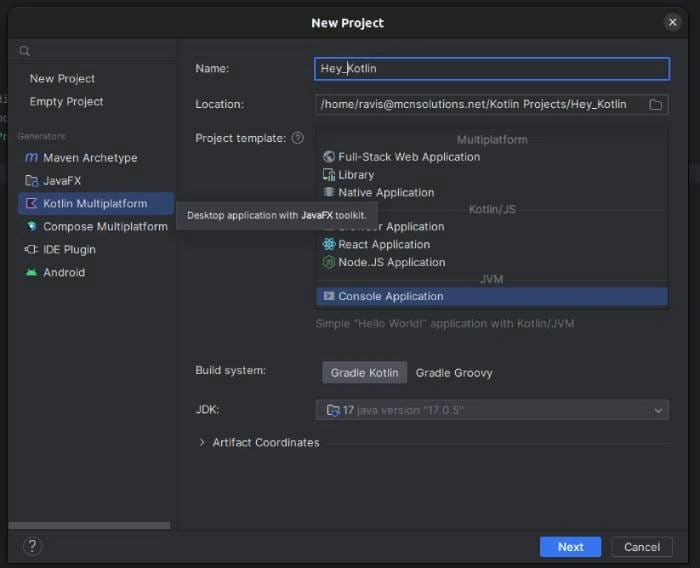
- Name your project."
Hey Kotlin". - Click Finish.
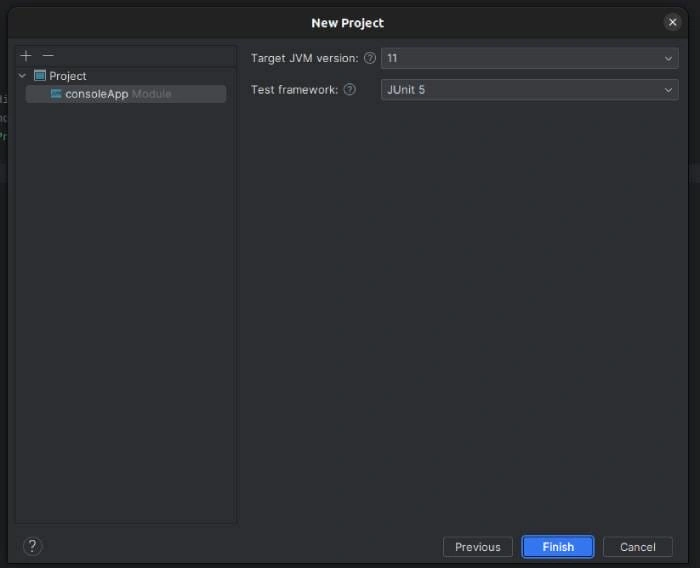
Writing a "Hello, World!" program
Do you know about REPL- A computer environment known as a Read-Eval-Print Loop, or REPL, is where user inputs are read, evaluated, and then the results are forwarded to the user. To explore the tools available in particular settings or programming languages, REPLs offer an interactive environment. Examples include the developer console in most web browsers, IPython, the Bash shell, and the Node.js console.
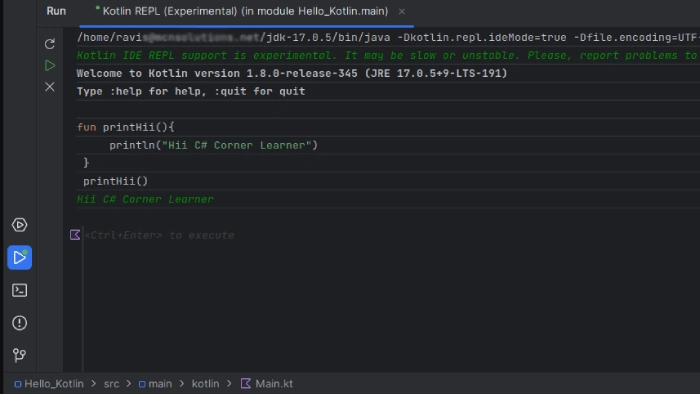
Select Tools > Kotlin > Kotlin REPL to open the REPL.
It could take some time for the Kotlin menu to appear under Tools the first time you launch IntelliJ IDEA after installation.
Type or paste the code below into the REPL.
fun printHii(){
     println("Hii C# Corner Learner")
 }
 printHii()
Running the program
Hit Control+Enter (Command+Enter on a Mac) to enter. You should see "Hii C# Corner Learner" as indicated below.
If you see your code here, the fun keyword is for function and forwarded by its name. Like other programming languages, functions take arguments and code in curly braces. There is no return type of function. See the structure of the function below.
return_type(defualt void) fun( arguments[] //option ){
    //write your code here
}
Note. There is no semicolon at the end Kotlin recognizes it based on Indentation. If you're used to putting semicolons at the end of lines, that's OK—Kotlin doesn't mind.
Congratulations! You've written your first Kotlin program. So now it's time for some questionnaires.

Questions
Take a quiz on this article here,
Question #1. How to start REPL in IntelliJ IDEA?
Question #2. Which code compiles faster, Kotlin or Java?
Summary
This article explained Kotlin from scratch. Since its first release, it has gained popularity recently, especially for Android app development. Kotlin is fully interoperable with Java and can be used for various tasks, including server-side development, web development, desktop applications, and more. Its concise and intuitive syntax makes it easy to learn and use, especially for Java developers. Additionally, Kotlin's advanced type system can catch certain kinds of errors at compile-time, making it a safer language than Java.
So why should you learn Kotlin? Here are the points It's easy to understand, It's versatile, It's safe, It's actively developed and supported, and It's in demand. Overall, Kotlin is a great language to learn, whether you're a seasoned developer or just starting with programming. So why not give it a try? You might discover a new favorite language!
Next in this Series- Publishing on Progress, visit profile Ravi_sahu.
Join the conversation! Your thoughts help the community grow.