
Introduction
Store private data on the device memory. You can directly save your application data to the internal memory. By default, data is saved in internal memory and other applications cannot access it. When you uninstall your application all files will be removed from the device.
The FileInoutStream and FileOutPutStream classes are used to read and write the data of the files.
FileInputStream
FileInputStream gets input bytes from a file. The FileInputStream class provides the facility to read streams of raw bytes such as image data. It extends the InputStream class. The following are methods provided by the fileInputStream class:
FileOutputStraem is an output stream for writing data to a file. It extends the OutputStream class. Methods provided by the outputStream class are:
Create a project like this:
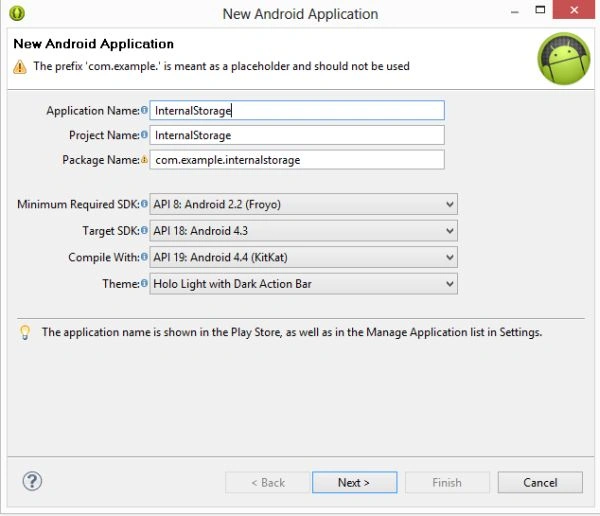 Step 2
Create an XML file and write the following:
Step 2
Create an XML file and write the following:
Step 3
- public int read(): this method reads a single byte from this Stream and returns this as an integer in the range from 0 to 225
- public void close(): this method closes the stream.
-
public void close(): This method is used to close the stream
- public void write(): This method is used to write a single byte to the stream
- <!-- In this you will take a Relative Layout that display the elements in relative position -->
- <RelativeLayout xmlns:android="http://schemas.android.com/apk/res/android"
- xmlns:tools="http://schemas.android.com/tools"
- android:layout_width="match_parent"
- android:layout_height="match_parent"
- tools:context=".MainActivity" >
- <!-- Take an EditText that contains the file name and this file name will be got by calling getString() -->
- <EditText
- android:id="@+id/editText1"
- android:layout_width="wrap_content"
- android:layout_height="wrap_content"
- android:layout_alignParentRight="true"
- android:layout_alignParentTop="true"
- android:layout_marginRight="20dp"
- android:layout_marginTop="24dp"
- android:ems="10" >
- <requestFocus />
- </EditText>
- <!-- Take an EditText that contains the date and this date will be got by calling getString() -->
- <EditText
- android:id="@+id/editText2"
- android:layout_width="wrap_content"
- android:layout_height="wrap_content"
- android:layout_alignRight="@+id/editText1"
- android:layout_below="@+id/editText1"
- android:layout_marginTop="24dp"
- android:ems="10" />
- <!-- This Textiew is used to diplay the text (filename -->
- <TextView
- android:layout_width="wrap_content"
- android:layout_height="wrap_content"
- android:layout_alignBaseline="@+id/editText1"
- android:layout_alignBottom="@+id/editText1"
- android:layout_alignParentLeft="true"
- android:text="File Name:" />
- <!-- This Textiew is used to diplay the text(date) -->
- <TextView
- android:layout_width="wrap_content"
- android:layout_height="wrap_content"
- android:layout_alignBaseline="@+id/editText2"
- android:layout_alignBottom="@+id/editText2"
- android:layout_alignParentLeft="true"
- android:text="Data:" />
- <!-- This button is used to perform click event that saves the file to the internal storage -->
- <Button
- android:id="@+id/buttonSave"
- android:layout_width="wrap_content"
- android:layout_height="wrap_content"
- android:layout_marginLeft="70dp"
- android:layout_marginTop="150dp"
- android:text="save" />
- <!-- This button is used to perform click event that read the file from the internal storage -->
- <Button
- android:id="@+id/buttonRead"
- android:layout_width="wrap_content"
- android:layout_height="wrap_content"
- android:layout_marginLeft="140dp"
- android:layout_marginTop="150dp"
- android:text="read" />
- </RelativeLayout>
A package is a group of classes, subpackages, and interfaces. I used various packages in this application.
- android.app.Activity provides methods such as onCreate() to create the activity and to display the activity on the screen.
- android.widgets.buttons provide you the facility to use buttons in your Activity.
- android.widgets.toast provides you the facility to use the Toast class in your application. Using the toast class you can use toast notification to display a message.
- package com.internalstorageapp;
- import java.io.BufferedReader;
- import java.io.FileInputStream;
- import java.io.FileNotFoundException;
- import java.io.FileOutputStream;
- import java.io.IOException;
- import java.io.InputStreamReader;
- import android.os.Bundle;
- import android.app.Activity;
- import android.content.Context;
- import android.view.Menu;
- import android.view.View;
- import android.view.View.OnClickListener;
- import android.widget.Button;
- import android.widget.EditText;
- import android.widget.Toast;
- public class MainActivity extends Activity
- {
- EditText editText1, editText2;
- Button Buttonsave, Buttonread;
- @Override
- protected void onCreate(Bundle savedInstanceState)
- {
- super.onCreate(savedInstanceState);
- setContentView(R.layout.activity_main);
- // create the id of edittext and buttons
- editText1 = (EditText) findViewById(R.id.editText1);
- editText2 = (EditText) findViewById(R.id.editText2);
- Buttonsave = (Button) findViewById(R.id.buttonSave);
- Buttonread = (Button) findViewById(R.id.buttonRead);
- //set the button on its clickListener and fetch the file name and date from the edittext
- Buttonsave.setOnClickListener(new OnClickListener()
- {
- @Override
- public void onClick(View arg0)
- {
- String file = editText1.getText().toString();
- String data = editText2.getText().toString();
- // here you will create a variable of FileOutputStream that holds the outputStraem. Toast will show you a message that contains file name with saved text. This toast will show you the information regarding file.
- FileOutputStream fileoutputStream;
- try
- {
- fileoutputStream = openFileOutput(file, Context.MODE_PRIVATE);
- fileoutputStream.write(data.getBytes());
- fileoutputStream.close();
- Toast.makeText(getApplicationContext(), file + " saved",
- Toast.LENGTH_LONG).show();
- }
- catch (FileNotFoundException e)
- {
- e.printStackTrace();
- }
- catch (IOException e)
- {
- e.printStackTrace();
- }
- }
- });
- //set the button on its clikListener and fetch the file name and date from the edittext . On Click of button you will read the file name from the internal storage.
- Buttonread.setOnClickListener(new OnClickListener()
- {
- @Override
- public void onClick(View arg0)
- {
- String file = editText1.getText().toString();
- StringBuffer stringBuffer = new StringBuffer();
- try
- {
- BufferedReader inputReader = new BufferedReader(new InputStreamReader(openFileInput(file)));
- String inputStr;
- while ((inputStr = inputReader.readLine()) != null)
- {
- stringBuffer.append(inputStr + "\n");
- }
- }
- catch (IOException e)
- {
- e.printStackTrace();
- }
- Toast.makeText(getApplicationContext(), stringBuffer.toString(),
- Toast.LENGTH_LONG).show();
- }
- });
- }
- @Override
- public boolean onCreateOptionsMenu(Menu menu)
- {
- getMenuInflater().inflate(R.menu.main, menu);
- return true;
- }
- }
- <?xml version="1.0" encoding="utf-8"?>
- <manifest xmlns:android="http://schemas.android.com/apk/res/android"
- package="com.internalstorageapp"
- android:versionCode="1"
- android:versionName="1.0" >
- <uses-sdk
- android:minSdkVersion="8"
- android:targetSdkVersion="18" />
- <application
- android:allowBackup="true"
- android:icon="@drawable/ic_launcher"
- android:label="@string/app_name"
- android:theme="@style/AppTheme" >
- <activity
- android:name="com.internalstorageapp.MainActivity"
- android:label="@string/app_name" >
- <intent-filter>
- <action android:name="android.intent.action.MAIN" />
- <category android:name="android.intent.category.LAUNCHER" />
- </intent-filter>
- </activity>
- </application>
- </manifest>
Step 5
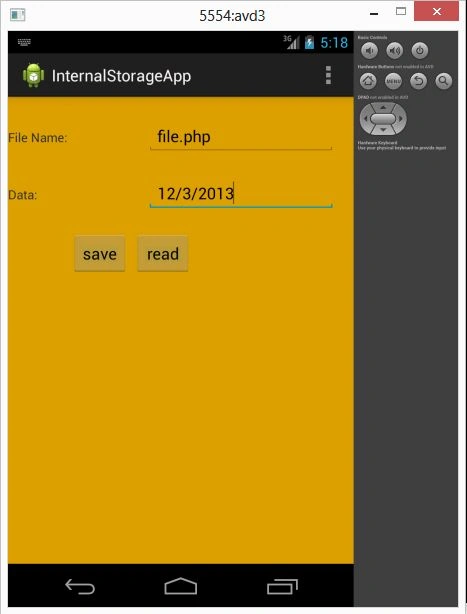
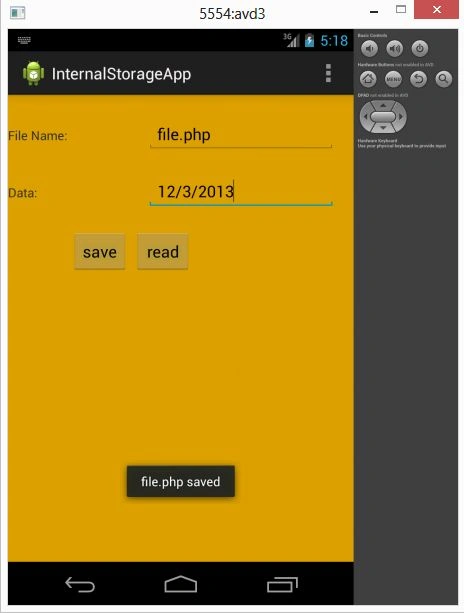
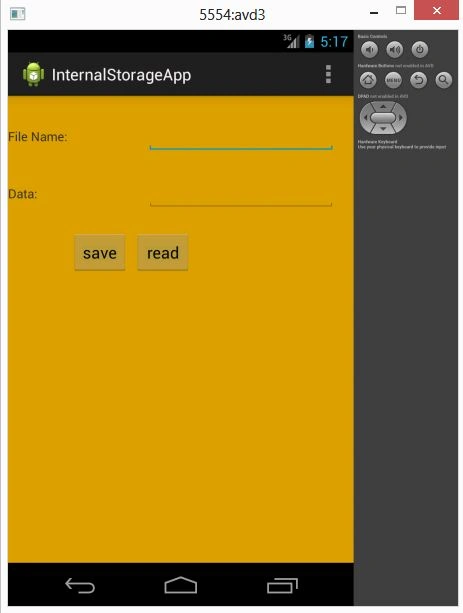 insert filename and date to save the data.
Join the conversation! Your thoughts help the community grow.