
Introduction
In my earlier article title Using the .NET Compact Framework, we saw how to use the Smart Device Extensions project to create an application that can execute on devices operating on the Pocket PC operating system. Although the article explained some of the core concepts about developing for smart devices, an application on the device becomes useful when it can access data from the enterprise. For example, if you are developing an application that allows a sales representative to collect orders during his field visits, the application will be really useful, when the sales representative can download the list of products from a web service or upload the list of sales calls to the central application via a web service.
In this article, we will see how to integrate web services with a smart device application. The process of integration with a web service is very similar to that of a normal .NET application integrating with a web service. This shows the true power of the .NET Compact Framework in providing the same paradigm between various applications for different platforms.
The web service that we are going to build for this article is a simple calculator web service. This service will provide two operations to the user.
Calculator Web Service
- A facility to add two numbers.
- A facility to subtract two numbers.
Both these web services take integers as input and return an integer as output. A product web service will be more complicated and might return more complex data types (like a DataSet). But this example helps to just illustrate the concept. Start Visual Studio .NET and create an ASP.NET web service project (called Calculator). The following is the code for the web service.
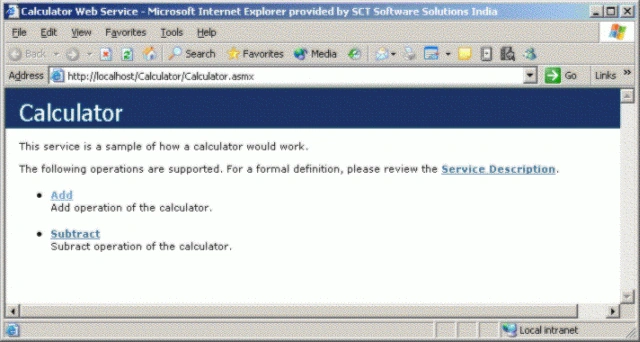
Note that I've not put in the designer generated code. Save the code. It's important that we test the web service so that it functions the way we want. Execute the project and you should now see the web service description file as shown in the following figure.
- <Webmethod(Description:="Add operation of the calculator.")> _
- Public Function Add(ByVal number1 As Integer, ByVal number2 As Integer) As Integer
- ' Simply add the two numbers and return the result back
- Return (number1 + number2)
- End Function
- <Webmethod(Description:="Subract operation of the calculator.")> _
- Public Function Subtract(ByVal number1 As Integer, ByVal number2 As Integer) As Integer
- ' Simply subtract the two numbers and return the result back
- Return (number1 - number2)
- End Function
- End Sub
Let us test one operation of our web service (called Add). To do this, click on the Add link. You should now see the website asking you for two inputs as shown in the following figure.
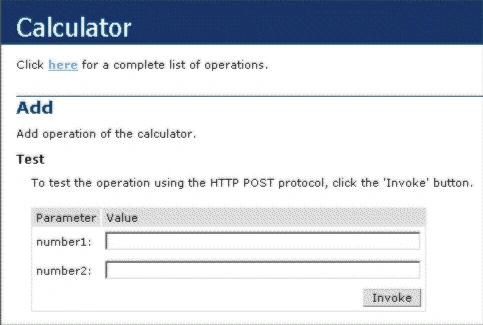
There is more to the above screen, but I've just pasted the required output. Now, we can enter some sample input and then click on the Invoke button. This will show the output from the web service as shown in the following figure.
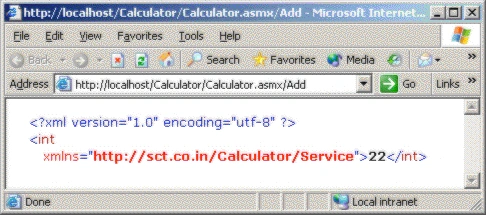
The above diagram shows the output when you enter an input of 10 and 12.
Ok, now our service is working fine and we are all set to integrate it with our smart device application.
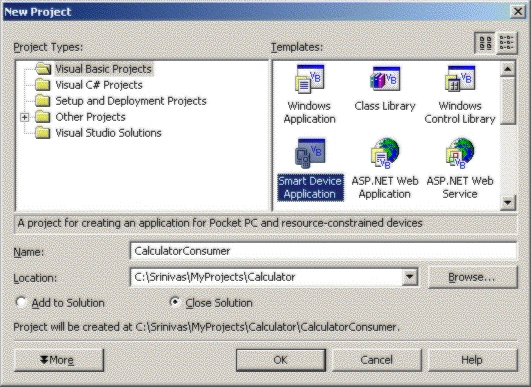
Developing the SDE Application
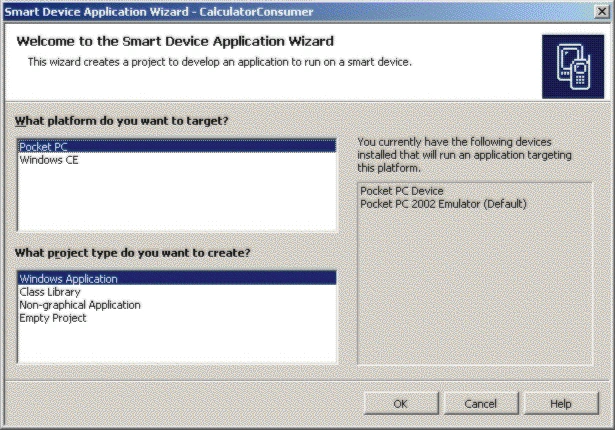
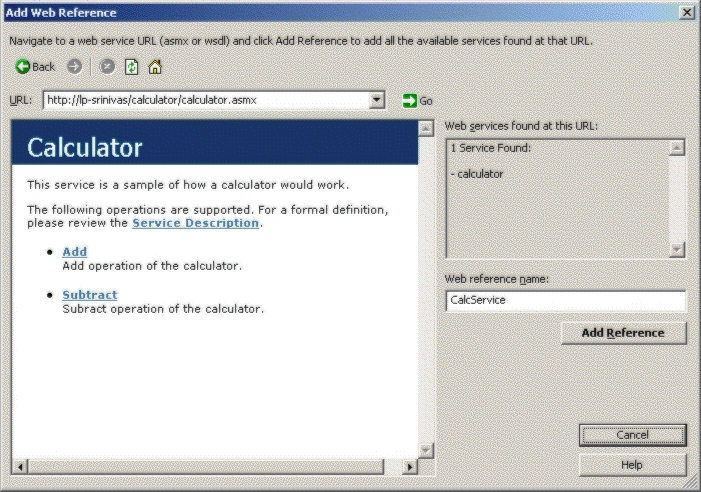
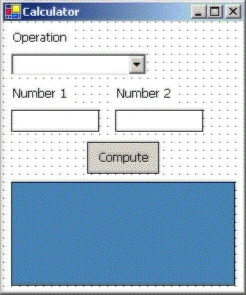
| Control Type | Control Name | Control Value |
| Label | lblOperation | Operation. |
| Combo Box | cboOperation | Clear the caption and add two values Add and Subtract. |
| Label | lblNumber1 | Number 1. |
| Text Box | txtNumber1 | Clear the text value. |
| Label | lblNumber2 | Number 2. |
| Text Box | txtNumber2 | Clear the text value. |
| Button | btnCompute | Compute. |
| Multi-Line Text Box | txtResult | Clear the text value. |
| Form | frmCalculator | Calculator (text property) |
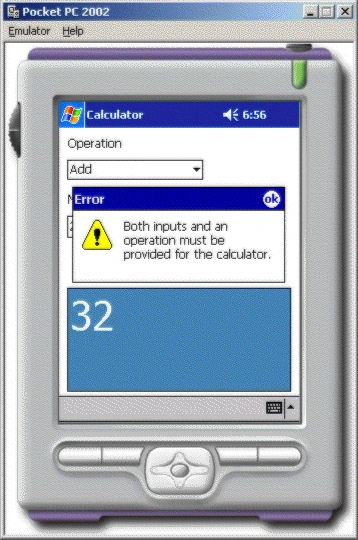
- If (txtNumber1.Text = "" Or txtNumber2.Text = "" Or IsNothing(cboOperation.SelectedItem)) Then
- MessageBox.Show("Both inputs and an operation must be provided for the calculator.", _"Error", MessageBoxButtons.OK, MessageBoxIcon.Exclamation, MessageBoxDefaultButton.Button1)
- Else
- ' Create a reference to the web service
- Dim oCalcService As CalcService.Calculator
- oCalcService = New CalcService.Calculator
- ' Decide the operation to perform based on what was selected in the combo box
- Select Case cboOperation.SelectedItem.ToString()
- Case "Add"
- txtResult.Text = oCalcService.Add(txtNumber1.Text, txtNumber2.Text)
- Case "Subtract"
- txtResult.Text = oCalcService.Subtract(txtNumber1.Text, txtNumber2.Text)
- End Select
- End If
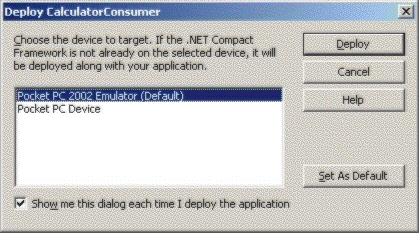
The code is quite simple and in fact, looks very similar to a normal .NET application. We do some basic error handling and if there are no errors, we create a reference to the web service and then invoke the Add or the Subtract method on the service. That's all there is to it!!! Let's execute the application now. When you execute the application, Visual Studio presents you with a dialog box about the deployment options. Since we are going to deploy to an emulator, choose the emulator option as shown in the following figure.
Join the conversation! Your thoughts help the community grow.