

In this article we will learn about the Bing Data Sources of Windows Phone App Studio. We will create a sample application to demonstrate the use of this Data Source. The task our app is to just search for any keyword and provide its result on the App screen.
Bing Data Source
Bing is a web search engine from Microsoft. Earlier it was also called various names, like Live Search, Windows Live Search and MSN search. It is also known as a decision engine. It is ranked at the second position among other top web search engines (on the basis of Alexa rank). Microsoft integrated this power of web search with our Windows Phone apps by providing us a ready-made Bing Data Source component in Windows Phone App Studio. Now we can integrate this power of web search in just a few clicks without using any code. Not only that, a Bing Data Source also provides us a country-specific web search so that we can keep it relevant.
Adding Bing Data Source
Use the following procedure to create a sample showing how use a Bing Data Source in your app.
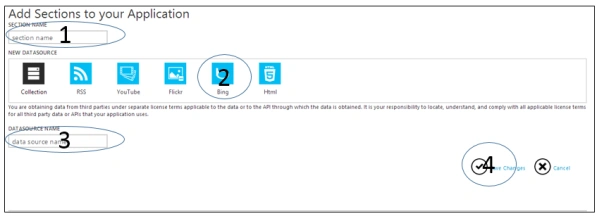
- Add a new section.
- In the new section screen, enter title and select "Bing Data Source" from the Data Source list.
- Add the Data Source name and click "Save".
- Our Data Source has been added.
- Click on the newly added Data Source.
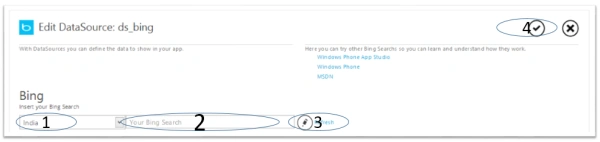
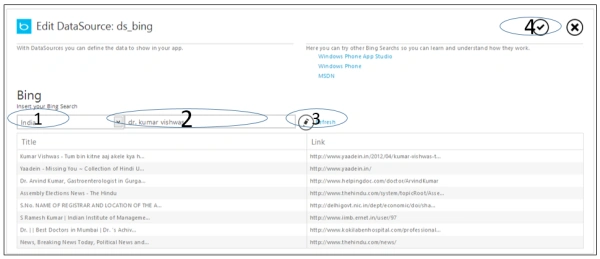
- In the "Edit Data Source" screen, select country.
- Enter your search keyword and click "Refresh".
- You will get the search results just below the Refresh button.
- To save the settings, hit the "Save" button on the upper-right corner.
Let's consider a scenario. In your app, you want to integrate the web search results of your company in your app. So to do this, we will first add a menu item for it. On clicking that menu item the user will be navigated to search results. So let's do that.
-
Open App studio from this link http://apps.windowsstore.com/default.htm
-
Click on "Start Building". (Assuming you are already logged into your account.)
-
Click on "Create"
-
Click on "Create an Empty Application".
-
Set the App logo. I'm using the default one.
-
Set the App title and Description and click "Next"
-
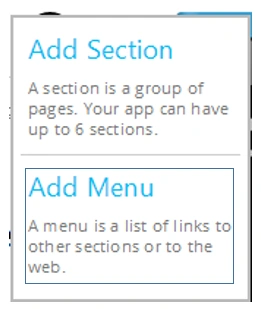
Click on "Add section" and select "Add Menu"
-
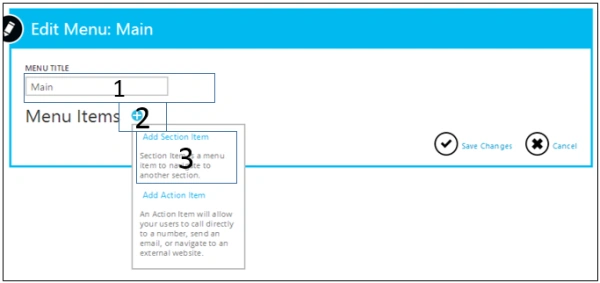
Enter menu title.
-
Click on add menu item and select "Add section Item"
-
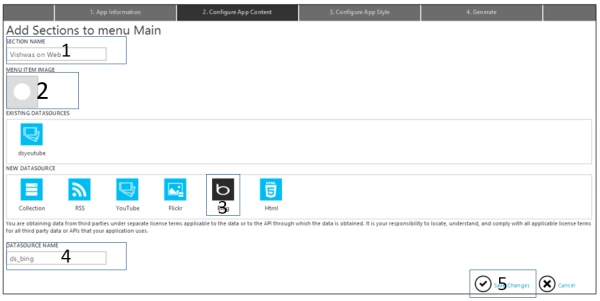
Now enter a Section name.
-
Choose the Data Source. If the Data Source is already added then select it from the existing sources else you can select from the new Data Sources and provide it a name.
-
Click on "Save changes".
-
Now add one more section item by repeating the preceding four steps.
-
Now click "Save changes".
-
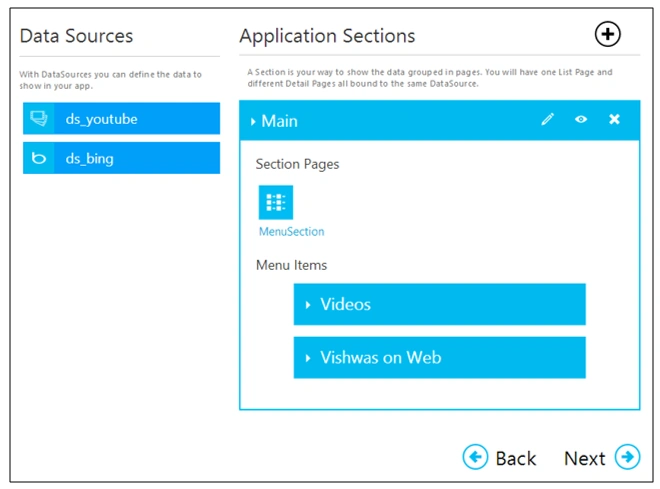
Our menu is ready now. Next we need to configure the Data Sources and we are done.
-
Click on "YouTube Data Source" in the left side.
-
Select "Search" from the drop down and add this in the search box "dr. kumar vishwas". I
-
Click on "Refresh" and you will get the videos of Dr. kumar vishwas from YouTube. Here we are integrating YouTube search results, not any specific channel.
-
Click on "Save changes".
-
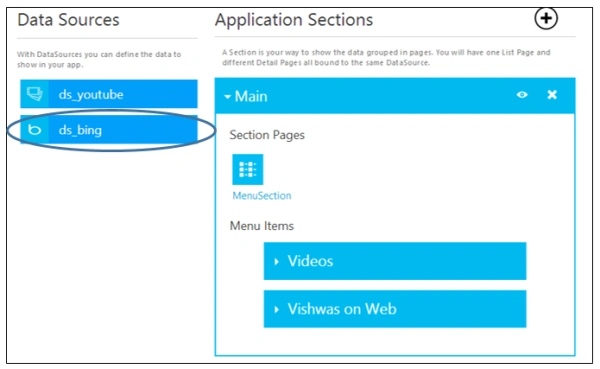
Next click on "Bing Data Source" from the left pane.
-
Select the country first, choosing India for this demo.
-
Enter the Bing search keyword as "dr. kumar vishwas" and click "Refresh".
-
If everything is right so far then you have web search results below the Refresh button.
-
Click on "Save changes".
-
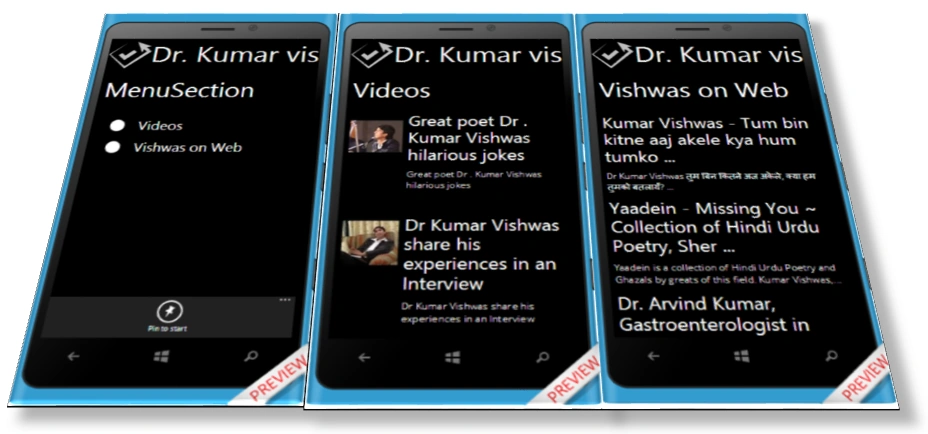
Our demo is now complete. If you want, you can change the layout of the section and detail pages but that's not interesting for this article.
For the rest of the procedure to complete this app, the following article may help you:
Output
Summary
In this article we learned about the Bing Data Source. It is very handy in various applications. For example if you want to search for your company products or apps then you can show that search in your app using this component. Don't forget to comment and like this article. Thanks for reading.
Join the conversation! Your thoughts help the community grow.