
Here we are going to see how to integrate selenium with Visual Studio. This actually help developers to test their code on their own.
What is selenium and why we need them
Selenium, almost all techies will look for this now. Selenium is an open source software testing framework that helps user to run an automated test on their web based applications.
So, how this happens
Selenium WebDriver is the successor to Selenium RC. Selenium WebDriver accepts commands (sent in via a Client API) and sends them to a browser. Selenium consists of APIs that helps to integrate with any programming language such as Java, C#, Groovy, Perl, PHP, Python and Ruby.
Now, we will see how we add them to our visual studio. These are the simple steps that helps you to integrate selenium to Visual studio.
STEP 1: Open Visual Studio and create new project,
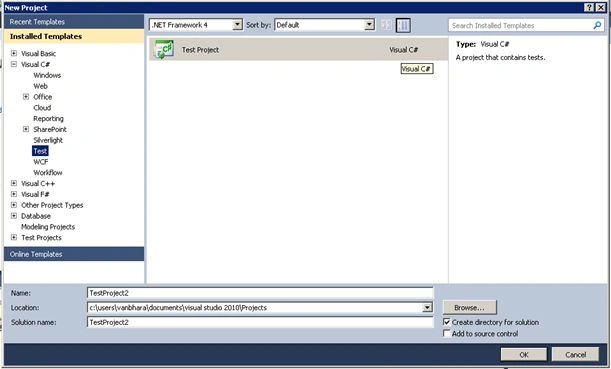
STEP 2: Click on test project (here I’m using Visual Studio 2010).
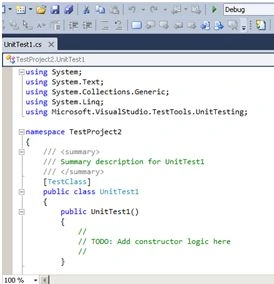
Now, after creating a New Test project, we need to add the Selenium APIs to the Visual studio. Here is the link to download Selenium Web Driver.
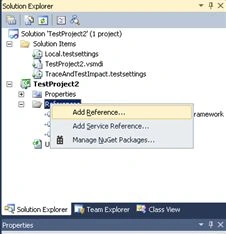
STEP 3: Adding selenium to your c# project in Visual Studio.
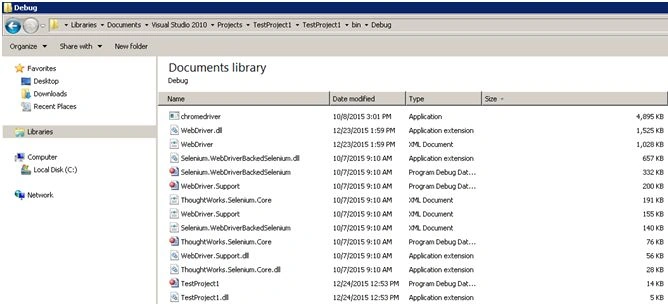
STEP 4: Add all dll files from the folder where selenium drivers are extracted.
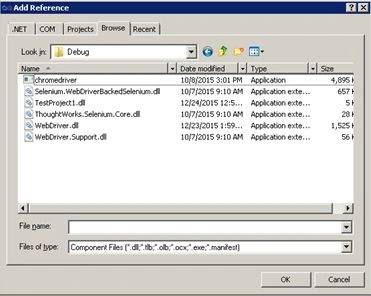
STEP 5:
- Click on OK.
- Also check all Dll’s are added properly.
STEP 6: Replace the following code and run them.
- using System;
- using OpenQA.Selenium;
- using OpenQA.Selenium.Chrome;
- using OpenQA.Selenium.Support.UI;
- using Microsoft.VisualStudio.TestTools.UnitTesting;
- namespace SeleniumExample
- {
- [TestClass]
- public class UnitTest1
- {
- ChromeDriver Chrome;
- // This is the test to be carried out.
- [TestMethod]
- public void TestMethod1()
- {
- Chrome = new ChromeDriver();
- Chrome.Navigate().GoToUrl("http://www.google.com/");
- Chrome.FindElement(By.Id("lst-ib")).SendKeys("APJ ABDUL KALAM");
- Chrome.FindElement(By.Id("lst-ib")).SendKeys(Keys.Enter);
- }
- // This closes the driver down after the test has finished.
- [TestCleanup]
- public void TearDown()
- {
- //Chrome.Quit();
- }
- }
- }
- You will be getting an error stating Chrome web driver is missing exception. Why this happen is the code cannot find the chromeWebdriver.exe
- To debug this issue, we have to install a package to this project.
- Right click on references and click on NUget packages .
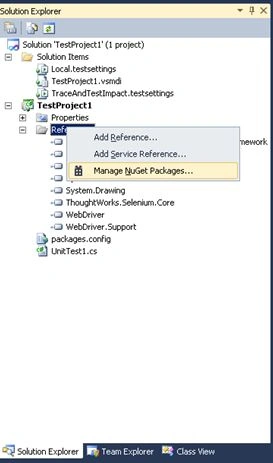
STEP 7:
- Install Selenium Web Driver.
- Click ok once you completed with your installation.
- Now run the test again.
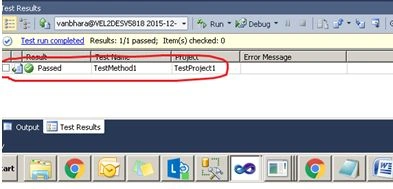
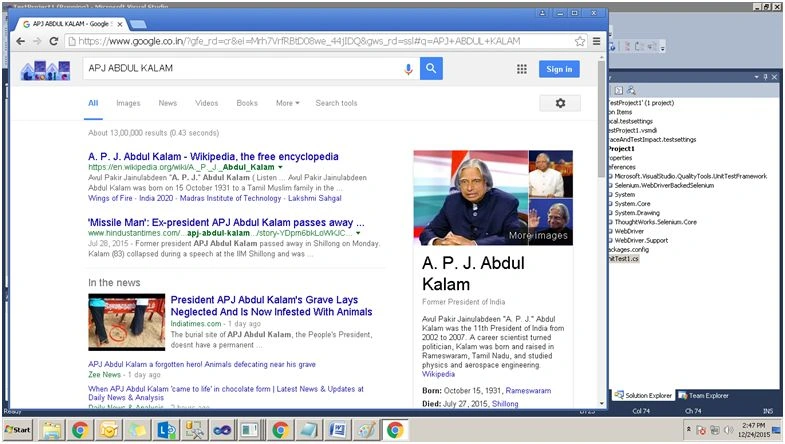
- The following result will come if the test is successful else it will display the fail status.
Humayun Kabir MamunPosted Dec 28, 2015, 2:00 AM
Nice...
Sridhar SharmaPosted Dec 26, 2015, 11:16 AM
Nice Share
Raja TPosted Dec 25, 2015, 1:45 AM
Nice,Thanks for sharing