

Introduction
You can download SQL Server 2014 from Click Here For Download SQL Server 2014.
Before you install
You must carefully read the following limitations and restrictions for SQL Server 2014 before installing it:
- SQL Server 2014 CTP 1 is pre-release software and should be installed only on a clean machine.
- SQL Server 2014 CTP 1 is a non-production release and should not be installed and used in production environments.
- SQL Server 2014 CTP 1 may contain branding from Microsoft SQL Server 2012 and is versioned as 11.0.
- SQL Server 2014 CTP 1 is only available in the English language.
- Microsoft SQL Server 2014 CTP 1 is not supported by Microsoft Customer Services and Support (CSS).
ref--http://msdn.microsoft.com/
Procedure for installing SQL Server 2014
Step 1
We will run "setup.exe" to botstrap (start) the regular install screen.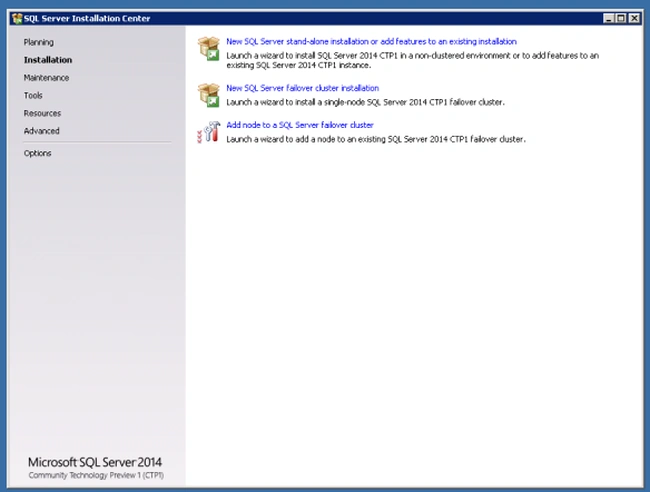
Step 2
We will select a stand-alone install and the wizard will also do the initial checks.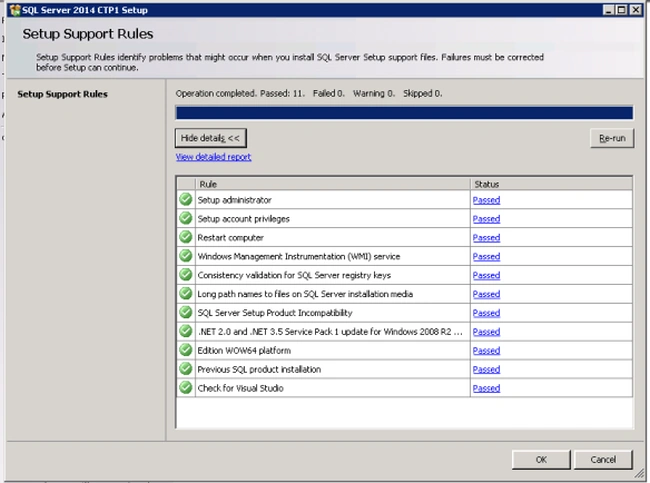
Step 3
We will specify the product key and accept the terms.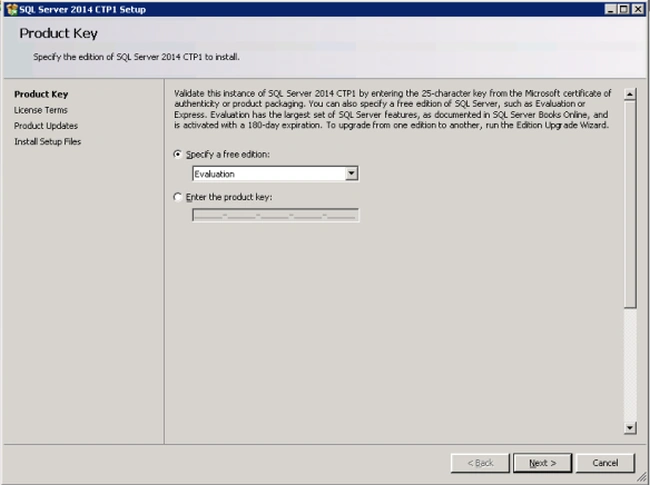
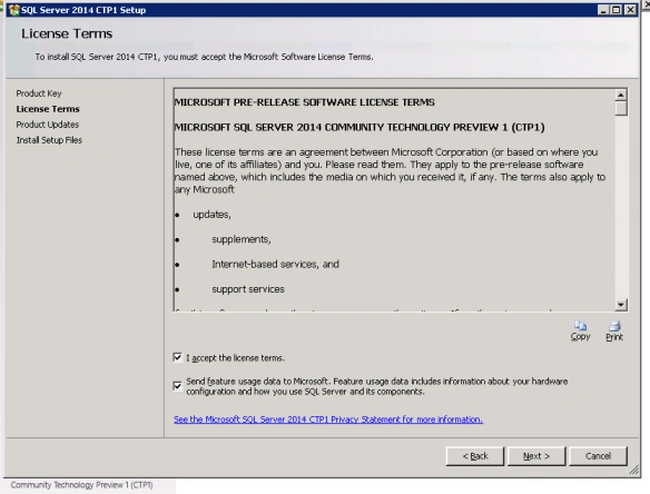
Step 4
The wizard can currently do some genuine checks and can offer you a listing of details that are either passed or failed.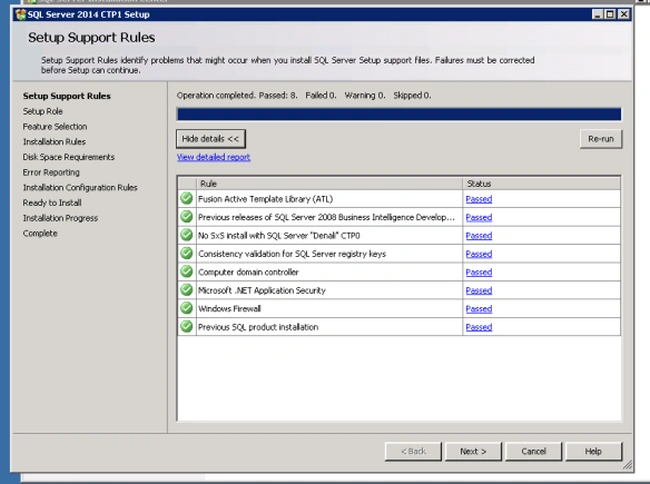
Step 5
We will proceed with characteristic install choices once the check stage is completed.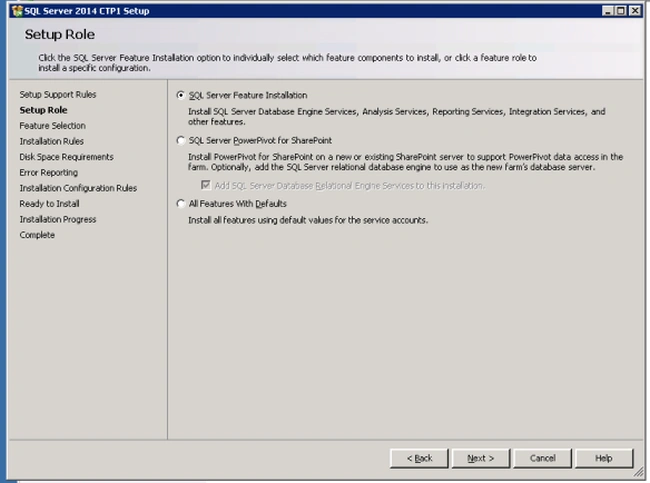
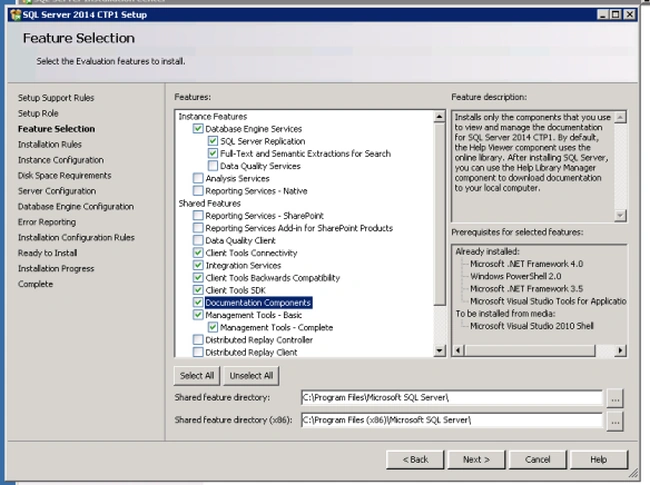
The wizard will do a couple more tests as we proceed.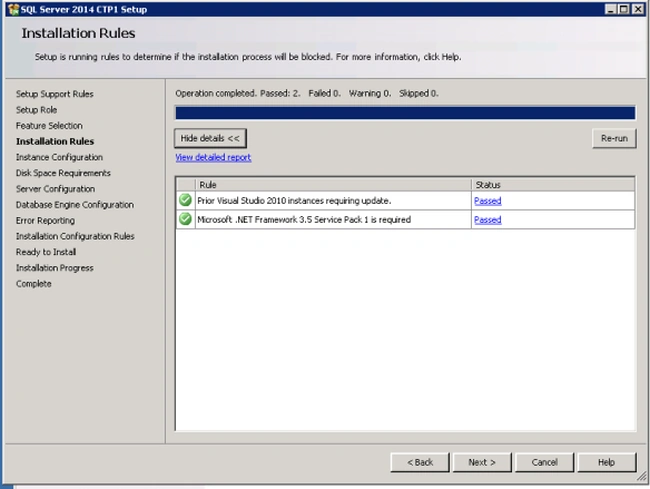
Step 6
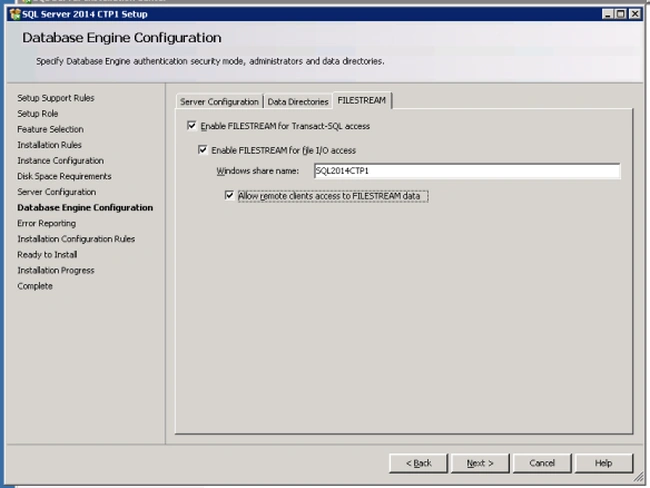
In this step we will do the Instance Configuration, Server Configuration and also the Database Engine Configuration.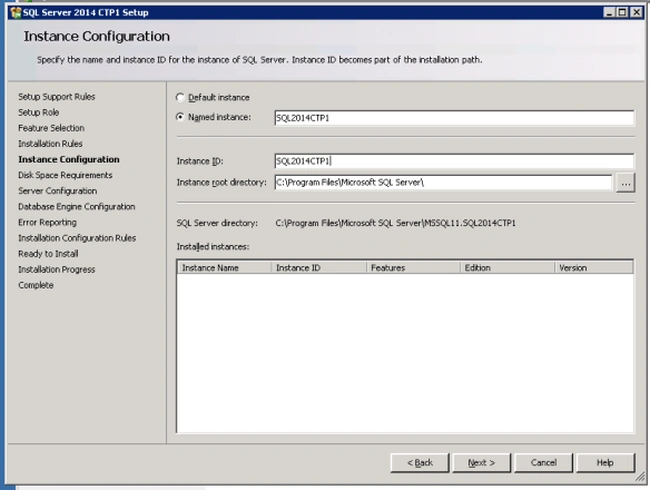
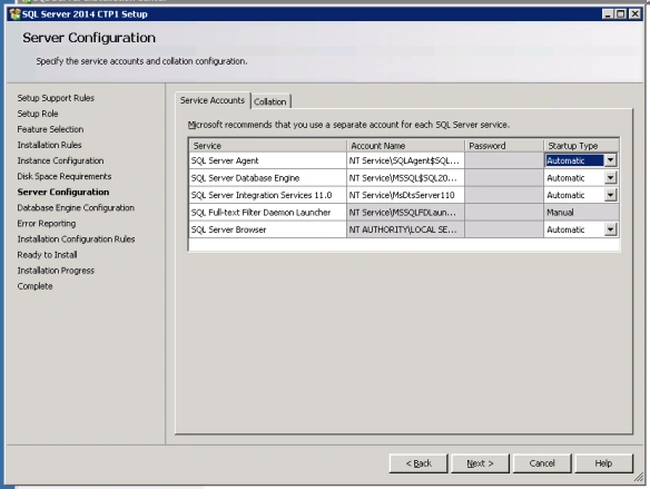
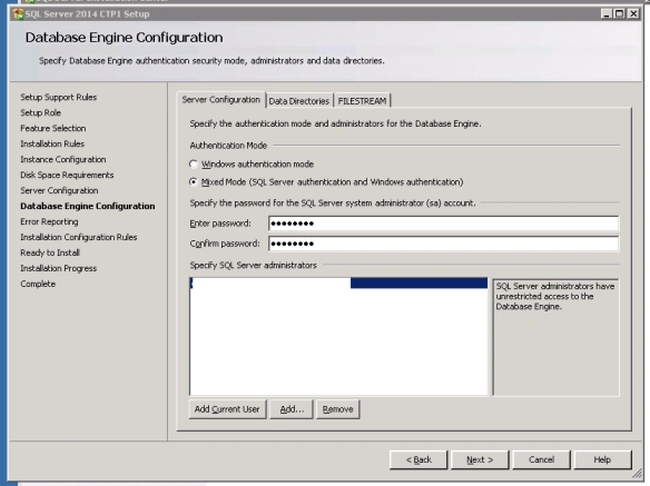
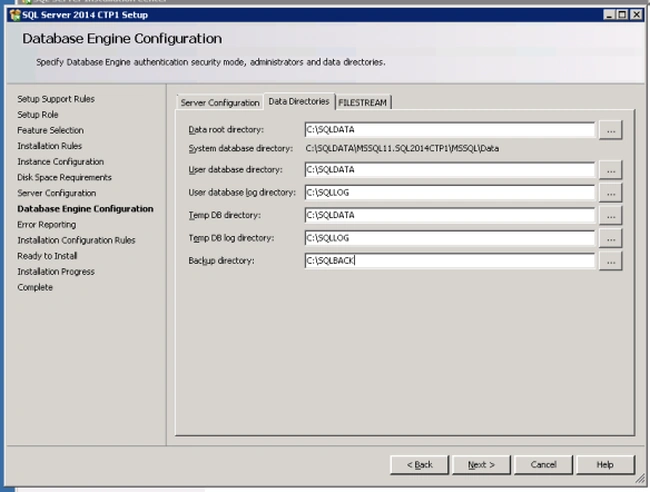
Step 7
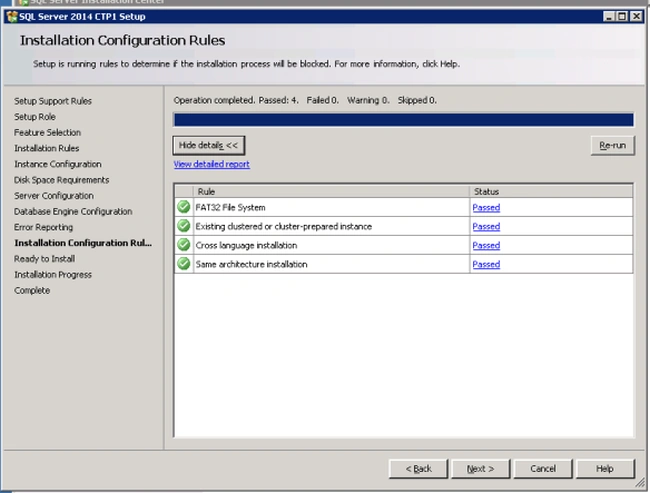
The wizard can do one final round of checks before doing the install.
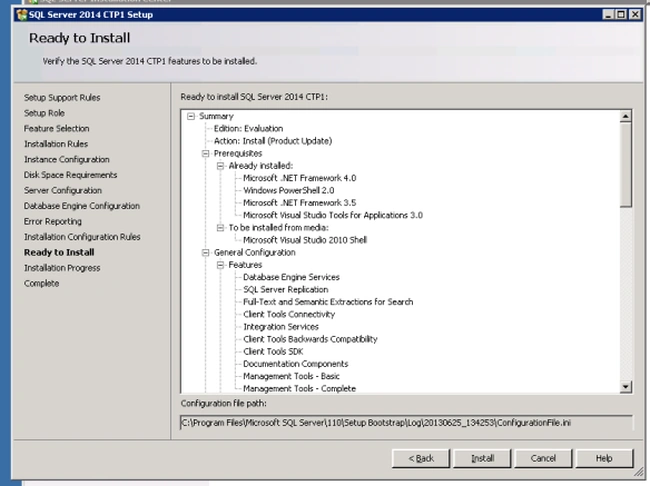
Now we are ready to do the install.
Its invariably a pleasure to get the following set of messages once the wizard completes its work.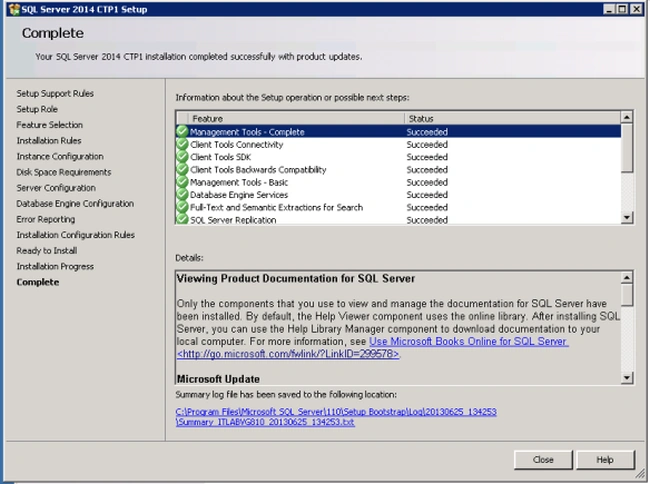
Step 8
After completion of all these steps, go to SQL Server Management Studio as in the following:
And run it.
Then provide the login and password.
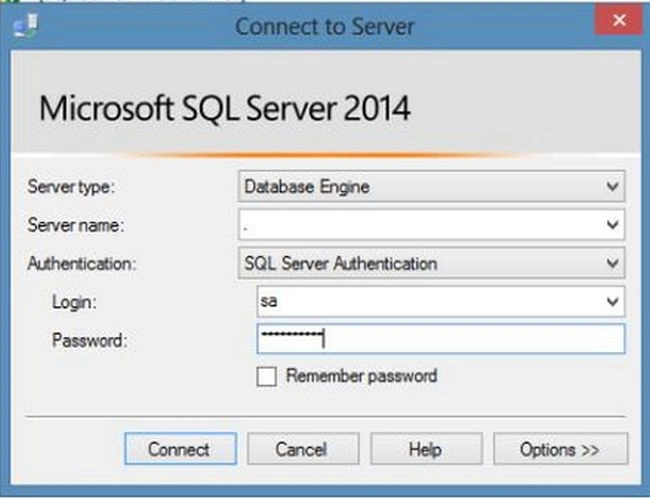
Then click on "OK". Now you are ready to use SQL Server 2014.
SubashPosted Sep 7, 2016, 2:24 AM
Nice