

Introduction
Windows Admin Center is a free tool from Microsoft that helps IT administrators manage Windows Server from a web browser. It can also manage Windows 10, Windows 11, Hyper-V, and server clusters. With Windows Admin Center, you can monitor servers, manage storage, configure network settings, and fix problems from one place.
System Requirements
Before installing Windows Admin Center, make sure you have:
Windows Server 2019, Windows Server 2022, or a later version or Windows 10/11.
Administrator permissions.
A web browser such as Microsoft Edge or Google Chrome.
An internet connection to download the installer.
Network access to the servers you want to manage.
Benefits of Windows Admin Center
Easy to use with a web browser.
Secure remote management.
Manage servers from one place.
Free from Microsoft.
Saves time by using one tool instead of many.
Supports Windows Server and Microsoft Azure.
Steps to Install Windows Admin Center
Step 1: Download Windows Admin Center
Open Microsoft Edge or Google Chrome.
Go to the Microsoft Windows Admin Center download page. https://www.microsoft.com/en-us/evalcenter/download-windows-admin-center
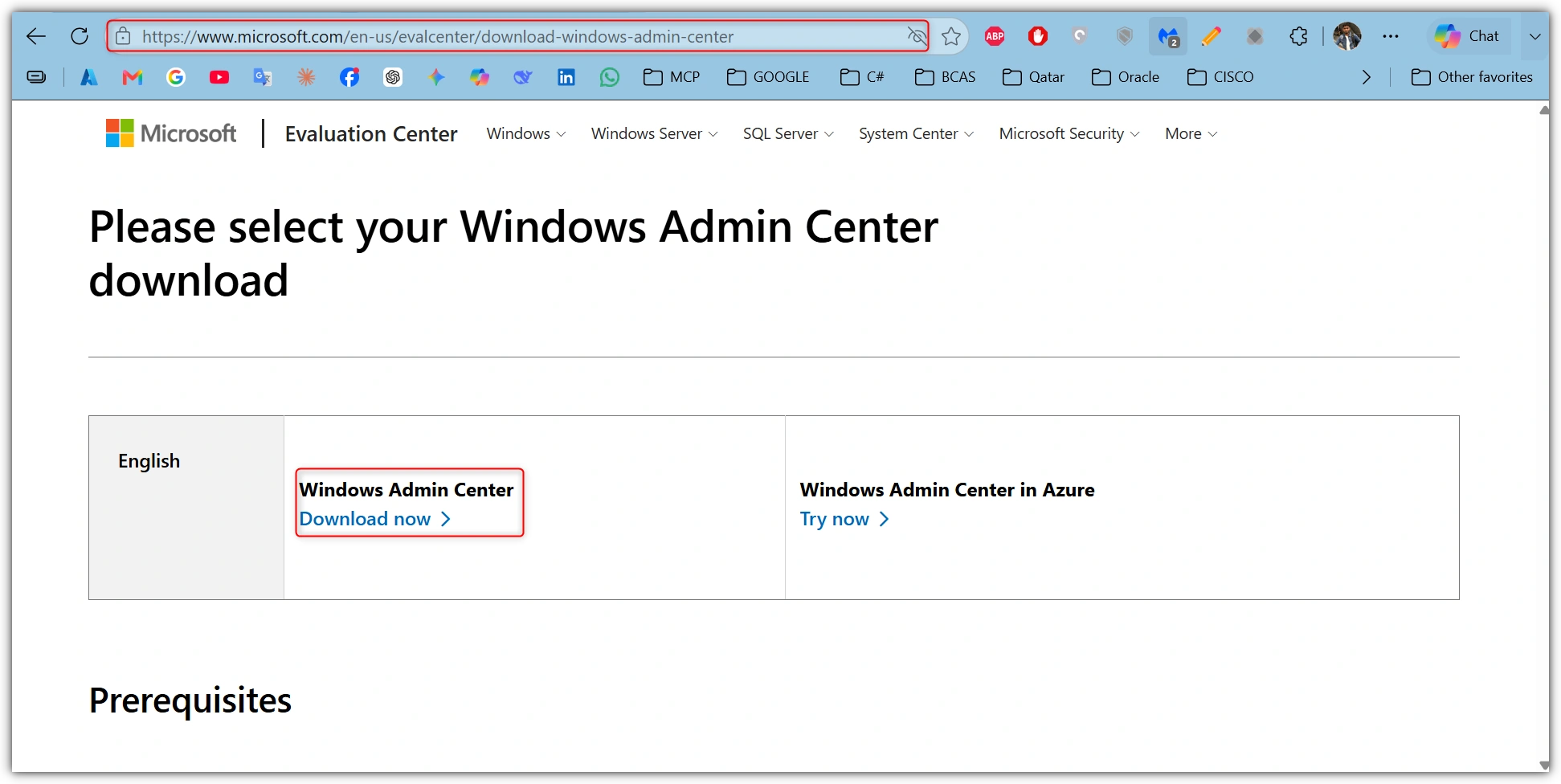
Download the latest Windows Admin Center (.msi) installer.
Step 2: Start the Installation
Find the downloaded installer.
Double-click the WindowsAdminCenter.msi file.
Click Next Installation Wizard

Step 3: Accept the License Agreement
Read the license agreement.
Select I accept the terms.
Click Next.

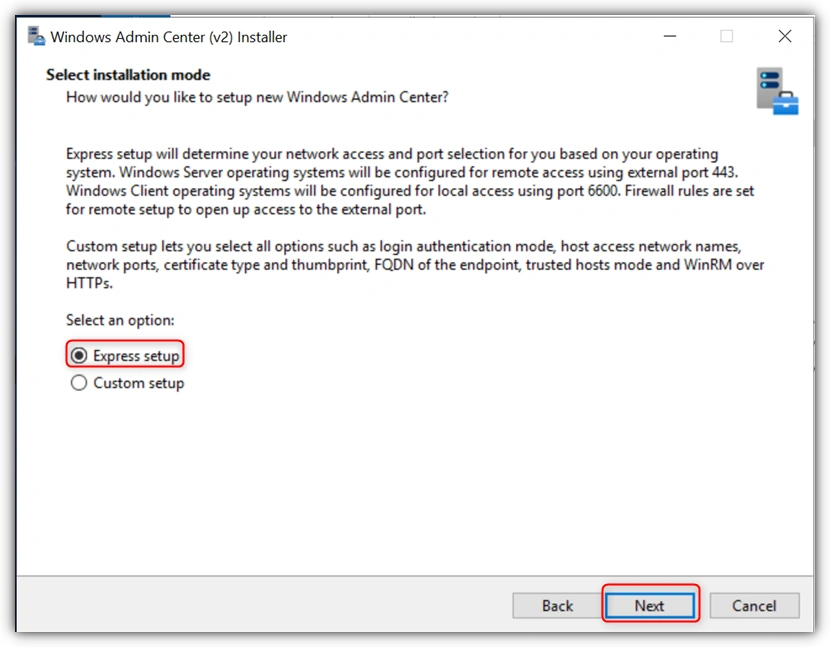
Step 4: Choose the Installation Mode
Select Gateway Service. (This option lets multiple administrators manage servers through a web browser.)
Select Express Setup
then Click Next.
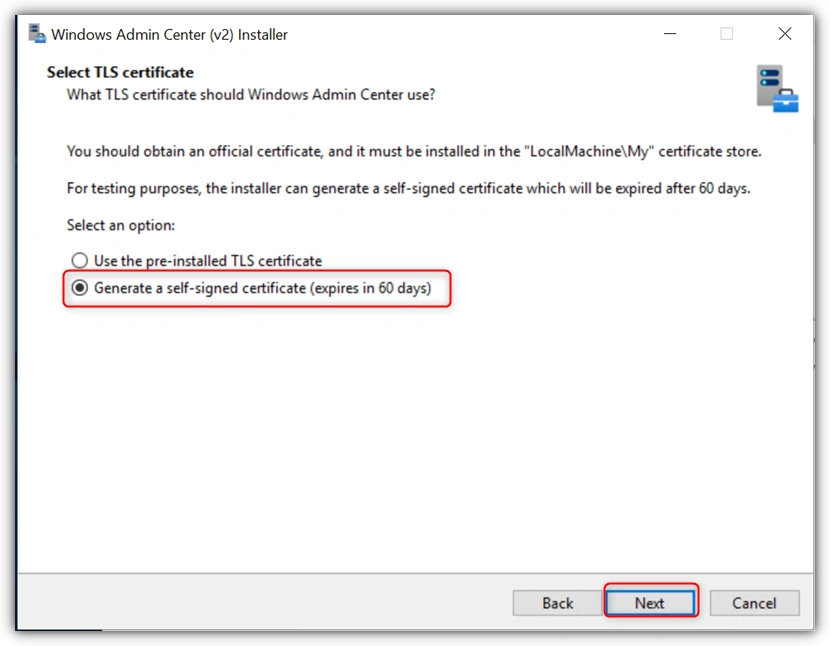
Step 5: Configure HTTPS
Choose a self-signed certificate or an existing SSL certificate.
Keep the default HTTPS port (443) unless you need a different one.
Click Next.
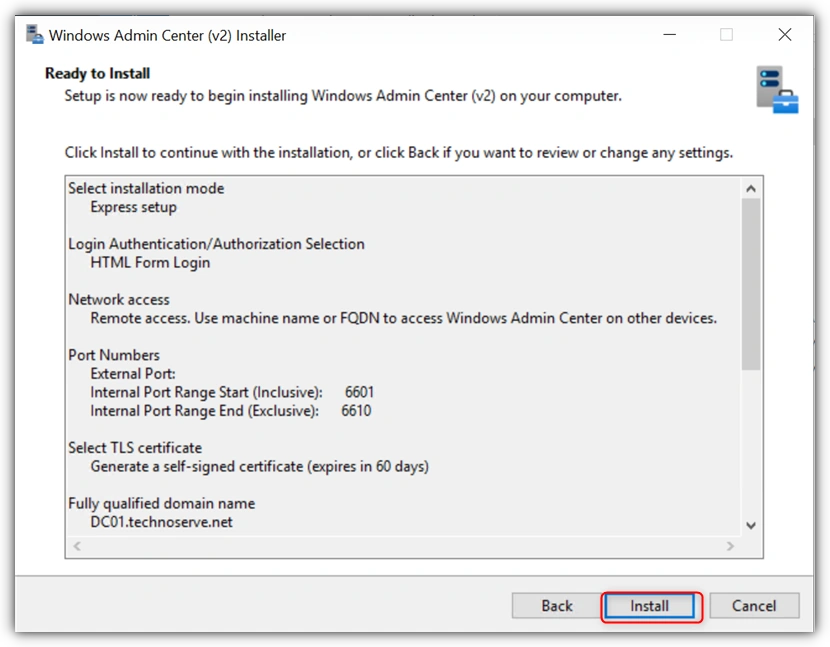
Step 6: Finish the Installation
Click Install.
Wait until the installation is complete.
Click Finish.
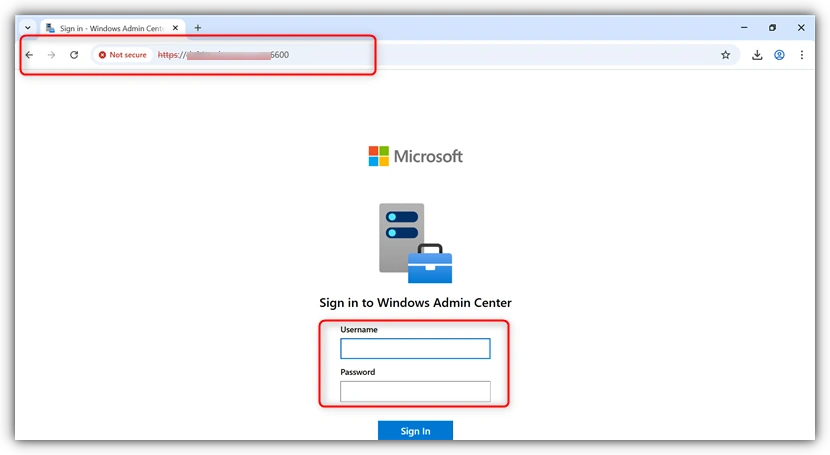
Steps to Open Windows Admin Center
Open Microsoft Edge or Google Chrome.
In the address bar, type:
https://ServerName
or https://ServerIPAddress
Press Enter.
Sign in with an administrator account.
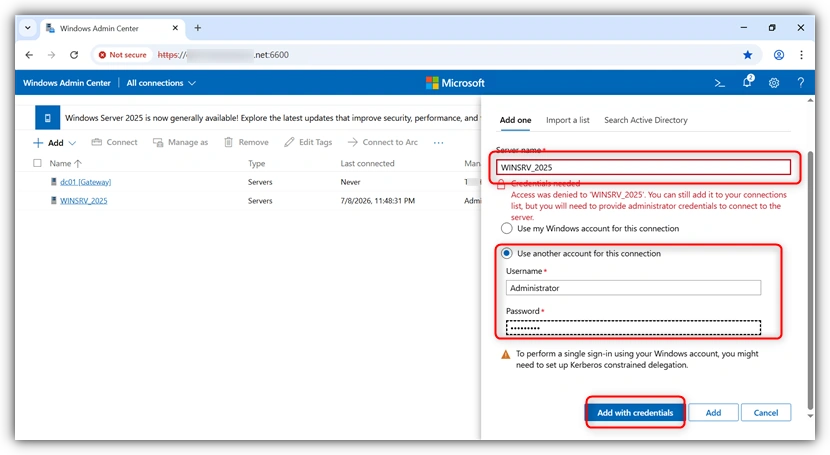
Steps to Add a Server
On the home page, click Add.
Select Add Server Connection.
Enter the server's name or IP address.
Click Add.
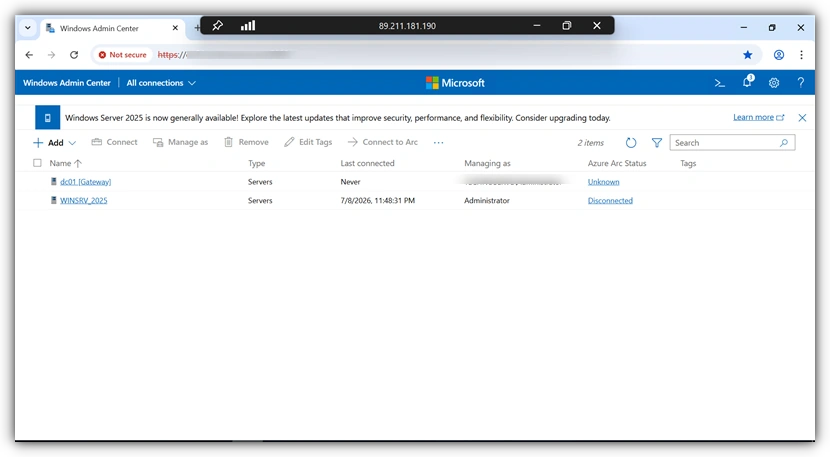
The server will appear in the list.
Managing Windows Server
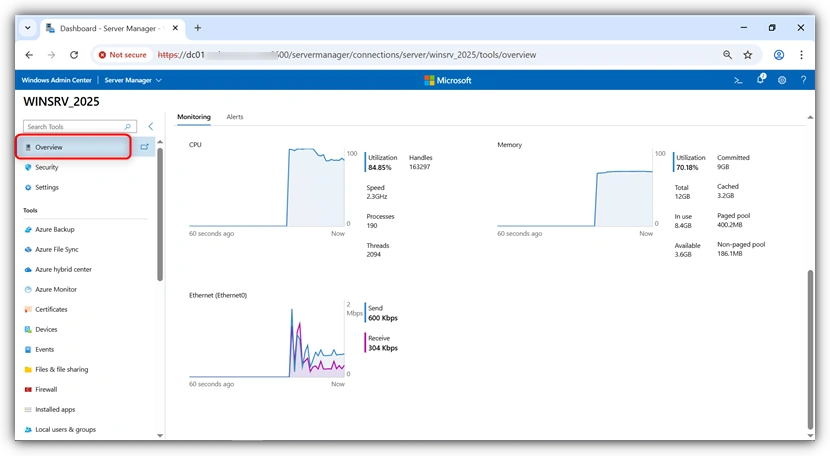
After adding the server, you can perform many management tasks.
Monitor Performance
Check CPU usage.
Check memory usage.
Monitor network activity.
View disk performance.
Manage Storage
View disks and volumes.
Create new storage volumes.
Check storage health.

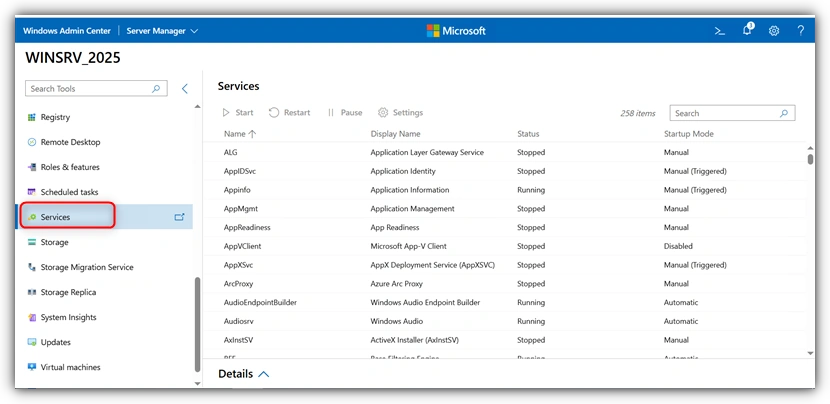
Manage Services
Start services.
Stop services.
Restart services.
View Event Logs
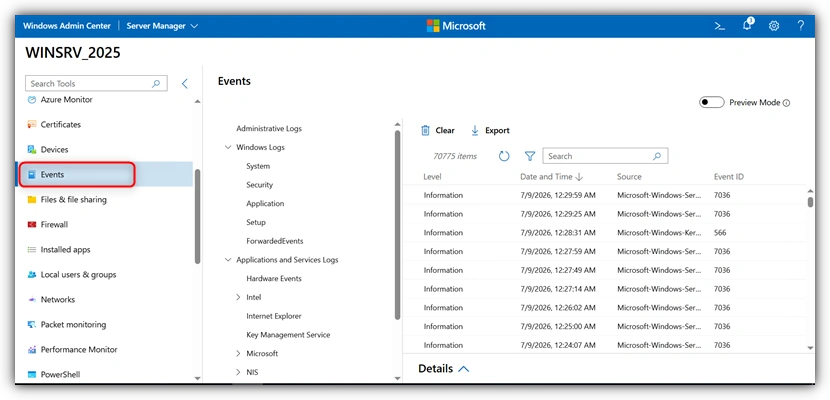
Open Event Viewer.
Check application, security, and system logs.
Find and fix problems.
Manage Users and Groups
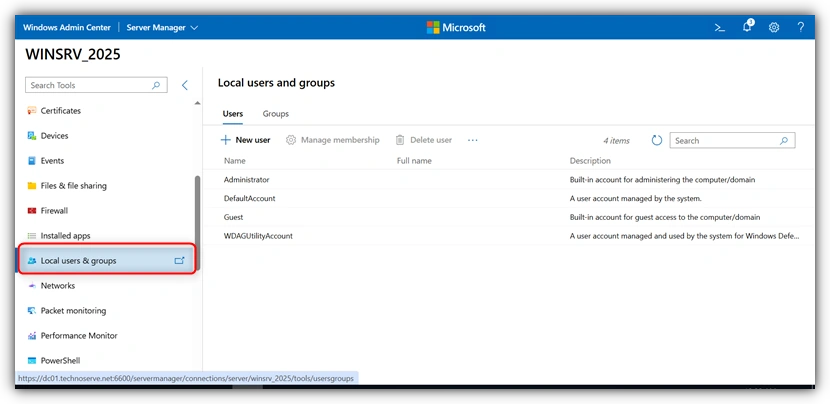
Create new users.
Change user permissions.
Manage local groups.
Manage Hyper-V
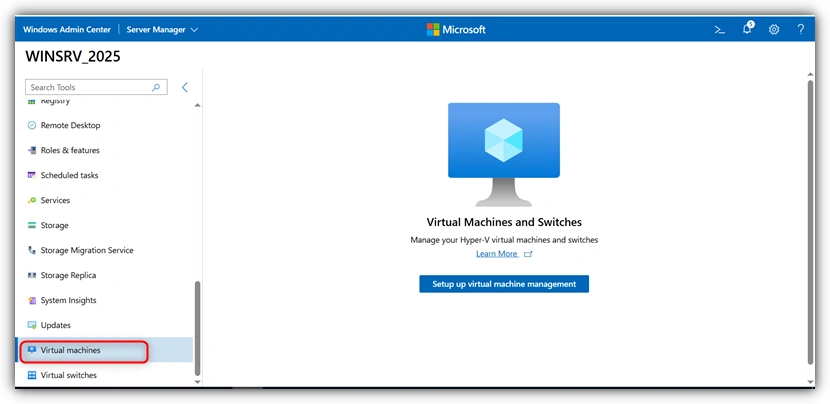
Create virtual machines.
Start or stop virtual machines.
Monitor virtual machine performance.
Use PowerShell
Open the built-in PowerShell console.
Run PowerShell commands directly from Windows Admin Center.

Configure Networking
View network adapters.
Check IP settings.
Manage firewall settings.

Conclusion
Windows Admin Center is an easy and powerful tool for managing Windows Server. It helps administrators monitor server performance, manage storage, control services, view event logs, and manage virtual machines from a web browser. By following these installation and usage steps, administrators can manage Windows servers more easily, save time, and improve system performance.
Join the conversation! Your thoughts help the community grow.