

Introduction
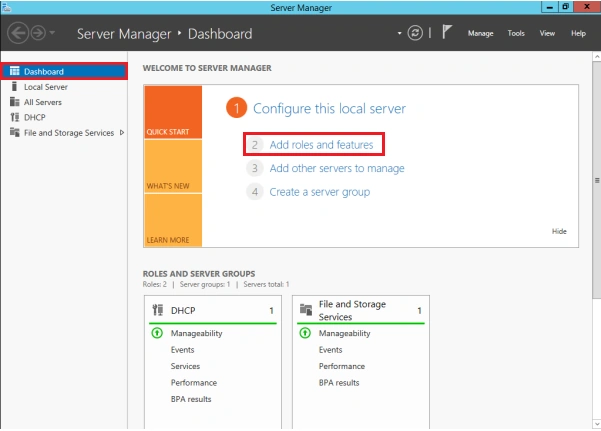
Go to Server Manager -> Add roles and features
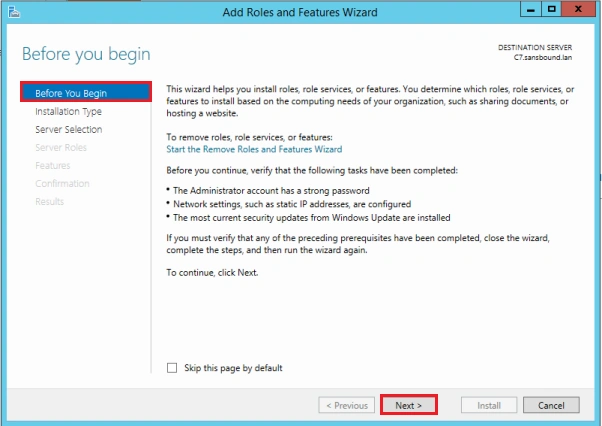
Click Next
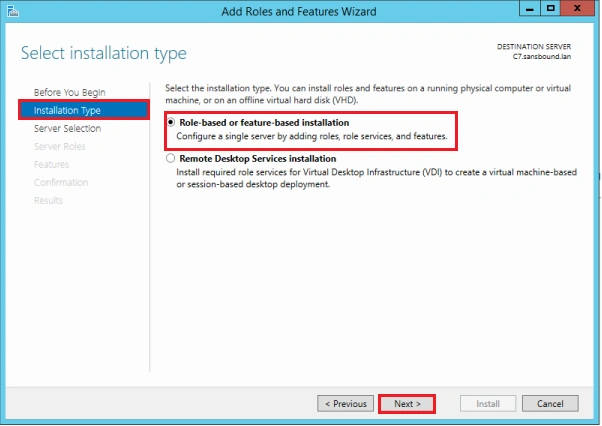
Select Role-based or feature-based installation and click Next
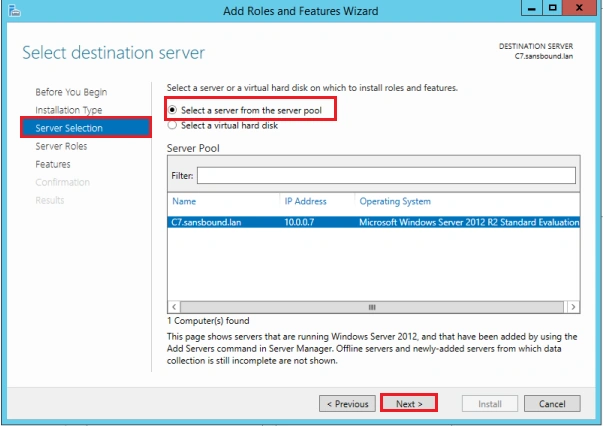
Select a server from the server pool and click Next
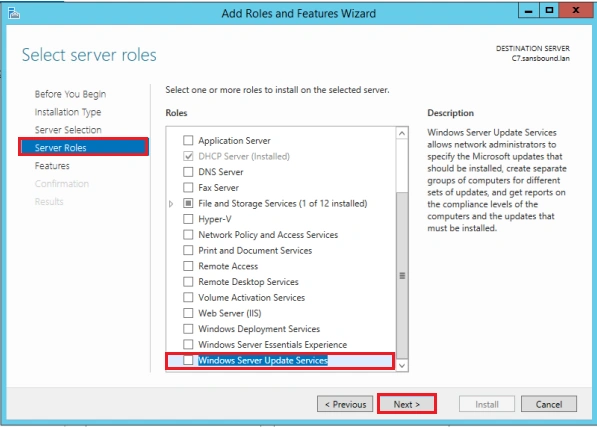
select check box windows server update service
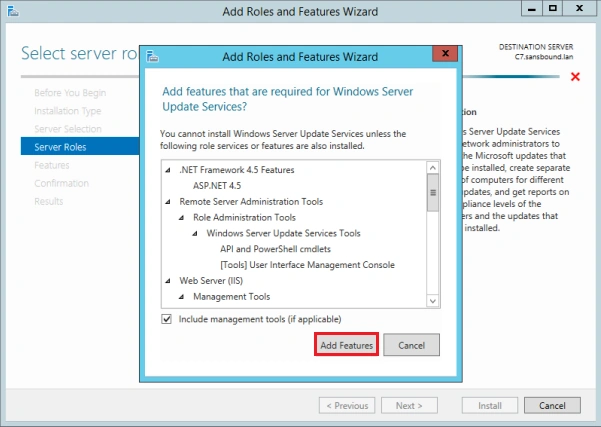
Next Add Feature
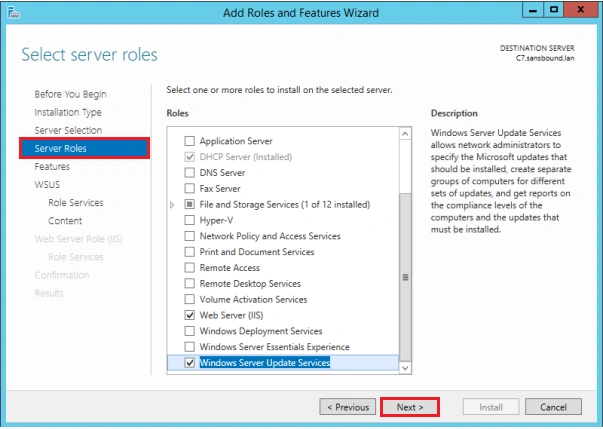
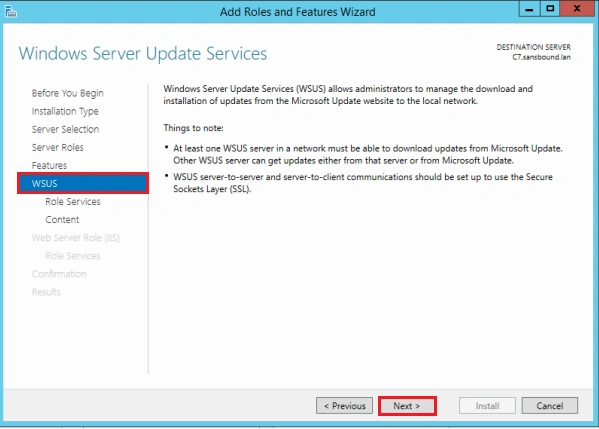
Click Next
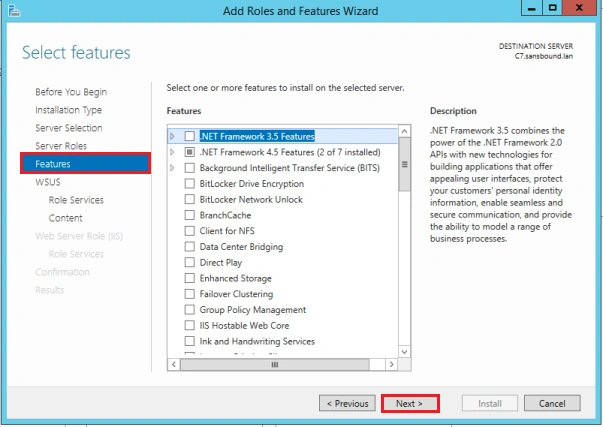
Click Next
Click Next
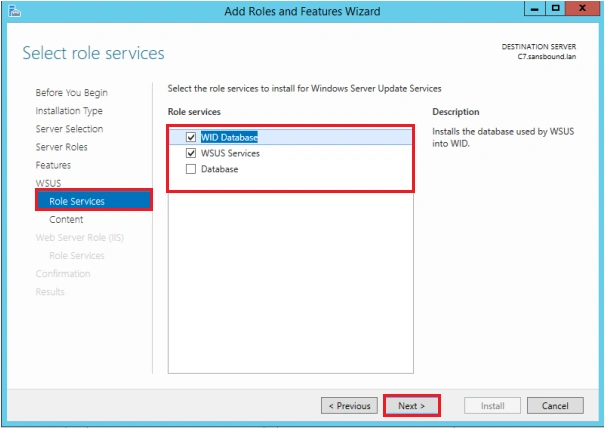
Auto select check box WID Database, WSUS Service and click Next
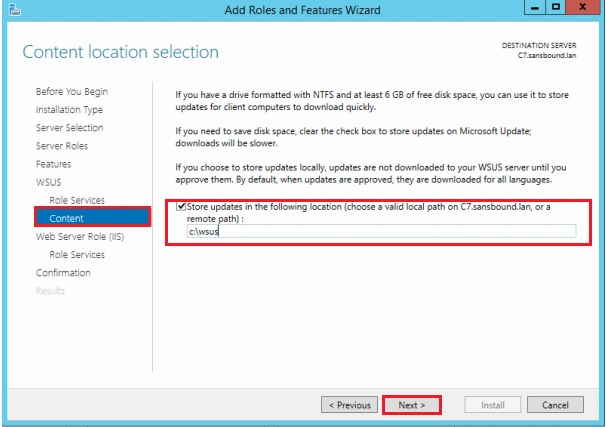
Select content Path
Click Next
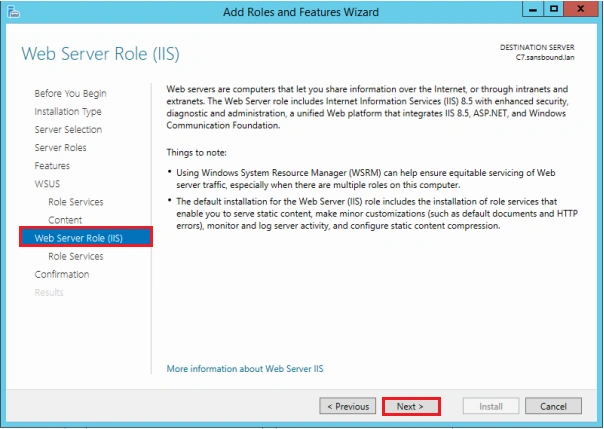
Click Next
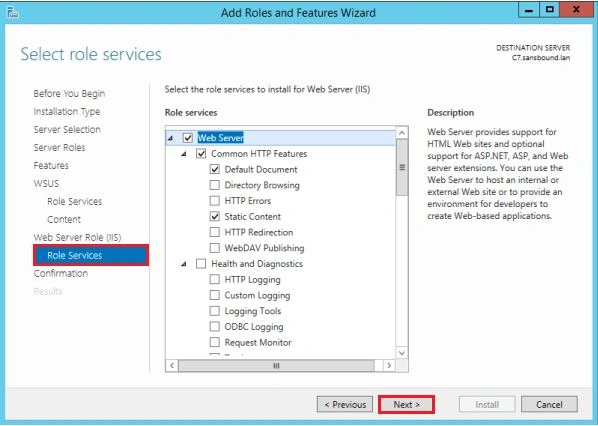
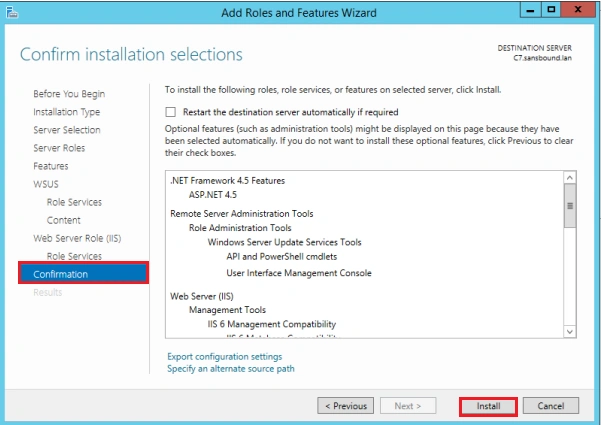
Click Install
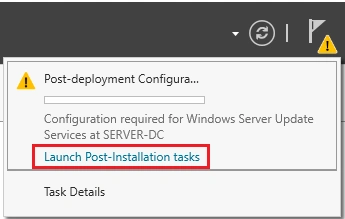
Launch Post-Installation task
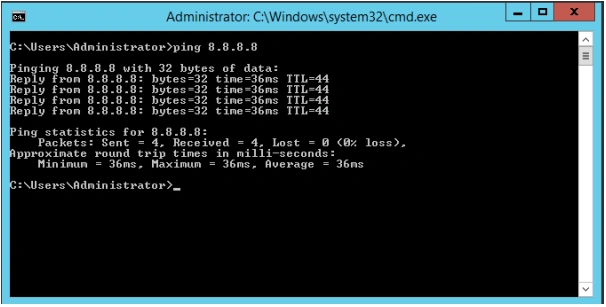
Next Ping 8.8.8.8 Google DNS
Go to server Manager Tools, click window Server update service
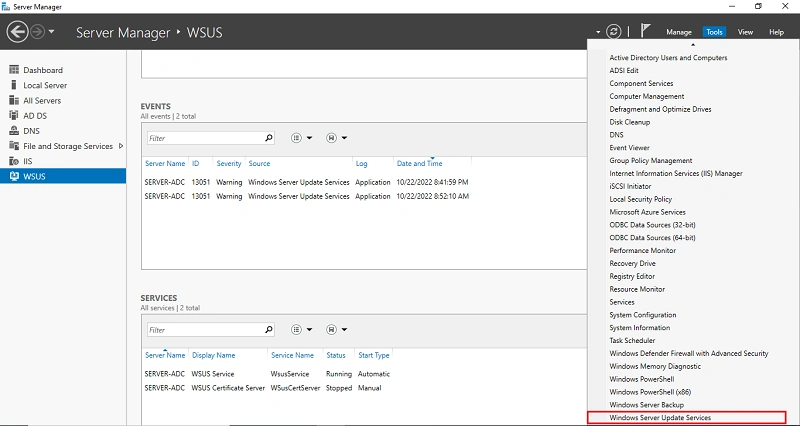
Open the window server update service configuration, click Next
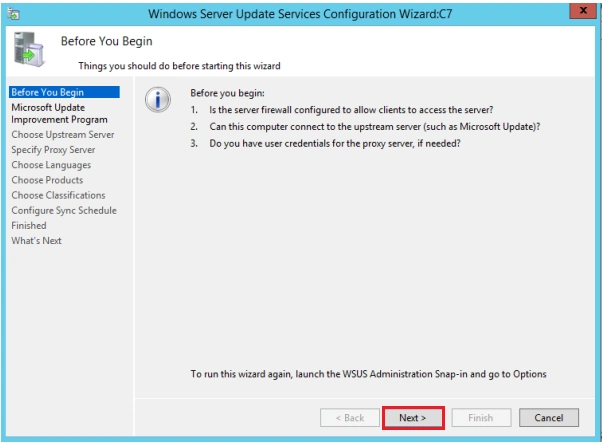
Next Click
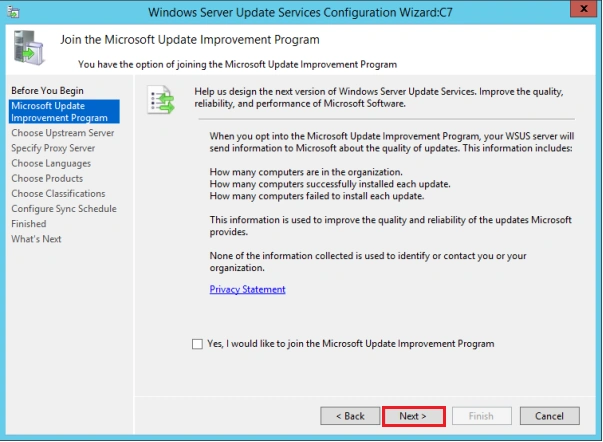
Click Next
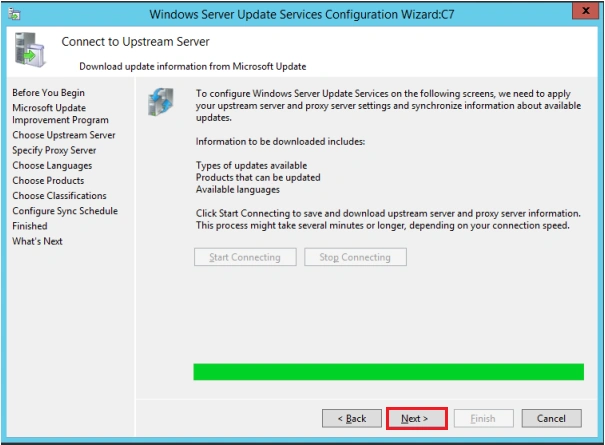
select your Language after Click Next
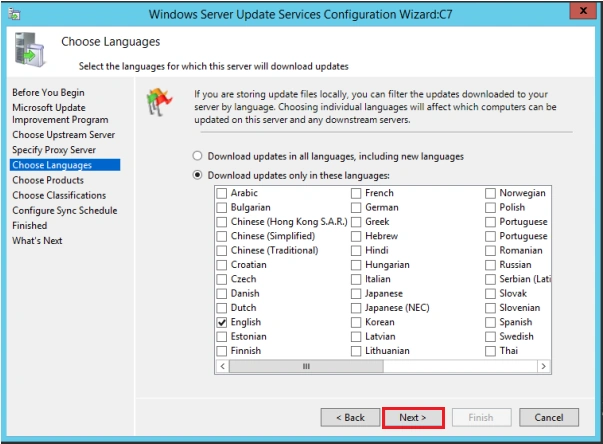
Select Product as windows server 2012 R2, Click Next
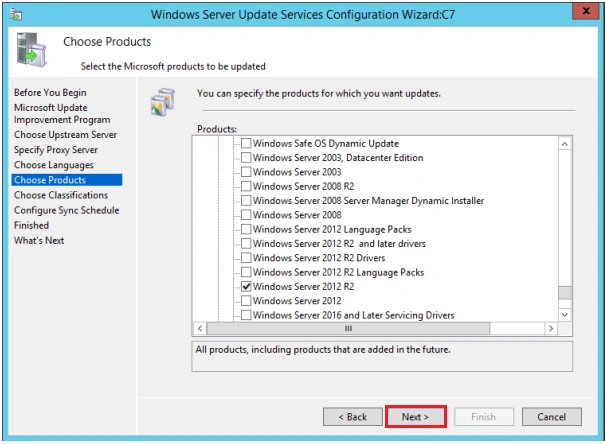
Click Next
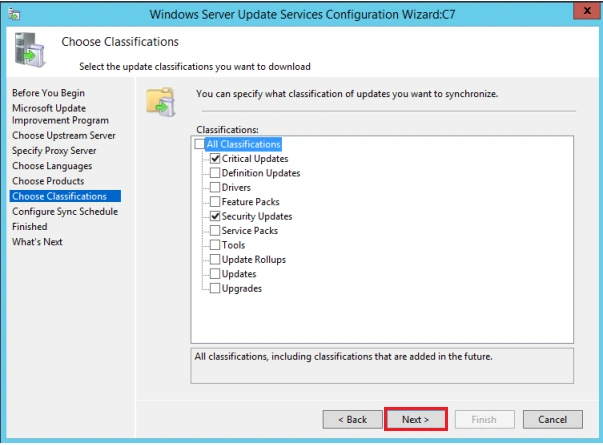
Select the Sync Schedule manually or Automatically
Click Next
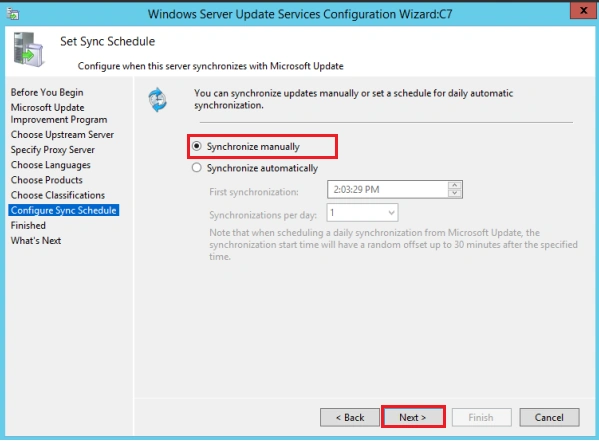
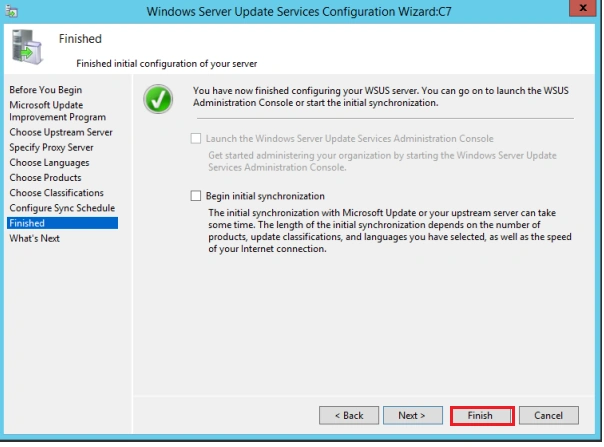
Click Finish
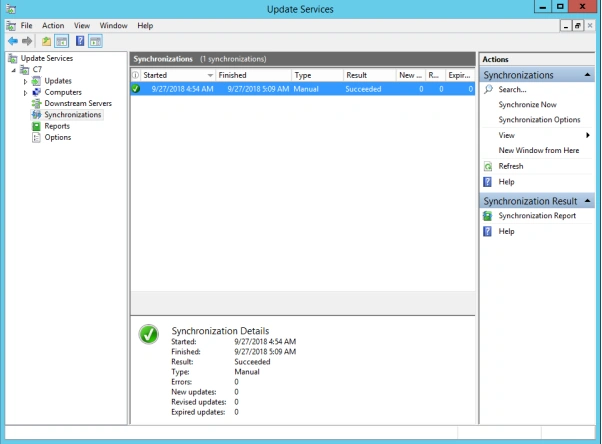
In WSUS console select Server and click "Synchronization"
click "Synchronization Now"
Conclusion
This article taught us how to Install and configure WSUS. If you have any questions, please contact me.
Join the conversation! Your thoughts help the community grow.