

In this article, I will explain the process of installation of FlaUI, a .NET based open source library designed to test Windows applications.
Prerequisites
- Should have an internet connection
- Visual Studio IDE installed
There are three library files available to work with FlaUI.
- Core
- UIA2
- UIA3
FlaUI.Core is a mandatory library, however, based on the application type, you can install either FlaUI.UIA2 or FlaUI.UIA3. It can be installed in two ways.
- Installing from NuGet Package Manager.
- Downloading the FlaUI source files and compile, which generates the above-mentioned library files in the bin folder. Then, adding those library files references to your target project.
Here, I’m not showing the second process because of the assumption that most of the people know about compiling the source files.
FlaUI Source location - https://github.com/Roemer/FlaUI
Installing from NuGet Package Manager
Step 1
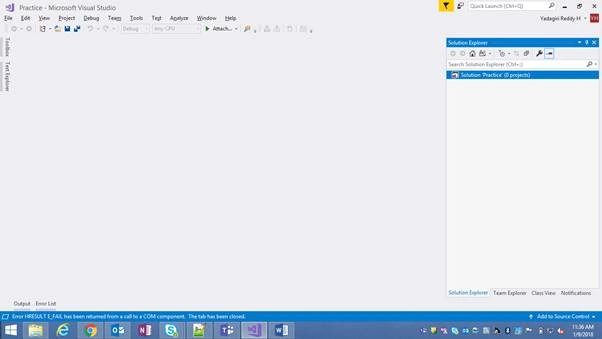
Step 2
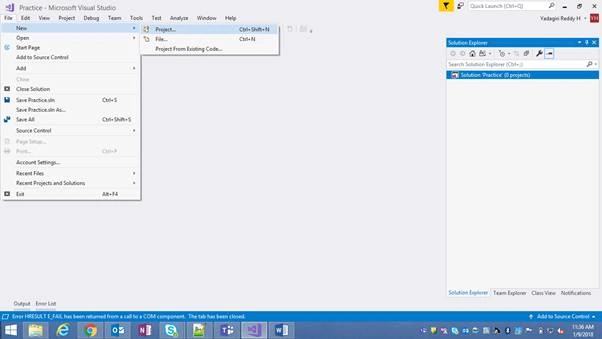
Choose "Console App" and enter your project name ( eg: CalculatorTest).
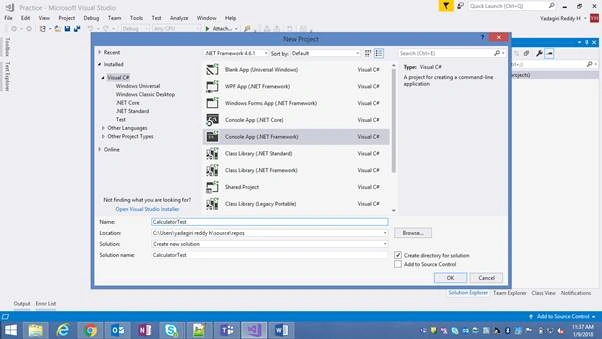
Now, the project is created successfully.
Step 4
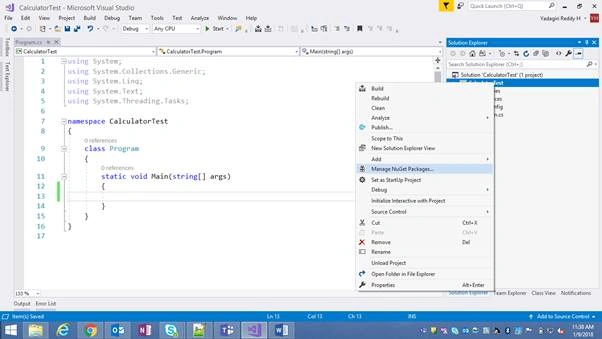
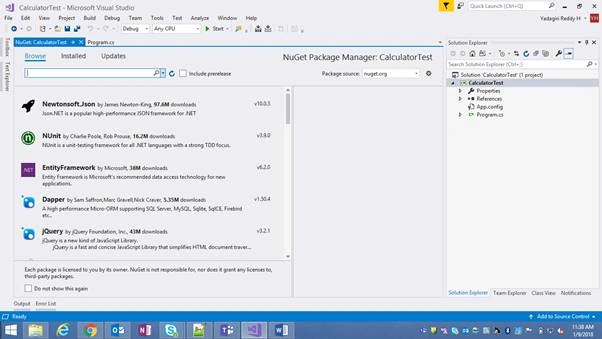
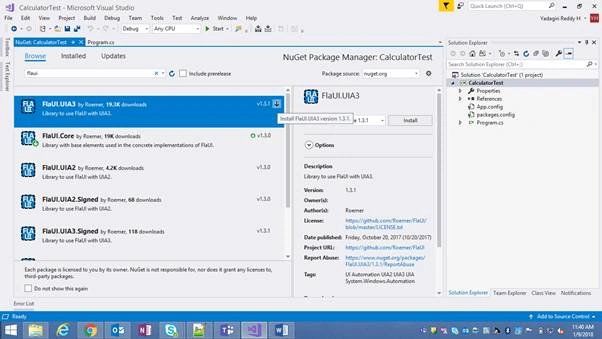
The NuGet Package Manager window will open and your screen will look like below.
Step 5
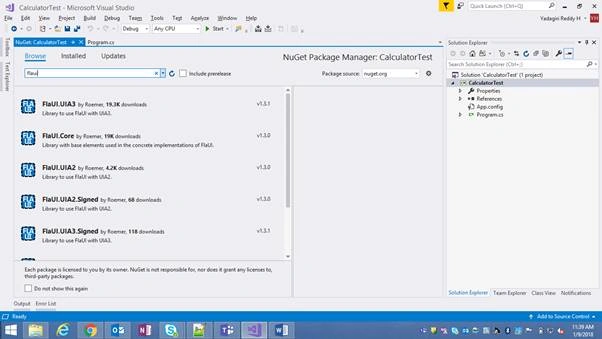
Step 6
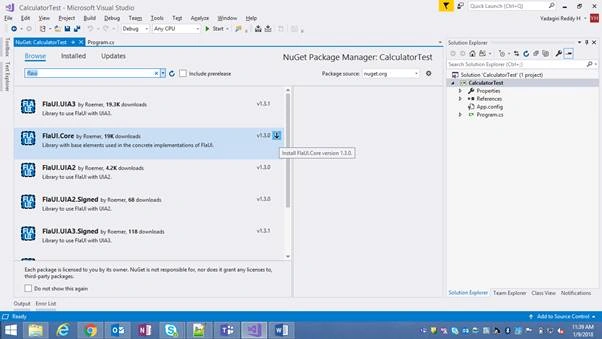
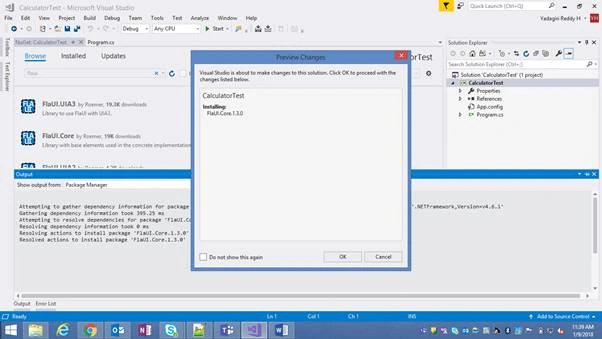
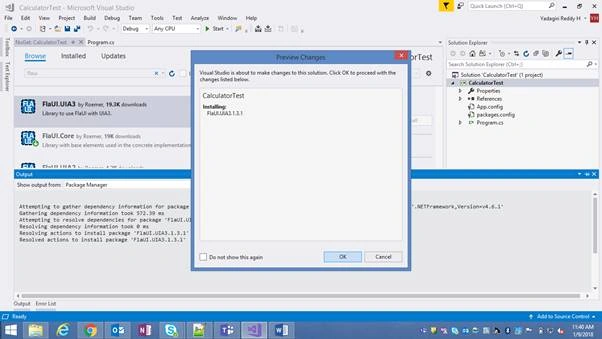
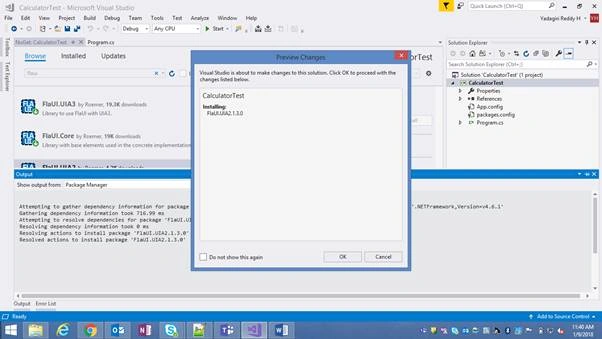
It will give the below popup; click the OK button. (The below popup will not be displayed if you have checked “Do not show this again” checkbox in any of your previous installations)
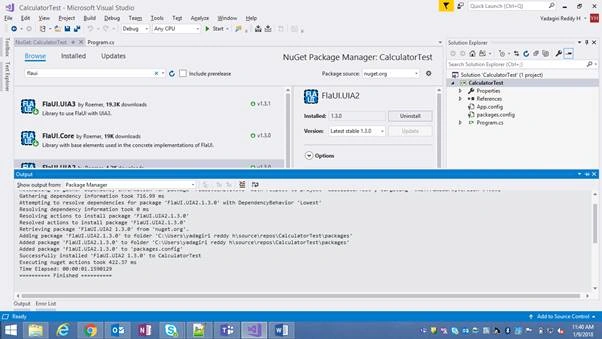
Upon successful installation, it will show the message like below.
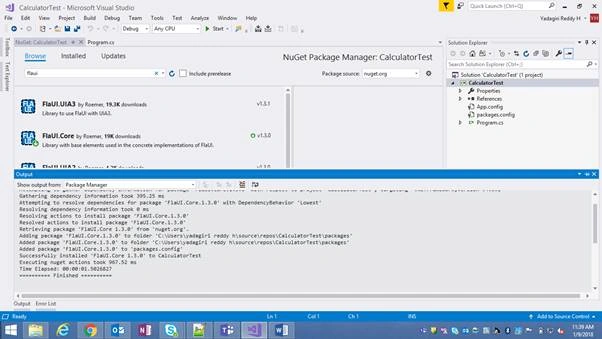
Step 7
Here, I’m installing both - FlaUI.UIA2 and FlaUI.UIA3 - libraries.
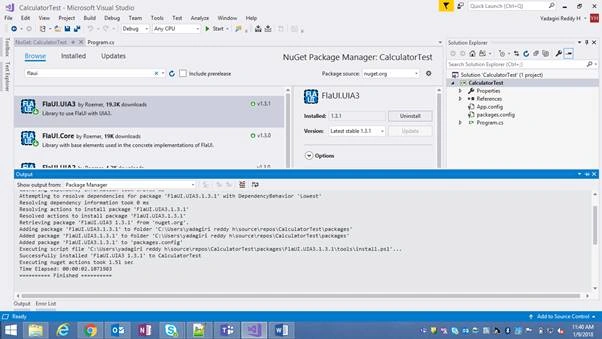
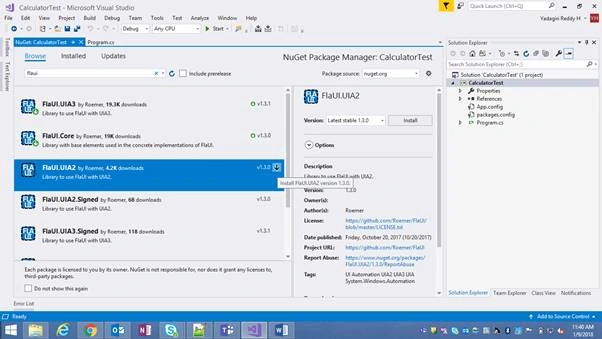
Once the installations are completed, you can see the libraries added under References in your project.
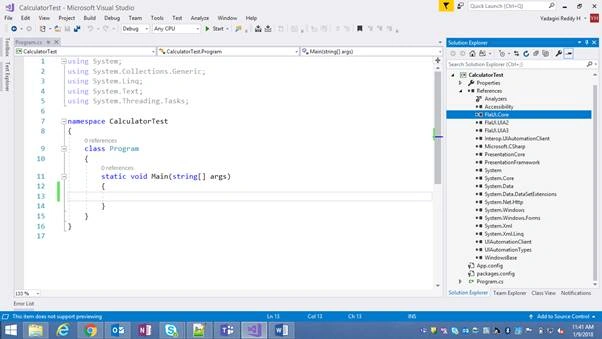
After installing these libraries, you are ready to automate the Windows application.
Khaja MoizuddinPosted Dec 4, 2020, 10:18 PM
May I know the performance working with this framework compare with White Framework.