

Introduction
Android is one of the most popular operating systems for mobile. Firebase is the most popular backend for Android. Firebase is the emerging technology in mobile Application development. Firebase is more secure and it is a Cloud based platform. It provides the loT of Services to make your Application very efficient in a secure manner. It is easy to track Crash Report and maintain your data in the Cloud. I will show you how to insert the data into Firebase database in Android apps, using an Android Studio.
Requirements
- Android Studio.
- Firebase account.
- Little bit XML and Java knowledge.
- Android emulator (or) an Android mobile.
- Stable internet connection.
- Download link (Android Studio)
Steps should be followed are given below
Carefully follow my steps to insert the data into the Firebase database in Android apps, using an Android Studio and I have included the source code given below.
Step 1
Open an Android Studio and start the new project.
Step 2
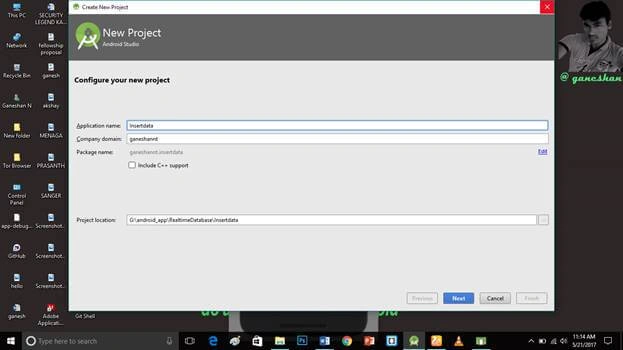
Put the Application name and the company domain. If you wish to use C++ to code the project, mark the Include C++ support, followed by clicking Next.
 Step 3
Select an Android minimum SDK. Afterward, you need to choose the minimum SDK. It will show an approximate percentage of people, using that SDK, followed by clicking Next.
Step 4
Choose Empty activity, followed by clicking Next.
Step 5
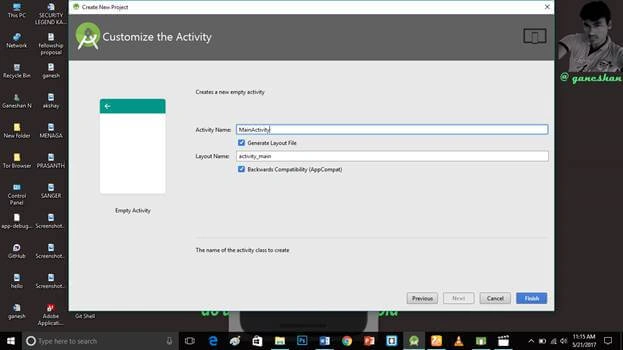
Put the activity name and layout name. Android Studio basically takes Java class name is what you provide for the activity name, and click Finish.
 Step 6
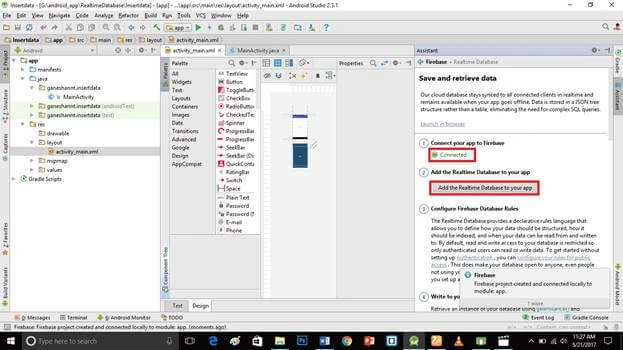
Connect your Application to your Firebase account.
Step 7
This app contains the insert data module, so you need to connect to the real-time database. Click Add the real-time database to your app.
 Step 8
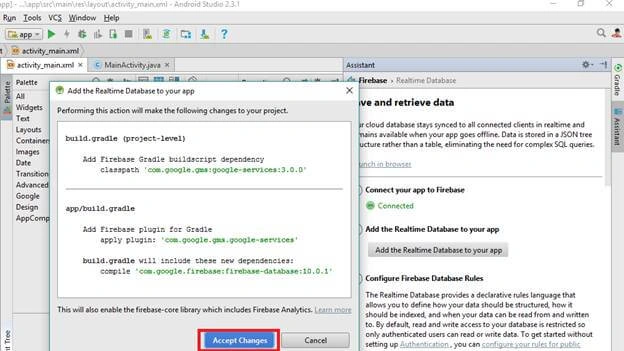
It will make some changes to your Gradle module. Click Accept changes.
 Step 9
Go to activity_main.xml, followed by clicking Text bottom. This XML file contains the designing code for an Android app. In the activity_main.xml, copy and paste the code given below.
Activity_main.xml code
- <?xml version="1.0" encoding="utf-8"?>
- <RelativeLayout xmlns:android="http://schemas.android.com/apk/res/android"
- xmlns:tools="http://schemas.android.com/tools"
- android:id="@+id/activity_main"
- android:layout_width="match_parent"
- android:layout_height="match_parent"
- android:paddingBottom="@dimen/activity_vertical_margin"
- android:paddingLeft="@dimen/activity_horizontal_margin"
- android:paddingRight="@dimen/activity_horizontal_margin"
- android:paddingTop="@dimen/activity_vertical_margin"
- tools:context=".MainActivity">
- <EditText
- android:id="@+id/editTextName"
- android:layout_width="match_parent"
- android:layout_height="wrap_content"
- android:hint="Enter name" />
- <Spinner
- android:id="@+id/spinnerGenres"
- android:layout_width="match_parent"
- android:layout_height="wrap_content"
- android:layout_below="@id/editTextName"
- android:entries="@array/genres"></Spinner>
- <Button
- android:id="@+id/buttonAddArtist"
- android:layout_width="match_parent"
- android:layout_height="wrap_content"
- android:layout_below="@id/spinnerGenres"
- android:text="Add" />
- <TextView
- android:id="@+id/textView"
- android:layout_width="match_parent"
- android:layout_height="wrap_content"
- android:layout_below="@id/buttonAddArtist"
- android:padding="@dimen/activity_horizontal_margin"
- android:text="Artists"
- android:textAlignment="center"
- android:textAppearance="@style/Base.TextAppearance.AppCompat.Large" />
- <TextView
- android:id="@+id/textView1"
- android:layout_width="match_parent"
- android:layout_height="wrap_content"
- android:layout_below="@id/textView"
- android:text="Tap on an Artist to add and view tracks"
- android:textAlignment="center" />
- <ListView
- android:id="@+id/listViewArtists"
- android:layout_width="match_parent"
- android:layout_height="wrap_content"
- android:layout_below="@+id/textView1"></ListView>
- </RelativeLayout>
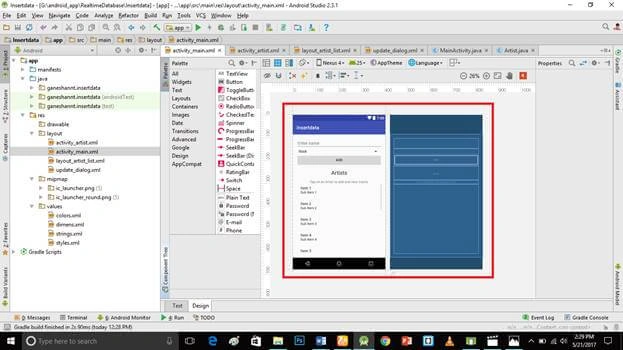
Create a new activity_artist.xml file (File ⇒ New ⇒Activity⇒Empty_activity).
Go to activity_artist.xml subsequently click Text bottom. This XML file contains the designing code for an Android app. In activity_artist.xml, copy and paste the code given below.
activity_artist.xml code
- <?xml version="1.0" encoding="utf-8"?>
- <RelativeLayout xmlns:android="http://schemas.android.com/apk/res/android"
- xmlns:tools="http://schemas.android.com/tools"
- android:id="@+id/activity_artist"
- android:layout_width="match_parent"
- android:layout_height="match_parent"
- android:paddingBottom="@dimen/activity_vertical_margin"
- android:paddingLeft="@dimen/activity_horizontal_margin"
- android:paddingRight="@dimen/activity_horizontal_margin"
- android:paddingTop="@dimen/activity_vertical_margin"
- tools:context=".ArtistActivity">
- <TextView
- android:id="@+id/textViewArtist"
- android:padding="@dimen/activity_horizontal_margin"
- android:textAlignment="center"
- android:textAppearance="@style/Base.TextAppearance.AppCompat.Large"
- android:textStyle="bold"
- android:layout_width="match_parent"
- android:layout_height="wrap_content" />
- <EditText
- android:layout_below="@id/textViewArtist"
- android:id="@+id/editTextName"
- android:layout_width="match_parent"
- android:layout_height="wrap_content"
- android:hint="Enter track name" />
- <LinearLayout
- android:orientation="horizontal"
- android:id="@+id/linearLayout"
- android:layout_width="match_parent"
- android:layout_height="wrap_content"
- android:layout_below="@id/editTextName">
- <SeekBar
- android:layout_weight="1"
- android:id="@+id/seekBarRating"
- android:layout_width="match_parent"
- android:layout_height="wrap_content"
- android:max="5"></SeekBar>
- <TextView
- android:text="1"
- android:id="@+id/textViewRating"
- android:layout_width="wrap_content"
- android:layout_height="wrap_content" />
- </LinearLayout>
- <Button
- android:id="@+id/buttonAddTrack"
- android:layout_width="match_parent"
- android:layout_height="wrap_content"
- android:layout_below="@id/linearLayout"
- android:text="Add" />
- <TextView
- android:id="@+id/textView"
- android:layout_width="match_parent"
- android:layout_height="wrap_content"
- android:layout_below="@id/buttonAddTrack"
- android:padding="@dimen/activity_horizontal_margin"
- android:text="Tracks"
- android:textAlignment="center"
- android:textAppearance="@style/Base.TextAppearance.AppCompat.Large" />
- <ListView
- android:id="@+id/listViewTracks"
- android:layout_width="match_parent"
- android:layout_height="wrap_content"
- android:layout_below="@+id/textView"></ListView>
- </RelativeLayout>
Step 11
Create new layout_artist_list.xml file (File ⇒ New ⇒Activity⇒Empty_activity). In the layout_artist_list.xml, copy and paste the code given below.
layout_artist_list.xml code
- <?xml version="1.0" encoding="utf-8"?>
- <LinearLayout xmlns:android="http://schemas.android.com/apk/res/android"
- android:orientation="vertical" android:layout_width="match_parent"
- android:layout_height="match_parent">
- <TextView
- android:text="Atif Aslam"
- android:textAppearance="@style/Base.TextAppearance.AppCompat.Large"
- android:id="@+id/textViewName"
- android:layout_width="match_parent"
- android:layout_height="wrap_content" />
- <TextView
- android:text="Rock"
- android:textAppearance="@style/Base.TextAppearance.AppCompat.Medium"
- android:id="@+id/textViewGenre"
- android:layout_width="match_parent"
- android:layout_height="wrap_content" />
- </LinearLayout>
Step 12
Create new update_dialogue.xml file (File ⇒ New ⇒Activity⇒Empty_activity). In the update_dialogue.xml, copy and paste the code given below.
update_dialogue.xml code
- <?xml version="1.0" encoding="utf-8"?>
- <LinearLayout xmlns:android="http://schemas.android.com/apk/res/android"
- android:layout_width="match_parent"
- android:layout_height="match_parent"
- android:orientation="vertical"
- android:padding="@dimen/activity_horizontal_margin">
- <EditText
- android:id="@+id/editTextName"
- android:layout_width="match_parent"
- android:layout_height="wrap_content"
- android:hint="Enter name" />
- <Spinner
- android:id="@+id/spinnerGenres"
- android:layout_width="match_parent"
- android:layout_height="wrap_content"
- android:layout_below="@id/editTextName"
- android:entries="@array/genres"></Spinner>
- <LinearLayout
- android:layout_width="match_parent"
- android:layout_height="wrap_content"
- android:orientation="horizontal">
- <Button
- android:id="@+id/buttonUpdateArtist"
- android:layout_width="wrap_content"
- android:layout_height="wrap_content"
- android:layout_weight="1"
- android:text="Update" />
- <Button
- android:id="@+id/buttonDeleteArtist"
- android:layout_width="wrap_content"
- android:layout_height="wrap_content"
- android:layout_weight="1"
- android:text="Delete" />
- </LinearLayout>
- </LinearLayout>
- package ganeshannt.insertdata;
- import android.content.Intent;
- import android.os.Bundle;
- import android.support.v7.app.AlertDialog;
- import android.support.v7.app.AppCompatActivity;
- import android.text.TextUtils;
- import android.view.LayoutInflater;
- import android.view.View;
- import android.widget.AdapterView;
- import android.widget.Button;
- import android.widget.EditText;
- import android.widget.ListView;
- import android.widget.Spinner;
- import android.widget.Toast;
- import com.google.firebase.database.DataSnapshot;
- import com.google.firebase.database.DatabaseError;
- import com.google.firebase.database.DatabaseReference;
- import com.google.firebase.database.FirebaseDatabase;
- import com.google.firebase.database.ValueEventListener;
- import java.util.ArrayList;
- import java.util.List;
- public class MainActivity extends AppCompatActivity {
- public static final String ARTIST_NAME = "net.simplifiedcoding.firebasedatabaseexample.artistname";
- public static final String ARTIST_ID = "net.simplifiedcoding.firebasedatabaseexample.artistid";
- EditText editTextName;
- Spinner spinnerGenre;
- Button buttonAddArtist;
- ListView listViewArtists;
- //a list to store all the artist from firebase database
- List<Artist> artists;
- //our database reference object
- DatabaseReference databaseArtists;
- @Override
- protected void onCreate(Bundle savedInstanceState) {
- super.onCreate(savedInstanceState);
- setContentView(R.layout.activity_main);
- //getting the reference of artists node
- databaseArtists = FirebaseDatabase.getInstance().getReference("artists");
- //getting views
- editTextName = (EditText) findViewById(R.id.editTextName);
- spinnerGenre = (Spinner) findViewById(R.id.spinnerGenres);
- listViewArtists = (ListView) findViewById(R.id.listViewArtists);
- buttonAddArtist = (Button) findViewById(R.id.buttonAddArtist);
- //list to store artists
- artists = new ArrayList<>();
- //adding an onclicklistener to button
- buttonAddArtist.setOnClickListener(new View.OnClickListener() {
- @Override
- public void onClick(View view) {
- //calling the method addArtist()
- //the method is defined below
- //this method is actually performing the write operation
- addArtist();
- }
- });
- //attaching listener to listview
- listViewArtists.setOnItemClickListener(new AdapterView.OnItemClickListener() {
- @Override
- public void onItemClick(AdapterView<?> adapterView, View view, int i, long l) {
- //getting the selected artist
- Artist artist = artists.get(i);
- //creating an intent
- Intent intent = new Intent(getApplicationContext(), ArtistActivity.class);
- //putting artist name and id to intent
- intent.putExtra(ARTIST_ID, artist.getArtistId());
- intent.putExtra(ARTIST_NAME, artist.getArtistName());
- //starting the activity with intent
- startActivity(intent);
- }
- });
- listViewArtists.setOnItemLongClickListener(new AdapterView.OnItemLongClickListener() {
- @Override
- public boolean onItemLongClick(AdapterView<?> adapterView, View view, int i, long l) {
- Artist artist = artists.get(i);
- showUpdateDeleteDialog(artist.getArtistId(), artist.getArtistName());
- return true;
- }
- });
- }
- private void showUpdateDeleteDialog(final String artistId, String artistName) {
- AlertDialog.Builder dialogBuilder = new AlertDialog.Builder(this);
- LayoutInflater inflater = getLayoutInflater();
- final View dialogView = inflater.inflate(R.layout.update_dialog, null);
- dialogBuilder.setView(dialogView);
- final EditText editTextName = (EditText) dialogView.findViewById(R.id.editTextName);
- final Spinner spinnerGenre = (Spinner) dialogView.findViewById(R.id.spinnerGenres);
- final Button buttonUpdate = (Button) dialogView.findViewById(R.id.buttonUpdateArtist);
- final Button buttonDelete = (Button) dialogView.findViewById(R.id.buttonDeleteArtist);
- dialogBuilder.setTitle(artistName);
- final AlertDialog b = dialogBuilder.create();
- b.show();
- buttonUpdate.setOnClickListener(new View.OnClickListener() {
- @Override
- public void onClick(View view) {
- String name = editTextName.getText().toString().trim();
- String genre = spinnerGenre.getSelectedItem().toString();
- if (!TextUtils.isEmpty(name)) {
- updateArtist(artistId, name, genre);
- b.dismiss();
- }
- }
- });
- buttonDelete.setOnClickListener(new View.OnClickListener() {
- @Override
- public void onClick(View view) {
- deleteArtist(artistId);
- b.dismiss();
- }
- });
- }
- private boolean updateArtist(String id, String name, String genre) {
- //getting the specified artist reference
- DatabaseReference dR = FirebaseDatabase.getInstance().getReference("artists").child(id);
- //updating artist
- Artist artist = new Artist(id, name, genre);
- dR.setValue(artist);
- Toast.makeText(getApplicationContext(), "Artist Updated", Toast.LENGTH_LONG).show();
- return true;
- }
- private boolean deleteArtist(String id) {
- //getting the specified artist reference
- DatabaseReference dR = FirebaseDatabase.getInstance().getReference("artists").child(id);
- //removing artist
- dR.removeValue();
- //getting the tracks reference for the specified artist
- DatabaseReference drTracks = FirebaseDatabase.getInstance().getReference("tracks").child(id);
- //removing all tracks
- drTracks.removeValue();
- Toast.makeText(getApplicationContext(), "Artist Deleted", Toast.LENGTH_LONG).show();
- return true;
- }
- @Override
- protected void onStart() {
- super.onStart();
- //attaching value event listener
- databaseArtists.addValueEventListener(new ValueEventListener() {
- @Override
- public void onDataChange(DataSnapshot dataSnapshot) {
- //clearing the previous artist list
- artists.clear();
- //iterating through all the nodes
- for (DataSnapshot postSnapshot : dataSnapshot.getChildren()) {
- //getting artist
- Artist artist = postSnapshot.getValue(Artist.class);
- //adding artist to the list
- artists.add(artist);
- }
- //creating adapter
- ArtistList artistAdapter = new ArtistList(MainActivity.this, artists);
- //attaching adapter to the listview
- listViewArtists.setAdapter(artistAdapter);
- }
- @Override
- public void onCancelled(DatabaseError databaseError) {
- }
- });
- }
- /*
- * This method is saving a new artist to the
- * Firebase Realtime Database
- * */
- private void addArtist() {
- //getting the values to save
- String name = editTextName.getText().toString().trim();
- String genre = spinnerGenre.getSelectedItem().toString();
- //checking if the value is provided
- if (!TextUtils.isEmpty(name)) {
- //getting a unique id using push().getKey() method
- //it will create a unique id and we will use it as the Primary Key for our Artist
- String id = databaseArtists.push().getKey();
- //creating an Artist Object
- Artist artist = new Artist(id, name, genre);
- //Saving the Artist
- databaseArtists.child(id).setValue(artist);
- //setting edittext to blank again
- editTextName.setText("");
- //displaying a success toast
- Toast.makeText(this, "Artist added", Toast.LENGTH_LONG).show();
- } else {
- //if the value is not given displaying a toast
- Toast.makeText(this, "Please enter a name", Toast.LENGTH_LONG).show();
- }
- }
- }
Step 14
Create new Artist.java file (File ⇒ New ⇒Java class). In the Artist.java, copy and paste the code given below.
Artist.java code
- package ganeshannt.insertdata;
- import com.google.firebase.database.IgnoreExtraProperties;
- @IgnoreExtraProperties
- public class Artist {
- private String artistId;
- private String artistName;
- private String artistGenre;
- public Artist(){
- //this constructor is required
- }
- public Artist(String artistId, String artistName, String artistGenre) {
- this.artistId = artistId;
- this.artistName = artistName;
- this.artistGenre = artistGenre;
- }
- public String getArtistId() {
- return artistId;
- }
- public String getArtistName() {
- return artistName;
- }
- public String getArtistGenre() {
- return artistGenre;
- }
- }
Step 15
Create new ArtistActivity.java file (File ⇒ New ⇒Java class). In the ArtistActivity.java, copy and paste the code given below.
ArtistActivity.java code
- package ganeshannt.insertdata;
- import android.content.Intent;
- import android.support.v7.app.AppCompatActivity;
- import android.os.Bundle;
- import android.text.TextUtils;
- import android.view.View;
- import android.widget.Button;
- import android.widget.EditText;
- import android.widget.ListView;
- import android.widget.SeekBar;
- import android.widget.TextView;
- import android.widget.Toast;
- import com.google.firebase.database.DataSnapshot;
- import com.google.firebase.database.DatabaseError;
- import com.google.firebase.database.DatabaseReference;
- import com.google.firebase.database.FirebaseDatabase;
- import com.google.firebase.database.ValueEventListener;
- import java.util.ArrayList;
- import java.util.List;
- public class ArtistActivity extends AppCompatActivity {
- Button buttonAddTrack;
- EditText editTextTrackName;
- SeekBar seekBarRating;
- TextView textViewRating, textViewArtist;
- ListView listViewTracks;
- DatabaseReference databaseTracks;
- List<Track> tracks;
- @Override
- protected void onCreate(Bundle savedInstanceState) {
- super.onCreate(savedInstanceState);
- setContentView(R.layout.activity_artist);
- Intent intent = getIntent();
- /*
- * this line is important
- * this time we are not getting the reference of a direct node
- * but inside the node track we are creating a new child with the artist id
- * and inside that node we will store all the tracks with unique ids
- * */
- databaseTracks = FirebaseDatabase.getInstance().getReference("tracks").child(intent.getStringExtra(MainActivity.ARTIST_ID));
- buttonAddTrack = (Button) findViewById(R.id.buttonAddTrack);
- editTextTrackName = (EditText) findViewById(R.id.editTextName);
- seekBarRating = (SeekBar) findViewById(R.id.seekBarRating);
- textViewRating = (TextView) findViewById(R.id.textViewRating);
- textViewArtist = (TextView) findViewById(R.id.textViewArtist);
- listViewTracks = (ListView) findViewById(R.id.listViewTracks);
- tracks = new ArrayList<>();
- textViewArtist.setText(intent.getStringExtra(MainActivity.ARTIST_NAME));
- seekBarRating.setOnSeekBarChangeListener(new SeekBar.OnSeekBarChangeListener() {
- @Override
- public void onProgressChanged(SeekBar seekBar, int i, boolean b) {
- textViewRating.setText(String.valueOf(i));
- }
- @Override
- public void onStartTrackingTouch(SeekBar seekBar) {
- }
- @Override
- public void onStopTrackingTouch(SeekBar seekBar) {
- }
- });
- buttonAddTrack.setOnClickListener(new View.OnClickListener() {
- @Override
- public void onClick(View view) {
- saveTrack();
- }
- });
- }
- @Override
- protected void onStart() {
- super.onStart();
- databaseTracks.addValueEventListener(new ValueEventListener() {
- @Override
- public void onDataChange(DataSnapshot dataSnapshot) {
- tracks.clear();
- for (DataSnapshot postSnapshot : dataSnapshot.getChildren()) {
- Track track = postSnapshot.getValue(Track.class);
- tracks.add(track);
- }
- TrackList trackListAdapter = new TrackList(ArtistActivity.this, tracks);
- listViewTracks.setAdapter(trackListAdapter);
- }
- @Override
- public void onCancelled(DatabaseError databaseError) {
- }
- });
- }
- private void saveTrack() {
- String trackName = editTextTrackName.getText().toString().trim();
- int rating = seekBarRating.getProgress();
- if (!TextUtils.isEmpty(trackName)) {
- String id = databaseTracks.push().getKey();
- Track track = new Track(id, trackName, rating);
- databaseTracks.child(id).setValue(track);
- Toast.makeText(this, "Track saved", Toast.LENGTH_LONG).show();
- editTextTrackName.setText("");
- } else {
- Toast.makeText(this, "Please enter track name", Toast.LENGTH_LONG).show();
- }
- }
- }
Step 16
Create a new ArtistList.java file (File ⇒ New ⇒Java class). In the ArtistList.java, copy and paste the code given below.
ArtistList.java code
- package ganeshannt.insertdata;
- import android.app.Activity;
- import android.view.LayoutInflater;
- import android.view.View;
- import android.view.ViewGroup;
- import android.widget.ArrayAdapter;
- import android.widget.TextView;
- import java.util.List;
- public class ArtistList extends ArrayAdapter<Artist> {
- private Activity context;
- List<Artist> artists;
- public ArtistList(Activity context, List<Artist> artists) {
- super(context, R.layout.layout_artist_list, artists);
- this.context = context;
- this.artists = artists;
- }
- @Override
- public View getView(int position, View convertView, ViewGroup parent) {
- LayoutInflater inflater = context.getLayoutInflater();
- View listViewItem = inflater.inflate(R.layout.layout_artist_list, null, true);
- TextView textViewName = (TextView) listViewItem.findViewById(R.id.textViewName);
- TextView textViewGenre = (TextView) listViewItem.findViewById(R.id.textViewGenre);
- Artist artist = artists.get(position);
- textViewName.setText(artist.getArtistName());
- textViewGenre.setText(artist.getArtistGenre());
- return listViewItem;
- }
- }
Step 17
Create new Track.java file (File ⇒ New ⇒Java class). In Track.java, copy and paste the code given below.
Track.java code
- package ganeshannt.insertdata;
- import com.google.firebase.database.IgnoreExtraProperties;
- @IgnoreExtraProperties
- public class Track {
- private String id;
- private String trackName;
- private int rating;
- public Track() {
- }
- public Track(String id, String trackName, int rating) {
- this.trackName = trackName;
- this.rating = rating;
- this.id = id;
- }
- public String getTrackName() {
- return trackName;
- }
- public int getRating() {
- return rating;
- }
- }
Step 18
Create a new TrackList.java file (File ⇒ New ⇒Java class). In the TrackList.java, copy and paste the code given below.
TrackList.java code
- package ganeshannt.insertdata;
- import android.app.Activity;
- import android.view.LayoutInflater;
- import android.view.View;
- import android.view.ViewGroup;
- import android.widget.ArrayAdapter;
- import android.widget.TextView;
- import java.util.List;
- public class TrackList extends ArrayAdapter<Track> {
- private Activity context;
- List<Track> tracks;
- public TrackList(Activity context, List<Track> tracks) {
- super(context, R.layout.layout_artist_list, tracks);
- this.context = context;
- this.tracks = tracks;
- }
- @Override
- public View getView(int position, View convertView, ViewGroup parent) {
- LayoutInflater inflater = context.getLayoutInflater();
- View listViewItem = inflater.inflate(R.layout.layout_artist_list, null, true);
- TextView textViewName = (TextView) listViewItem.findViewById(R.id.textViewName);
- TextView textViewRating = (TextView) listViewItem.findViewById(R.id.textViewGenre);
- Track track = tracks.get(position);
- textViewName.setText(track.getTrackName());
- textViewRating.setText(String.valueOf(track.getRating()));
- return listViewItem;
- }
- }
Step 19
Run the Application, followed by choosing Virtual Machine. Click OK.
Deliverables
Here, we need to successfully insert the data into Firebase in an Android app, using an Android Studio, which is created and executed.
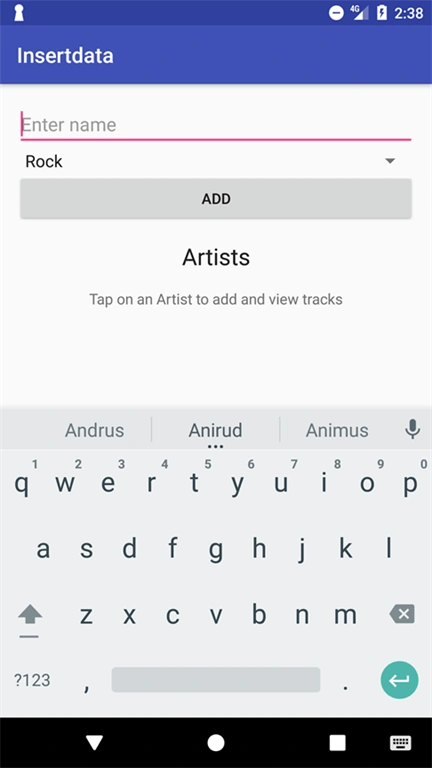
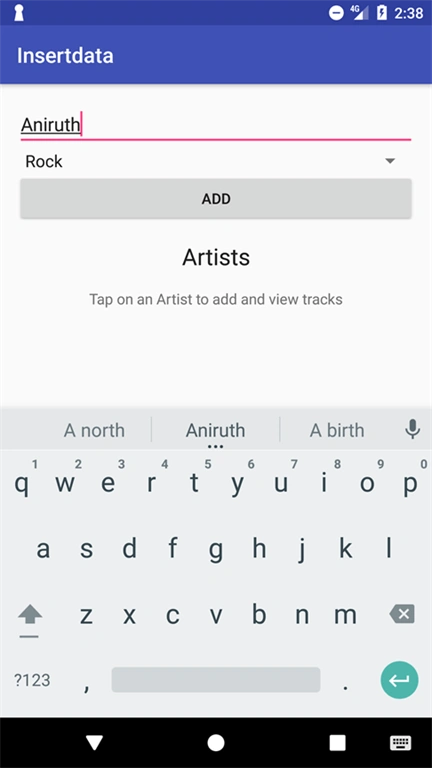
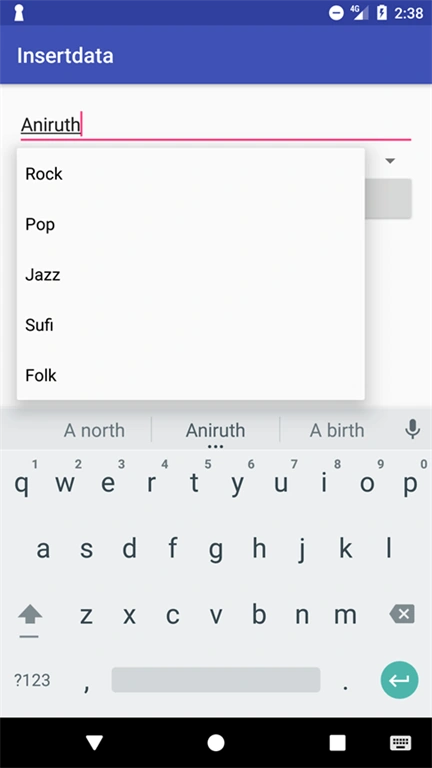
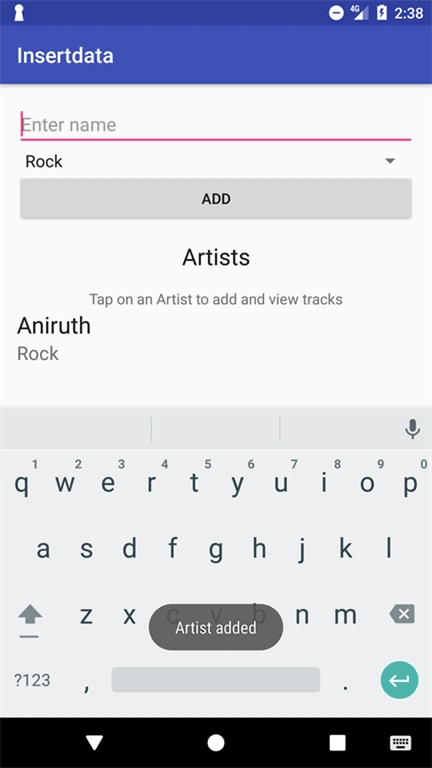 Now, check the Firebase database.
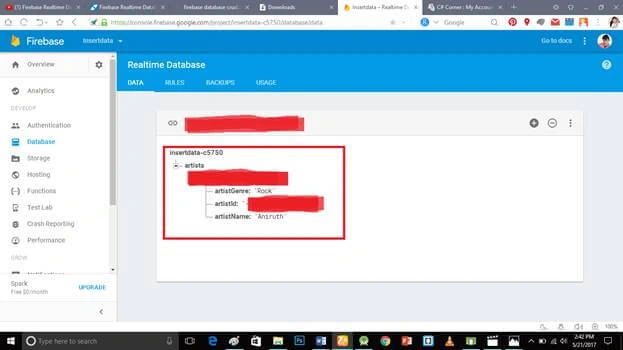 The data was added successfully in the Firebase database.
geluste bhaudePosted Mar 13, 2021, 10:14 AM
Wasted time
geluste bhaudePosted Mar 13, 2021, 10:14 AM
Not uploaded with gradle dependencies
geluste bhaudePosted Mar 13, 2021, 10:13 AM
Not uploaded full code app crashes
geluste bhaudePosted Mar 13, 2021, 10:12 AM
App crashes not work
Tejal SalvePosted Feb 11, 2020, 11:55 PM
App crashes after running on phone
deepak aPosted Jun 17, 2017, 6:33 AM
Thanks for sharing .....
Ganeshan NPosted May 25, 2017, 9:39 AM
Mention the error with line number and error statement
Donald GenesPosted May 25, 2017, 4:16 AM
"ArtistList artistAdapter = new ArtistList(MainActivity.this, artists);"package com.ibomites.www.akwaibomites.categories; import android.os.Bundle; import android.support.v4.app.Fragment; import android.text.TextUtils; import android.view.LayoutInflater; import android.view.View; import android.view.ViewGroup; import android.widget.Button; import android.widget.EditText; import android.widget.ListView; import android.widget.Spinner; import android.widget.Toast; import com.ibomites.www.akwaibomites.Grocery; import com.ibomites.www.akwaibomites.MainActivity; import com.ibomites.www.akwaibomites.R; import java.util.ArrayList; import java.util.List; import com.google.firebase.database.DataSnapshot; import com.google.firebase.database.DatabaseError; import com.google.firebase.database.DatabaseReference; import com.google.firebase.database.FirebaseDatabase; import com.google.firebase.database.ValueEventListener; public class TabFragment1 extends Fragment { EditText editTextName; Spinner spinnerGenre; Button buttonAddArtist; //our database reference object DatabaseReference databaseArtists; ListView listViewArtists; //a list to store all the artist from firebase database List<Artist> artists; private ExpandableHeightGridView gridview; private ArrayList<Beanclass> beanclassArrayList; private GridviewAdapter gridviewAdapter; private View view; @Override public View onCreateView(LayoutInflater inflater, ViewGroup container, Bundle savedInstanceState) { view = inflater.inflate(R.layout.fragmenttab1, container, false); databaseArtists = FirebaseDatabase.getInstance().getReference("artists"); //getting views editTextName = (EditText)view.findViewById(R.id.editTextName); spinnerGenre = (Spinner)view.findViewById(R.id.spinnerGenres); buttonAddArtist = (Button)view.findViewById(R.id.buttonAddArtist); listViewArtists = (ListView) view.findViewById(R.id.listViewArtists); //list to store artists artists = new ArrayList<>(); buttonAddArtist.setOnClickListener(new View.OnClickListener() { @Override public void onClick(View v) { addArtist(); } }); gridview = (ExpandableHeightGridView)view.findViewById(R.id.gridview); beanclassArrayList= new ArrayList<Beanclass>(); gridviewAdapter = new GridviewAdapter(getActivity(), beanclassArrayList); gridview.setExpanded(true); gridview.setAdapter(gridviewAdapter); return view; } @Override public void onStart() { super.onStart(); databaseArtists.addValueEventListener(new ValueEventListener() { @Override public void onDataChange(DataSnapshot dataSnapshot) { //clearing the previous artist list artists.clear(); //iterating through all the nodes for (DataSnapshot postSnapshot : dataSnapshot.getChildren()) { //getting artist Artist artist = postSnapshot.getValue(Artist.class); //adding artist to the list artists.add(artist); } //creating adapter ArtistList artistAdapter = new ArtistList(MainActivity.this, artists); //attaching adapter to the listview listViewArtists.setAdapter(artistAdapter); } @Override public void onCancelled(DatabaseError databaseError) { } }); } private void addArtist() { String name = editTextName.getText().toString().trim(); String genre = spinnerGenre.getSelectedItem().toString(); //checking if the value is provided if (!TextUtils.isEmpty(name)) { //getting a unique id using push().getKey() method //it will create a unique id and we will use it as the Primary Key for our Artist String id = databaseArtists.push().getKey(); //creating an Artist Object Artist artist = new Artist(id, name, genre); //Saving the Artist databaseArtists.child(id).setValue(artist); //setting edittext to blank again editTextName.setText(""); //displaying a success toast Toast.makeText(getActivity(), "Message added", Toast.LENGTH_SHORT).show(); } else { //if the value is not given displaying a toast Toast.makeText(getActivity(), "Please enter a name", Toast.LENGTH_LONG).show(); } } }
Donald GenesPosted May 25, 2017, 4:16 AM
I am using TabFragment.java not MainActivity and i am getting error on this particular line below