

Introduction
This article shows how to access a SQL Server database with the Entity Framework Code First approach and later how to create an index.
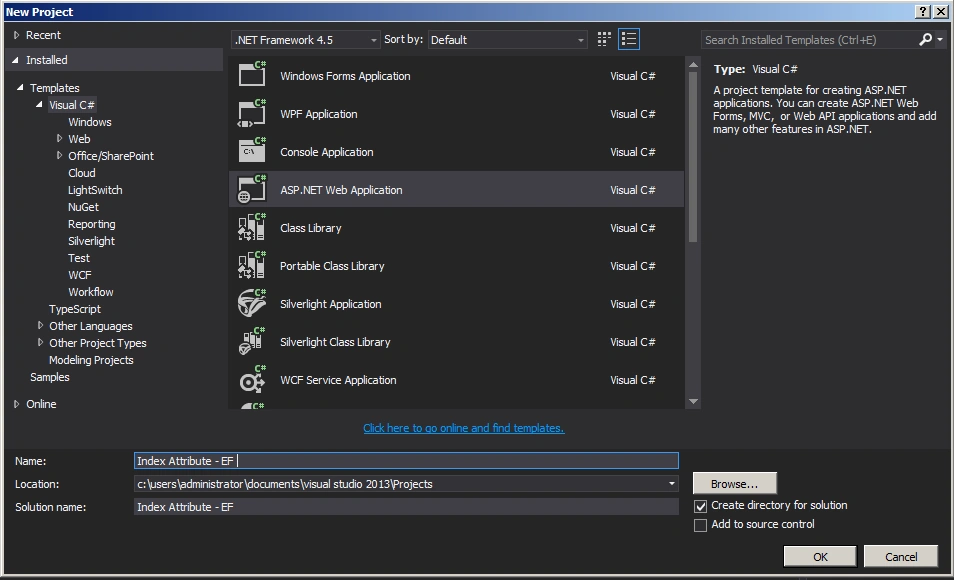
Create ASP.Net web application
Employee.cs
- using System;
- using System.Collections.Generic;
- using System.ComponentModel.DataAnnotations;
- using System.ComponentModel.DataAnnotations.Schema;
- using System.Linq;
- using System.Web;
- namespace Index_Attribute___EF
- {
- public class Employee
- {
- public Employee()
- {
- }
- [Key]
- [DatabaseGenerated(DatabaseGeneratedOption.Identity)]
- public int Id { get; set; }
- public string FirstName { get; set; }
- [MaxLength(50)]
- [Index("IX_LastName_Employee", IsClustered=false)]
- public string LastName { get; set; }
- }
- }
Employeecontext.cs
- using System;
- using System.Collections.Generic;
- using System.Data.Entity;
- using System.Linq;
- using System.Web;
- namespace Index_Attribute___EF
- {
- public class EmployeeContext : DbContext
- {
- public EmployeeContext()
- : base("EmployeeConn")
- {
- Database.SetInitializer<EmployeeContext>(new CreateDatabaseIfNotExists<EmployeeContext>());
- }
- public DbSet<Employee> Employees { get; set; }
- }
Web.config
- <connectionStrings>
- <add name="EmployeeConn"
- connectionString="Data Source=WIN-B4KJ8JI75VF;Initial Catalog=EmployeeDB;Integrated Security=true"
- providerName="System.Data.SqlClient"/>
- </connectionStrings>
Webform1.aspx
- <%@ Page Language="C#" AutoEventWireup="true" CodeBehind="WebForm1.aspx.cs" Inherits="Index_Attribute___EF.WebForm1" %>
- <!DOCTYPE html>
- <html xmlns="http://www.w3.org/1999/xhtml">
- <head runat="server">
- <title></title>
- </head>
- <body>
- <form id="form1" runat="server">
- <div>
- <table>
- <tr>
- <td>
- <asp:Label ID="Label1" runat="server" Text="Index Attribute" Font-Bold="true"></asp:Label>
- </td>
- </tr>
- </table>
- <br />
- <br />
- <table>
- <tr>
- <td>
- <asp:Label ID="Label2" runat="server" Text="Please Enter FirstName: " ForeColor="Brown"
- Font-Bold="true" Font-Italic="true"></asp:Label>
- </td>
- <td>
- <asp:TextBox ID="TextBox1" runat="server"></asp:TextBox>
- </td>
- </tr>
- <tr>
- <td>
- <asp:Label ID="Label3" runat="server" Text="Please Enter LastName: " ForeColor="Brown"
- Font-Bold="true" Font-Italic="true"></asp:Label>
- </td>
- <td>
- <asp:TextBox ID="TextBox2" runat="server"></asp:TextBox>
- </td>
- </tr>
- <tr>
- <td colspan="2">
- <asp:Button ID="Button1" runat="server" Text="Insert Data"
- BackColor="Orange" Font-Bold="true" OnClick="Button1_Click" />
- <br />
- <br />
- </td>
- </tr>
- </table>
- </div>
- </form>
- </body>
- </html>
Webform1.aspx.cs
- using System;
- using System.Collections.Generic;
- using System.Linq;
- using System.Web;
- using System.Web.UI;
- using System.Web.UI.WebControls;
- namespace Index_Attribute___EF
- {
- public partial class WebForm1 : System.Web.UI.Page
- {
- protected void Page_Load(object sender, EventArgs e)
- {
- }
- protected void Button1_Click(object sender, EventArgs e)
- {
- EmployeeContext empContext = new EmployeeContext();
- Employee emp = new Employee() { FirstName = TextBox1.Text, LastName = TextBox2.Text };
- empContext.Employees.Add(emp);
- empContext.SaveChanges();
- }
- }
- }
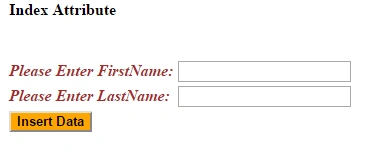
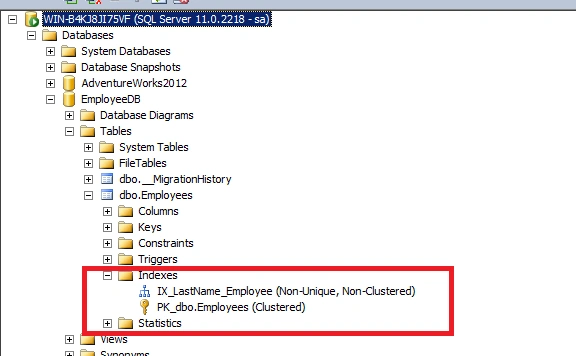
The following is the output of the application:
Summary
In this article we saw how to access a SQL Server database with the Entity Framework Code First approach and how to create an index. Happy coding.
Sonu ChaudharyPosted May 26, 2016, 10:48 AM
Good one...
Rahul Kumar SaxenaPosted May 12, 2015, 11:41 PM
Good One...
Santhakumar MunuswamyPosted May 12, 2015, 3:15 PM
Good