

In Azure Machine Learning Studio, when we create a Machine Learning Experiment, the most important part is to integrate the data into Machine Learning Studio to create experiments. In ML Studio, you can use your own data from various sources -
- You can upload your own data,
- You can use some online sources,
- You can use data which is used by some other experiment and is available in datasets in ML Studio,
- Or, you can use on premise SQL Server Database.
In Azure Machine Learning Studio, by using "Import Data" tool which is available in Tools menu, you can access data for Training, using various sources.
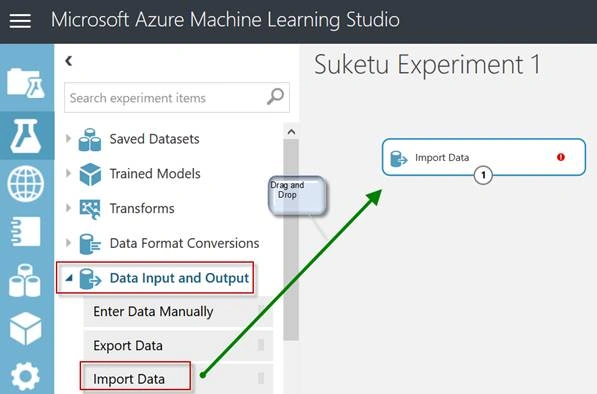
When you click on the "Launch Import Data Wizard button, the "Data source" window will open with multiple options available to import data in your ML experiment.
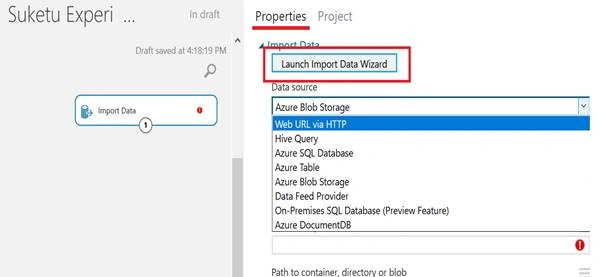
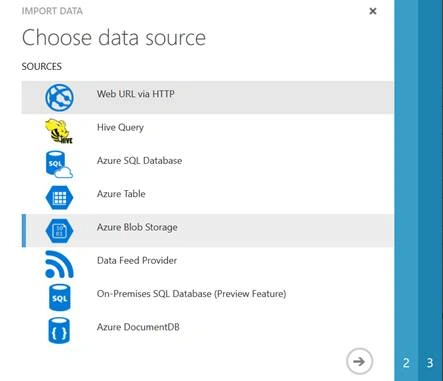
In Web URL via HTTP – we can import any csv, tsv, arff or svm-light formatted data from any web URL which uses HTTP, but you should specify full URL with filename and extension.
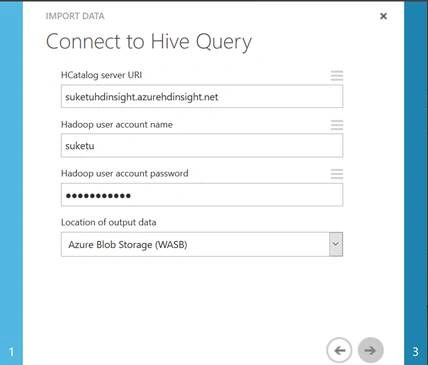
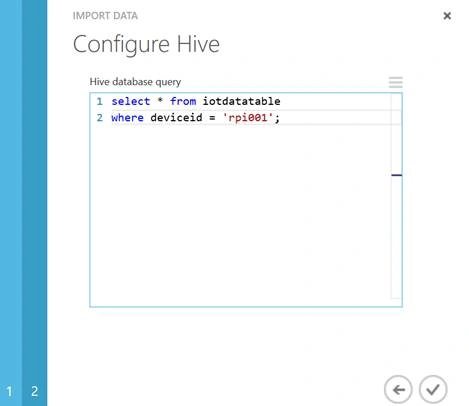
Hive Query – You can read / import data from Distributed Database storage in Hadoop (Azure HDInsight). We need to write query in Hive QL (SQL like Query Language for Big Data) and we need to specify HDInsight Cluster URL and User Name, Password to access that HDInsight Cluster. As shown in the below figures, you can write Hive Query to import Big Data from HDInsight Cluster Hive Table. In my next article, I will show you how you can load data in Hive Table from text file.
Azure SQL Database – reads data that is stored in SQL DB by providing SQL DB Server Name, Database Name, Server User account name and password, and database query.
On Premises SQL – reads data that is available in on premise SQL Database. In that, we need to provide Data Gateway, DB Server Name, DB Name, Username and Password and database query.
Azure Table – in this, you can read data which is available anywhere in Azure Table Storage by providing Authentication Type, SAS URI, Table Name and Rows to scan for property names.
Azure BLOB Storage – to read data from Azure Storage Blob (Binary Large Object Database by Azure Storage), you need to specify URI, Account Name, Account Key, Path to container, directory, or blob and Blob File Format.
Data Feed Provider – reads data from a supported feed provider; we need to provide Data Content type and Source URL. (E.g. http://myservices.odata.org/north/northtemp.csv)
Azure DocumentDB – to read NoSql data from Azure DocumentDB. We need to enter Endpoint URL, Database ID, DocumentDB Key, Collection ID and SQL Query with SQL Parameters if required.
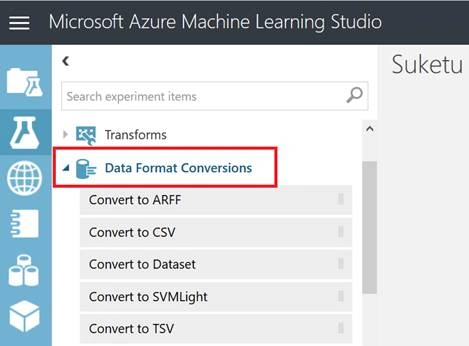
After you import data in ML Experiment, you can use Data Format Conversion tools also to convert the format of your data.
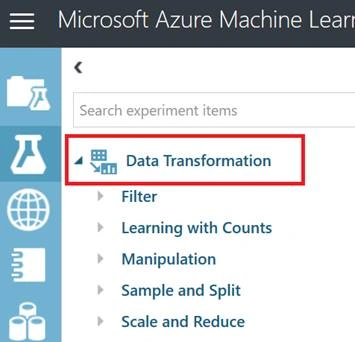
And, there are Data Transformation tools available as shown in figure below. Using these, we can filter data and can define user defined filters; also, we can apply learning with counts.
Azure Machine Learning Studio is very powerful tool to play with the data and apply Predictive Analytics using Classification, Regression and Clustering Algorithms and one click conversions into Web Service. We can consume that ML Web Service anywhere in any platform and we are able to build an app with predictive features.
Join the conversation! Your thoughts help the community grow.