
Introduction
In this post, we will see how we can import and export Excel data in ASP.NET Core. We are using EPPlus.Core library which helps us to perform import and export operations. I hope you will like it.
Prerequisites
Make sure you have installed Visual Studio 2017 (.Net Framework 4.6.1) and SQL Server.
In this post, we are going to -
- Create Database.
- Create MVC application.
- Install EPPlus.Core library
- Use Entity Framework Core database first approach.
- Create our Customer Controller.
SQL Database part
Here, you can find the script to create a database and its tables.
Create Database
- USE [master]
- GO
- /****** Object: Database [DbCustomers] Script Date: 2/18/2018 2:19:48 AM ******/
- CREATE DATABASE [DbCustomers]
- CONTAINMENT = NONE
- ON PRIMARY
- ( NAME = N'DbCustomers', FILENAME = N'c:\Program Files (x86)\Microsoft SQL Server\MSSQL11.MSSQLSERVER\MSSQL\DATA\DbCustomers.mdf' , SIZE = 4096KB , MAXSIZE = UNLIMITED, FILEGROWTH = 1024KB )
- LOG ON
- ( NAME = N'DbCustomers_log', FILENAME = N'c:\Program Files (x86)\Microsoft SQL Server\MSSQL11.MSSQLSERVER\MSSQL\DATA\DbCustomers_log.ldf' , SIZE = 1024KB , MAXSIZE = 2048GB , FILEGROWTH = 10%)
- GO
- ALTER DATABASE [DbCustomers] SET COMPATIBILITY_LEVEL = 110
- GO
- IF (1 = FULLTEXTSERVICEPROPERTY('IsFullTextInstalled'))
- begin
- EXEC [DbCustomers].[dbo].[sp_fulltext_database] @action = 'enable'
- end
- GO
- ALTER DATABASE [DbCustomers] SET ANSI_NULL_DEFAULT OFF
- GO
- ALTER DATABASE [DbCustomers] SET ANSI_NULLS OFF
- GO
- ALTER DATABASE [DbCustomers] SET ANSI_PADDING OFF
- GO
- ALTER DATABASE [DbCustomers] SET ANSI_WARNINGS OFF
- GO
- ALTER DATABASE [DbCustomers] SET ARITHABORT OFF
- GO
- ALTER DATABASE [DbCustomers] SET AUTO_CLOSE OFF
- GO
- ALTER DATABASE [DbCustomers] SET AUTO_CREATE_STATISTICS ON
- GO
- ALTER DATABASE [DbCustomers] SET AUTO_SHRINK OFF
- GO
- ALTER DATABASE [DbCustomers] SET AUTO_UPDATE_STATISTICS ON
- GO
- ALTER DATABASE [DbCustomers] SET CURSOR_CLOSE_ON_COMMIT OFF
- GO
- ALTER DATABASE [DbCustomers] SET CURSOR_DEFAULT GLOBAL
- GO
- ALTER DATABASE [DbCustomers] SET CONCAT_NULL_YIELDS_NULL OFF
- GO
- ALTER DATABASE [DbCustomers] SET NUMERIC_ROUNDABORT OFF
- GO
- ALTER DATABASE [DbCustomers] SET QUOTED_IDENTIFIER OFF
- GO
- ALTER DATABASE [DbCustomers] SET RECURSIVE_TRIGGERS OFF
- GO
- ALTER DATABASE [DbCustomers] SET DISABLE_BROKER
- GO
- ALTER DATABASE [DbCustomers] SET AUTO_UPDATE_STATISTICS_ASYNC OFF
- GO
- ALTER DATABASE [DbCustomers] SET DATE_CORRELATION_OPTIMIZATION OFF
- GO
- ALTER DATABASE [DbCustomers] SET TRUSTWORTHY OFF
- GO
- ALTER DATABASE [DbCustomers] SET ALLOW_SNAPSHOT_ISOLATION OFF
- GO
- ALTER DATABASE [DbCustomers] SET PARAMETERIZATION SIMPLE
- GO
- ALTER DATABASE [DbCustomers] SET READ_COMMITTED_SNAPSHOT OFF
- GO
- ALTER DATABASE [DbCustomers] SET HONOR_BROKER_PRIORITY OFF
- GO
- ALTER DATABASE [DbCustomers] SET RECOVERY SIMPLE
- GO
- ALTER DATABASE [DbCustomers] SET MULTI_USER
- GO
- ALTER DATABASE [DbCustomers] SET PAGE_VERIFY CHECKSUM
- GO
- ALTER DATABASE [DbCustomers] SET DB_CHAINING OFF
- GO
- ALTER DATABASE [DbCustomers] SET FILESTREAM( NON_TRANSACTED_ACCESS = OFF )
- GO
- ALTER DATABASE [DbCustomers] SET TARGET_RECOVERY_TIME = 0 SECONDS
- GO
- ALTER DATABASE [DbCustomers] SET READ_WRITE
- GO
Create Table
After creating the database, we will move to create the "Customers" table.
Customers Table
- USE [DbCustomers]
- GO
- /****** Object: Table [dbo].[Customers] Script Date: 2/18/2018 2:20:40 AM ******/
- SET ANSI_NULLS ON
- GO
- SET QUOTED_IDENTIFIER ON
- GO
- SET ANSI_PADDING ON
- GO
- CREATE TABLE [dbo].[Customers](
- [CustomerID] [int] IDENTITY(1,1) NOT NULL,
- [CustomerName] [varchar](50) NULL,
- [CustomerEmail] [varchar](50) NULL,
- [CustomerCountry] [varchar](50) NULL,
- CONSTRAINT [PK_Customers] PRIMARY KEY CLUSTERED
- (
- [CustomerID] ASC
- )WITH (PAD_INDEX = OFF, STATISTICS_NORECOMPUTE = OFF, IGNORE_DUP_KEY = OFF, ALLOW_ROW_LOCKS = ON, ALLOW_PAGE_LOCKS = ON) ON [PRIMARY]
- ) ON [PRIMARY]
- GO
- SET ANSI_PADDING OFF
- GO
Create your MVC application
Open Visual Studio and select File >> New Project.
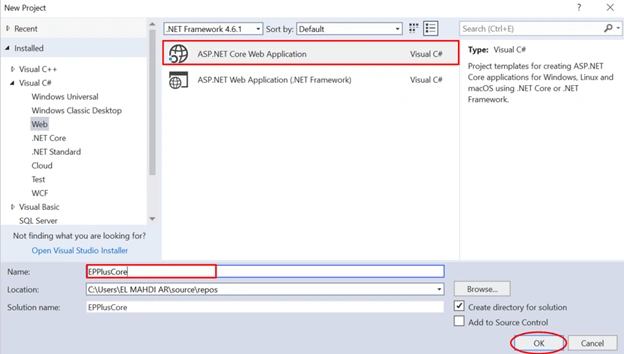
The "New Project" window will pop up. Select ASP.NET Core Web Application, name your project, and click OK.
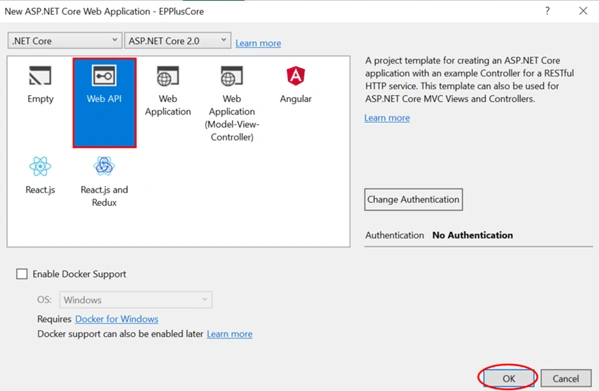
Next, a new dialog will pop up for selecting the template. We are going to choose Web API template and click OK.
Once our project is created, we will add EPPlus.Core library.
Installing EPPlus.Core library
In Package Manager console, run the following command.

Adding Entity Framework Core database first approach.
Here, we need to create the EF model based on the existing database.
Tools => NuGet Package Manager => Package Manager Console.
In the package manager console, let’s run the following command:
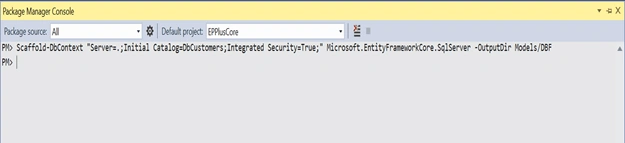
Scaffold-DbContext " Server =.; Initial Catalog = DbCustomers; Integrated Security = True;" Microsoft.EntityFrameworkCore.SqlServer -OutputDir Models/DBF
As you can see, the command above will generate a model from the existing database within Models/DBF folder.
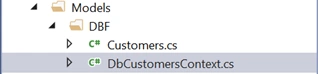
Customers.cs
- using System;
- using System.Collections.Generic;
- namespace EPPlusCore.Models.DBF
- {
- public partial class Customers
- {
- public int CustomerId { get; set; }
- public string CustomerName { get; set; }
- public string CustomerEmail { get; set; }
- public string CustomerCountry { get; set; }
- }
- }
DbCustomersContext.cs
- using System;
- using Microsoft.EntityFrameworkCore;
- using Microsoft.EntityFrameworkCore.Metadata;
- namespace EPPlusCore.Models.DBF
- {
- public partial class DbCustomersContext : DbContext
- {
- public virtual DbSet<Customers> Customers { get; set; }
- public DbCustomersContext(DbContextOptions<DbCustomersContext> options) : base(options)
- {
- }
- protected override void OnModelCreating(ModelBuilder modelBuilder)
- {
- modelBuilder.Entity<Customers>(entity =>
- {
- entity.HasKey(e => e.CustomerId);
- entity.Property(e => e.CustomerId).HasColumnName("CustomerID");
- entity.Property(e => e.CustomerCountry)
- .HasMaxLength(50)
- .IsUnicode(false);
- entity.Property(e => e.CustomerEmail)
- .HasMaxLength(50)
- .IsUnicode(false);
- entity.Property(e => e.CustomerName)
- .HasMaxLength(50)
- .IsUnicode(false);
- });
- }
- }
- }
Startup.cs
Now, we are opening Startup.cs and we need to add the following lines of code within ConfigureServices() method.
- string connection = "Server =.; Initial Catalog = DbCustomers; Integrated Security = True";
- services.AddDbContext<DbCustomersContext>(options => options.UseSqlServer(connection));
Create a Controller
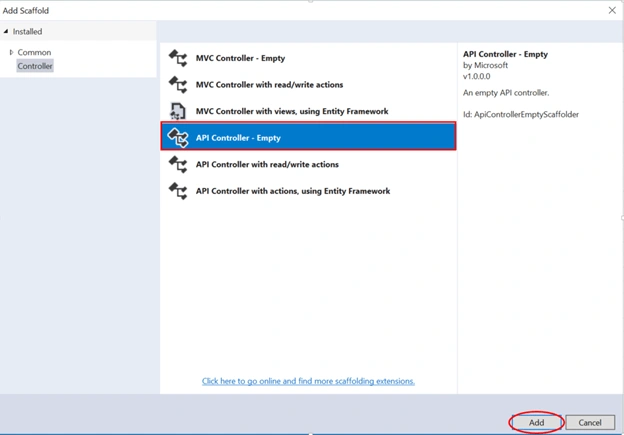
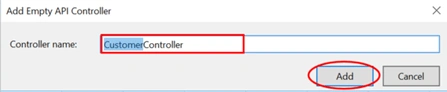
Now, we are going to create a Controller. Right-click on the Controllers folder> > Add >> Controller>> selecting API Controller – Empty >> click Add. In the next dialog, name the controller as CustomerController and then click Add.
CustomerController.cs
- using System;
- using System.Collections.Generic;
- using System.Linq;
- using System.Threading.Tasks;
- using Microsoft.AspNetCore.Http;
- using Microsoft.AspNetCore.Mvc;
- using Microsoft.AspNetCore.Hosting;
- using System.IO;
- using OfficeOpenXml;
- using System.Text;
- using EPPlusCore.Models.DBF;
- namespace EPPlusCore.Controllers
- {
- [Produces("application/json")]
- [Route("api/Customer")]
- public class CustomerController : Controller
- {
- private readonly IHostingEnvironment _hostingEnvironment;
- private readonly DbCustomersContext _db;
- public CustomerController(IHostingEnvironment hostingEnvironment, DbCustomersContext db)
- {
- _hostingEnvironment = hostingEnvironment;
- _db = db;
- }
- [HttpGet]
- [Route("ImportCustomer")]
- public IList<Customers> ImportCustomer()
- {
- string rootFolder = _hostingEnvironment.WebRootPath;
- string fileName = @"ImportCustomers.xlsx";
- FileInfo file = new FileInfo(Path.Combine(rootFolder, fileName));
- using (ExcelPackage package = new ExcelPackage(file))
- {
- ExcelWorksheet workSheet = package.Workbook.Worksheets["Customer"];
- int totalRows = workSheet.Dimension.Rows;
- List<Customers> customerList = new List<Customers>();
- for (int i = 2; i <= totalRows; i++)
- {
- customerList.Add(new Customers
- {
- CustomerName = workSheet.Cells[i, 1].Value.ToString(),
- CustomerEmail = workSheet.Cells[i, 2].Value.ToString(),
- CustomerCountry = workSheet.Cells[i, 3].Value.ToString()
- });
- }
- _db.Customers.AddRange(customerList);
- _db.SaveChanges();
- return customerList;
- }
- }
- [HttpGet]
- [Route("ExportCustomer")]
- public string ExportCustomer()
- {
- string rootFolder = _hostingEnvironment.WebRootPath;
- string fileName = @"ExportCustomers.xlsx";
- FileInfo file = new FileInfo(Path.Combine(rootFolder, fileName));
- using (ExcelPackage package = new ExcelPackage(file))
- {
- IList<Customers> customerList = _db.Customers.ToList();
- ExcelWorksheet worksheet = package.Workbook.Worksheets.Add("Customer");
- int totalRows = customerList.Count();
- worksheet.Cells[1, 1].Value = "Customer ID";
- worksheet.Cells[1, 2].Value = "Customer Name";
- worksheet.Cells[1, 3].Value = "Customer Email";
- worksheet.Cells[1, 4].Value = "customer Country";
- int i = 0;
- for (int row = 2; row <= totalRows + 1; row++)
- {
- worksheet.Cells[row, 1].Value = customerList[i].CustomerId;
- worksheet.Cells[row, 2].Value = customerList[i].CustomerName;
- worksheet.Cells[row, 3].Value = customerList[i].CustomerEmail;
- worksheet.Cells[row, 4].Value = customerList[i].CustomerCountry;
- i++;
- }
- package.Save();
- }
- return " Customer list has been exported successfully";
- }
- }
- }
As you can see, we have two methods which will be used to perform the import and export operations.
So, let’s begin with ImportCustomer() method which is responsible to import data from excel file to customers table.
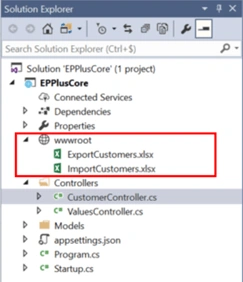
Note, in solution explorer, precisely in wwwroot folder, I added ImportCustomers.xlsx with data rows that are used to import data. To get path of the Excel file, we used the following lines of code
- string rootFolder = _hostingEnvironment.WebRootPath;
- string fileName = @"ImportCustomers.xlsx";
- FileInfo file = new FileInfo(Path.Combine(rootFolder, fileName));
Then, we have an ExportCustomer() method which is used to export the data from customers table to ExportCustomer.xlsx file.
Demo
Import Customers
Now, let’s run the application and call the following URI YourLocalHost/api/Customer/ImportCustomer.
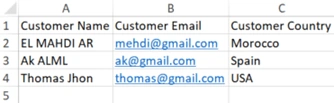
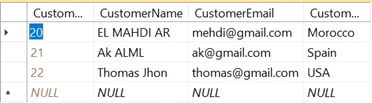
Once finished, open Customers table and you will see that the data rows have been added successfully.
ImportCustomers.xlsx
Customers table
Export Customers
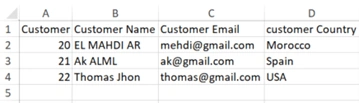
Now, we will call the following URI for exporting data rows from Customers table to ExportCustomers.xlsx.
ExportCustomers.xlsx
That’s all. Please send your feedback and queries in the comments box.
Geho Da FirenzePosted Nov 5, 2019, 5:23 PM
What do I need to do to save a new file in the computer, instead overwritting the content of the file??
Robert EverettPosted Mar 16, 2019, 7:28 AM
When I run the app, worksheet ["Customer"] is null. Do I need to create the sheet with some data in MS Excel in ImportCustomers.xlsx before adding it to wwwroot ?
Former memberPosted Aug 30, 2018, 6:22 AM
Detailed blog:http://wp.me/p3Osmq-zr
Former memberPosted Aug 30, 2018, 6:15 AM
A detailed blog with sample code : http://wp.me/p3Osmq-A4
Sagar Pandurang KapPosted Feb 19, 2018, 10:25 PM
Nice article.What is primary use of this??