

Introduction
Android is one of the most popular operating systems for mobile. I will show you how to implement a search bar in your Android application using the Android studio.Android is the kernel-based operating system. It allows the user to modify the GUI components and source code.
Requirements
- Android studio
- Little bit XML and JAVA Knowledge.
- Android emulator (or) android mobile
- Download link (android studio)
Steps should be followed
Carefully follow my steps to implement a search bar in your Android application using Android studio and I have included the source code below.
Step 1
Open Android Studio and start the new project.
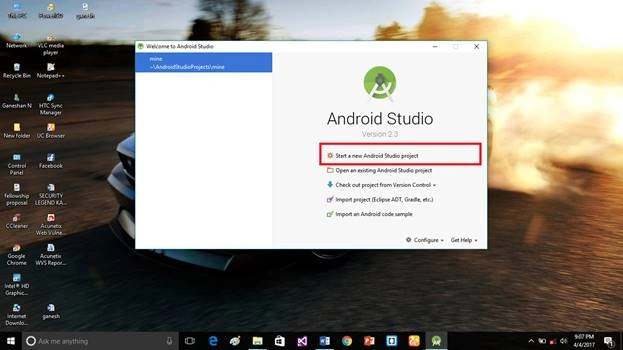 Step 2
Put the application name and company domain. If you wish to use c++ for coding the project, mark the Include c++ support then click next.
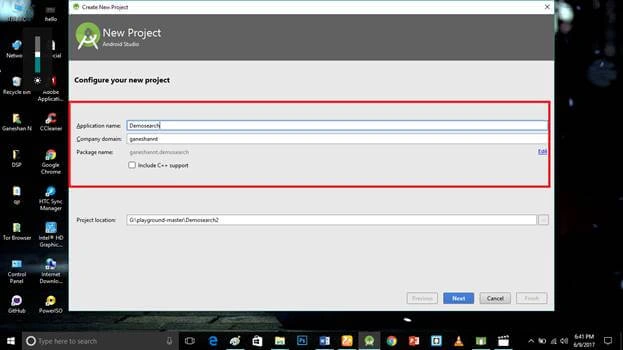 Step 3
Select the Android minimum SDK. After you chose the minimum SDK it will show an approximate percentage of people who use that sdk then click next.
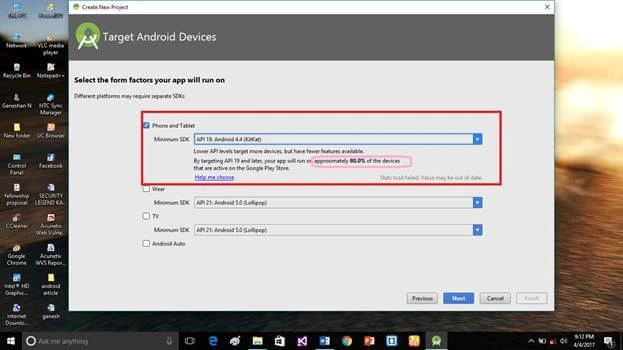 Step 4
Choose the basic activity then click next.
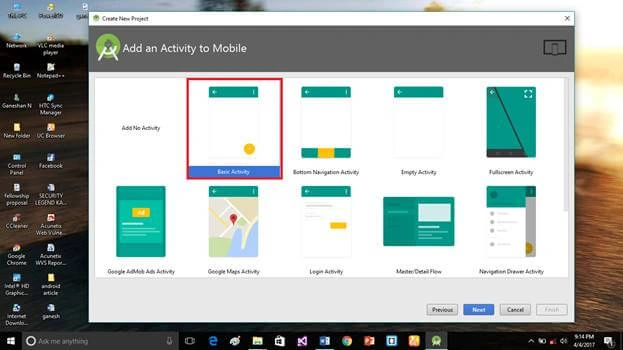 Step 5
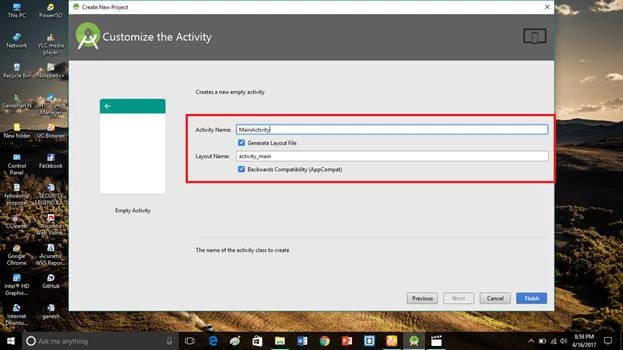
Put the activity name and layout name. Android studio basically takes the java class name as what you provide for the activity name and click finish.
 Step 6
Go to activity_main.xml then click the text bottom. This XML file contains the designing code for the android app. Into the activity_main.xml copy and paste the below code.
Activity_main.xml code
- <?xml version="1.0" encoding="utf-8"?>
- <RelativeLayout
- xmlns:android="http://schemas.android.com/apk/res/android"
- xmlns:tools="http://schemas.android.com/tools"
- android:layout_width="match_parent"
- android:layout_height="match_parent"
- android:paddingBottom="@dimen/activity_vertical_margin"
- android:paddingLeft="@dimen/activity_horizontal_margin"
- android:paddingRight="@dimen/activity_horizontal_margin"
- android:paddingTop="@dimen/activity_vertical_margin"
- tools:context="ngvl.android.demosearch.MainActivity">
- <TextView
- android:layout_width="wrap_content"
- android:layout_height="wrap_content"
- android:text="Hello World!"/>
- </RelativeLayout>
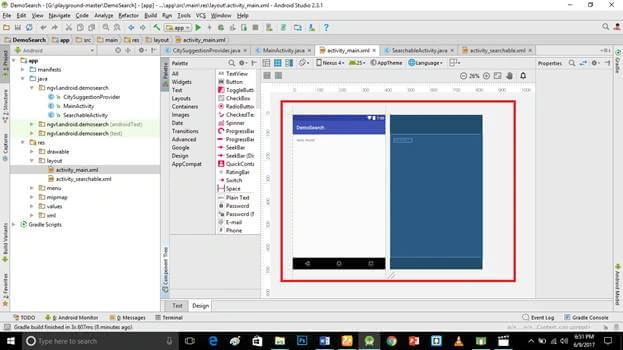
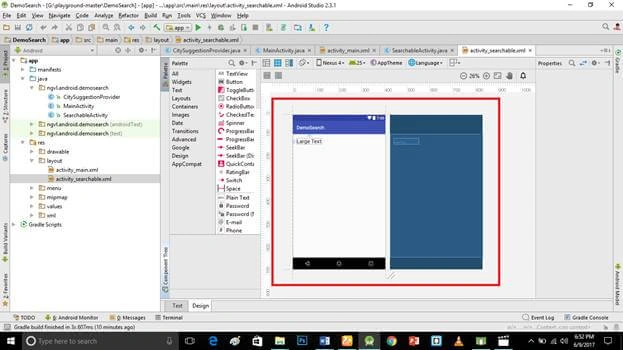
Create a new Activity_searchable.xml file (File ⇒ New ⇒Activity⇒Empty_activity).
Go to Activity_searchable.xml then click the text bottom. This xml file contains the designing code for the android app. Into the Activity_searchable.xml copy and paste the below code.
Activity_searchable.xml code
- <?xml version="1.0" encoding="utf-8"?>
- <RelativeLayout
- xmlns:android="http://schemas.android.com/apk/res/android"
- xmlns:tools="http://schemas.android.com/tools"
- android:layout_width="match_parent"
- android:layout_height="match_parent"
- android:paddingBottom="@dimen/activity_vertical_margin"
- android:paddingLeft="@dimen/activity_horizontal_margin"
- android:paddingRight="@dimen/activity_horizontal_margin"
- android:paddingTop="@dimen/activity_vertical_margin"
- tools:context="ngvl.android.demosearch.SearchableActivity">
- <TextView
- android:layout_width="wrap_content"
- android:layout_height="wrap_content"
- android:textAppearance="?android:attr/textAppearanceLarge"
- android:text="Large Text"
- android:id="@+id/textView"
- android:layout_alignParentTop="true"
- android:layout_alignParentLeft="true"
- android:layout_alignParentStart="true"/>
- </RelativeLayout>
- package ngvl.android.demosearch;
- import android.app.SearchManager;
- import android.content.ComponentName;
- import android.content.Context;
- import android.content.Intent;
- import android.os.Bundle;
- import android.support.v4.view.MenuItemCompat;
- import android.support.v7.app.AppCompatActivity;
- import android.support.v7.widget.SearchView;
- import android.view.Menu;
- import android.view.MenuItem;
- import android.widget.Toast;
- public class MainActivity extends AppCompatActivity
- implements SearchView.OnQueryTextListener {
- @Override
- protected void onCreate(Bundle savedInstanceState) {
- super.onCreate(savedInstanceState);
- setContentView(R.layout.activity_main);
- }
- @Override
- public boolean onCreateOptionsMenu(Menu menu) {
- getMenuInflater().inflate(R.menu.menu_search, menu);
- MenuItem searchItem = menu.findItem(R.id.search);
- SearchView searchView = (SearchView) MenuItemCompat.getActionView(searchItem);
- searchView.setOnQueryTextListener(this);
- SearchManager searchManager = (SearchManager) getSystemService(Context.SEARCH_SERVICE);
- searchView.setSearchableInfo(searchManager.getSearchableInfo(
- new ComponentName(this, SearchableActivity.class)));
- searchView.setIconifiedByDefault(false);
- return true;
- }
- @Override
- protected void onNewIntent(Intent intent) {
- super.onNewIntent(intent);
- if (Intent.ACTION_SEARCH.equals(intent.getAction())) {
- String query = intent.getStringExtra(SearchManager.QUERY);
- Toast.makeText(this, "Searching by: "+ query, Toast.LENGTH_SHORT).show();
- } else if (Intent.ACTION_VIEW.equals(intent.getAction())) {
- String uri = intent.getDataString();
- Toast.makeText(this, "Suggestion: "+ uri, Toast.LENGTH_SHORT).show();
- }
- }
- @Override
- public boolean onQueryTextSubmit(String query) {
- // User pressed the search button
- return false;
- }
- @Override
- public boolean onQueryTextChange(String newText) {
- // User changed the text
- return false;
- }
- }
Step 9
Create a new CitySuggesionProvider.java file (File ⇒ New ⇒Java class).
Into the CitySuggesionProvider.java copy and paste the below code. Java programming is the backend language for Android. Do not replace your package name otherwise, the app will not run.
CitySuggesionProvider.java code
- package ngvl.android.demosearch;
- import android.app.SearchManager;
- import android.content.ContentProvider;
- import android.content.ContentValues;
- import android.content.UriMatcher;
- import android.database.Cursor;
- import android.database.MatrixCursor;
- import android.net.Uri;
- import android.provider.BaseColumns;
- import android.util.Log;
- import org.json.JSONArray;
- import java.util.ArrayList;
- import java.util.List;
- import okhttp3.OkHttpClient;
- import okhttp3.Request;
- import okhttp3.Response;
- public class CitySuggestionProvider extends ContentProvider {
- private static final String AUTHORITY = "ngvl.android.demosearch.citysuggestion";
- private static final int TYPE_ALL_SUGGESTIONS = 1;
- private static final int TYPE_SINGLE_SUGGESTION = 2;
- private UriMatcher mUriMatcher;
- private List<String> cities;
- @Override
- public boolean onCreate() {
- mUriMatcher = new UriMatcher(UriMatcher.NO_MATCH);
- mUriMatcher.addURI(AUTHORITY, "/#", TYPE_SINGLE_SUGGESTION);
- mUriMatcher.addURI(AUTHORITY, "search_suggest_query/*", TYPE_ALL_SUGGESTIONS);
- return false;
- }
- @Override
- public Cursor query(Uri uri, String[] projection, String selection,
- String[] selectionArgs, String sortOrder) {
- if (cities == null || cities.isEmpty()){
- Log.d("NGVL", "WEB");
- OkHttpClient client = new OkHttpClient();
- Request request = new Request.Builder()
- .url("https://dl.dropboxusercontent.com/u/6802536/cidades.json")
- .build();
- try {
- Response response = client.newCall(request).execute();
- String jsonString = response.body().string();
- JSONArray jsonArray = new JSONArray(jsonString);
- cities = new ArrayList<>();
- int lenght = jsonArray.length();
- for (int i = 0; i < lenght; i++) {
- String city = jsonArray.getString(i);
- cities.add(city);
- }
- } catch (Exception e) {
- e.printStackTrace();
- }
- } else {
- Log.d("NGVL", "Cache!");
- }
- MatrixCursor cursor = new MatrixCursor(
- new String[] {
- BaseColumns._ID,
- SearchManager.SUGGEST_COLUMN_TEXT_1,
- SearchManager.SUGGEST_COLUMN_INTENT_DATA_ID
- }
- );
- if (mUriMatcher.match(uri) == TYPE_ALL_SUGGESTIONS) {
- if (cities != null) {
- String query = uri.getLastPathSegment().toUpperCase();
- int limit = Integer.parseInt(uri.getQueryParameter(SearchManager.SUGGEST_PARAMETER_LIMIT));
- int lenght = cities.size();
- for (int i = 0; i < lenght && cursor.getCount() < limit; i++) {
- String city = cities.get(i);
- if (city.toUpperCase().contains(query)) {
- cursor.addRow(new Object[]{i, city, i});
- }
- }
- }
- } else if (mUriMatcher.match(uri) == TYPE_SINGLE_SUGGESTION) {
- int position = Integer.parseInt(uri.getLastPathSegment());
- String city = cities.get(position);
- cursor.addRow(new Object[]{position, city, position});
- }
- return cursor;
- }
- @Override
- public int delete(Uri uri, String selection, String[] selectionArgs) {
- throw new UnsupportedOperationException("Not yet implemented");
- }
- @Override
- public String getType(Uri uri) {
- throw new UnsupportedOperationException("Not yet implemented");
- }
- @Override
- public Uri insert(Uri uri, ContentValues values) {
- throw new UnsupportedOperationException("Not yet implemented");
- }
- @Override
- public int update(Uri uri, ContentValues values, String selection,
- String[] selectionArgs) {
- throw new UnsupportedOperationException("Not yet implemented");
- }
- }
Step 10
Create a new SearchableActivity.java file (File ⇒ New ⇒Java class).
Into the SearchableActivity.java copy and paste the below code.java programming is the backend language for Android. Do not replace your package name otherwise, the app will not run.
SearchableActivity.java code
- package ngvl.android.demosearch;
- import android.app.SearchManager;
- import android.content.AsyncQueryHandler;
- import android.content.Intent;
- import android.database.Cursor;
- import android.os.Bundle;
- import android.provider.BaseColumns;
- import android.support.v7.app.AppCompatActivity;
- import android.widget.TextView;
- import java.lang.ref.WeakReference;
- public class SearchableActivity extends AppCompatActivity {
- private MyHandler mHandler;
- private TextView txt;
- @Override
- protected void onCreate(Bundle savedInstanceState) {
- super.onCreate(savedInstanceState);
- setContentView(R.layout.activity_searchable);
- txt = (TextView)findViewById(R.id.textView);
- Intent intent = getIntent();
- if (Intent.ACTION_SEARCH.equals(intent.getAction())) {
- String query = intent.getStringExtra(SearchManager.QUERY);
- txt.setText("Searching by: "+ query);
- } else if (Intent.ACTION_VIEW.equals(intent.getAction())) {
- mHandler = new MyHandler(this);
- mHandler.startQuery(0, null, intent.getData(), null, null, null, null);
- }
- }
- public void updateText(String text){
- txt.setText(text);
- }
- static class MyHandler extends AsyncQueryHandler {
- // avoid memory leak
- WeakReference<SearchableActivity> activity;
- public MyHandler(SearchableActivity searchableActivity) {
- super(searchableActivity.getContentResolver());
- activity = new WeakReference<>(searchableActivity);
- }
- @Override
- protected void onQueryComplete(int token, Object cookie, Cursor cursor) {
- super.onQueryComplete(token, cookie, cursor);
- if (cursor == null || cursor.getCount() == 0) return;
- cursor.moveToFirst();
- long id = cursor.getLong(cursor.getColumnIndex(BaseColumns._ID));
- String text = cursor.getString(cursor.getColumnIndex(SearchManager.SUGGEST_COLUMN_TEXT_1));
- long dataId = cursor.getLong(cursor.getColumnIndex(SearchManager.SUGGEST_COLUMN_INTENT_DATA_ID));
- cursor.close();
- if (activity.get() != null) {
- activity.get().updateText("onQueryComplete: " + id + " / " + text + " / " + dataId);
- }
- }
- };
- }
Step 11
Create a new dimens.xml file into the values folder (File ⇒ New ⇒Activity⇒Empty_activity).
Go to dimens.xml then click the text bottom. This XML file contains the designing code for the android app. Into the dimens.xml copy and paste the below code.
dimens.xml code
- <resources>
- <!-- Default screen margins, per the Android Design guidelines. -->
- <dimen name="activity_horizontal_margin">16dp</dimen>
- <dimen name="activity_vertical_margin">16dp</dimen>
- </resources>
Step 12
Create an XML folder into the values folder.
Create a new searchable.xml file into the values folder (File ⇒ New ⇒Activity⇒Empty_activity).
Go to searchable.xml then click the text bottom. This XML file contains the designing code for the Android app. Go into the searchable.xml copy and paste the below code. Below the list of strings contains ringtones name list.
searchable.xml code
- <searchable xmlns:android="http://schemas.android.com/apk/res/android"
- android:hint="@string/hint_search"
- android:label="@string/app_name"
- android:voiceSearchMode="showVoiceSearchButton|launchRecognizer"
- android:searchSuggestAuthority="ngvl.android.demosearch.citysuggestion"
- android:searchSuggestIntentAction="android.intent.action.VIEW"
- android:searchSuggestIntentData="content://ngvl.android.demosearch.citysuggestion"/>
Step 13
Create new strings.xml file into the values folder (File ⇒ New ⇒Activity⇒Empty_activity).
Go to strings.xml then click the text bottom. This XML file contains the designing code for the Android app. Go into the strings.xml copy and paste the below code. The below list of strings contains the ringtones name list.
strings.xml code
- <resources>
- <string name="app_name">DemoSearch</string>
- <string name="hint_search">Searching for…</string>
- <string name="search_description">City, Cities</string>
- </resources>
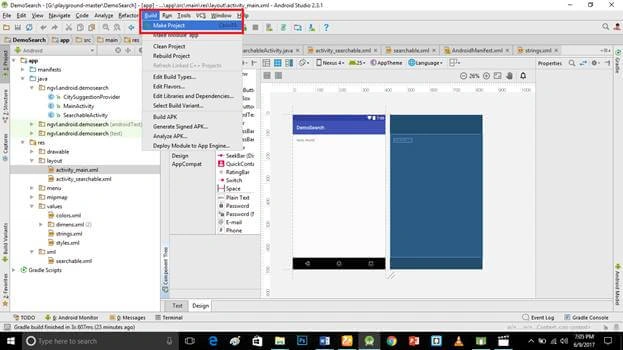
Click the make project option and run.
Deliverables
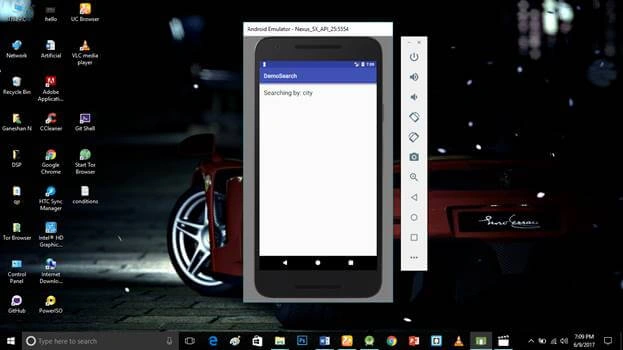
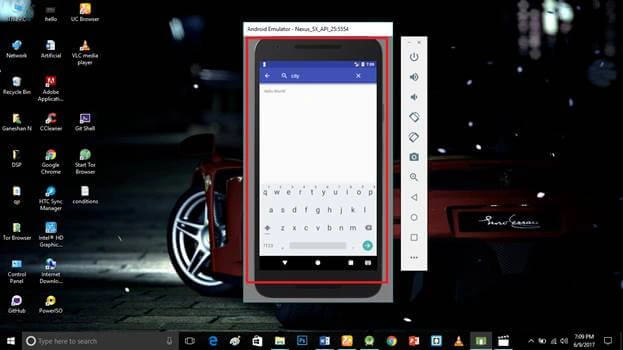
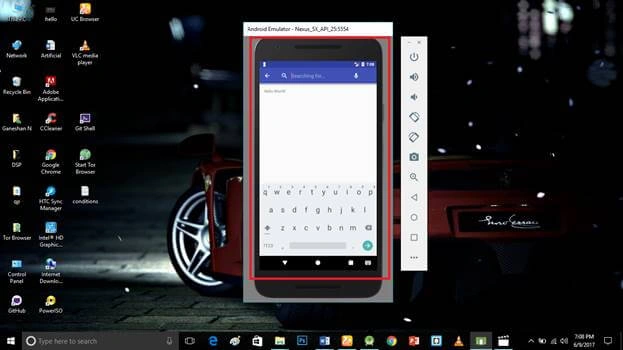
Here search bar in your android application is successfully created and executed.
 Don’t forget to like and follow me. If you have any doubts just comment below.
Ashique KPosted Mar 23, 2020, 9:43 AM
Hai. Please sent your email id . I want to ask some doubt