

Introduction
Android is one of the most popular operating systems for mobile. Nowadays, gestures are an important element of Android apps. Gestures make it easy to access the apps and make things convenient for the user.
In this article, I will show you how to implement gestures in Android applications using Android Studio. Android is a kernel-based operating system. In Android, users can modify the GUI components and source code.
Requirements
- Android Studio
- A little knowledge of XML and JAVA
- Android Emulator (or) Android mobile
Steps to be followed
Carefully follow my steps to implement gestures in Android applications using Android Studio. I have included the source code too.
Step 1
Open Android Studio and start a new project.
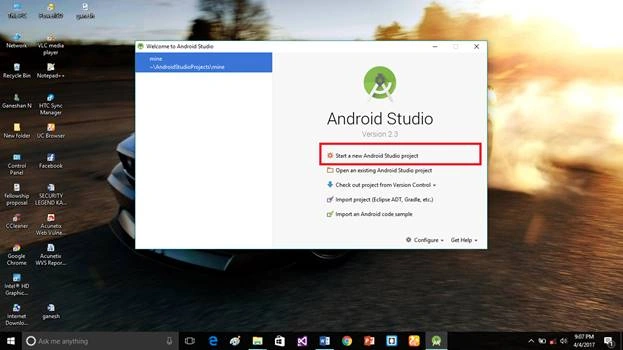 Step 2
Put the application name and company domain. If you wish to use C++ for coding this project, mark the "Include C++ support" checkbox and click Next.
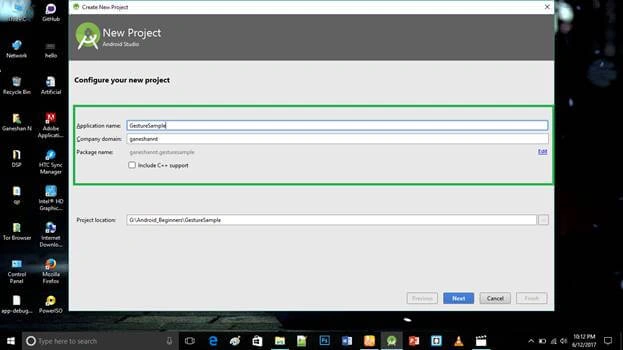 Step 3
Select the Android minimum SDK and click Next.
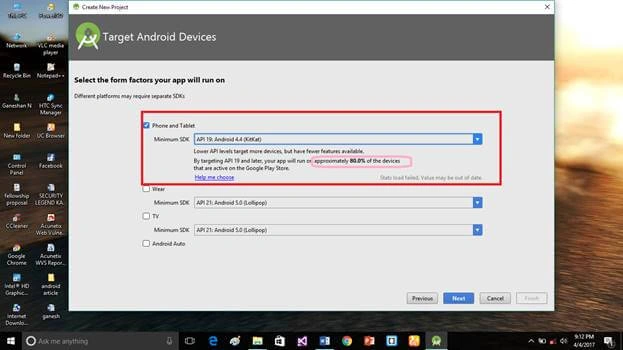 Step 4
Choose "Basic Activity" and click Next.
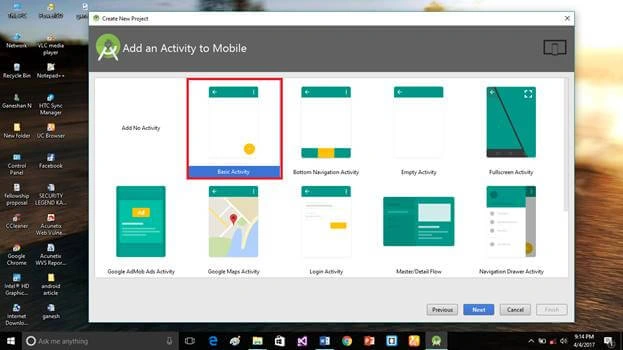 Step 5
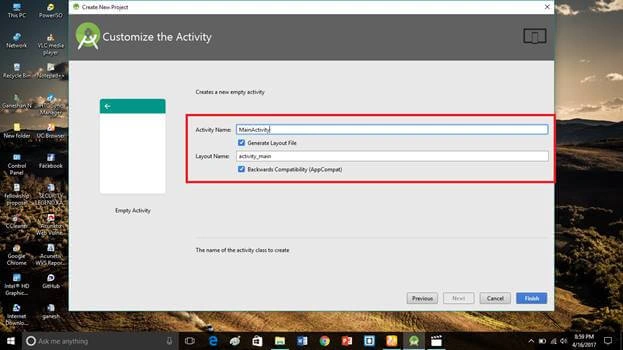
Put the activity name and layout name. Android Studio basically takes Java class name as what you provide for activity name. Now, click Finish.
 Step 6
Go to activity_main.xml and click the text button. This xml file contains the designing code for the Android app. In the activity_main.xml file, copy and paste the below code.
Activity_main.xml code
- <?xml version="1.0" encoding="utf-8"?>
- <RelativeLayout xmlns:android="http://schemas.android.com/apk/res/android"
- xmlns:app="http://schemas.android.com/apk/res-auto"
- xmlns:tools="http://schemas.android.com/tools"
- android:layout_width="match_parent"
- android:layout_height="match_parent"
- tools:context="ganeshannt.gesturesample.MainActivity">
- <TextView
- android:id="@+id/ganimsg"
- android:layout_width="wrap_content"
- android:layout_height="wrap_content"
- android:layout_alignParentTop="true"
- android:layout_centerHorizontal="true"
- android:layout_marginTop="230dp"
- android:text="TextView"
- android:textAppearance="@style/TextAppearance.AppCompat.Body2" />
- </RelativeLayout>
User interface
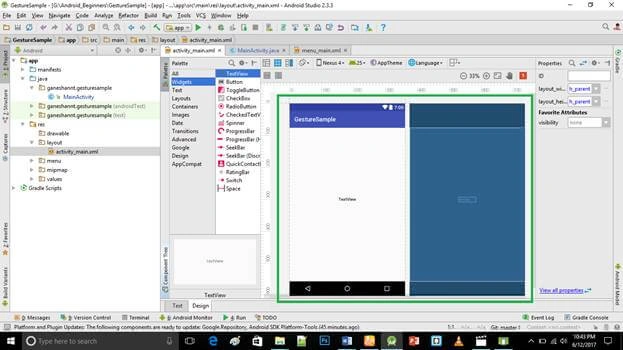 Step 7
In the MainActivity.java file, copy and paste the below code. Java is a back-end language for Android. Do not replace your package name otherwise, the app will not run.
MainActivity.java code
- package ganeshannt.gesturesample;
- import android.support.v7.app.ActionBarActivity;
- import android.os.Bundle;
- import android.view.Menu;
- import android.view.MenuItem;
- import android.widget.TextView;
- import android.view.MotionEvent;
- import android.view.GestureDetector;
- import android.support.v4.view.GestureDetectorCompat;
- public class MainActivity extends ActionBarActivity implements GestureDetector.OnGestureListener,
- GestureDetector.OnDoubleTapListener {
- private TextView ganeshMessage;
- private GestureDetectorCompat gestureDetector;
- @Override
- protected void onCreate(Bundle savedInstanceState) {
- super.onCreate(savedInstanceState);
- setContentView(R.layout.activity_main);
- ganeshMessage = (TextView) findViewById(R.id.ganimsg);
- this.gestureDetector = new GestureDetectorCompat(this, this);
- gestureDetector.setOnDoubleTapListener(this);
- }
- ///////// GESTURE METHODS //////////
- @Override
- public boolean onSingleTapConfirmed(MotionEvent e) {
- ganeshMessage.setText("onSingleTapConfirmed");
- return true;
- }
- @Override
- public boolean onDoubleTap(MotionEvent e) {
- ganeshMessage.setText("onDoubleTap");
- return true;
- }
- @Override
- public boolean onDoubleTapEvent(MotionEvent e) {
- ganeshMessage.setText("onDoubleTapEvent");
- return true;
- }
- @Override
- public boolean onDown(MotionEvent e) {
- ganeshMessage.setText("onDown");
- return true;
- }
- @Override
- public void onShowPress(MotionEvent e) {
- ganeshMessage.setText("onShowPress");
- }
- @Override
- public boolean onSingleTapUp(MotionEvent e) {
- ganeshMessage.setText("onSingleTapUp");
- return true;
- }
- @Override
- public boolean onScroll(MotionEvent e1, MotionEvent e2, float distanceX, float distanceY) {
- ganeshMessage.setText("onScroll");
- return true;
- }
- @Override
- public void onLongPress(MotionEvent e) {
- ganeshMessage.setText("onLongPress");
- }
- @Override
- public boolean onFling(MotionEvent e1, MotionEvent e2, float velocityX, float velocityY) {
- ganeshMessage.setText("onFling");
- return true;
- }
- ///////// GESTURE METHODS //////////
- @Override
- public boolean onTouchEvent(MotionEvent event) {
- this.gestureDetector.onTouchEvent(event);
- return super.onTouchEvent(event);
- }
- @Override
- public boolean onCreateOptionsMenu(Menu menu) {
- // Inflate the menu; this adds items to the action bar if it is present.
- getMenuInflater().inflate(R.menu.menu_main, menu);
- return true;
- }
- @Override
- public boolean onOptionsItemSelected(MenuItem item) {
- // Handle action bar item clicks here. The action bar will
- // automatically handle clicks on the Home/Up button, so long
- // as you specify a parent activity in AndroidManifest.xml.
- int id = item.getItemId();
- //noinspection SimplifiableIfStatement
- if (id == R.id.action_settings) {
- return true;
- }
- return super.onOptionsItemSelected(item);
- }
- }
- <?xml version="1.0" encoding="utf-8"?>
- <manifest xmlns:android="http://schemas.android.com/apk/res/android"
- package="ganeshannt.gesturesample">
- <application
- android:allowBackup="true"
- android:icon="@mipmap/ic_launcher"
- android:label="@string/app_name"
- android:roundIcon="@mipmap/ic_launcher_round"
- android:supportsRtl="true"
- android:theme="@style/AppTheme">
- <activity android:name=".MainActivity">
- <intent-filter>
- <action android:name="android.intent.action.MAIN" />
- <category android:name="android.intent.category.LAUNCHER" />
- </intent-filter>
- </activity>
- </application>
- </manifest>
Step 9
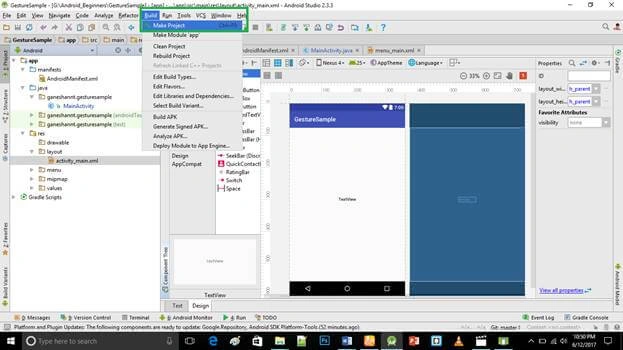
This is our user interface of the application. Click the "Make Project" option.
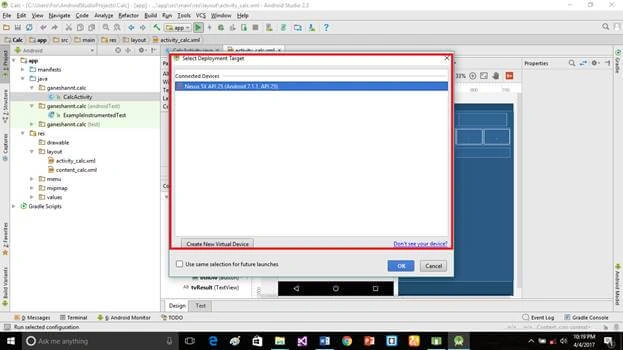
Run the application >> select virtual machine >> click OK.
 Deliverables
Here, we have successfully implemented gestures in an Android application.
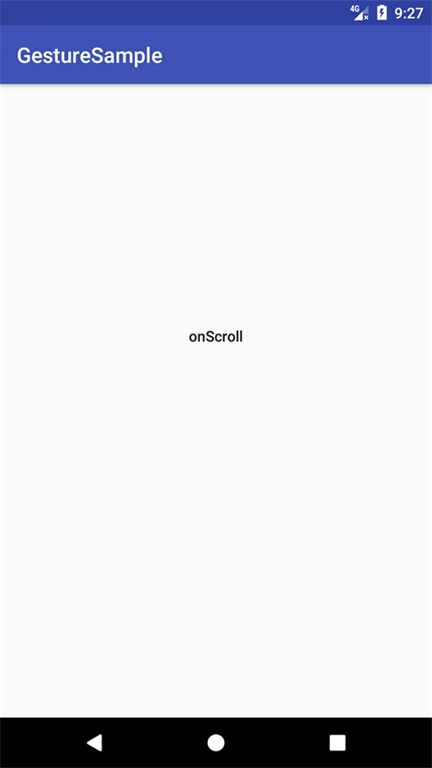
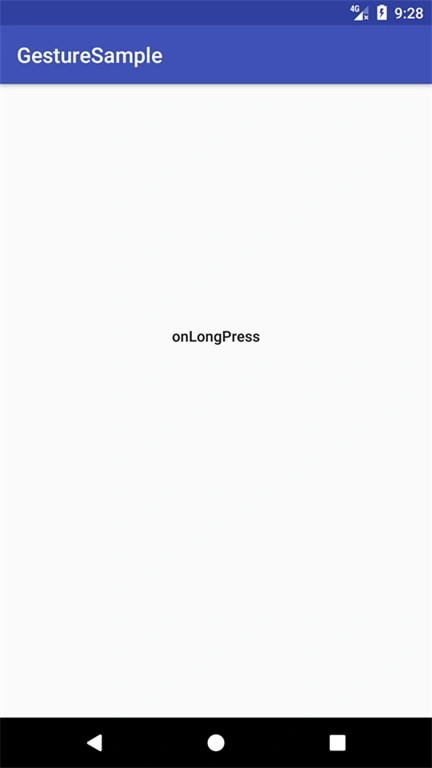
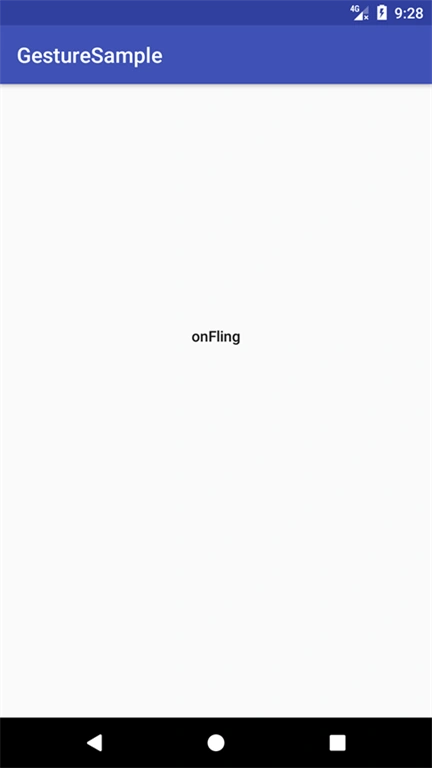
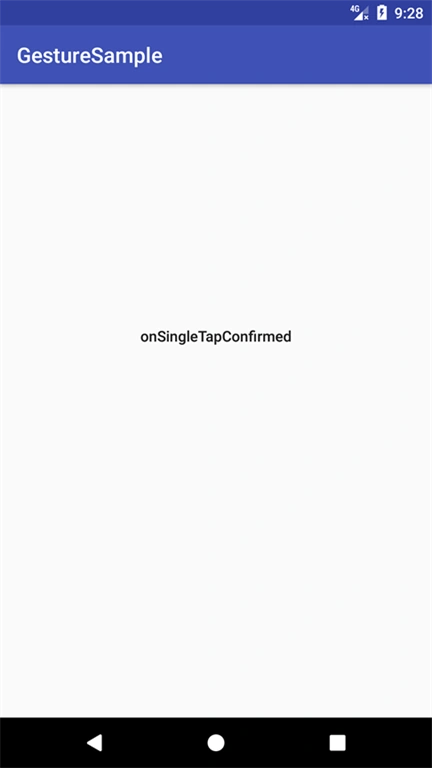 Don’t forget to like and follow me. If you have any doubts, just comment below.
Source code - https://github.com/GaneshanNT/GestureSample
Join the conversation! Your thoughts help the community grow.