

Problem
DataSet
- broccoli.jpg broccoli
- broccoli.png broccoli
- canoe2.jpg canoe
- canoe3.jpg canoe
- canoe4.jpg canoe
- coffeepot.jpg coffeepot
- coffeepot2.jpg coffeepot
- coffeepot3.jpg coffeepot
- coffeepot4.jpg coffeepot
- pizza.jpg pizza
- pizza2.jpg pizza
- pizza3.jpg pizza
- teddy1.jpg teddy bear
- teddy2.jpg teddy bear
- teddy3.jpg teddy bear
- teddy4.jpg teddy bear
- teddy6.jpg teddy bear
- toaster.jpg toaster
- toaster2.png toaster
- toaster3.jpg toaster
The training and testing images are located in the assets folders. These images belong to Wikimedia Commons.
- Wikimedia Commons, the free media repository. Retrieved 10:48, October 17, 2018 from:
- https://commons.wikimedia.org/wiki/Pizza
- https://commons.wikimedia.org/wiki/Coffee_pot
- https://commons.wikimedia.org/wiki/Toaster
- https://commons.wikimedia.org/wiki/Category:Canoes
- https://commons.wikimedia.org/wiki/Teddy_bear
Pre-trained model
Solution
Again, note that this sample only uses/consumes a pre-trained TensorFlow model with ML.NET API. Therefore, it does not train any ML.NET model. Currently, TensorFlow is only supported in ML.NET for scoring/predicting with existing TensorFlow trained models.
Code Walkthrough
ML.NET: Model Scoring
The image file used to load images has two columns: the first one is defined as ImagePath and the second one is the Labelcorresponding to the image.
It is important to highlight that the label in the ImageNetData class is not really used when scoring with the TensorFlow model. It is used when testing the predictions so you can compare the actual label of each sample data with the predicted label provided by the TensorFlow model.
- broccoli.jpg broccoli
- bucket.png bucket
- canoe.jpg canoe
- snail.jpg snail
- teddy1.jpg teddy bear
As you can observe, the file does not have a header row.
The Inception model has several default parameters you need to pass in.
- public struct ImageNetSettings {
- public const int imageHeight = 224;
- public const int imageWidth = 224;
- public const float mean = 117;
- public const bool channelsLast = true;
- }
The second step is to define the estimator pipeline. Usually, when dealing with deep neural networks, you must adapt the images to the format expected by the network. This is the reason images are resized and then transformed (mainly, pixel values are normalized across all R,G,B channels).
- var pipeline = mlContext.Transforms.LoadImages(outputColumnName: "input", imageFolder: imagesFolder, inputColumnName: nameof(ImageNetData.ImagePath))
- .Append(mlContext.Transforms.ResizeImages(outputColumnName: "input", imageWidth: ImageNetSettings.imageWidth, imageHeight: ImageNetSettings.imageHeight, inputColumnName: "input"))
- .Append(mlContext.Transforms.ExtractPixels(outputColumnName: "input", interleavePixelColors: ImageNetSettings.channelsLast, offsetImage: ImageNetSettings.mean))
- .Append(mlContext.Model.LoadTensorFlowModel(modelLocation)
- .ScoreTensorFlowModel(outputColumnNames: new[] { "softmax2" }, inputColumnNames: new[] { "input" },
- addBatchDimensionInput:true));
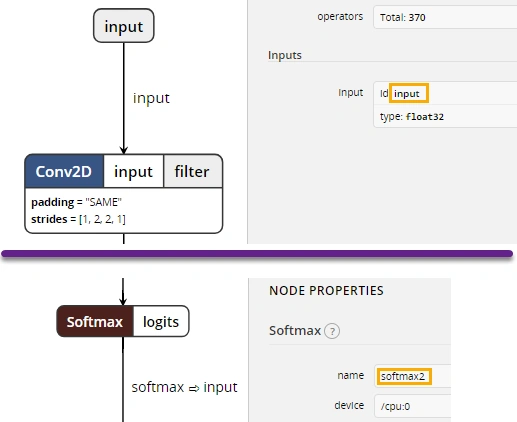
You also need to check the neural network and check the names of the input/output nodes. In order to inspect the model, you can use tools like Netron, which is automatically installed with Visual Studio Tools for AI. These names are used later in the definition of the estimation pipe: in the case of the inception network, the input tensor is named 'input' and the output is named 'softmax2'
Finally, we extract the prediction engine after fitting the estimator pipeline. The prediction engine receives as a parameter an object of type ImageNetData (containing 2 properties: ImagePath and Label) and then returns an object of type ImagePrediction.
- ITransformer model = pipeline.Fit(data);
- var predictionEngine = mlContext.Model.CreatePredictionEngine<ImageNetData, ImageNetPrediction>(model);
ImageClassification.Score
ImageClassification.Web
- Open Visual Studio>New Projects>ASP.NET Core
- Set Project name as ImageClassification.Web
- Click Create button>MVC Web Application
- A new Project will be added to your solution.
- Open Nuget Manager Console and write Install-Package Microsoft.ML
- Right-click on the project and Add refrence>Select ImageClassification.Score>Press Ok
- Download assets from here and include in project
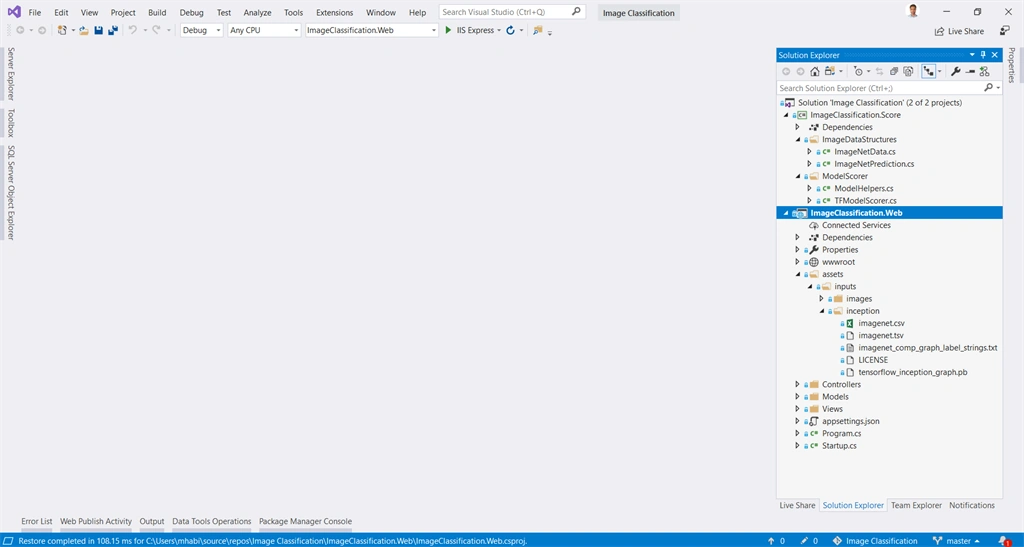
- Here is how your project will look,
- Now we need to consume the model. Create a new Controller or Open HomeController and add the following snippet.
- using System;
- using System.Collections.Generic;
- using System.Diagnostics;
- using System.Linq;
- using System.Threading.Tasks;
- using Microsoft.AspNetCore.Mvc;
- using ImageClassification.Web.Models;
- using System.IO;
- using ImageClassification.ModelScorer;
- using Microsoft.AspNetCore.Http;
- using ImageClassification.ImageDataStructures;
- namespace ImageClassification.Web.Controllers
- {
- public class HomeController : Controller
- {
- public IActionResult Index()
- {
- return View();
- }
- [HttpPost]
- public async Task<IActionResult> Index(IFormFile image)
- {
- string assetsRelativePath = @"../../../assets";
- string assetsPath = GetAbsolutePath(assetsRelativePath);
- var tagsTsv = Path.Combine(assetsPath, "inputs", "images", "tags.tsv");
- var imagesFolder = Path.Combine(assetsPath, "inputs", "images");
- //Path of Tensor Flow pre trained model
- var inceptionPb = Path.Combine(assetsPath, "inputs", "inception", "tensorflow_inception_graph.pb");
- var labelsTxt = Path.Combine(assetsPath, "inputs", "inception", "imagenet_comp_graph_label_strings.txt");
- try
- {
- var filePath = Path.GetTempFileName();
- //Save image to temp
- using(var ms=new FileStream(filePath,FileMode.Create))
- {
- await image.CopyToAsync(ms);
- }
- //Create Tensor Flow model for image classification and prediction using ML.NET API
- var modelScorer = new TFModelScorer(tagsTsv, imagesFolder, inceptionPb, labelsTxt);
- //Check image prediction
- var prediction=(ImageNetDataProbability)modelScorer.Score(new ImageNetData() { ImagePath=filePath,Label=""});
- //Store results to ViewBag to show in View
- ViewBag.PredictedLabel = prediction.PredictedLabel;
- ViewBag.Probability = prediction.Probability;
- }
- catch
- {
- return View();
- }
- return View();
- }
- public static string GetAbsolutePath(string relativePath)
- {
- FileInfo _dataRoot = new FileInfo(typeof(Program).Assembly.Location);
- string assemblyFolderPath = _dataRoot.Directory.FullName;
- string fullPath = Path.Combine(assemblyFolderPath, relativePath);
- return fullPath;
- }
- }
- }
- Now we need to create an index view which will be used to upload image to server and show image classification or prediction result from server. Please add following snippet to your view.
- @{
- ViewData["Title"] = "Home Page";
- }
- <h2>Image Classification in ASP.NET Core Using ML.NET with TensorFlow</h2>
- <hr />
- <div class="row">
- <div class="col-md-6">
- <form method="post" enctype="multipart/form-data">
- <input type="file" name="image" />
- <button class="btn btn-sm btn-primary" type="submit">Classify</button>
- </form>
- </div>
- <div class="col-md-6">
- @if (ViewBag.Probability != null)
- {
- <h3>Prediction</h3>
- <h6>Predicted Label: @ViewBag.PredictedLabel</h6>
- <h6>Probability: @ViewBag.Probability</h6>
- }
- </div>
- </div>

- Now try to build and run the ImageClassification.Web application
Demo
nikhil agrawalPosted May 30, 2020, 6:50 AM
I have replace this pizza image to Dog in source folder and upload dog image for tested result proved dog . who is it posible.
nikhil agrawalPosted May 30, 2020, 6:49 AM
I want to pass other image that give proper output (like man images pass than give proper score ). how can this possible .\
rajuPosted Mar 12, 2020, 7:02 AM
Is there is any optimization techniques because it takes around 3 seconds., any way to reduce??
Rajanikant HawaldarPosted Sep 8, 2019, 12:29 PM
nice article