

Introduction
Welcome back to my "HTML5 Canvas Advanced" article series. In my previous article series, I explained the basic and advanced parts of transformation, you can read about them here:
- HTML5 Canvas For Advance- Part-1: Basic Transformation
- HTML5 Canvas For Advance- Part-2: Advance Transformation
In this article, we will learn about State Stacks, Shadows and some basics of composites.
State Stack
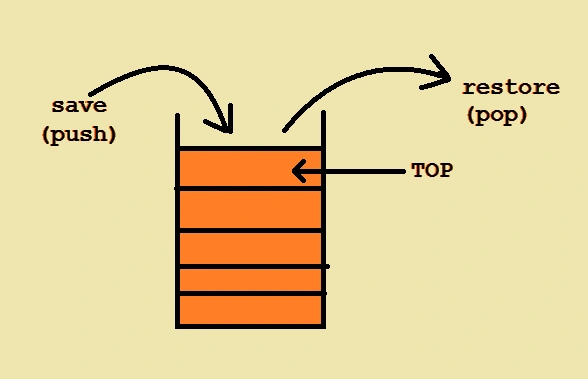
In an HTML5 Canvas, we can save and restore transformation states in a canvas context using the "save()" and "restore()" methods of it. These methods come from a concept known as a stack, it works like a container of objects where the objects are inserted and removed using a LIFO (Last-In-First-Out) process. In a similar way, the "save()" method adds an element to the top of the stack and the "restore()" method removes the item from the top. Let's use as an example a stack of books where you can remove only the top book from the stack and if you want to add a new book just put it on the top of the stack. [Reference Link]
Example
- <body>
- <form id="form1" runat="server">
- <div>
- <canvas id="drawCanvas" width="500" height="450"></canvas>
- <script>
- var drawCanvas = document.getElementById('drawCanvas');
- var ctx = drawCanvas.getContext('2d');
- gridDraw(ctx, '#333', 15, 15);
- ctx.save();
- //push 1 - orange
- ctx.translate(250, 150);
- ctx.save();
- //push 2 - blue
- ctx.rotate(Math.PI / 4);
- ctx.save();
- //push 3 - red
- ctx.scale(1, 2.5);
- ctx.globalAlpha = 0.6;
- ctx.fillStyle = "green";
- ctx.fillRect(0, 0, 150, 100);
- ctx.fill();
- ctx.restore();
- //pop 3
- ctx.fillStyle = "red";
- ctx.fillRect(0, 50, 150, 100);
- ctx.fill();
- ctx.restore();
- //pop 2
- ctx.fillStyle = "blue";
- ctx.fillRect(0, 0, 150, 100);
- ctx.fill();
- ctx.restore();
- //pop 1
- ctx.fillStyle = "#a51";
- ctx.fillRect(0, 0, 150, 100);
- ctx.fill();
- </script>
- </div>
- </form>
- </body>
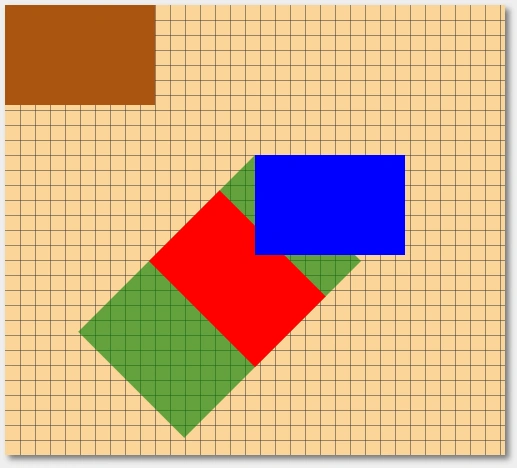
Output
Drawing an Oval
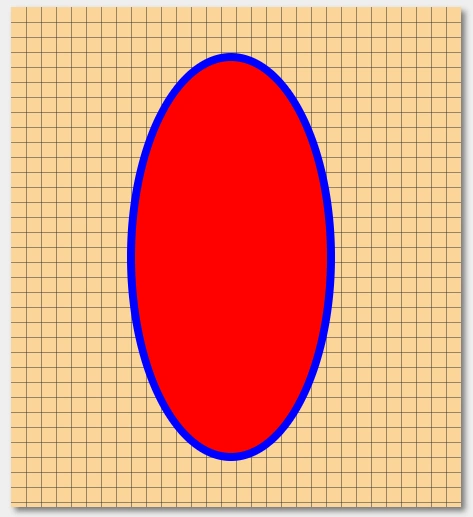
In an HTML5 Canvas, we can create an oval by saving the context state, then stretch the context vertically, now draw a circle, restore the canvas state that you saved, and finally apply to style to it. Let's see an example.
Example:
- <body>
- <form id="form1" runat="server">
- <div>
- <canvas id="drawCanvas" width="450" height="500"></canvas>
- <script>
- var drawCanvas = document.getElementById('drawCanvas');
- var ctx = drawCanvas.getContext('2d');
- gridDraw(ctx, '#333', 15, 15);
- // save context state
- ctx.save();
- // it translate the context
- ctx.translate(220, 250);
- // it scales context vertically
- ctx.scale(1, 2);
- ctx.beginPath();
- ctx.arc(0, 0, 100, 0, Math.PI * 2, false);
- // it will restore back to its initial state
- ctx.restore();
- // it apply style to circle
- ctx.fillStyle = '#f00';
- ctx.fill();
- // it apply style to stroke
- ctx.lineWidth = 8;
- ctx.strokeStyle = 'blue';
- ctx.stroke();
- </script>
- </div>
- </form>
- </body>
Output
HTML5 Canvas, Basic Composites
Shadow
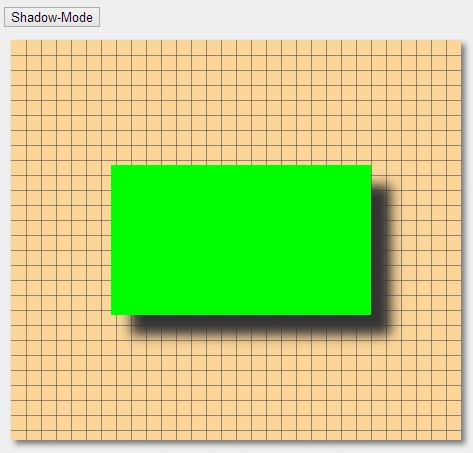
In HTML5 Canvas, we can add shadows with the canvas context using the following four properties:
- shadowColor
- shadowBlur
- shadowOffsetX
- shadowOffsetY
Example: Check Live Demo
- <body>
- <form id="form1" runat="server">
- <div>
- <input type="button" id="button" value="Shadow-Mode" onclick="effect()" /> <br />
- <canvas id="drawCanvas" width="450" height="400"></canvas>
- <script>
- var drawCanvas = document.getElementById('drawCanvas');
- var ctx = drawCanvas.getContext('2d');
- gridDraw(ctx, '#333', 15, 15);
- ctx.rect(100, 125, 260, 150);
- ctx.fillStyle = '#0f0';
- ctx.fill();
- var effect = function () {
- ctx.rect(100, 125, 260, 150);
- ctx.shadowColor = '#333';
- ctx.shadowBlur = 20;
- ctx.shadowOffsetX = 20;
- ctx.shadowOffsetY = 20;
- ctx.fill();
- }
- </script>
- </div>
- </form>
- </body>
Output
Global Alpha
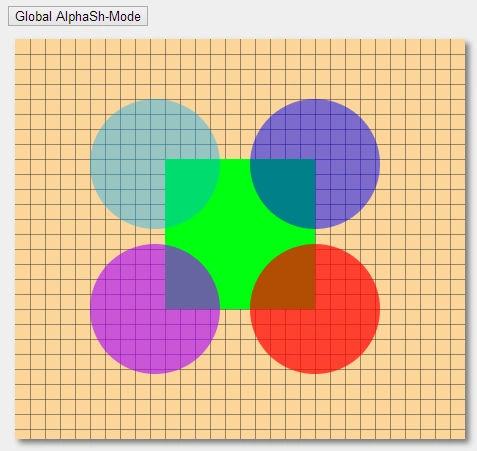
In HTML5 Canvas, we can set the opacity of other elements with the canvas context using the "globalAlpha" property of it. We can set the property of the canvas context to a real number between 0 and 1. Here, 0 is fully transparent and 1 is fully opaque.
Example : Check Live Demo
- <body>
- <form id="form1" runat="server">
- <div>
- <input type="button" id="button" value="Global AlphaSh-Mode" onclick="effect()" /> <br />
- <canvas id="drawCanvas" width="450" height="400"></canvas>
- <script>
- var drawCanvas = document.getElementById('drawCanvas');
- var ctx = drawCanvas.getContext('2d');
- gridDraw(ctx, '#333', 15, 15);
- ctx.beginPath();
- ctx.rect(150, 120, 150, 150);
- ctx.fillStyle = '#0f1';
- ctx.fill();
- var effect = function () {
- ctx.globalAlpha = 0.4;
- ctx.beginPath();
- ctx.arc(140, 125, 65, 0, 2 * Math.PI, false);
- ctx.fillStyle = '#0af';
- ctx.fill();
- ctx.globalAlpha = 0.5;
- ctx.beginPath();
- ctx.arc(300, 125, 65, 0, 2 * Math.PI, false);
- ctx.fillStyle = '#00f';
- ctx.fill();
- ctx.globalAlpha = 0.6;
- ctx.beginPath();
- ctx.arc(140, 270, 65, 0, 2 * Math.PI, false);
- ctx.fillStyle = '#a0f';
- ctx.fill();
- ctx.globalAlpha = 0.7;
- ctx.beginPath();
- ctx.arc(300, 270, 65, 0, 2 * Math.PI, false);
- ctx.fillStyle = '#f00';
- ctx.fill();
- }
- </script>
- </div>
- </form>
- </body>
Output
Join the conversation! Your thoughts help the community grow.