

Introduction
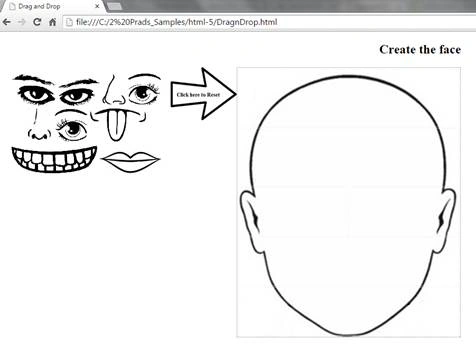
Earlier, we have used various third party libraries for implementing Drag and Drop functionality. So the problem of code management became difficult as code was not standard. But now with the introduction of HTML 5, a standard Drag and Drop API is introduced which helps us to achieve our functionality easily. Today, I would like to demo the Drag and Drop functionality with a small funny puzzle-like page. I will be creating a face puzzle wherein attaching the parts of the face like nose, eyes, and lips, create a face. To implement Drag and Drop functionality, steps to be followed.
- Set the source element (an element that you want to drag), draggable attribute to true.
- Handle onDrop event for the droppable container element.
- Handle onDragOver event because HTML container elements won’t allow anything to be dragged inside it.
- Execute & test it.
Let’s begin with our face puzzle implementation.
Step 1. Create a HTML page.
Create an HTML page with name DragDrop.html and copy the below CSS (Cascading Style Sheet) & HTML code.
HTML & Css Code
<html>
<head>
    <style>
        body {
            cursor: pointer;
            text-align: center;
        }
        .divdrag {
            position: relative;
            border: 0px solid rgba(0, 0, 0, .25);
            width: 300px;
            height: 300px;
            padding: 10px;
            float: left;
        }
        .face {
            background-image: url('face.jpg');
            background-repeat: no-repeat;
            width: 424px;
            height: 510px;
            border: 1px dotted grey;
            padding: 0;
        }
        .facetr td {
            text-align: center;
            border: 1px dotted #f7ecec;
        }
    </style>
</head>
<body>
    <h2>Create the face</h2>
    <div class="divdrag">
        <img src="eye1.png" alt="eye" draggable="true" id="eye1" ondragstart="drag(event)" />
        <img src="eye2.png" alt="eye" draggable="true" id="eye2" ondragstart="drag(event)" />
        <img src="nose2.png" alt="nose" draggable="true" id="nose2" ondragstart="drag(event)" />
        <img src="eye4.png" alt="eye" draggable="true" id="eye4" ondragstart="drag(event)" />
        <img src="nose1.png" alt="nose" draggable="true" id="nose1" ondragstart="drag(event)" />
        <img src="eye3.png" alt="eye" draggable="true" id="eye3" ondragstart="drag(event)" />
        <img src="smile1.png" alt="smile" draggable="true" id="smile1" ondragstart="drag(event)" />
        <img src="smile3.png" alt="smile" draggable="true" id="smile2" ondragstart="drag(event)" />
        <img src="smile2.png" alt="smile" draggable="true" id="smile3" ondragstart="drag(event)" />
    </div>
    <div style="float:left;">
        <a href="DragDrop.html" title="Click here to reset" style="text-decoration:none;">
            <img src="direction.png" width="125" height="100" onclick="" />
        </a>
    </div>
    <div id="div1" style="width:300px;height:300px;float:left;">
        <table class="face">
            <tr>
                <td colspan="2" style="width:100%;"> </td>
            </tr>
            <tr>
                <td colspan="2" style="width:100%;"> </td>
            </tr>
            <tr>
                <td id="eye" style="width:50%" ondrop="drop(event)" ondragover="allowDrop(event)"></td>
                <td id="eye" style="width:50%" ondrop="drop(event)" ondragover="allowDrop(event)"></td>
            </tr>
            <tr>
                <td id="nose" ondrop="drop(event)" ondragover="allowDrop(event)" colspan="2"></td>
            </tr>
            <tr>
                <td id="smile" ondrop="drop(event)" ondragover="allowDrop(event)" colspan="2"></td>
            </tr>
        </table>
    </div>
</body>
</html>
Output
Copy the JavaScript code as well.
JavaScript Code
function allowDrop(ev) {
    ev.preventDefault();
}

function drag(ev) {
    ev.dataTransfer.setData("text", ev.target.id);
}

function drop(ev) {
    ev.preventDefault();
    var data = ev.dataTransfer.getData("text");
    if (data.indexOf(ev.target.id) == -1) {
        ev.dataTransfer.clearData();
    } else {
        ev.target.appendChild(document.getElementById(data));
    }
}
Explanation
- I took all the image parts and dumped inside a div.
- Each image is set with attribute draggable=true & ondragstart event is implemented which will call drag() function. This function will set the dragged image id using setData() method.
ev.dataTransfer.setData("text", ev.target.id); - Take another div which is the face outline. This will act as a container to drop the dragged image. This div contains a table that specifies where you can drop the parts (Note: I had set the background image of the table).
- Where ever you wanted the dragged image to place, specify ondrop event on the destination element. I am calling drop() function. In this function, you will read the dragged image using getData() method.
Append the dragged image in the destination.var data = ev.dataTransfer.getData("text");ev.target.appendChild(document.getElementById(data)); - Now there is a small problem, you will still not be able to drop the face parts. The reason is, by default HTML container elements won’t allow anything to be dragged inside it. So to drop my fish, we must override the default behavior of that element. This could be done by calling ev.preventDefault() method. So I have attached onDragOver event to the destination element. I am calling allowDrop function.
- For Reset, I am calling the same page again to keep it simple as shown below,
<a href="DragDrop.html" title="Click here to reset" style="text-decoration:none;">
    <img src="direction.png" width="125" height="100" onclick="" />
</a>
Step 2. Execute & Test.
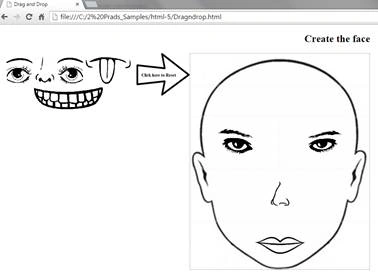
Drag the images from the list and try dropping on the right side face. Click on the arrow image if you wish to reset it.
Isn’t it simple and interesting? I hope you like it. Please share your comments and thoughts for this article whether it's good or bad. In the end, Sharing is valuable no matter what.
okok okokPosted Apr 7, 2021, 10:16 AM
Not working on mobile...
Manav PandyaPosted Mar 21, 2017, 2:06 PM
Good to know .............
SubashPosted Sep 16, 2016, 1:13 AM
Nice feature
Temidayo LongePosted Jul 8, 2016, 4:37 PM
Nice
Raja TPosted May 5, 2016, 3:38 AM
Nice, Thanks for sharing
Bhavik PatelPosted May 5, 2016, 12:24 AM
good share
Vignesh ManiPosted May 4, 2016, 4:24 PM
Nice
Thiruppathi RPosted May 4, 2016, 11:01 AM
Superb..
Debasis SahaPosted May 4, 2016, 10:19 AM
Nice One..
Pritam ZopePosted May 4, 2016, 8:59 AM
Nice........
Pankaj Kumar ChoudharyPosted May 4, 2016, 7:45 AM
+5 points for images.....
NitinPosted May 4, 2016, 7:36 AM
Thanks for sharing
Mohammed IbrahimPosted May 4, 2016, 6:39 AM
nice