

Introduction
In Microsoft Power Apps, a User Defined Function (UDF) allows you to create your own reusable formula that can be called multiple times within your app.
Instead of writing the same formula again and again, you define it once and reuse it anywhere in the app just like built-in functions (Sum, If, LookUp, etc.).
⚡ UDFs improve readability, reusability, and maintenance of your app.
✅ 1. What is a User Defined Function?
A User Defined Function (UDF) is a custom function you create using:
FunctionName(Parameter1: Type, Parameter2: Type): ReturnType = FormulaYou define it in the App → Formulas property.
👉 App → Formulas
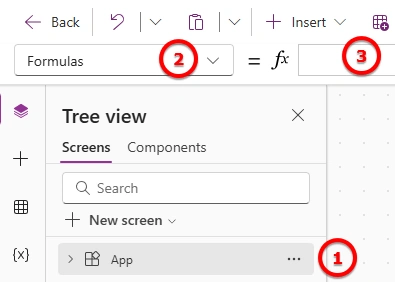
Steps:
Select App (top of the Tree view).
Go to the Formulas property in the formula bar.
Define your function there.
That’s the setting used to create and manage User Defined Functions in Power Apps.
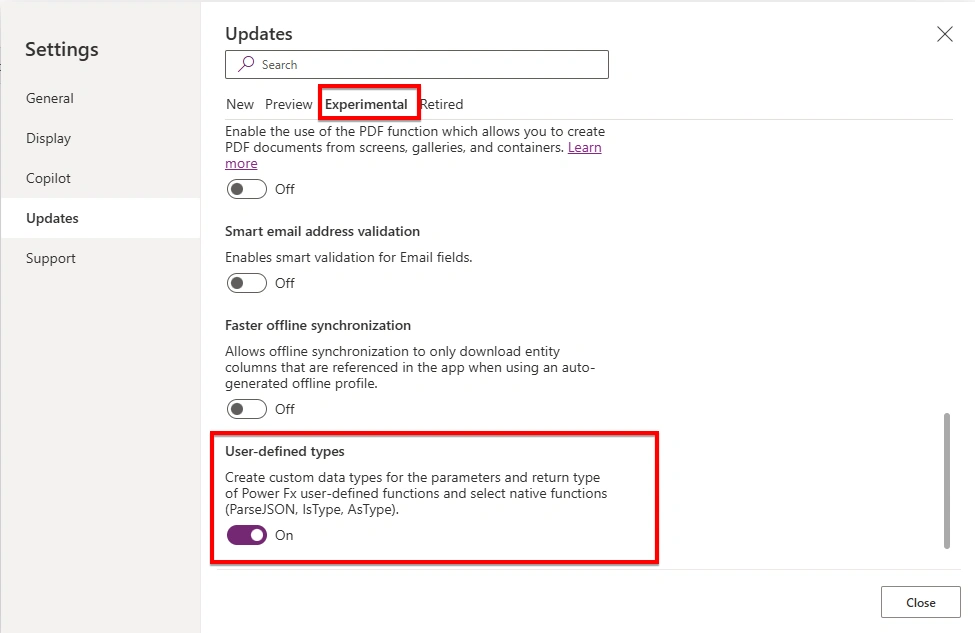
👉 App → Setting
Settting -> Updates -> Experimental -> User-define types : toggle turn ON
✅ 2. Simple Example (Beginner Level)
🎯 Scenario:
You want a reusable function to calculate a 10% discount price.
🔹 Step 1: Go to
App → Formulas
Add:
CalculateDiscount(Price: Number): Number =
    Price - (Price * 0.1)
🔹 Step 2: Use it anywhere
CalculateDiscount(200)👉 Result: 180
Now instead of writing:
Price - (Price * 0.1)You simply call:
CalculateDiscount(Price)Much cleaner ✅
✅ 3. Medium Example – Full Name Formatter
🎯 Scenario:
You want to format a user’s full name properly.
🔹 Define function
FormatFullName(FirstName: Text, LastName: Text): Text =
    Proper(FirstName) & " " & Proper(LastName)
🔹 Use it
FormatFullName("Ketan", "Sathavara")👉 Output: Ketan Sathavara
✅ 4. Long Real-World Example (Advanced Business Case)
🎯 Scenario
You’re building a Sales Management App.
You need to calculate commission based on sales amount and role.
💼 Commission Rules
| Role | Condition | Commission |
|---|---|---|
| Manager | Any | 15% |
| Senior | Sales > 10,000 | 12% |
| Senior | Sales ≤ 10,000 | 8% |
| Junior | Any | 5% |
🔹 Step 1: Create the Function
Go to App → Formulas
CalculateCommission(
    SalesAmount: Number,
    Role: Text
): Number =
Switch(
    Role,
    "Manager",
        SalesAmount * 0.15,
    "Senior",
        If(
            SalesAmount > 10000,
            SalesAmount * 0.12,
            SalesAmount * 0.08
        ),
    "Junior",
        SalesAmount * 0.05,
    0
)
🔹 Step 2: Use in Gallery Label
Assume your data source is SalesData.
Inside a label:
CalculateCommission(ThisItem.SalesAmount, ThisItem.Role)🔹 Step 3: Total Commission Example
Sum(
    SalesData,
    CalculateCommission(SalesAmount, Role)
)
Now your business logic is:
Centralized
Reusable
Easy to update
If commission rules change, you update one place only ✅
✅ 5. Even More Advanced Example (With Multiple Conditions)
🎯 Scenario
You want a function that:
Applies tax
Applies discount
Adds shipping
Returns final invoice total
CalculateInvoiceTotal(
    SubTotal: Number,
    DiscountPercent: Number,
    TaxPercent: Number,
    ShippingCost: Number
): Number =

With(
    {
        DiscountAmount: SubTotal * DiscountPercent,
        AfterDiscount: SubTotal - (SubTotal * DiscountPercent),
        TaxAmount: (SubTotal - (SubTotal * DiscountPercent)) * TaxPercent
    },
    AfterDiscount + TaxAmount + ShippingCost
)
🔹 Use it:
CalculateInvoiceTotal(1000, 0.1, 0.15, 50)✅ 6. Why UDF is Powerful in Large Apps
Without UDF ❌
Same formula repeated in 20 screens
Hard to maintain
Error-prone
With UDF ✅
One definition
Clean screens
Enterprise-level structure
Easy debugging
⚠️ Important Notes
UDFs are defined at App level
They support typed parameters (
Text,Number,Boolean, etc.)They improve performance by reducing duplicated logic
Currently supported in modern Power Apps formula language
🎯 When Should You Use UDF?
Use UDF when:
Logic is repeated 3+ times
Business rules may change
Calculations are complex
You want professional-level app architecture
🔹 Difference: UDF vs Variables
| UDF | Variable |
|---|---|
| Reusable logic | Stores value |
| Can accept parameters | Cannot accept parameters |
| Dynamic calculation | Static until changed |
🔹 Important Notes
UDFs are created using Named Formulas
They are declarative (auto-update when inputs change)
They must return ONE value
You can define variable types (Number, Text, Boolean, Record, Table)
They do not use
Set()orUpdateContext()
Conclusion
A User Defined Function (UDF) in Power Apps:
Is created using Named Formulas
Accepts parameters
Returns a value
Makes apps cleaner and scalable
Join the conversation! Your thoughts help the community grow.