

Introduction
In this article, you will see how to create an app from a template and use Timer Control in PowerApps. Refer to getting started with PowerApps and Flow for more details.
Here, I am going to create an app using ”Employee Engagement Survey” template and set 30 second durations using Timer Control for each question. After 30 seconds, you will be automatically redirected or moved on to the next question.
Create an app from a template
In this section, you will see how to create an app from a template.
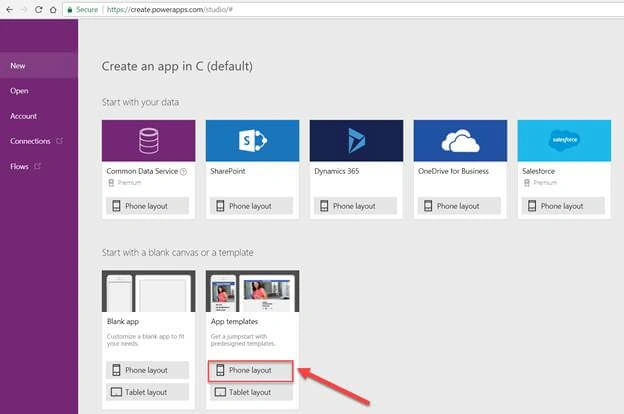
- Open PowerApps studio for the web in a browser.
- Select Phone layout from App templates.
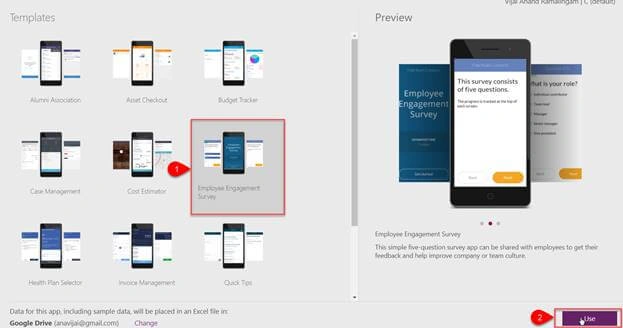
- Select Employee Engagement Survey template and then click "Use".
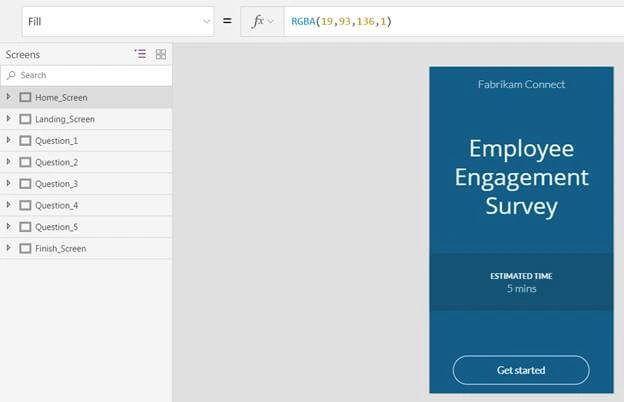
- The app is finally created successfully from a template.
Add and Configure Timer Control:
In this section, you will see how to add and configure Timer Control.
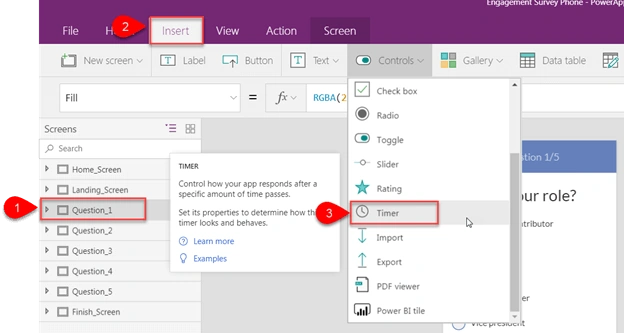
- Select Question_1, click Insert tab, and then select Timer from Controls.
- Similarly, add a Label to Question_1.
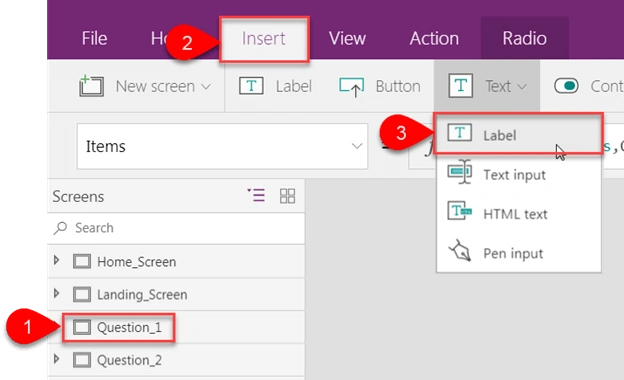
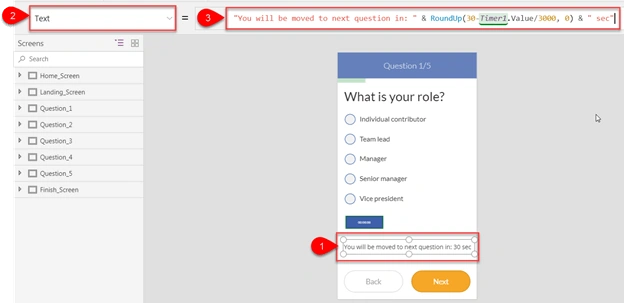
- Select Label and update the Text property with - “You will be moved to next question in: " & RoundUp(30-Timer1.Value/1000, 0) & " sec".
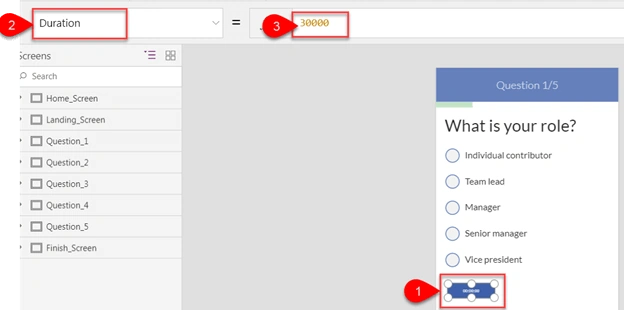
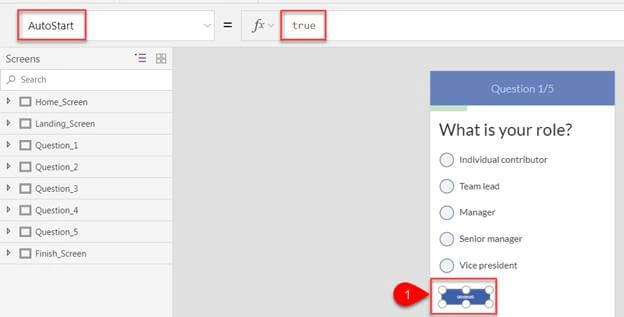
- Select Timer Control and set the Duration property to 3000 and AutoStart property to true.
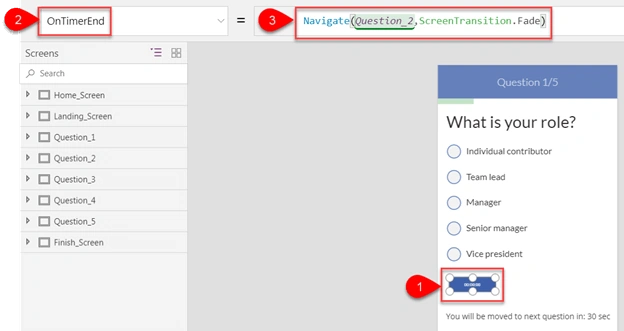
- Select Timer Control, select OnTimerEnd, and Enter “Navigate(Question_2, ScreenTransition.Fade)” in the formula bar.
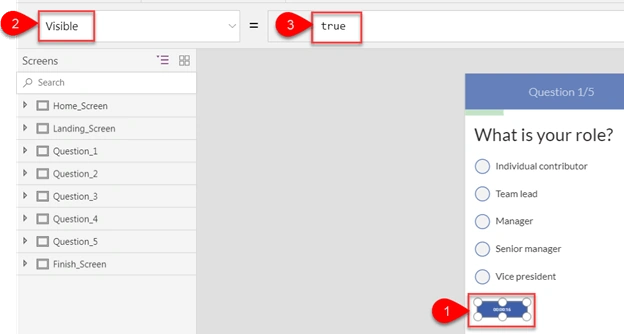
- Select Timer Control and set the Visible property to false.
- Repeat the above steps for other questions.
Testing the app
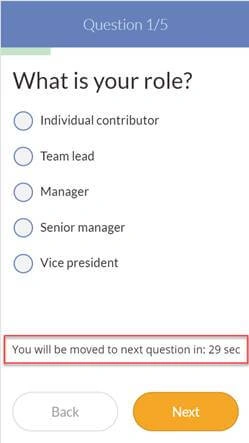
- Hit F5 and go to Question 1 screen. After 30 seconds, you will be automatically redirected or moved to the next question.
Reference
https://powerapps.microsoft.com/en-us/tutorials/control-timer/
Result
Thus, in this article, you saw how to create an app from a template and use Timer Control in PowerApps.
Marimuthukumar MadhimannanPosted Feb 9, 2018, 7:52 AM
Thanks for this useful article. I need one help here. I am trying to update the answers given by the users in a Separate Excel sheet uploaded in my OneDrive folder. But I am unable to achieve this. I have connected the data source to my excel sheet, but when I preview/Play my App, it says "No Item to Display".